WHAT IS IT?
When using Tekmetric Marketing, you can now set up automatic confirmation and reminder messages via email or SMS text messaging for appointments made online using Tekmetric Online Booking or in-app within Tekmetric. These messages are shown to increase customer satisfaction, reduce no-shows, and improve shop efficiency.
HOW DOES IT WORK?
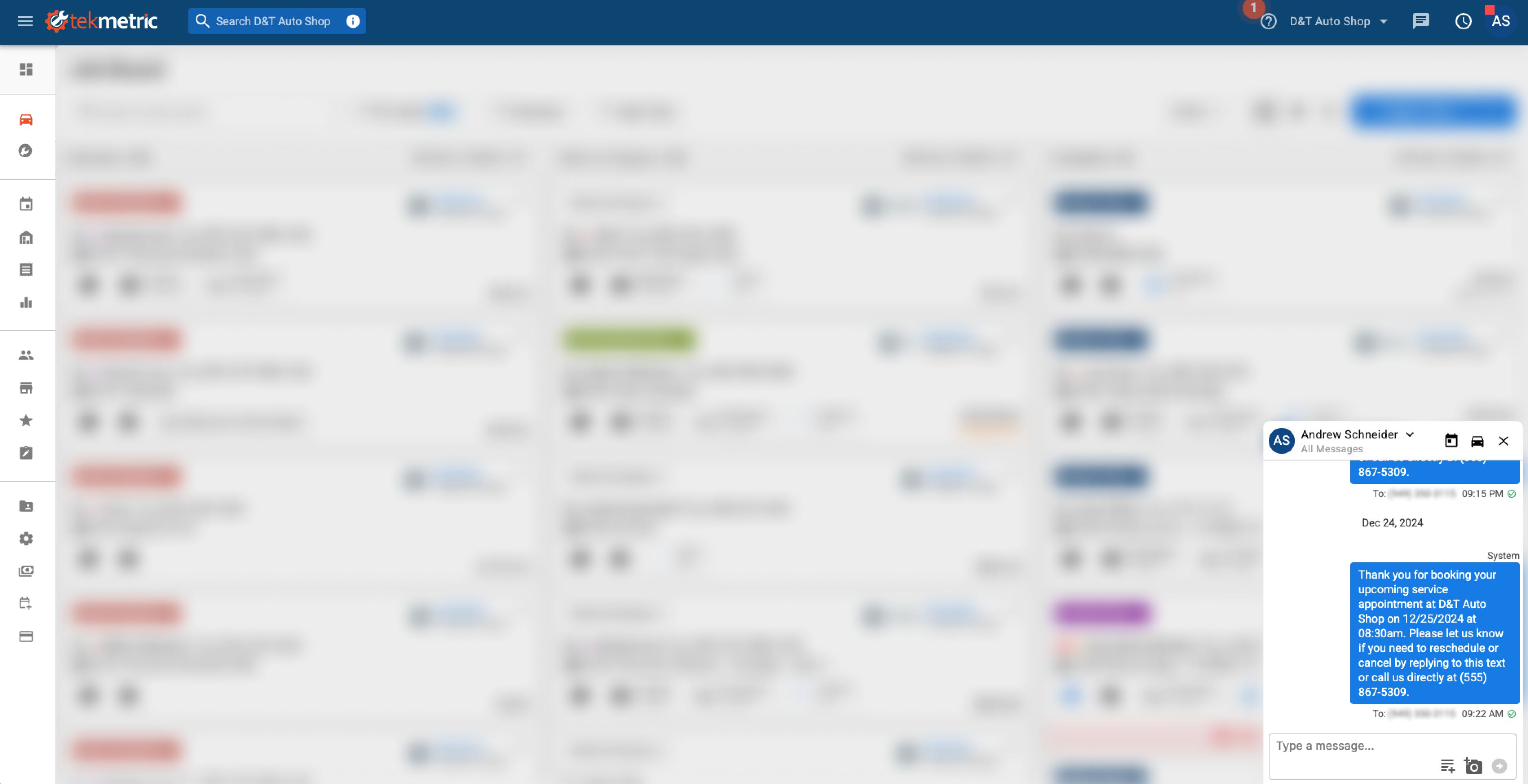
When your customer books an appointment, they will immediately receive a confirmation message with the details of their appointment. Text messages will be shown in the Tekmessage thread for the customer, keeping all communications with the customer in a single thread. You can also customize the text, and the delay, of reminder messages as well.
EDITING YOUR MESSAGES
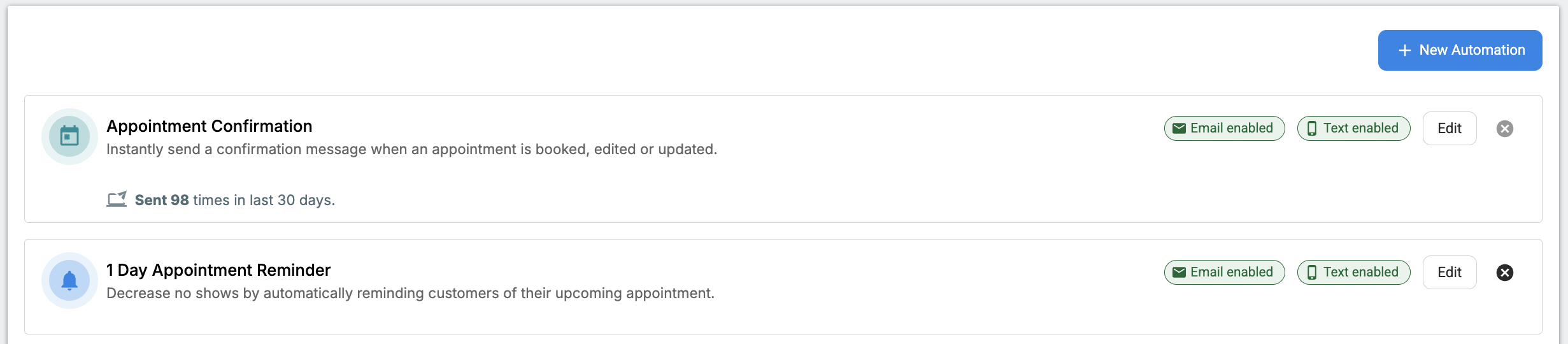
Within the 'Automations' tab of Tekmetric Marketing, you can now edit the appointment confirmation and reminder messages sent to your customers.
To begin, select 'Setup' to open the editing modal. From here you'll be able to edit the text of both the SMS text messages and email messages to suit your shop's brand and personalize the message using personalization variables. The available personalizations are listed below:
First Name
First Name & Last Name
Vehicle Make & Model
Vehicle Make, Model & Year
Appointment Date & Time (formatted as MM/DD/YYYY HH:MM AM/PM)
Appointment Date (formatted as MM/DD/YYYY)
Appointment Time (formatted as HH:MM AM/PM)
Shop Name (derived from Shop Settings>Shop Name)
Shop Phone Number (derived from Shop Settings>Business Phone)
For Reminder messages, you'll be able to choose when the message is sent, using the 'Send reminder before appointment' setting.
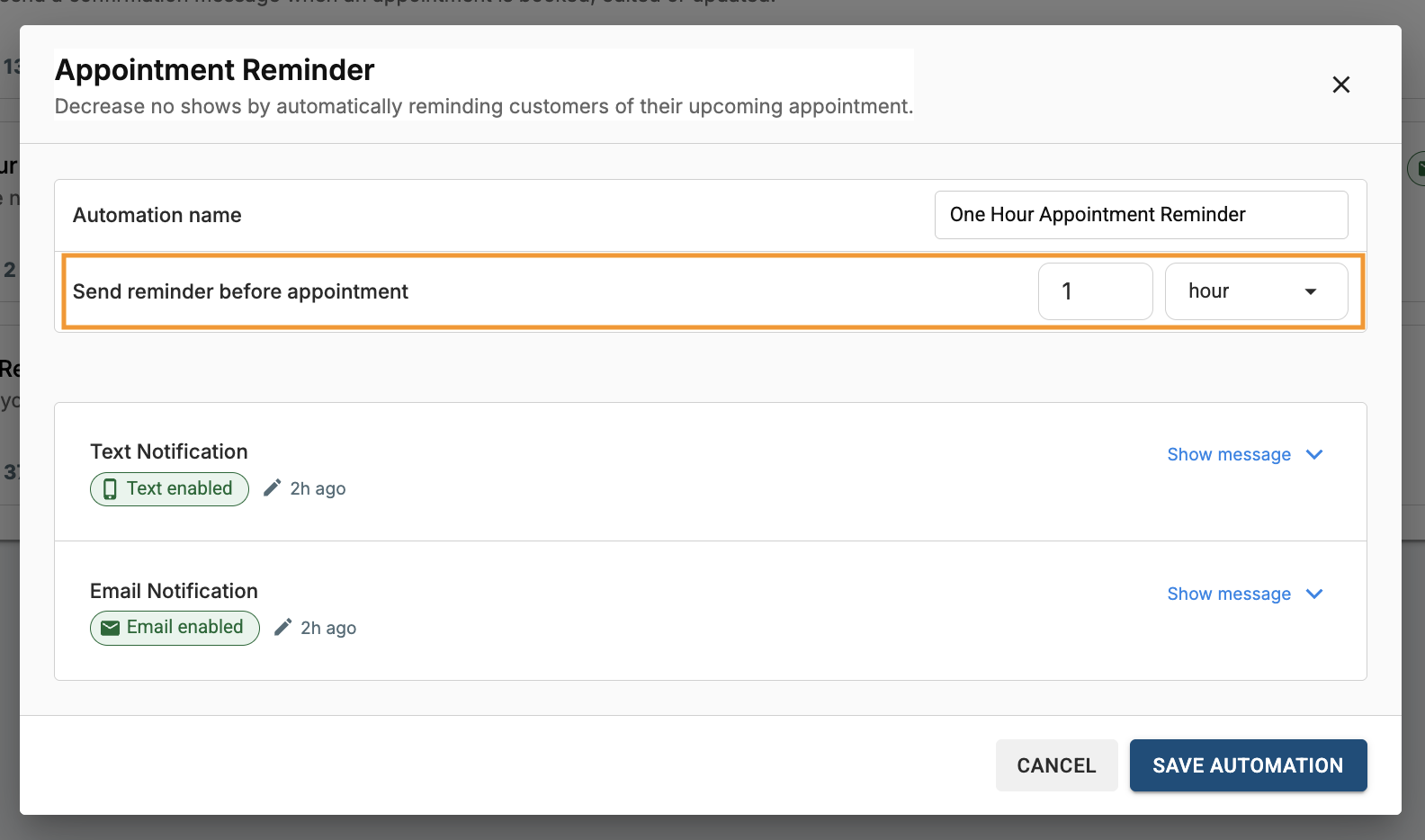
To completely turn off any automation, toggle off both delivery methods in the 'Edit' screen. Note that this will disable appointments made online and also within the app from receiving notifications.
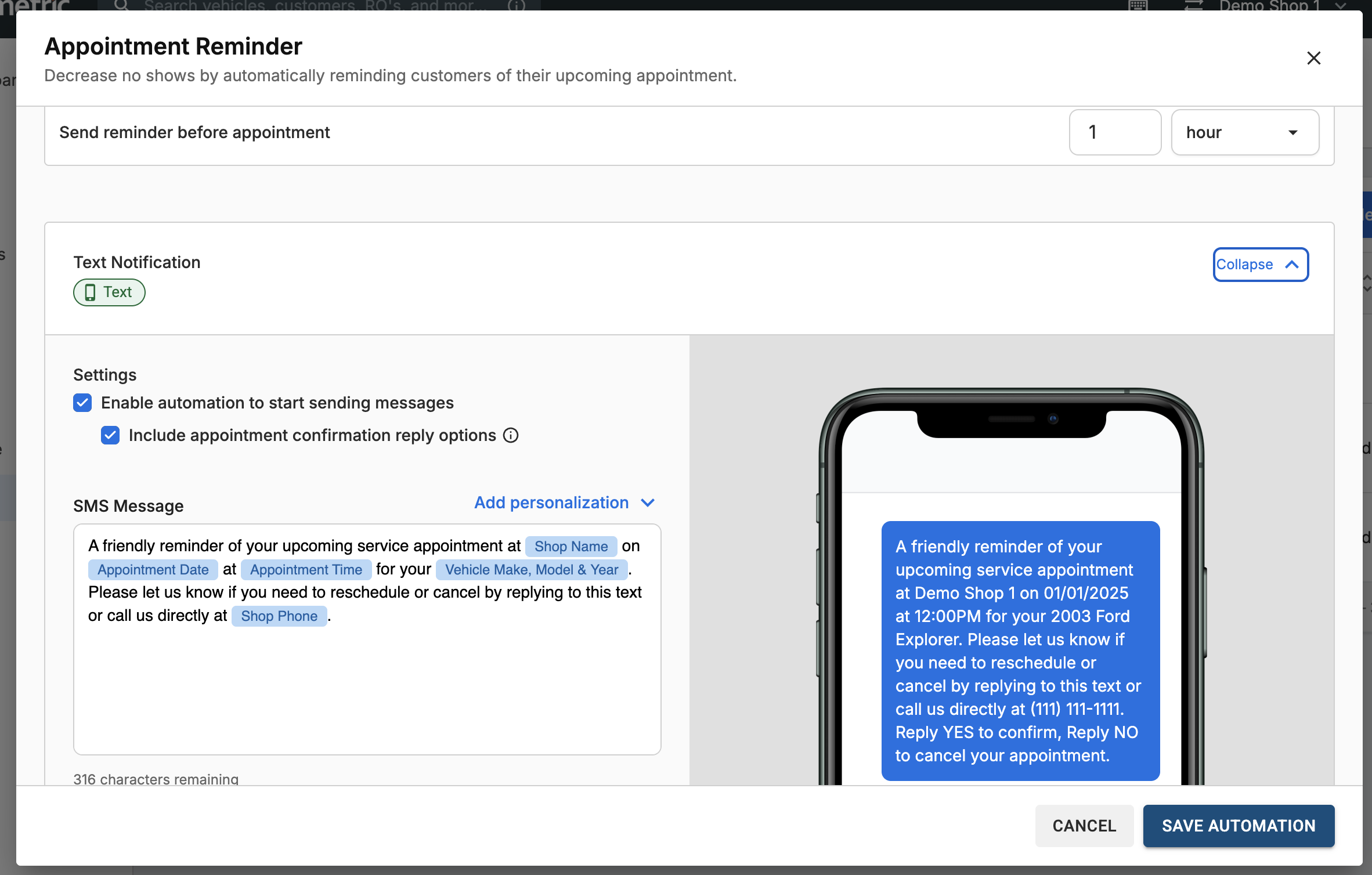
Reminder messages can be customized to be sent whenever you like. We recommend setting up at least one 24-hour reminder message to reduce no-shows.
How customer can cancel or confirm their appointment via text:
By selecting "Include appointment confirmation reply options" you are adding the ability for your customers to confirm/cancel their appointment via text. So when a customer gets their appointment reminder they confirm their appointment by replying "Yes". Alternatively they can cancel their appointment by replying "No" to your text.
These changes will be reflected on your appointments calendar. Any other message responses will appear in your Tekmessage thread as normal.
If there are multiple appointments for a customer, then the nearest appointment will be impacted.
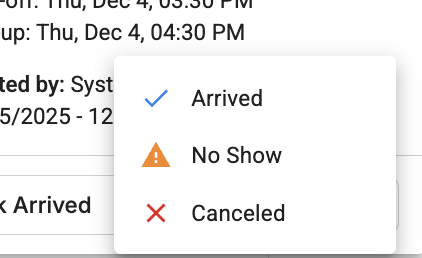
Appointment Reminders will not be sent for any appointments marked as 'Arrived' or 'Canceled' using the appointment status.
Messaging for Appointments Made Inside Tekmetric
When making appointments inside of Tekmetric, you'll see the below options, allowing you to choose whether or not to send an appointment confirmation or reminder for each appointment made.
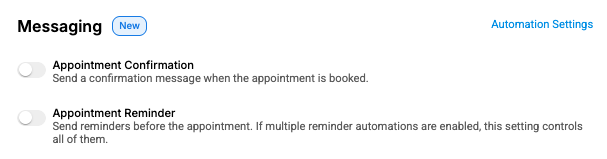
Turn these toggles on to set the confirmation and/or reminder for the appointment you're working on. The default setting will match the settings within your 'Automations' tab inside of Marketing. If they're on, they'll be on here.
We recommend turning off confirmations and reminders for follow-up work, or when adding appointments to your schedule when you already have the car at your shop.
**Important note: When turning on the Reminders automation for the first time, existing appointments will not have reminders automatically enabled.**
Quiet Hours and TCPA Compliance
All reminder messages sent will adhere to TCPA quiet hours and be sent between 9AM-8PM, based on your shop's timezone. This applies to every day of the week, including weekends.
How reminder timing works:
- Reminders are calculated backward from your appointment's actual start time, based on your automation setup
- For example, a "1 day before" reminder for an 8:00 AM appointment will be sent at 9:00 AM the day prior
- If a reminder would fall outside quiet hours (before 9AM or after 8PM), it will be sent at the nearest compliant time instead
Note for all-day or multi-day appointments: If an appointment has a start time set as 12:00 AM, reminders will use 12:00 AM to calculate when to send the reminder. Since this falls outside quiet hours, the reminder will automatically adjust to send at 8:00 PM the previous day instead, keeping your communications compliant and customer-friendly.
Example: If you have a 1-day appointment reminder, any all day appointments or multi-day appointments will send out appointment reminders at 8:00PM 2 days in advance. If the appointment is booked for Friday, the customer will receive the reminder on Wednesday at 8:00PM.
Troubleshooting Message Send Times
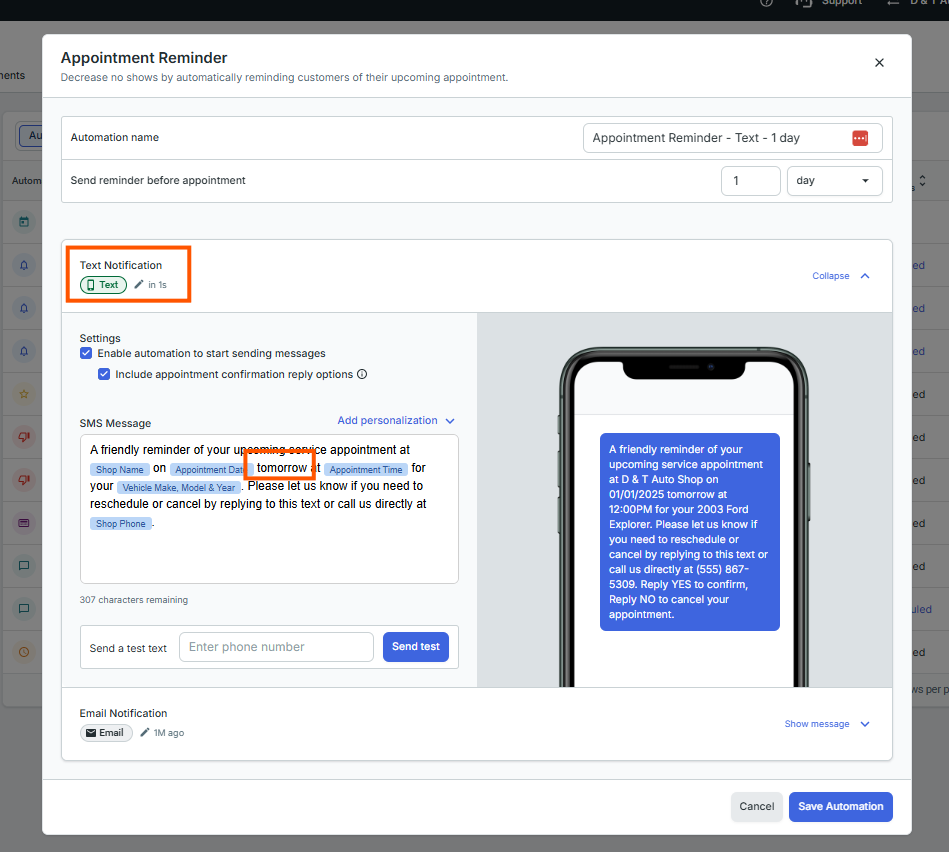
Text messages say "tomorrow" for the customer's appointment, but they recieved the text 1 day early before their appointment slot?
This is caused because many shops edit their text template for their "Appointment Reminder - 1 Day" automation, with the text template containing the word "tomorrow" in it. Because of the Quiet Hours and TCPA Compliance, texts do not always go out exactly 24 hours before the customer's appointment. This is why we generally don't recommend shops use 'tomorrow' or "Wednesday, Friday, etc." in their reminders. When appointment reminders get pushed to a different date, it ends up incorrect. It's much better to use the blue "Appointment Time" tag by itself in the message template.
How to Fix It: Go to your Marketing area > Automations tab at the top > click the edit pencil on the "Appointment Reminder - 1 Day" reminder > click "Show message" for the text template > remove the word "tomorrow" > Save.