In addition to the Job Board, Tekmetric Mobile App users can access the My Work screen — a personalized view that shows only the incomplete Inspections and Jobs assigned to you.
This screen helps you focus on what to do next, without sorting through the full shop workload.
Where to Find
From the main Jobs section in the mobile app, you’ll now see a toggle at the top of the screen to switch between:
How It Works
When you’re assigned to an Inspection or Job, the associated Repair Order (RO) will appear in your My Work screen, along with key details at a glance:
RO Header includes:
- Vehicle Year, Make, and Model
- Repair Order Label & Number
- Vehicle Color
- Customer Name (First & Last)
- Key Tag
- Promised Time Out
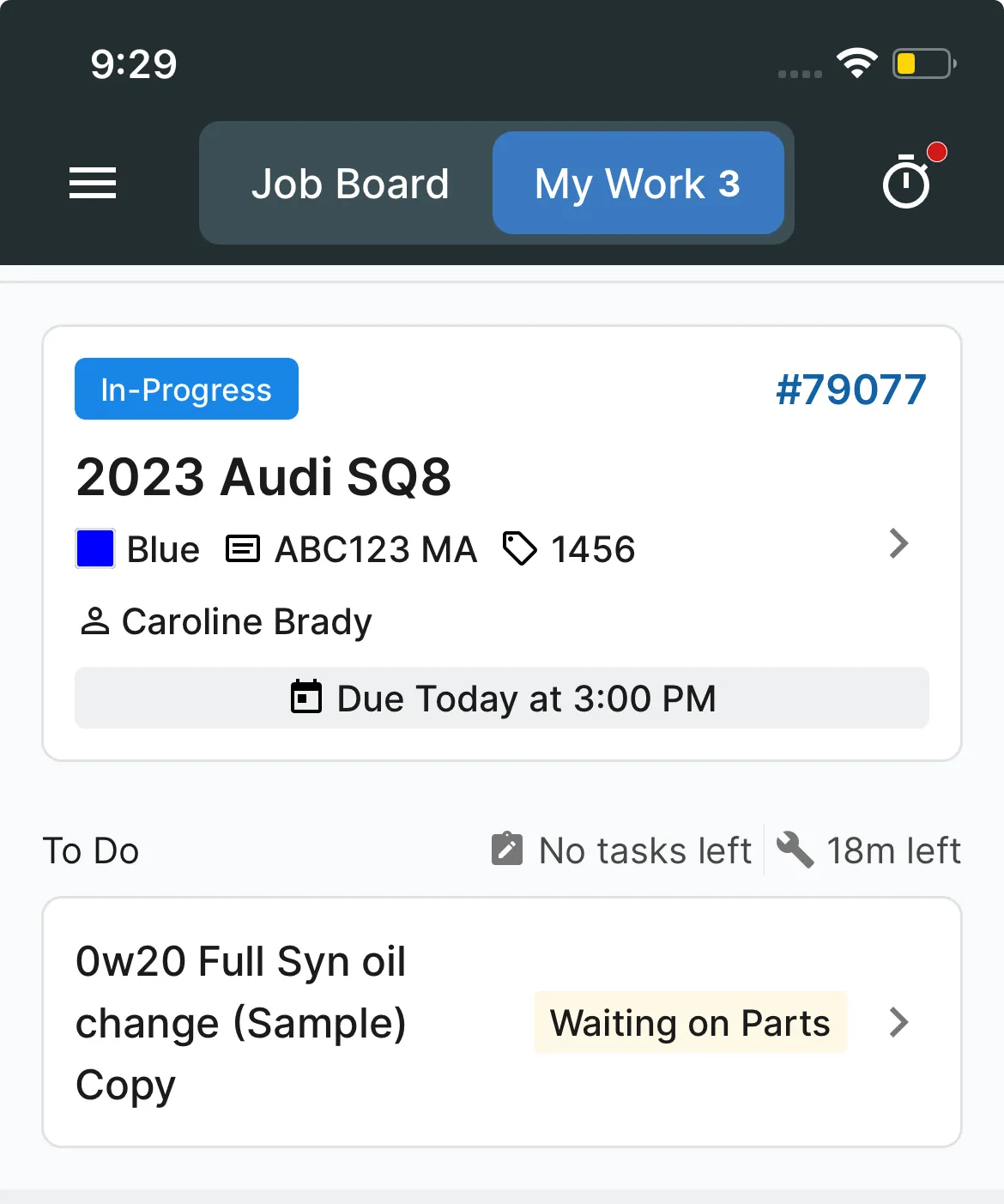
Below the RO header, you’ll see the work that’s been assigned to you:
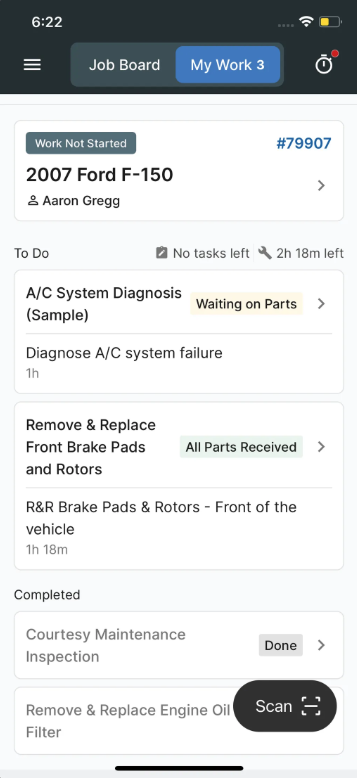
- The To Do section shows any incomplete Inspections or Jobs.
- Once you complete work, it will automatically move to the Completed section at the bottom of that RO.
The My Work screen also gives you visibility into whether each job has all the parts needed to begin work.
For every individual Job line, you’ll see one of the following status indicators:
-
All Parts Received – All required parts are either in Inventory or have already been received.
-
Waiting on Parts – One or more parts are still on order and haven’t been received yet.
This allows you to quickly assess whether you can start the job—or if you’re waiting on parts—without needing to dig into other screens.
Interacting with the My Work Screen
You have two ways to navigate from the My Work screen:
-
Tap the RO Header to open the full Repair Order.
-
Tap a specific Inspection or Job to jump directly into that task within the RO.
This gives you quick access to exactly what you need—whether you want to review the whole order or dive straight into your next job.
Sorting Behavior
-
If your shop uses the Tech Board:
ROs will appear in the same order as shown on the Tech Board.
-
If your shop does not use the Tech Board:
ROs will be sorted by Repair Order Number
Customization Options
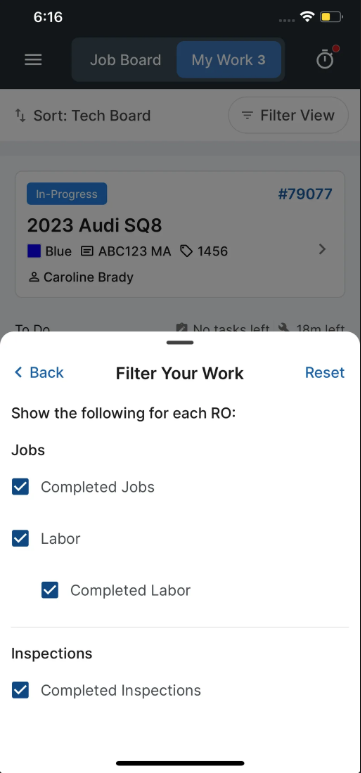
From within the My Work screen, you can adjust what details are visible for each RO (Select “Filter View” at the top of the My Work screen):
-
Completed Jobs: Toggle on/off to show or hide jobs you’ve already completed.
-
Labor Details: Toggle on/off to view labor time and description for each job.
-
Completed Inspections: Toggle on/off to show or hide inspections you’ve finished.
These toggles help streamline your view so you can focus on what matters most.
Download the Tekmetric Mobile App from the Apple App Store or Google Play.