What is it?
Tekmetric Campaigns help your shop drive customer engagement through targeted one-time marketing messages—without complicating your day-to-day operations. Whether you’re promoting seasonal discounts, announcing new services, or reconnecting with customers you haven’t seen in a while, Tekmetric’s Marketing Campaigns let you send effective, personalized text or emails that bring customers back to your shop. Just select your segment, write your message, and schedule the send—Tekmetric handles the delivery so you can focus on what matters most.
Table of Contents
• What is a Campaign?
• How to Create a Campaign
• Audience Segments
• Sending Limits
• Campaign Content & Personalization
• Adding a Call to Action
• Sending & Scheduling
• Promotional Texting Setup
• Campaign Performance Analytics
• Frequently Asked Questions
• Video
What is a Marketing Campaign?
Campaigns are one-time marketing messages you can send to a specific group of customers to promote your shop’s services, share updates, or re-engage previous visitors. Unlike automations, which run continuously in the background, Campaigns are manually built and sent based on your goals and schedule.
Campaigns are great for:
• Seasonal promotions (e.g., Winter Tire Packages, Summer AC Checks)
• Shop announcements (e.g., holiday hours, grand openings)
• Special service discounts
• Holiday greetings
• Newsletters
• Urgent shop updates
Recommended Campaigns
Not sure what to send—or who to send it to? Recommended Campaigns take the guesswork out of marketing. Tekmetric automatically builds a fresh set of ready-to-send campaigns for your shop, complete with a suggested audience and pre-written message. You just review, make any tweaks you'd like, and send.
Recommendations are built from your shop's own Tekmetric data—your customer segments, the campaigns you've sent before, and your location and the time of year—so each one is relevant to your customers and your business.
*Note that sometimes the recommended campaign will select a segment that's too large to send via text or email. You can always choose to use a different segment, or edit the selected segment using time or other filters to create a new, unique segment for the recommended campaign.
Recommended Campaigns appear in two places:
At the top of your Campaigns page, as pinned recommendations above your existing campaigns.
On your Marketing Dashboard, as cards highlighting campaigns ready to send.
Because a recommended campaign becomes a regular campaign once you send it, all the usual rules apply—sending limits, per-customer message limits, and performance tracking all work exactly the same way.
How to Create a Campaign
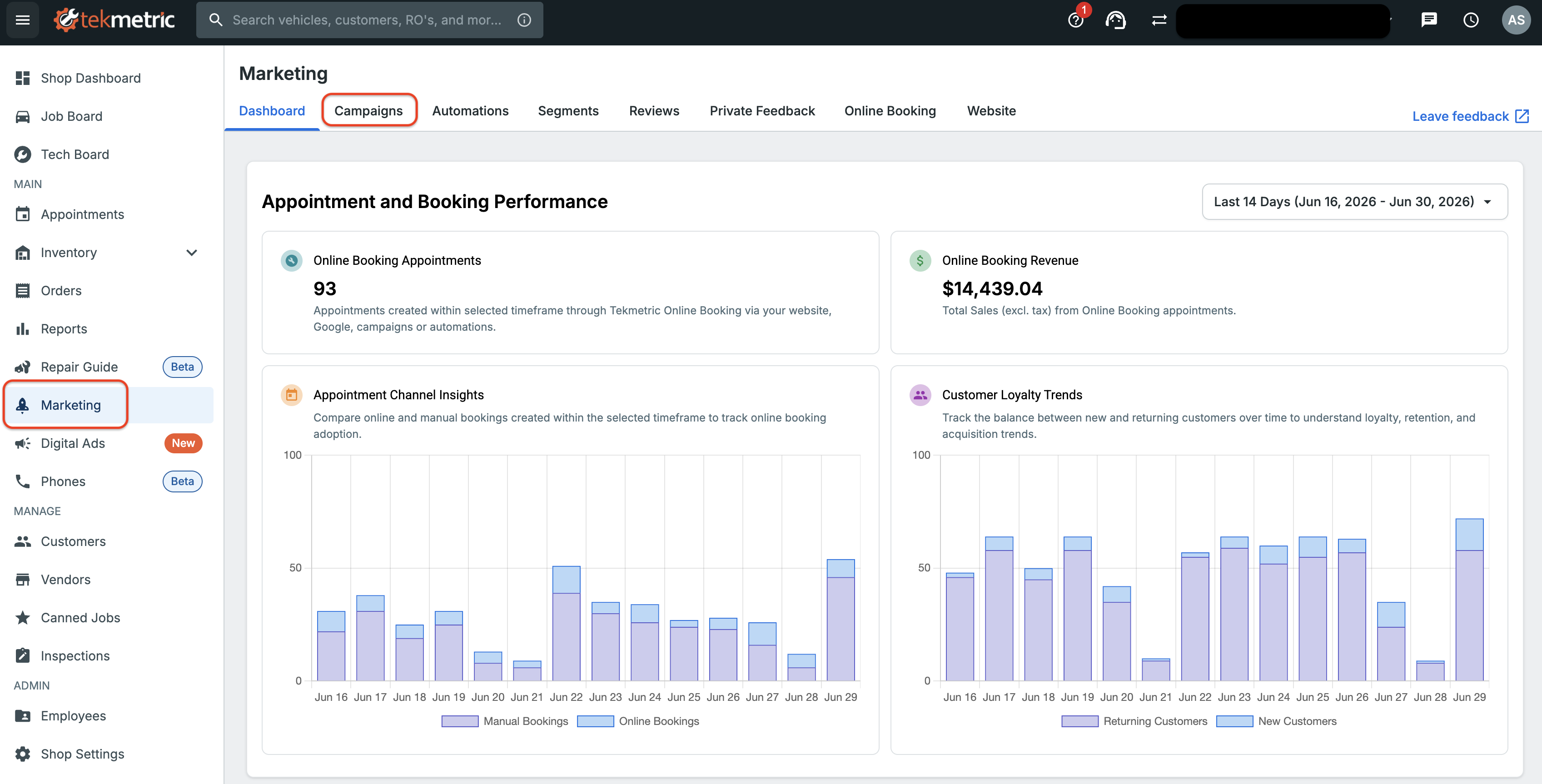
1. Navigate to Marketing in the left-hand menu -> Campaigns on the to nav bar.
2. Click + New Campaign.
3. Start creating your campaign
4. In the Message Content screen:
• Enter a Campaign Name (internal only, customers won't see this).
• Write a compelling Subject Line for your customers.
• Add a Body message.
• [Optional] Include personalization tags like shop name or customer name.
5. Add a Call-to-Action that links directly to your Online Booking or your Website.
6. Test your campaign by entering your email/phone number and clicking "Send Test". 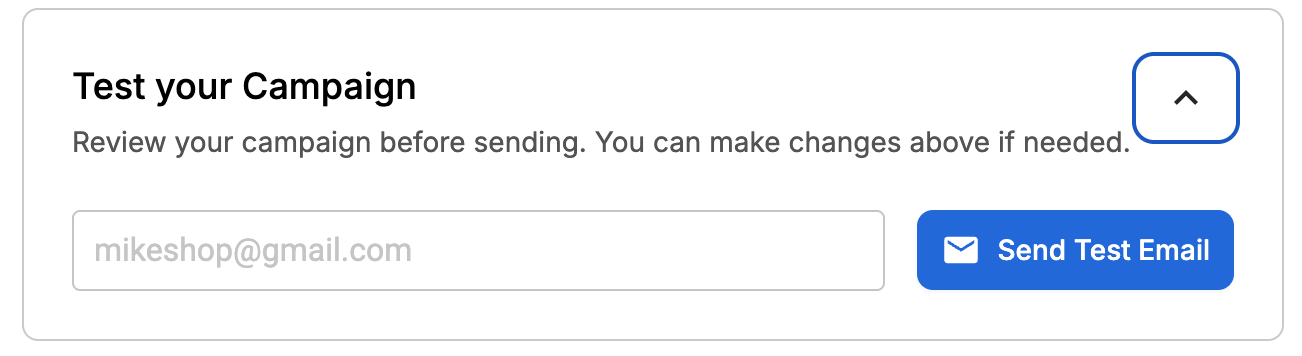
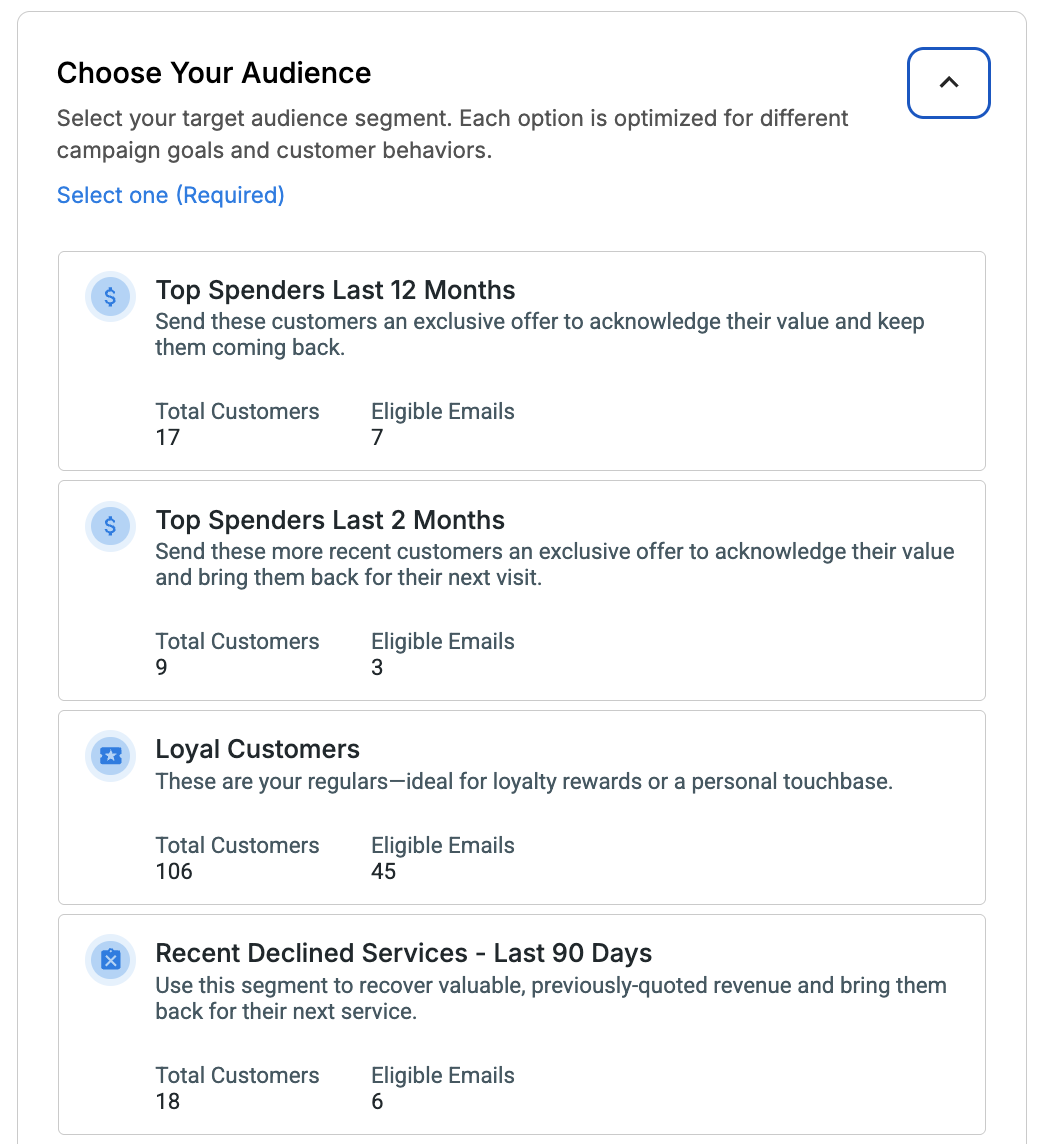
7. Choose your audience by selecting one of the pre-made segments. You can choose a pre-built segment or one you build yourself with the custom segment editor.
8. Schedule your message by selecting "Schedule Send" in the bottom-right corner of the page. You must select a date at least 5 minutes in the future. Once a message is scheduled to go out, you can delete or edit it until the time it is sent. Once the campaign has reached the scheduled send time - it can no longer be edited or deleted.
Audience Segments
Target the right people with the right message by selecting a pre-built or custom audience segment. Tekmetric will automatically display how many eligible emails and phone numbers are in each segment. Audience segments are dynamic, and will continue to add/remove customers that do or do not fall into the segment until the time of send.
Sending Limits
Campaign Size Limits
To maintain high email deliverability and protect your campaigns from being marked as spam, Tekmetric Marketing has the following send limits per campaign:
- Email campaigns: Limited to 5,000 email addresses per campaign
- Text campaigns: Limited to 2,000 phone numbers per campaign
When creating a campaign, if your selected segment contains more than these limits, you'll need to choose a different segment with fewer eligible recipients. These limits apply to the number of eligible recipients—that is, customers who can actually receive your message on that channel (have valid contact info, are opted in, etc.).
Important note about text campaigns: Only customers who meet all of the following criteria will be eligible to receive promotional text messages, such as Campaigns or Marketing Automations:
- Marked as "Market to Customer" in Tekmetric on their customer profile
- Are marked as 'Subscribed' for their primary phone number (click 'Edit' on customer profile to view)

- Have a valid phone number
Note that 'Marketing SMS (Subscribed)' and associated statuses are only applicable to marketing messages such as Campaigns and Marketing Automations (excluding Appointment Confirmations and Reminders.) Customers that have Unsubscribed or Not Subscribed to Marketing SMS are still eligible to receive RO related communications such as DVIs, estimates and invoices.
Per-Customer Message Limits
To protect the customer experience and avoid message fatigue, we use a message hierarchy and enforce strict per-customer messaging limits. Messages are prioritized in this order:
- Transactional messages (e.g., confirmations) always send and have the highest priority.
- Campaign blasts (manual promotions) send if limits allow but won't be rescheduled if blocked as they are often time sensitive.
- Automated marketing messages (e.g., follow-ups or reminders) have the lowest priority and will be rescheduled or adjusted if necessary.
- If messaging limits will be broken, we first postpone the message 2 days, then if the limits are still being broken we postpone another 4 days, up to 3 times. If after 3 postponed times, the limits are still broken, we stop attempting to send the message.
We also apply the following per-customer limits:
- SMS: Max 1 marketing SMS per day and 2 per 7-day rolling period
- Email: Max 2 marketing emails per 30-day rolling period
- *Note that these limits are applied on a per-phone number and per-email basis. Appointment Confirmations, Appointment Reminders, and Review Request are considered Transactional messages and not considered in the above limits.
This system ensures customers receive timely, relevant messages without being overwhelmed.
Campaign Content & Personalization
You can personalize both the subject line and the body of your campaign using variables:
• Shop Name
• Customer First Name
• Customer First and Last Name
This allows you to create messages that feel more relevant and personal.
The email message body also includes a rich text editor so you can shape your message to look the way you want. From the editor toolbar, you can:
-
Bold, italicize, and underline text
- Add bulleted and numbered lists
- Adjust text size
- Align text left, center, or right
- Change text color
Use formatting to highlight key offers, break up longer messages, and make your campaigns easier for customers to scan.
Adding Custom Links
Custom Links let you drive customers to the exact page that matches your message — your booking page, a Google review link, a promotion page, a partner app, your social profiles, or anywhere else you want to send them. This goes beyond the Call to Action button (which is great for one primary action) and lets you include multiple links anywhere in the body of your email.
There are two ways to add a link in the email editor:
-
Hyperlinked text: Highlight any text in your message, click the link button in the toolbar, and enter the URL. Customers see your styled text as a clickable link.
-
Pasted URL: Paste a full URL directly into the message body. It will appear as a clickable link in the delivered email.
Note: To protect your shop's sending reputation and keep customers safe, Custom Links only work with verified websites. This includes your shop's own website (pulled from Shop Settings) and a curated list of trusted destinations — major social media platforms, review and listing sites, scheduling and booking tools, surveys and forms, content platforms, file sharing services, integration partner apps, and major automotive websites.
If you paste a link that isn't supported yet, you'll see an inline error when you save or schedule your campaign. Chat with our Support team to request a new website be added — our team can review and approve most requests quickly.
Custom Links are available in email campaigns only.
Adding a Call to Action
Every Campaign should include a Call to Action (CTA)—a clickable button that drives customers to take the next step.
You can choose between:
• Online Booking (auto-filled with your shop’s booking link)
• Website (auto-filled with your site’s URL)
Customize the button label (e.g., “Schedule Now”, “Visit Website”). The CTA appears in your message preview and encourages customer engagement. When a customer books an appointment using this link, the marketing source will automatically be linked to this campaign in your RO Marketing Source reporting.
Sending & Scheduling
Once your campaign is ready:
• Choose whether to Save as Draft or Schedule Send for a future date and time.
• Use the Test Email feature to preview what customers will receive.
• Click Schedule Send to launch your campaign or Save as Draft to finish later.
Heads Up: Campaigns that are sent will become read-only in the dashboard. You can still view all details, but edits are disabled once the message has gone out.
Promotional Texting Setup
Whether you already have Tekmessage set up or not, you will need to register for promotional messaging. This is so that you can send all your messages from the same phone number! Whether you are sending an estimate to a customer, an appointment confirmation text, or a marketing campaign, all these texts will come from the same number. Do not worry, if a customer opts out of promotional messages, you will still be able to send them transactional text messages, and have two-way texting conversations with them as normal - and they will not receive any more marketing texts.
In order to accomplish this, you will need to register your Tekmessage to be able to send promotional text messages. You can do this by going to your Marketing Dashboard and select the button that says "Set Up Tekmessage".
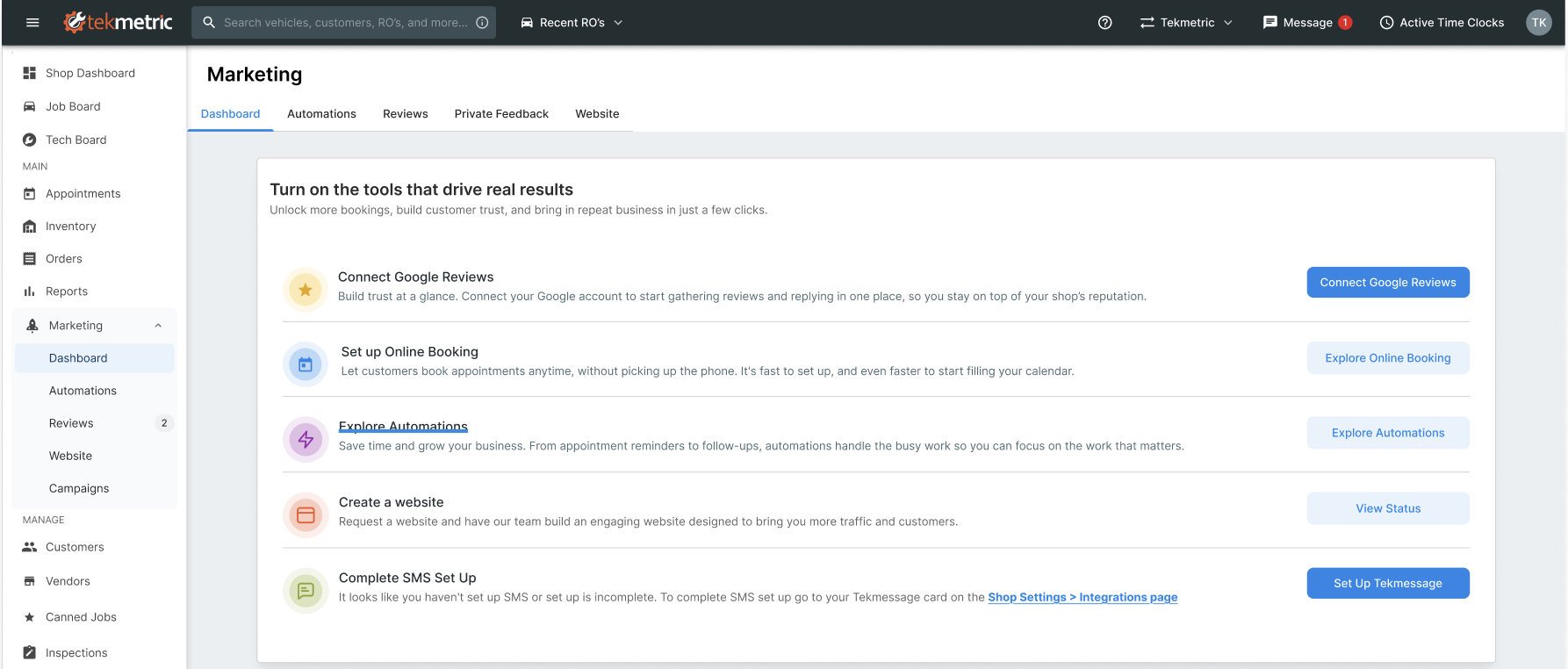
You will still be able to send Transactional texts during this time, and the process usually takes only a few minutes. Please be aware that in some instances this process can take up to a few days to be completed, in which case you will have to wait until completion to begin sending promotional text messages.
Campaign Performance Analytics
You can view the performance of your marketing campaigns by clicking on 'View Report' on the Campaigns Dashboard.
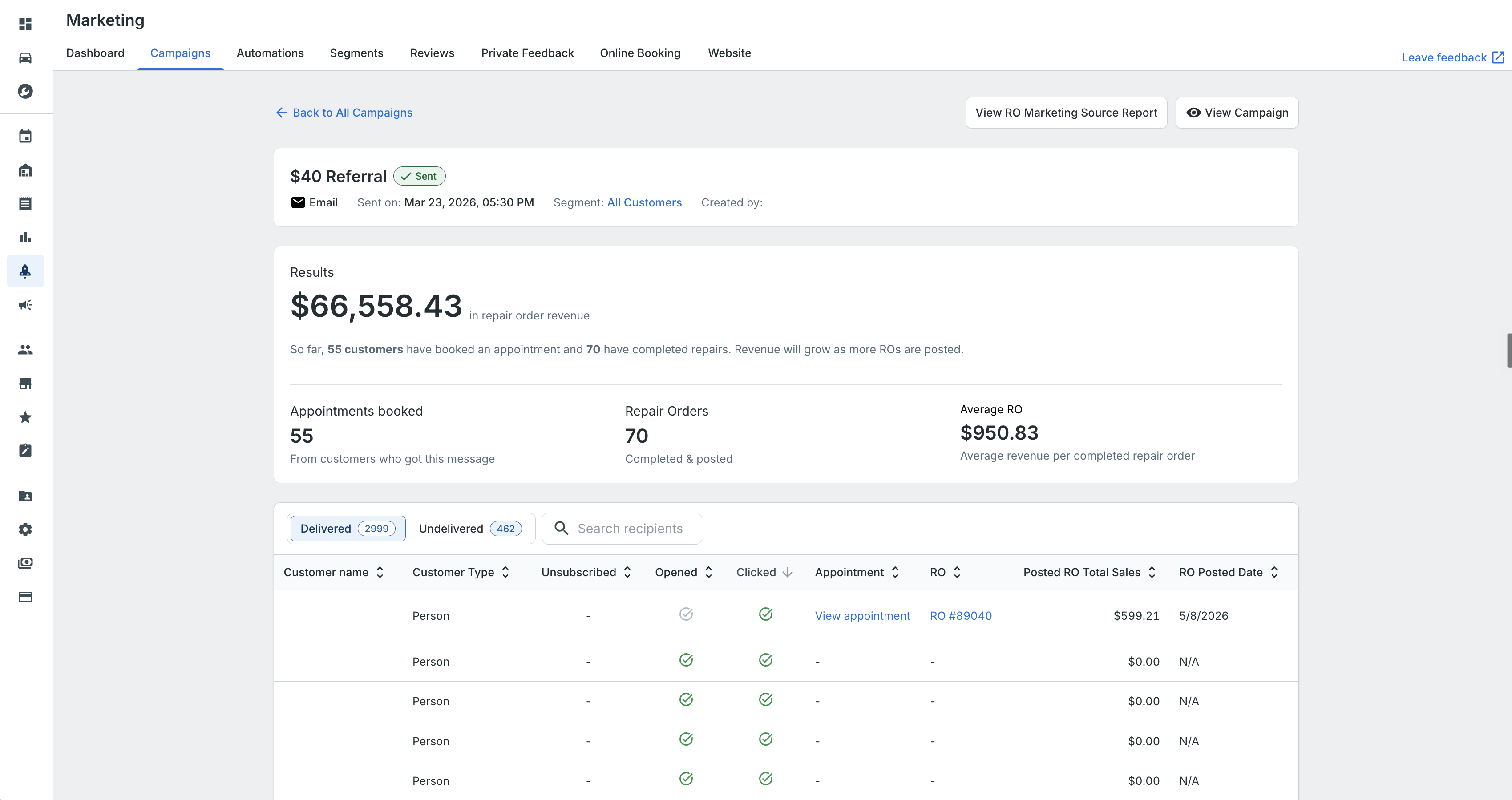
Messages sent are split into 'Delivered' and 'Undelivered' tabs. On the Delivered tab you'll find details of each recipient who received the campaign and specific conversion details, if applicable. The Undelivered tab will provide insight into why each customer did not receive a campaign.
Delivered tab details:
-
Unsubscribed: This indicates if a customer that received this campaign unsubscribed from your marketing messages after receiving this campaign. They'll still be able to receive transactional messages, but will no longer receive marketing emails or texts.
-
Opened: Shows a green-check if the customer opened your marketing email. SMS campaigns do not register an 'open'. Tekmetric excludes bots from email opens, attempting to only show opens estimated be made by a human, giving you a more reliable performance data.
-
Clicked: Shows a green click if the Call-To-Action or Link inside your marketing campaign has received from recipients. Note that for SMS campaigns, we only track 'Clicks' for the Online Booking CTA. Any other website or destination will not register as a click. For emails we track whichever CTA is chosen when configuring the campaign.
-
RO: These are the Repair Orders that are associated with this marketing campaign. These are attributed using the Marketing Source field on appointments and ROs. Learn more about that here: Marketing Source Suggestions for Appointments and ROs
-
Posted RO Total Sales: Revenue associated to ROs with a value that are marked as closed. If an RO with the marketing source being your marketing campaign is closed, then that revenue will show up as attributed to this marketing campaign.
Marketing Source Suggestions for Appointments and ROs
When a customer receives a campaign and then calls your shop or walks in instead of booking online, Tekmetric will automatically surface and select the most recent and relevant RO Marketing Source — from campaigns sent within the last 14 days — when making their appointment or new RO. This helps ensure your marketing efforts are accurately attributed in your performance reporting — with less manual work for your team.
A notification will appear explaining why the source was pre-selected, and your team can accept it, choose a different source, or clear it entirely. This means your campaign attribution stays accurate even when customers don't book through the link.

The Marketing Source dropdown is organized into two sections:
-
Custom — your shop's existing custom marketing sources
-
Sent from Tekmetric Marketing — campaigns recently sent to this specific customer, with a Recommended label on the best match
- Note that only campaigns that have been sent to this specific customer within the last 60 days will surface in this section.
Frequently Asked Questions
Q. Can I send a campaign to just one customer?
A. Currently, Campaigns are designed to be sent to segments, not individual customers.
Q. How do I limit message frequency to avoid customer fatigue?
A. To avoid annoying customers, we prioritize messages (transactional > campaign > automated) and enforce limits: 1 SMS/day, 2 SMS/ 7 day rolling period, and 2 emails/30 day rolling period, per phone number/email. Lower-priority messages are rescheduled or dropped if limits are reached.
Q. What’s the difference between a Campaign and an Automation?
A.
• Campaigns are created and sent once. Great for seasonal promos and special offers.
• Automations are messages triggered by customer behavior (e.g., appointment reminders, follow-ups).
Q. Can I use images in my campaigns?
A. Yes! Create any image you would like and upload it as a PNG or JPG file to include it in your marketing campaign.
Q. Can I send text message (sms) marketing campaigns?
A. Yes! You can select which delivery channel you would like to send to your customers (email / text).
Q. Can I link my existing discounts / promotions to a campaign?
A. Not yet. However, we do intend to add the ability to link to a discount in the future!
Q. Can I edit or build the HTML / CSS of a campaign?
A. Not currently. If this is of interest to you, please submit your feedback at the link below!
Q. Can I delete a campaign once it's been sent?
A. No, once a campaign has been sent, it cannot be deleted. This ensures accurate record keeping and keeps your performance analytics accurate and up to date.
Q: Why can't I link to a specific website I'm trying to use?
A: We only allow links to verified, high-reputation websites to protect your sending reputation. You can request a website to be validated by chatting with our Support team.
If you would like to suggest a new campaign type or leave feedback on this product, please submit your feedback here.