Overview
Tekmetric users can choose to receive notifications natively within Tekmetric (web only) for certain key actions that take place in a typical shop workflow. Notifications are available for the following events:
- Inspection completed
- Customer viewed inspection
- Customer viewed estimate
- Repair order created
- Repair order authorized/declined
- Repair order status change
- Repair order label change
- Repair order unposted
- Repair order reopened
- Deleted repair order restored
- Repair order part marked received
- Employee comments on WIP job
- Repair order completed
- User assigned an inspection
- User assigned a job
How do I set up notifications?
You can find the entry point to Notifications within the header of Tekmetric.

You can find your notification settings by opening up the Notifications panel and selecting the three-dot menu -> Settings.
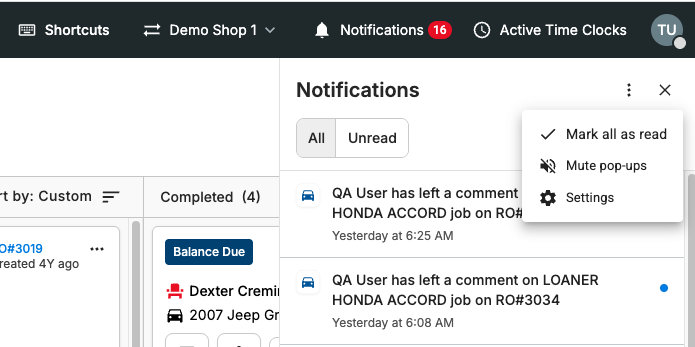
Once you've selected Settings, you'll be presented with the Notification Settings modal.
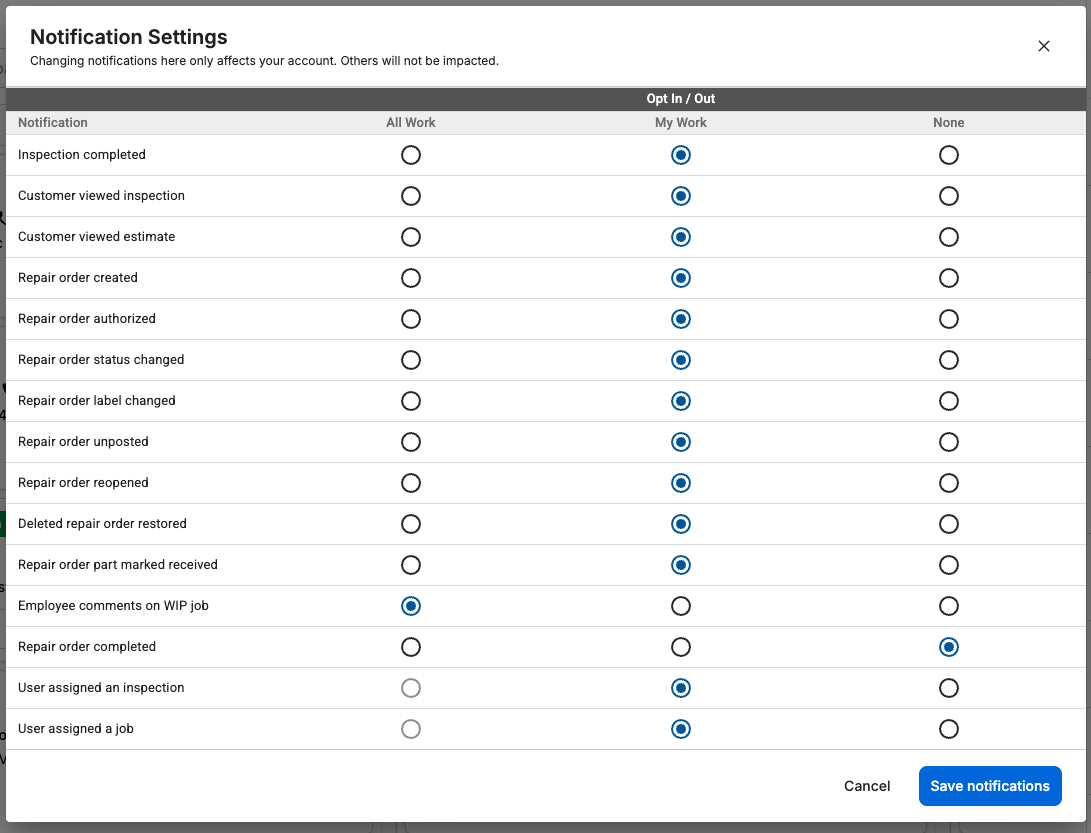
There are three potential options when assigning a notification’s reach:
- All Work: This sends the user the notification type for all work in the shop, even if the user isn't assigned to the repair order.
- My Work: This sends the user the notification type only for work that they are assigned to. The definition of being assigned to work is below:
- User is the default service writer on an RO
- User is the default technician on an RO
- User is assigned to any of the following on an RO:
- Job
- Labor line on a job
- Inspection
- None: The user will not receive any notifications of that type.
Note: The ‘User assigned an inspection’ and ‘User assigned a job’ notifications cannot be set to All Work, since they are meant to be user-specific for the logged in user getting assigned to work.
Note: Users with the Employees permission can also update anyone's notification settings within each respective Employee Profile.
How are notifications set by default?
When this feature was turned on in your shop, Tekmetric assigned default notifications based on employee role type:
- Owners had all notifications set to ON for All Work (except for the 'User Assigned an inspection' and 'User assigned a job' notifications - these will be set to My Work)
- All other employee role types had all notifications set to ON for My Work
The same logic above applies to newly created employees.
Where will notifications appear when they occur?
Based on your settings, you'll receive notifications in the following locations:
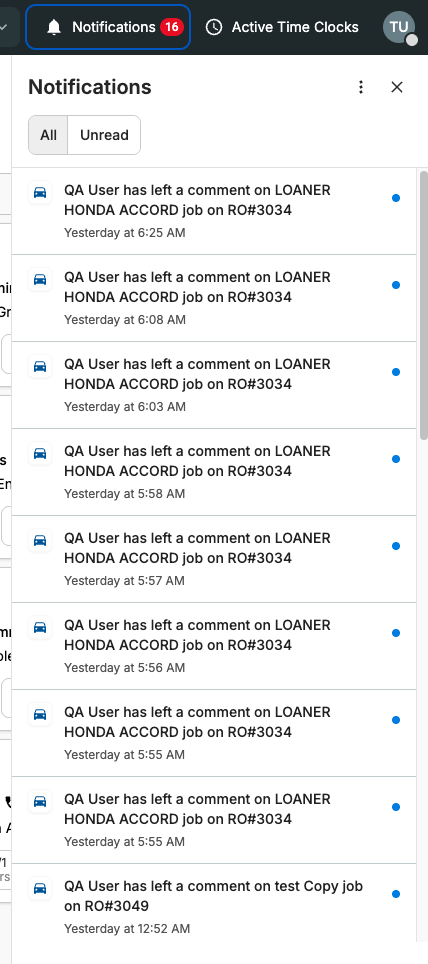
If you select a notification, you will be navigated to the repair order that the notification is about.
Note: The user that takes the action that triggers a notification (posting a repair order, for example) will not receive a notification for that action.
What other actions can I take on notifications?
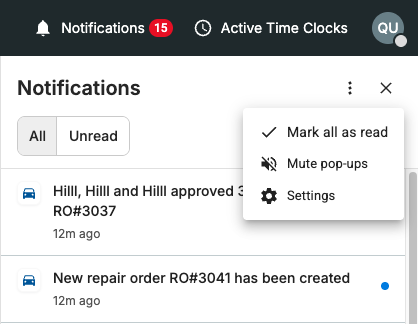
Within the Notifications panel, you can open up the parent three-dot menu to expose a few more actions:
- Mark all as read: This marks all your notifications as read.
- Mute pop-ups: This disables all real-time pop-up toasts that appear in the lower right-hand corner of your screen. You can undo this action if needed.
- Settings: This opens up Notification settings (described above in this article).
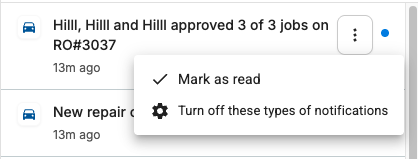
Each individual notification also has certain actions you can take. These can be found within the three-dot menu that appears when you hover over the notification:
- Mark as read: This marks the individual notification as read.
- Turn off these types of notifications: This automatically sets the specific type of notification to None. It's a way to quickly turn off the notification type without having to navigate to Notification Settings.
FAQs for Notifications
Do Tekmetric notifications work for other integrations such as 360 Payments? At this time, there is not one for payments systems outside of Tekmetric.