Overview
The Inventory Counting feature lets shops count parts digitally, identify discrepancies, and update inventory with less effort. You can pre-filter inventory segments, isolate counting areas (like bins or vendors), and analyze count variances — all from within Tekmetric.
This feature replaces manual worksheets and helps you maintain accurate inventory records.
How It Works
1. Accessing Inventory Counting
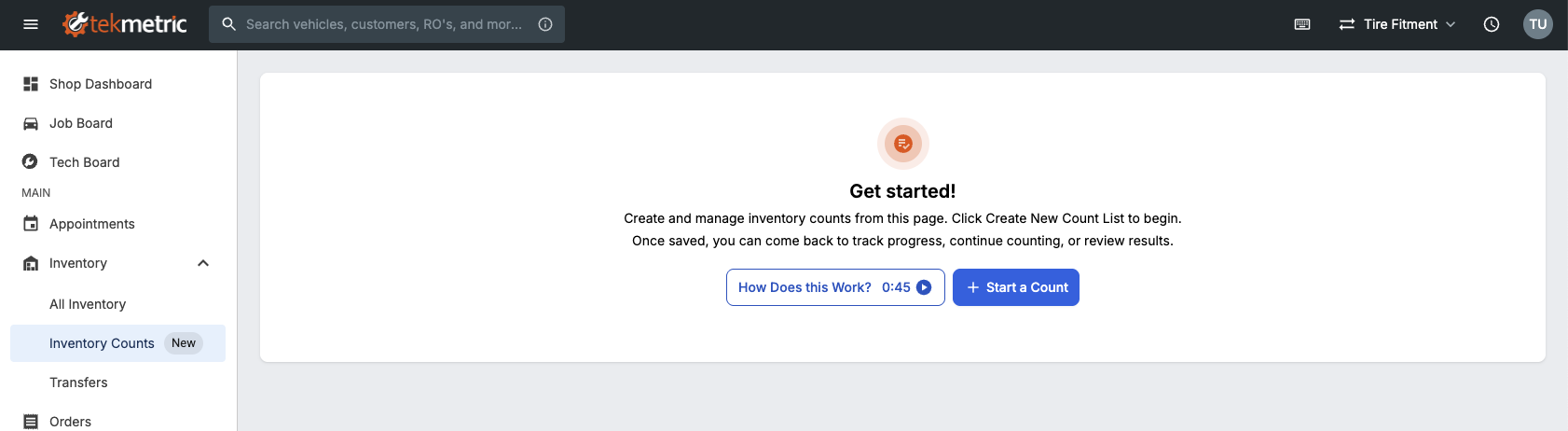
From the left navigation menu:
- Click Inventory to expand the menu.
- Select Inventory Counts to view all counts in progress or create a new one.
You’ll see three child items under Inventory:
- All Inventory – your full parts table
- Inventory Counts – for managing and performing counts
- Transfers – visible only for multi-shop (MSO) organizations
Access depends on permissions:
- Users with “View Inventory” can create and edit counts
- Users with “Edit Inventory” can create, edit, and finalize counts.
2. Setting Up a Count
Click Start a Count to begin. You’ll walk through a two-step setup:
Step 1 — Name Your Count
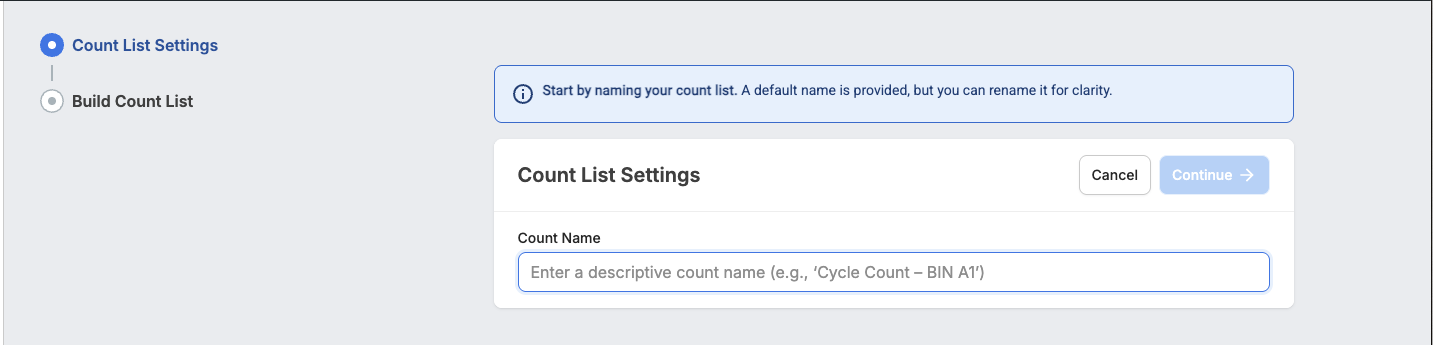
Give it a descriptive name (e.g., Cycle Count – Bin A1).
- This field is required.
- Max 255 characters.
Step 2 — Filter Parts to Count
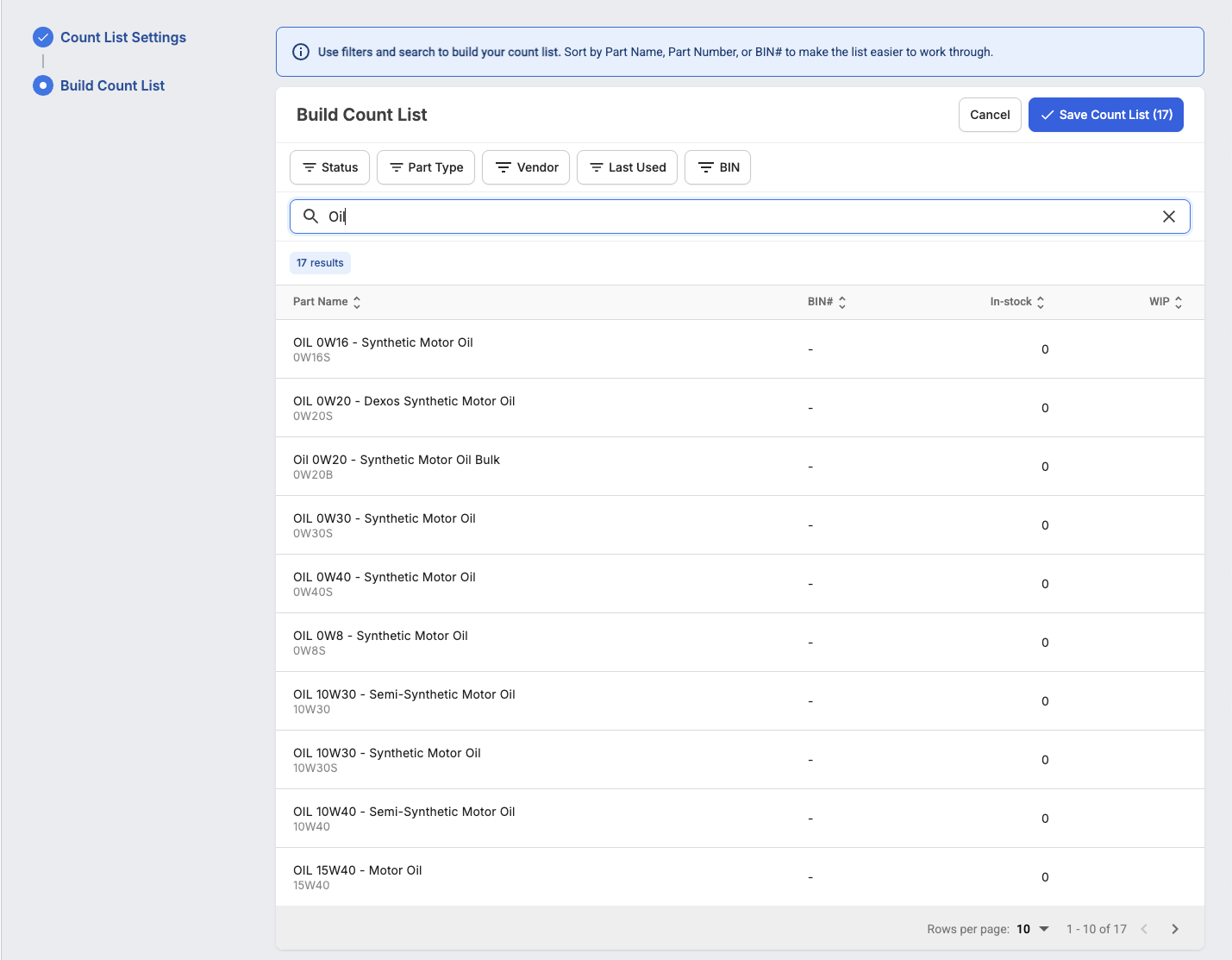
Use filters to isolate segments such as:
- Status (Below Min, Above Max and Out-of-Stock)
- Part Type
- Vendor
- Last Used (30 days to 5 years)
- BIN
Rules & Validations
- Max 1,000 parts per count.
- Can’t overlap more than 90% with an existing active count.
- System displays validation errors if limits are exceeded.
When ready, click Save List to generate your count.
3. Performing the Count
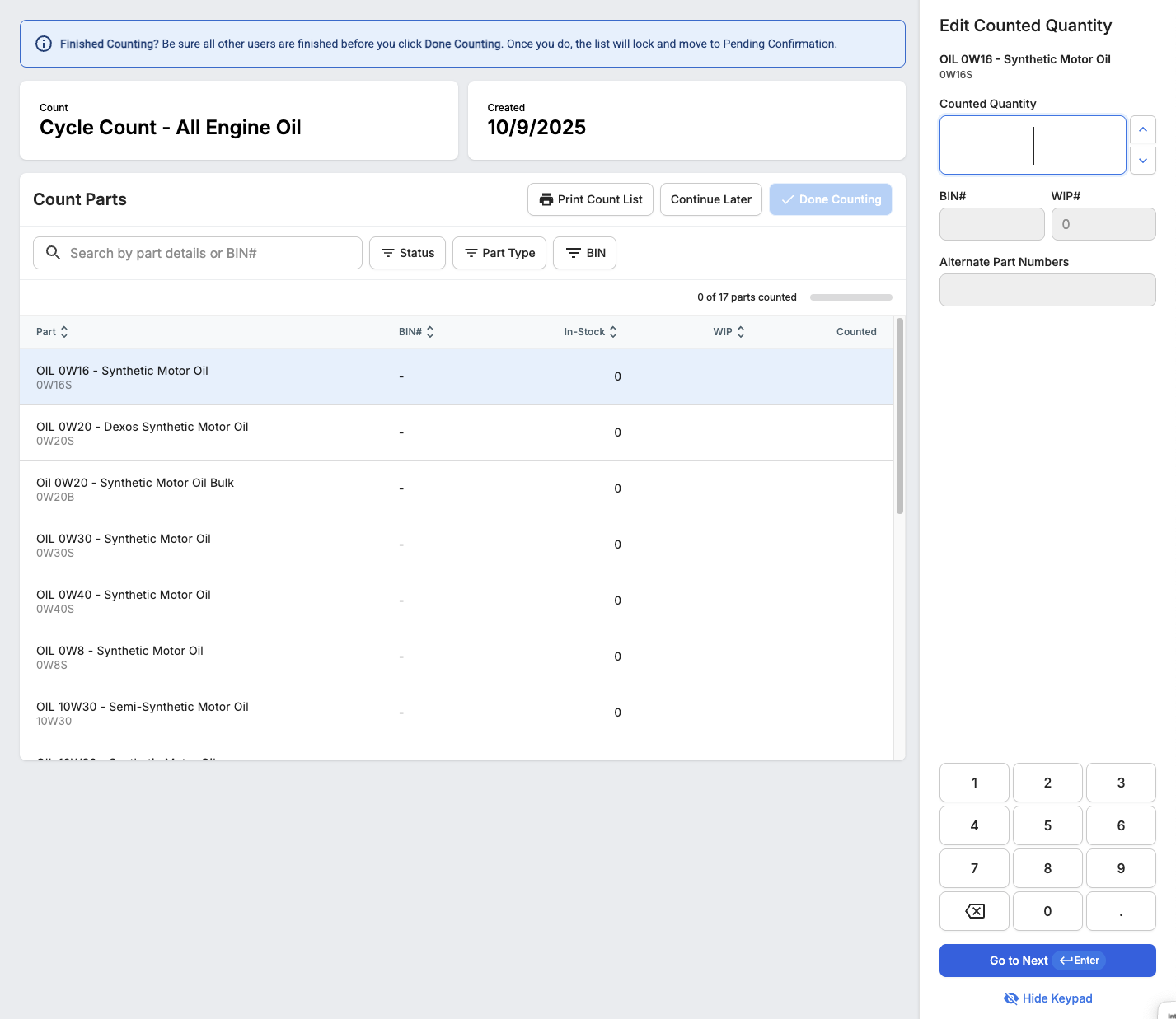
You’ll see your filtered list of parts. Each line shows:
- Part, BIN, In Stock, WIP, and an editable Counted field.
Actions available:
- Print List – Creates a printable PDF snapshot with a timestamp.
- Continue Later – Saves your progress and marks the count In Progress.
- Done Counting – Locks your count and moves to Pending Confirmation.
4. Reviewing & Confirming Counts
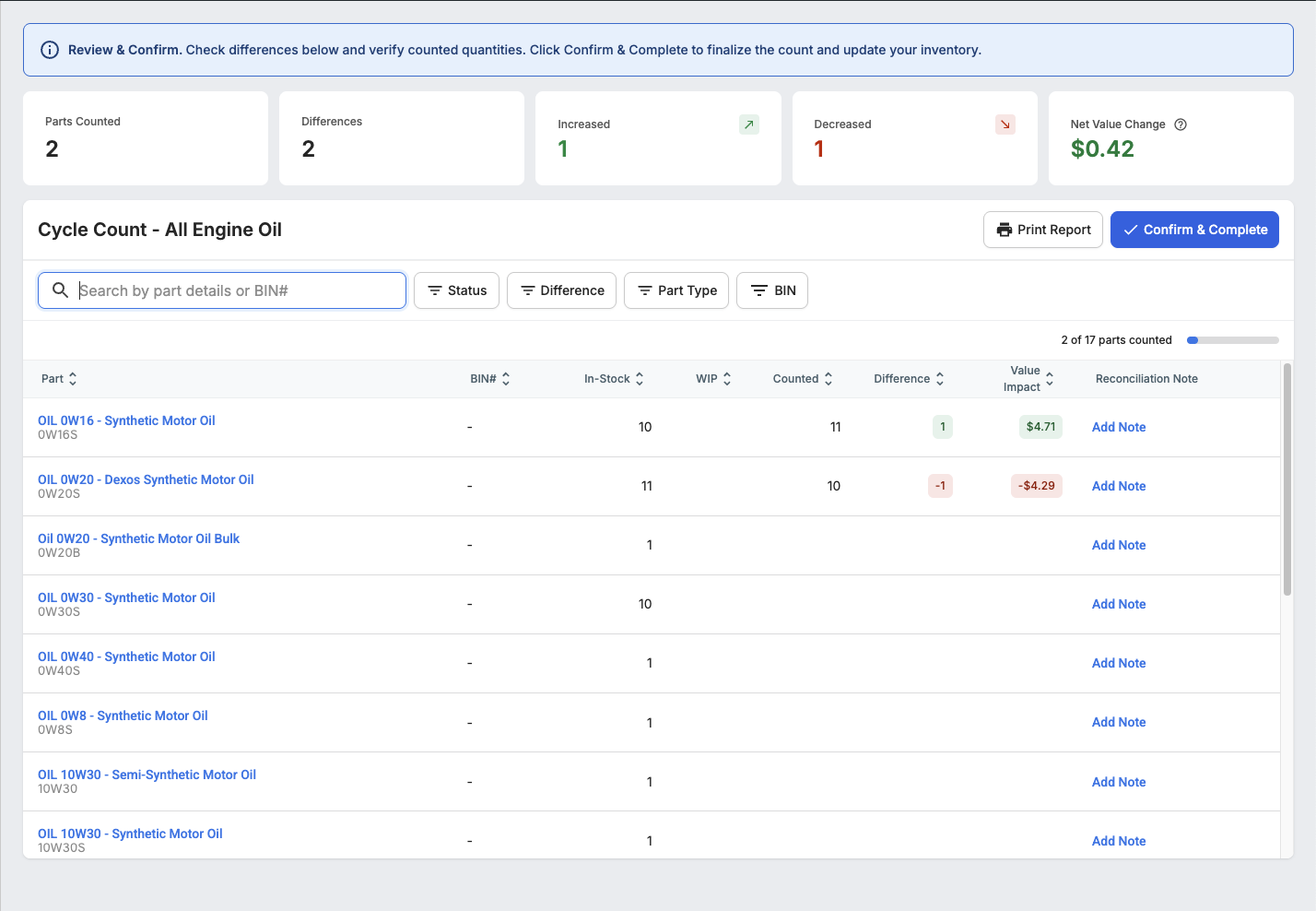
Once done counting, review differences on the Report screen.
You can:
- View differences between “Counted” and “In Stock.”
- Filter by difference type (Increased, Decreased, Not Counted).
- Add reconciliation notes per part (max 255 chars).
- Adjust counted values if needed.
- Print or export a variance report.
If you have edit permissions, click Confirm & Complete to finalize.
This updates the live inventory and records the adjustment in each part’s Activity Feed.
5. Activity Feed
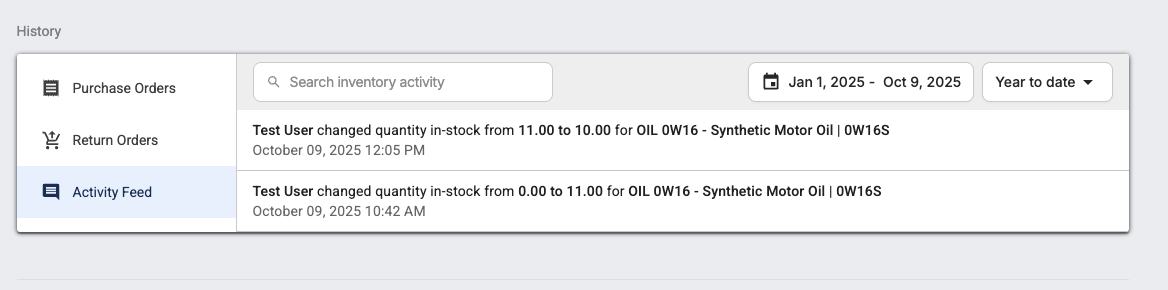
Each finalized count automatically logs:
- Who confirmed the count
- The before and after quantity
- Date/time
This ensures full traceability for audits or management review.
FAQ
Can I delete a count?
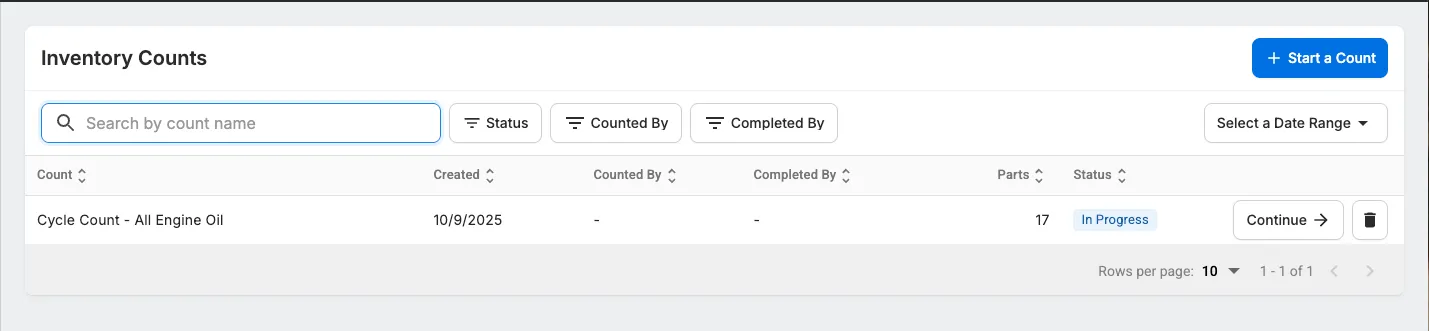
Yes — you can delete a count only when its status is In Progress.
Once a count moves to Pending Confirmation or Completed, it’s locked to preserve data integrity and audit history.
Can I edit a count after confirming it?
No — once a count is finalized (status = Completed), it becomes read-only. To make corrections, create a new count.
Why can’t I start a new count?
You may be trying to create a count that overlaps 90% or more with another active one. Adjust your filters or finalize existing counts first.
Can I print my count list or variance report?
Yes. Both can be printed or exported as PDFs with clear naming conventions:
- Inventory Count List – [Count Name].pdf
- Inventory Count Variance Report – [Count Name].pdf
Who can finalize a count?
Only users with Edit Inventory permission can confirm and write changes to the system.
Can multiple users count at once?
Yes — multiple users can count at the same time.
However, best practice is for each counter to create their own count list. This helps prevent data conflicts and makes it easier to track who counted what.
Where can I see who made changes?
Each inventory adjustment is automatically logged in the Activity Feed for full transparency.
Does Tekmetric update Available Quantity when I finalize a count?
No — when you finalize a count, Tekmetric updates the In Stock quantity, not the Available quantity.
Pay close attention to WIP parts, as they may still be on the shelf or pulled for active jobs. Many shops prefer to create a count after hours to let bins “cool off” .