Overview
Each account now can set up 2-Step (or multi-factor) verification methods to secure their account. This works by allowing the user to register a phone number or an email and then prompting the customer for a code on successive logins. The user logging into the account has the option of remembering that device for 30 days, for ease of use.
Walkthrough
To set this up the user can access this from the top right avatar, or by accessing this link directly.
Click the avatar, and then account settings:
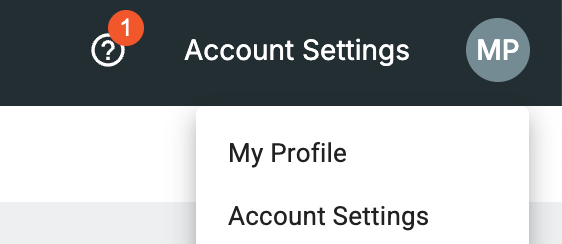
Once on the profile screen, click the 2-Step Verification tab:
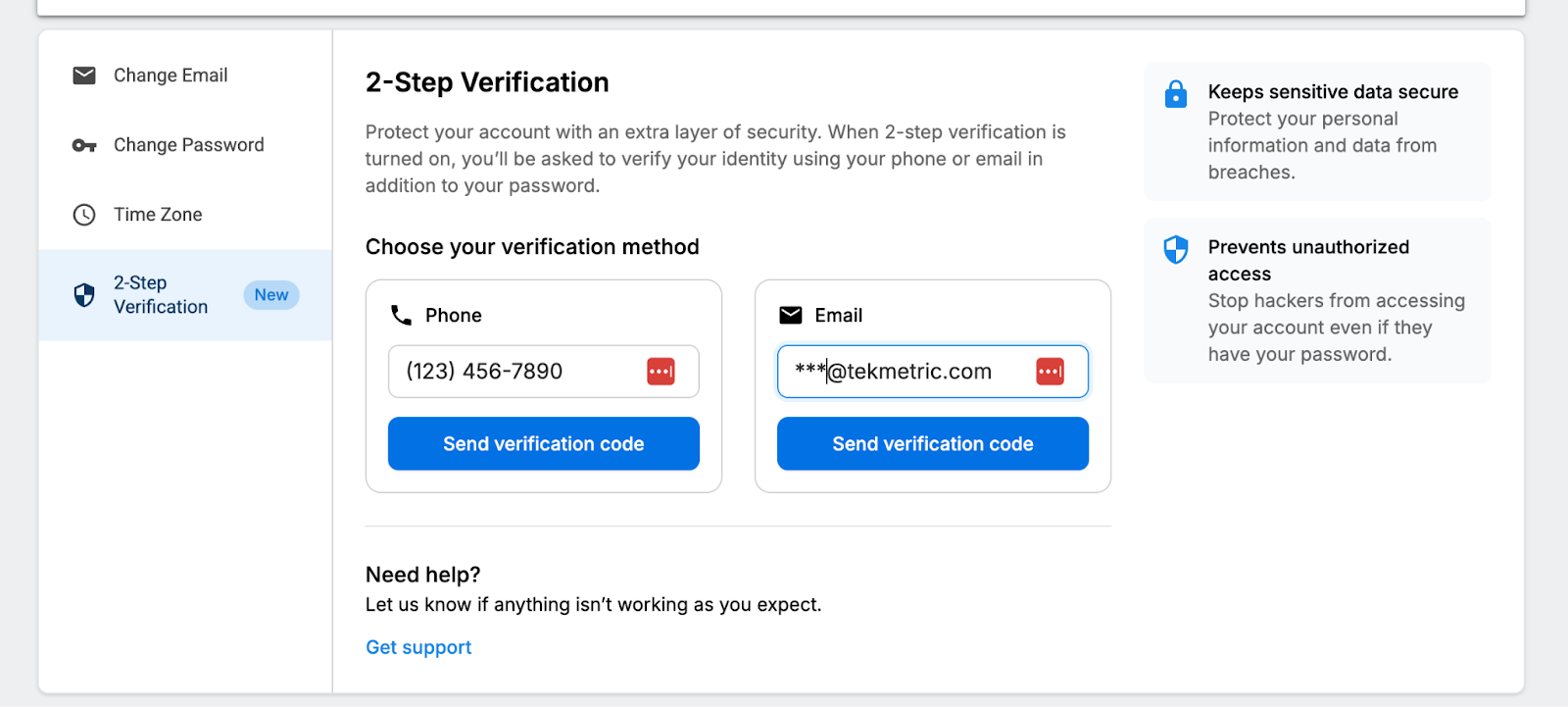
On this screen, you can select a phone number, an email address, or both as your 2-Step verification method(s). Enter in your personal contact details, and click ‘Send verification code’:
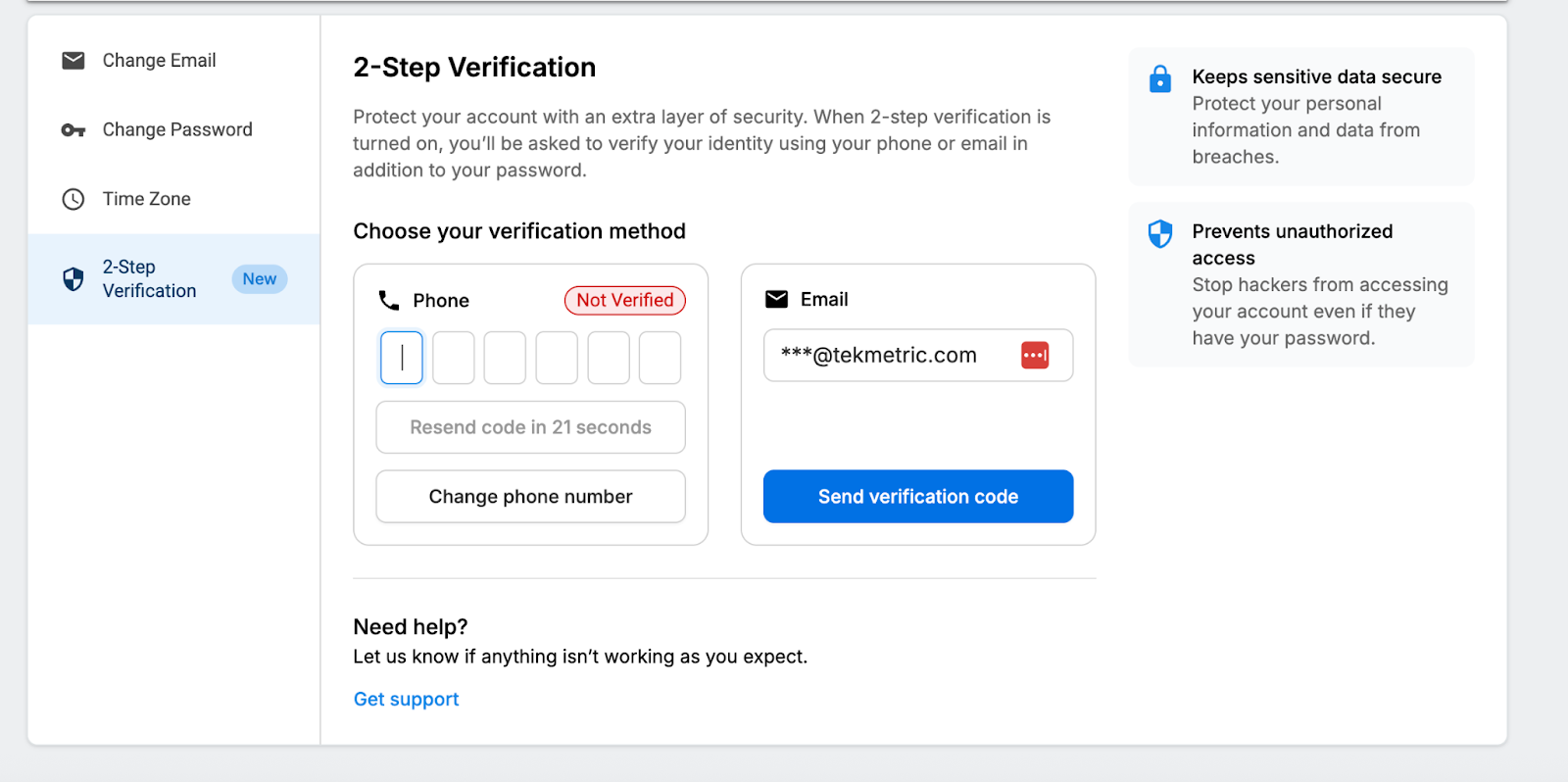
You will have up to 5 minutes to enter in the verification code sent to your device. Once you enter the verification code, the contact method will appear as ‘Verified’.

Now, your 2-step verification methods are active, and will be enforced on the next login. When logging in, you will see a prompt to send a verification code to your preferred contact method.
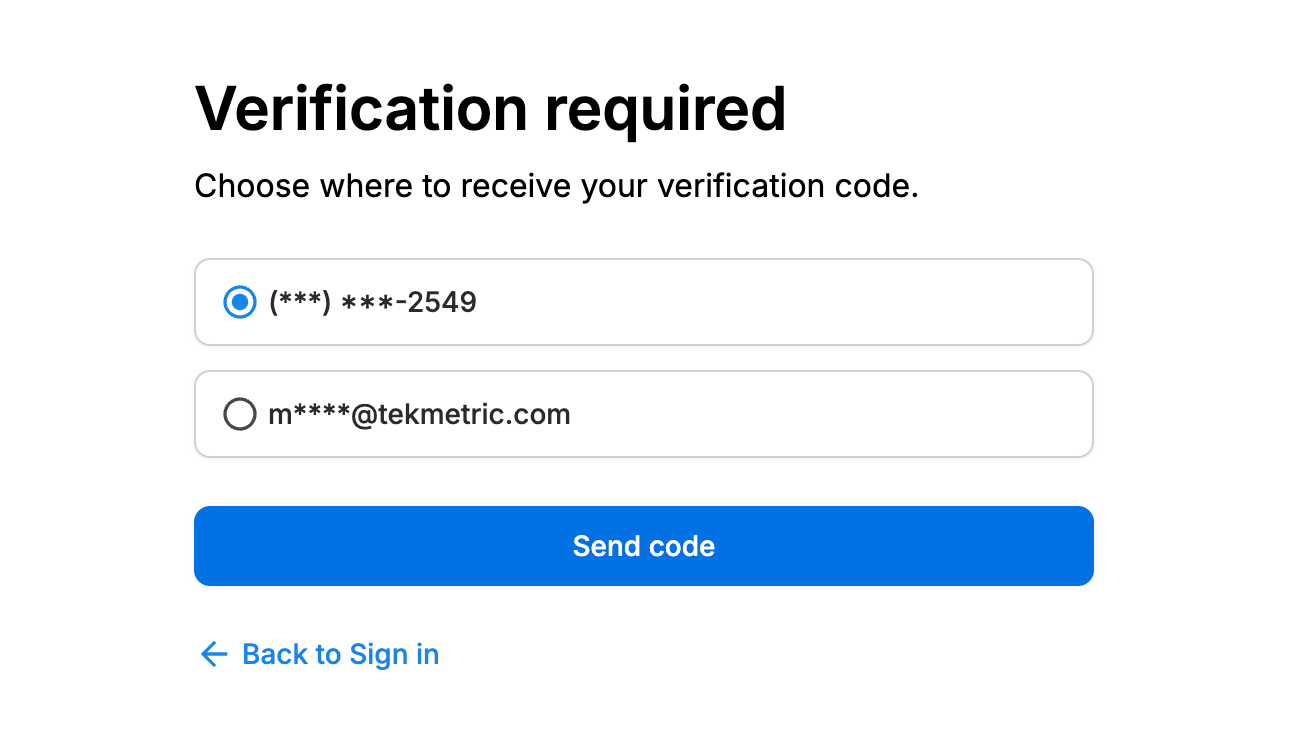
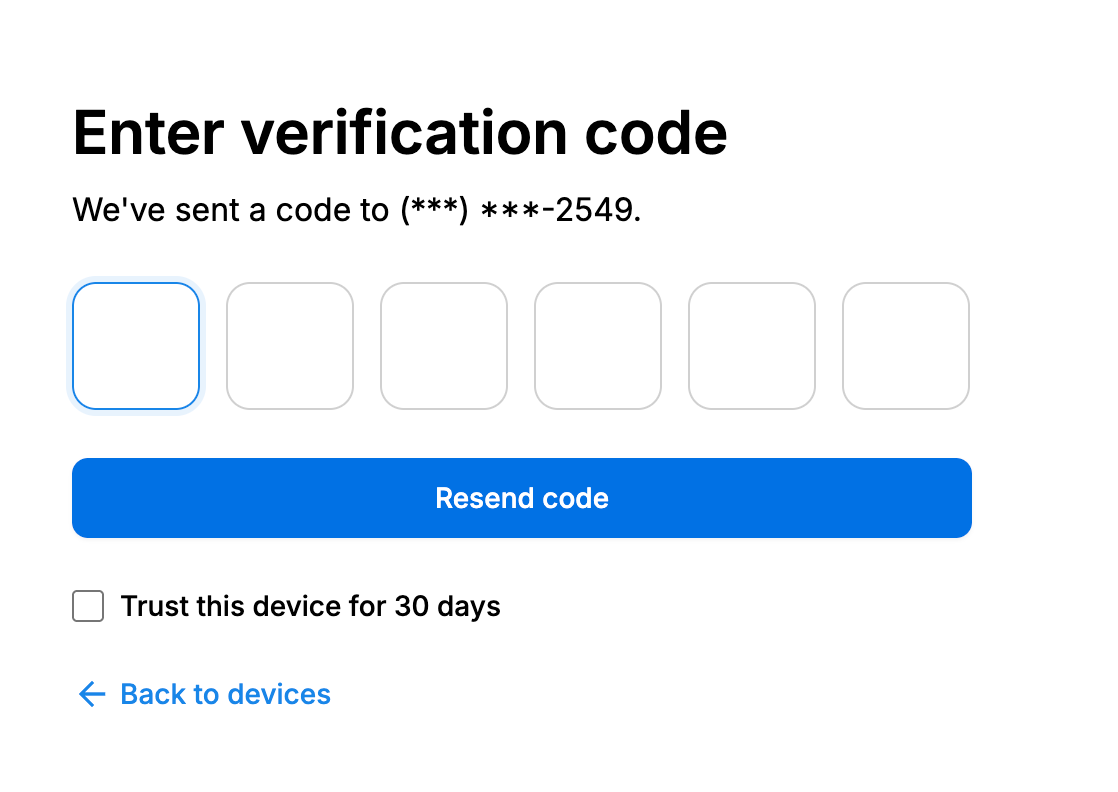
After clicking ‘Send code’, you will receive a code to that verification method. On the entry screen, there is a checkbox to remember your device for 30 days. This is meant to be for devices the user personally owns or consistently uses. If this is a shared machine, it is not recommended to select this checkbox.
After submitting the code, you should be able to access your shops.