SpeedDIAL is Worldpac’s Native Parts Catalog and fulfillment ordering system. Since it is a desktop application, it does require downloading and installing the application on each computer you plan to use it on.
Watch the Setup Video Clip here.
Step 1 - Setting up Worldpac SpeedDial
- If you already use SpeedDIAL, then it will already be installed on your computer and you can skip ahead to Step 2.
- If you already have a Worldpac account, but have never used SpeedDIAL, download the SpeedDIAL application here.
- If you have never used Worldpac, you will need to request a Worldpac account by clicking here and then download the SpeedDIAL application. You will not be granted an account immediately and should expect the process to take about 3 days to a week.
Step 2 - Integrating Worldpac SpeedDial with Tekmetric
Warning: SpeedDial is only able to be connected to one shop management system at a time, so you should not connect it to Tekmetric until you no longer plan on using it with your old system.
Follow the steps below to integrate with Tekmetric once you have SpeedDial application installed on the computer(s).
- Open Worldpac SpeedDial.
- Click View on the top left corner of your screen.
- Click Preferences on the bottom on the View menu.
- Click Shop Software.
- You should have it set the following way on each separate each other:
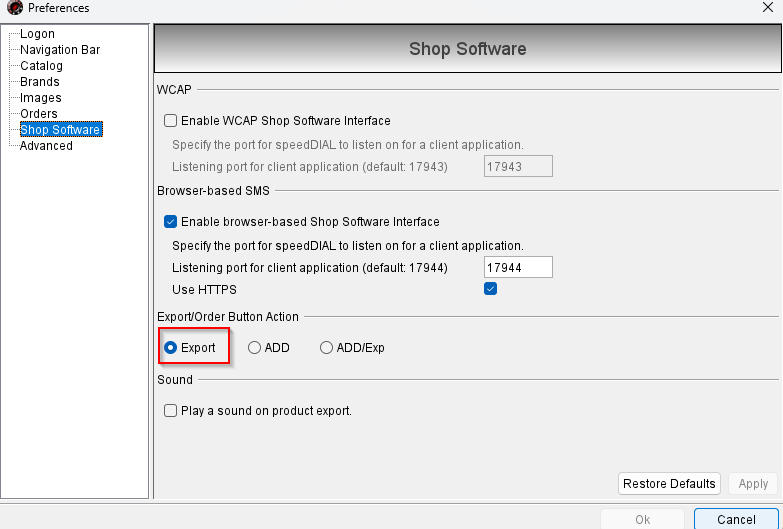
- Once you confirm that your Shop Software Settings match the image above, click Apply and make sure you keep Worldpac SpeedDial open and running.
- Open Google Chrome and log into Tekmetric.
- Click Shop Settings section on the bottom of the left menu bar.
- Click into the Integrations tab.
- Click Manage from within the Worldpac SpeedDial Integration box.
- Under Step 1 where it asks to select Default Vendor, start typing in "Worldpac." If it does not come up, click the plus icon (+) to the very right.
- In the window that appears, type in "Worldpac" under vendor name, then click Save.
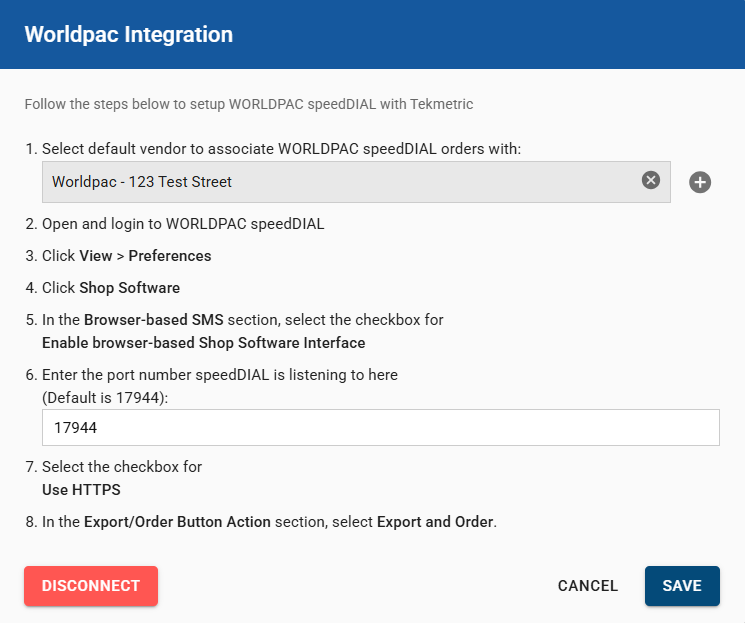
- Once the vendor is added, click Save on the bottom right of the window. The Worldpac Integration should now say connected.
SpeedDial Notes & Additional Troubleshooting
- Ensure that cache and cookies are cleaned out as stored files in Chrome can cause issues
- Confirm that there are no popups or adblockers preventing SpeedDial from opening
- Some internet providers can have settings enabled that can block SpeedDial from running
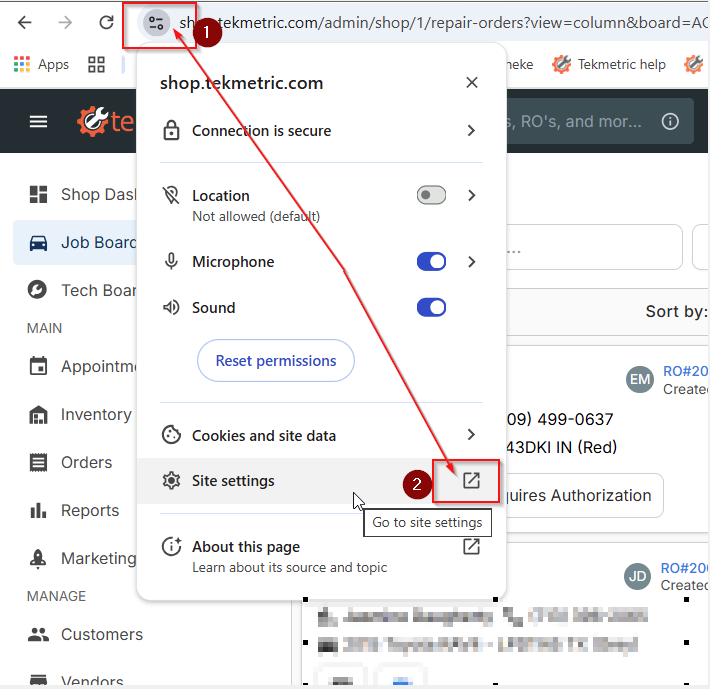
- Ensure to click on the site settings icon on the address bar > reset permissions (see screenshot below) - this can reset and allow WP to work
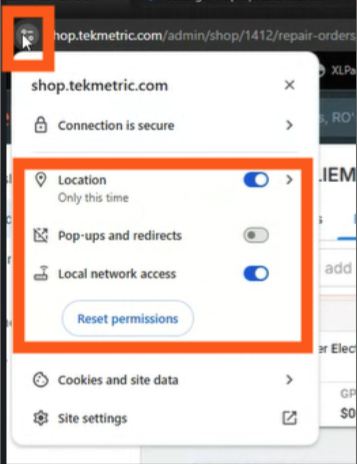
Privacy and Security Settings
Due to chrome updates, google can reset and prevent SpeedDial from populating. Please update google chrome settings and do the following:
- Three Dots > Settings > Privacy and Security > Site Settings
- Look for recent activity > Tekmetric (select the arrow next to Tekmetric)
- Your device use: allow
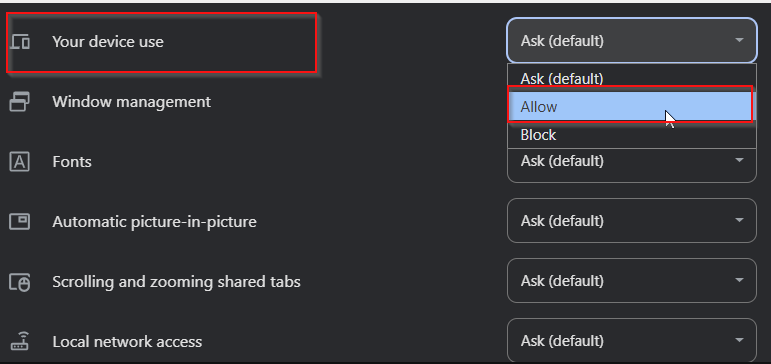
Another way is to navigate to the URL and clicking the two bars beside the shop.tekmetric.com and navigating to your site settings as well.
How to Add SpeedDial Manually with the Notepad
- Search for the Notepad app and right-click it > then select run as administrator.
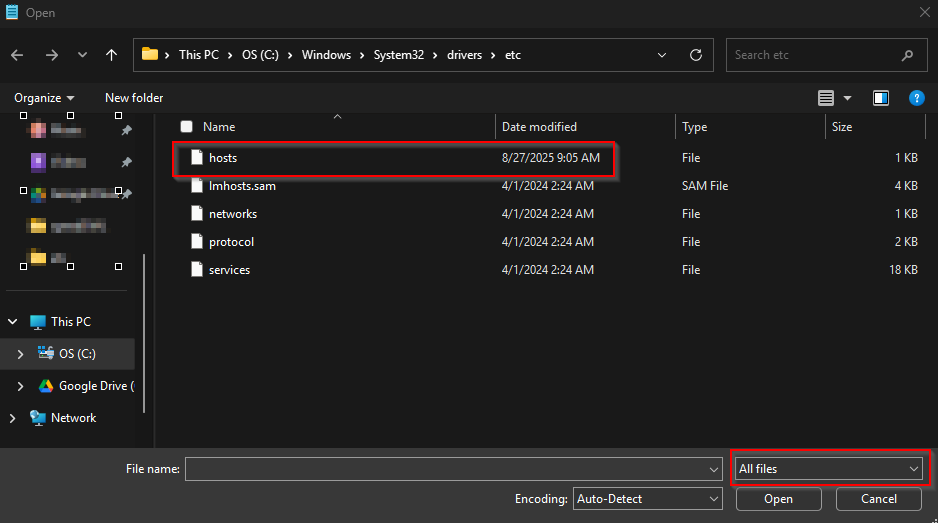
- Search for this file name: c:\windows\system32\drivers\etc\hosts.
- Make sure that all files are selected and then open the "hosts" file
Add the following to the bottom of the hosts page: 127.0.0.1 localspeeddial.net
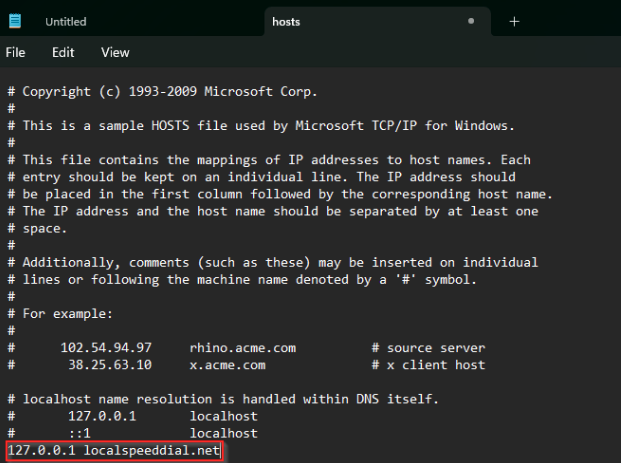
Please make sure to save!