In the Employees section, you can add, edit, or delete an employee as well as edit their permissions to control visibility and access within the software.
When creating a new employee, you can choose between assigning them to a Permission Group or giving them their own Individual Permissions. Learn more about this here.
Once the employee is created, you can edit the permissions per employee.
Adjusting Employee Permissions
-
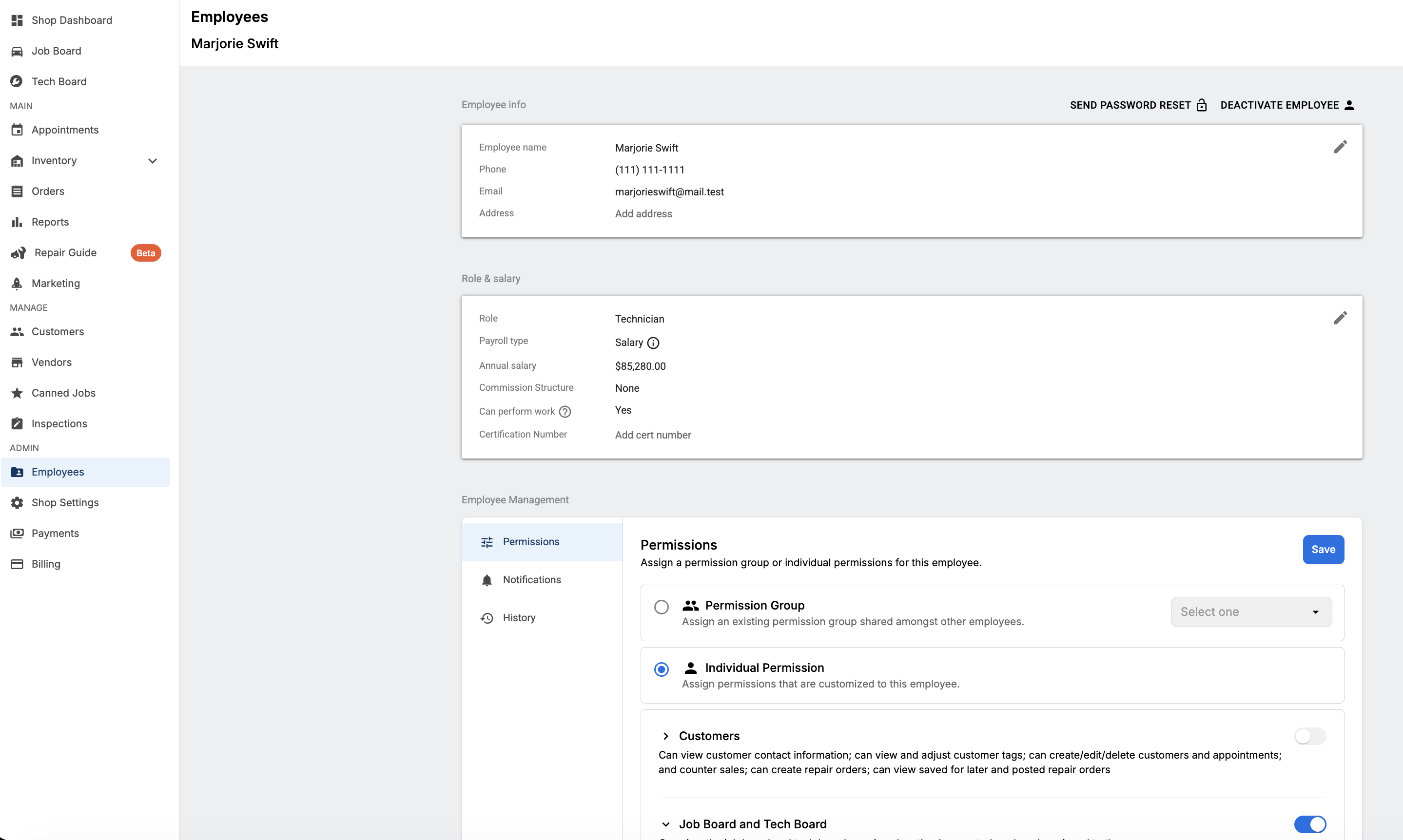
Click the Employees section on the bottom of the left menu bar.
- Click on the desired employee you want to adjust permissions for.
- Go to the 'Permissions' table towards the bottom of the page.
-
Adjust the desired permissions. You can assign the employee a Permission Group or give them their own Individual Permissions. Learn more about this here.
-
Once you adjust permissions, click the blue Save button.
Employee Permissions
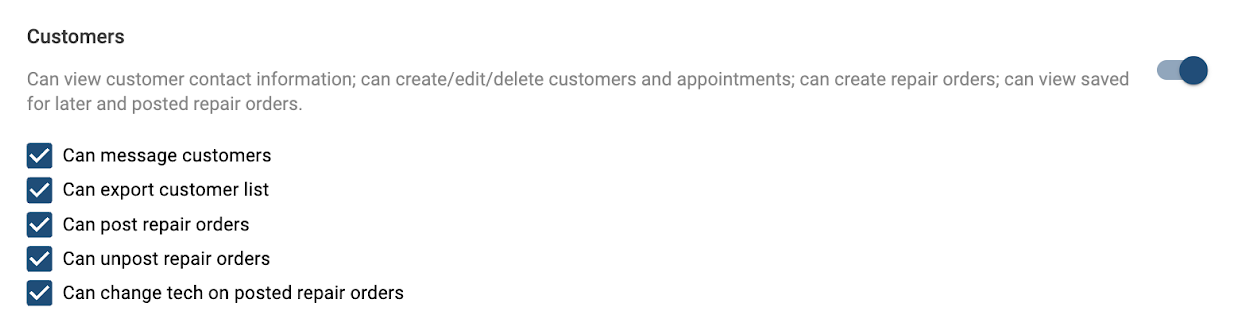
Customers - If this permission is turned on, the employee can:
- View customer contact information.
- Create/edit/delete customers.
- View the appointment calendar (as well as contact information).
- Create/edit/delete appointments.
- Create repair orders.
- View saved for later and posted repair orders.
-
Manage customer vehicles: this includes editing and transferring vehicles.
-
Can message customers:
- If this permission is checked (turned on) and Tekmessage is activated - the employee can send and receive messages via two-way messaging.
- If this permission is checked (turned on) and Tekmessage is not active - the employee can share estimates, invoices, inspections via one-way messaging.
-
Can export customer lists - if this is checked, the employee can export a customer list (this action is in the Customers section of Tekmetric, and can be identified by the cloud with an arrow).
-
Post repair orders - if this is checked, the employee can post a repair order.
-
Unpost repair orders - if this is checked, the employee can unpost a repair order.
Can change tech on posted repair orders - if this is checked, the employee can change the technician on a posted repair order.
Can configure A/R settings and credit limits for customers; can override customer credit limits - if this is checked, the employee can change A/R settings for customers and override customer credit limits when posting to A/R
[NEW] Can change the service writer on repair orders - if this is checked, the employee can edit the service writer on repair orders using the sidebar
Note: If the customers permission is disabled, the employee will still have access to see the appointment calendar but information will be limited.
Job Board and Tech Board - If this permission is turned on, the employee can view the job board and the repair orders assigned to them as well as their tech board.
-
View all active repair orders - if this is checked, the employee will see all repair orders, even the ones not assigned to them. This becomes beneficial in cases where technicians need to view historical repair orders that are not assigned to them but are related to a vehicle they are currently working on. Otherwise, the employee will have access to the PDF version of the historical RO.
-
Delete/restore repair orders - if this is checked, the employee will be able to delete a repair order or restore a deleted repair order, (these actions can be tracked in the activity feed of the RO).
-
[NEW] Can save repair orders for later - if this is checked, the employee can save repair orders for later
Estimate - [NEW] We've revamped the Estimate permissions section. Go here to learn more.
Work-in-Progress - If this permission is turned on, the employee can view assigned jobs, complete labor tasks, and comment on jobs that are assigned to them.
-
Can mark repair order complete and start/stop all job clocks - if this is checked, an employee can view all authorized work, post the technician hours, and can start/stop all job clocks on all jobs.
-
Can edit technician job clocks on jobs; can reopen jobs - if this is checked, an employee can edit the clocked time in on a job and reopen any jobs.
Payments - If this permission is turned on, the employee can take payment on a repair order and view/send invoices.
-
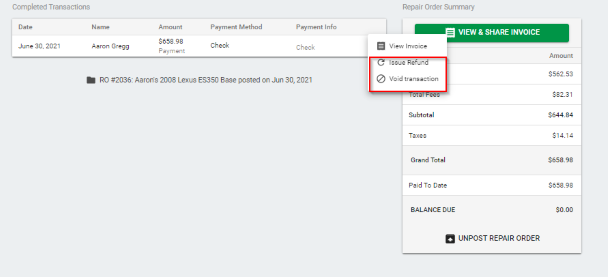
Can refund and void payments - if this is checked, an employee can issue a refund or void a transaction on the payment tab of a repair order by clicking the three dots next to the completed transaction.
-
Can adjust payment transaction dates - if this is checked, an employee can edit the date of a payment transaction on all invoices.
-
Can send repair orders to A/R - if this is checked, an employee can send repair orders to Accounts Receivable (A/R). This permission is ON by default for newly created Owners and Shop Admins.
Cash Drawer - if this is toggled on, the employee can access the Cash Drawer feature and use all functionality associated with it. When it's toggled off, the employee cannot see the Cash Drawer feature.
Reports - to grant access to reports, you will want to select the specific reports that you want to employee to have access to.
-
Can view/export all Financial Reports; Can view Shop Dashboard Real-Time reports - if this is checked the employee can view and export all financial reports as well as view the shop dashboard real-time reports.
-
Can view/export all Employee Reports; Can view global activity feed - if this is checked the employee can view and export all employee reports and view the globally activity feed on the shop dashboard.
-
Can create/edit/delete time cards - if this is checked the employee can create/edit/delete time cards within each employee's timesheet (this can only be checked if Can view/export all Employee Reports; Can view global activity feed is also checked).
-
Can view/export all Customer Reports; can view customer lifetime stats - if this is checked, the employee can view and export all Customer Reports as well as view customer lifetime stats. Note: the ability to export the customer list report permission is within the customers permission.
- Can view/export all Parts Reports - if this is checked, the employee can view and export all parts reports.
Inventory - If this permission is turned on, the employee can view inventory items, order history, and activity.
-
Can create new parts; can edit inventory part details and quantities - If this is checked, your employee can not only view the inventory, but also edit the part details, add parts, etc.
-
Bulk inventory changes: When this is on, the employee can use the inventory bulk editor
-
Can delete parts: When this is on, the employee can delete inventory parts
Orders - If this permission is turned on, the employee can create and edit purchase orders through the orders screen, and order parts through part supplier integrations within the parts hub.
-
Can delete orders: When this is on, the employee can delete purchase orders
-
[NEW] Can move parts to inventory from returns and repair orders: When this is on, the employee can use the "move to inventory" option for parts in returns and repair orders
Vendors - If this permission is turned on, the employee can view all vendors, add new vendors, and merge vendors.
Canned Jobs - If this permission is turned on, the employee can create, edit or delete canned jobs or canned sublet templates within the canned jobs section of Tekmetric.
Inspections - If this permission is turned on, the employee can create, edit or delete inspections.
[UPDATED] Employees - can create/edit/deactivate/activate employees; can view employee login history: When this is on, the employee has permission to edit other employee profiles, EXCEPT permissions management and managing permission groups.
-
[NEW] Can edit employee permissions: anyone with this permission turned OFF cannot change other employee's permissions
-
[NEW] Can create/edit/delete permission groups: anyone with this permission turned OFF cannot manage permission groups in the shop
Shop Settings - If this permission is turned on, the employee can edit shop contact information. They will also be able to create, edit or delete labor rates, taxes, fees, parts markup, labor markup and disclaimers.
Note: We recommend keeping the Employee configurations limited to owner and/or manager.