Understanding Cores in Tekmetric
A "core" refers to a part (such as an alternator, battery, or starter) that can be rebuilt and resold. Often, when a customer purchases a new part, they bring in their old, used part, which is then sent back to the manufacturer for remanufacturing.
The "core charge" is a refundable deposit that is added to the price of the new part. When the customer returns the old part, they get this deposit back from the parts store. Tekmetric’s Core Tracking feature helps you manage this process efficiently.
Managing the Core Process
-
Technician Pulls Part: The technician removes the old part from the customer's vehicle and installs the new one.
-
Admin Tags & Stores: The technician brings the old part to the parts department or shop admin. The admin tags it with the repair order (RO) number and vendor invoice, then stores it in a designated core bin.
-
Customer Vehicle Pickup: The service advisor explains to the customer that the old part must be retained as a core to waive or refund the core fee. The customer leaves with their repaired vehicle, leaving the old part behind.
-
Vendor Return: The shop's parts manager or delivery driver returns the collected cores to the respective parts vendor (e.g., NAPA, Advance Auto Parts, local dealership).
-
Financial Reconciliation: The vendor issues a credit invoice to the shop's commercial account for the core amount.
How to Add a Core to an Estimate/Repair Order
-
Search for the part: When adding a new part to an estimate or repair order, search for it using its part number or a description.
-
Add the Core Charge: After you've added the part, you'll see an option to add a core charge.
-
Enter the Core Value: The system will prompt you to enter the amount of the core charge. This is the refundable deposit.
-
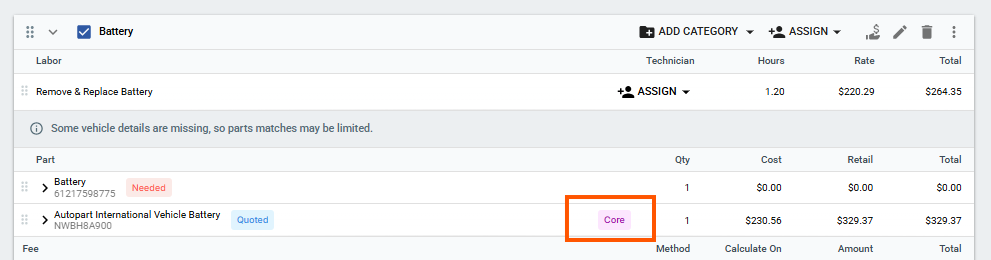
The core is added: The core charge will appear on the same line item on the estimate/repair order, clearly labeled as a "Core" with a pink label icon. The system will automatically add the tax to the core charge.
How to Return a Core
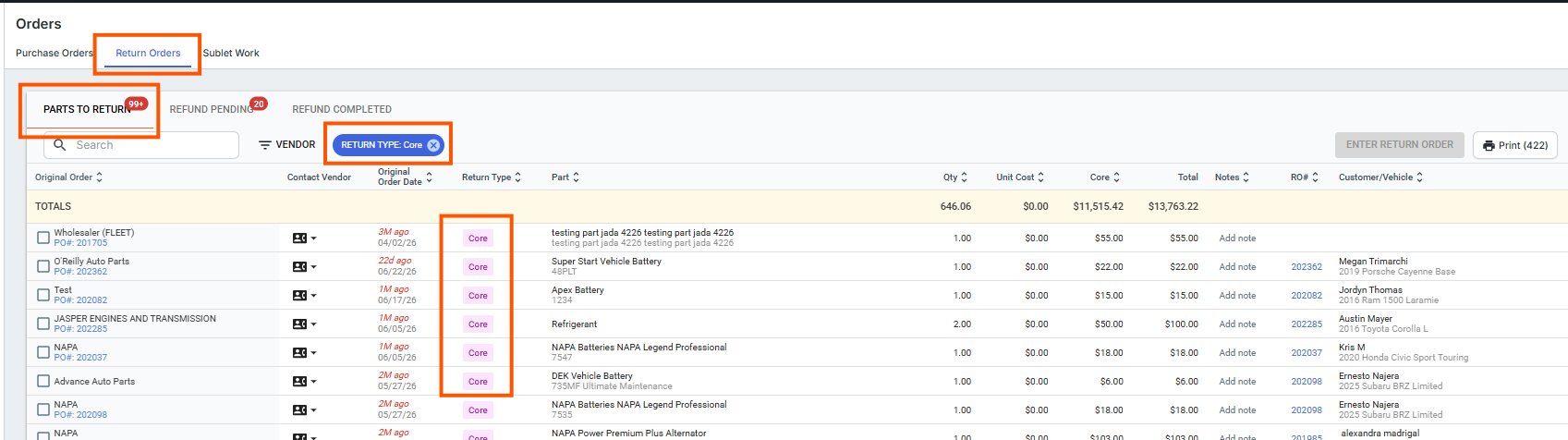
To return the core to your vendor and get your shop's deposit back, you must process it through the Orders > Purchase Orders tab at the top > Return Orders tab:
Navigate to the Orders section on the left-hand navigation menu and select the Purchase Orders tab at the top, if needed.
Click on the Return Orders tab.
You can filter the list of parts to return by vendor or select the Core part type filter to easily identify your pending cores.
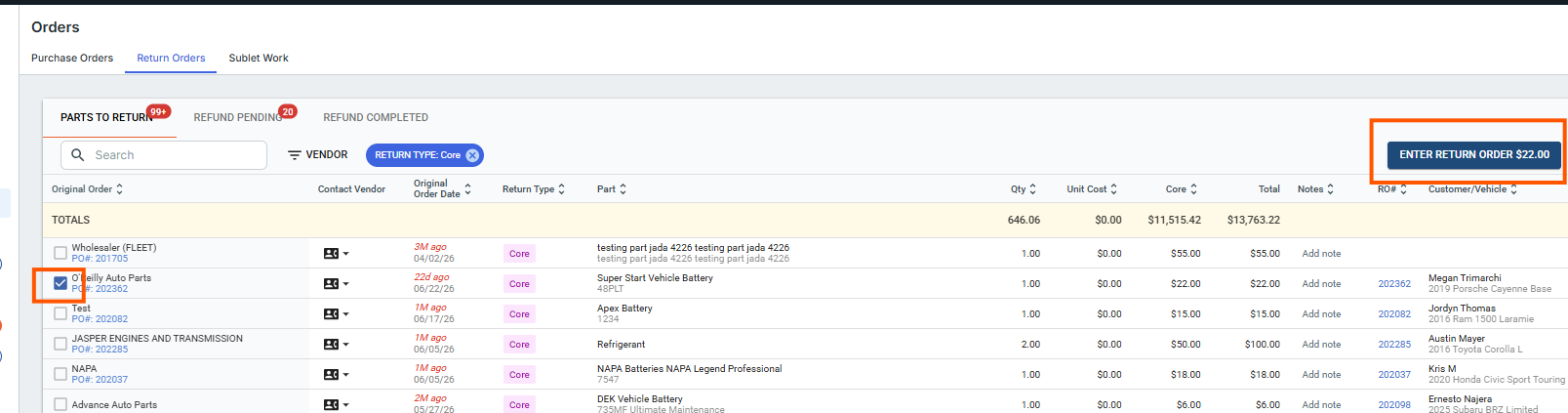
Within the Parts to Return screen, use the checkboxes on the far left of the line item to select all of the core parts that need to be sent back to that particular vendor. Then click Enter Return Order.
In the pop-up Return Order Screen, enter your return order details (such as any restocking or shipping fees if applicable) and click Save Return.
The return will move to the Refund Pending status.
-
Once you physically receive the credit or refund from the part vendor, select the order on the Refund Pending tab and click the green Mark Refund Complete button to finish the process.
Important Notes from the Video
-
Clarity on Invoices: The Core charge will be clearly itemized on the invoice, so customers know exactly what they are paying for.
-
Tax: Tekmetric automatically calculates and adds tax to the core charge, ensuring accuracy in your billing.
For more information on core parts and returns, please watch the video linked below.
Core & Part Returns Video:
If you have any questions, please do not hesitate to contact us at support@tekmetric.com.
Tracking Cores in Reports
You can monitor cores and vendor credits using the Parts Purchased Report:
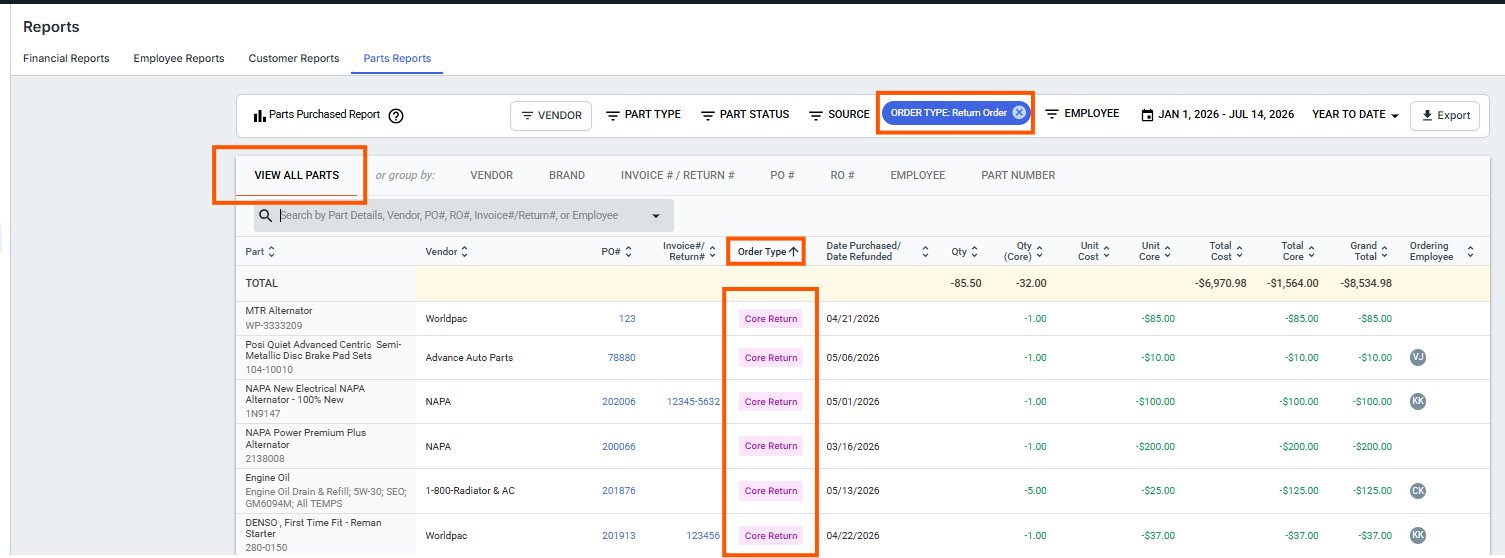
Under the left navigation menu, go to Reports, select the Parts Report tab at the top, then select the Parts Purchased Report.
You can filter this report by Source and select Core Return (or "Return Orders") to isolate only core parts that have been returned. Because these represent returned items, they will display with negative values for quantities, costs, and totals (reflecting the vendor credit).
-
When grouping this report (by Vendor, Brand, Invoice/Return #, PO #, RO #, or Employee), you will see columns specifically detailing:
Quantity Core: The number of core parts purchased or returned.
Average Core: The average cost of the core parts.
Total Core: The total dollar amount spent or credited for core parts.
Grand Total: Calculated as Total Cost + Total Core (excluding taxes and shipping).
FAQs About Cores
-
Am I able to track cores in inventory? As of now, you can only track them on the purchase order and on the repair order in Tekmetric when adding the part from a vendor.
-
Does the Core cost automatically transfer into the Estimate from PartsTech? Yes, if PartsTech shows the core cost listed in the PartsTech cart with the part details before you click "Submit Quote" or "Buy Now", it will transfer with the part onto the job in the estimate.
How should I handle deferred cores for part suppliers (i.e. Autozone, Advance Auto Parts, etc.) inside of Tekmetric? Please see our in-depth guide and videos here: https://support.tekmetric.com/hc/en-us/articles/41955783175575-Managing-Deferred-Cores-and-0-00-Returns