Unposting a repair order allows you to make corrections or changes to a finalized RO, such as adding parts or labor, before re-posting it. You must have the appropriate user permissions to perform this action.
Steps to Unpost a Repair Order
-
Locate the Repair Order: Navigate to the repair order you need to unpost. You can use the global search bar or find it on the dashboard using the dropdown menu and looking for "Paid".
- If you use the global search bar, you can unpost the repair from the Estimate tab within the RO.
- If you wish to unpost from the Paid section, continue to the next step.
-
Access the Actions Menu: Select the three dots to the right of the Total and select "Unpost"
-
Confirm the Action: A confirmation window will appear. It will notify you that unposting the repair order will set it back to an "Open" status.
Note: Unposting does not void or delete any payments already applied to the RO. The payments will remain attached to the RO while you make your corrections.
-
Click "Unpost" to Finalize: Click the Unpost button in the confirmation window to revert the repair order.
Unposting the Repair Order from the Estimate Tab
- Navigate to the repair order that you wish to unpost by global searching for the correct repair order number.
-
Navigate to the estimate tab on the repair order - select unpost to edit

3. Once selected unposted, you will be able to re-open the repair order.
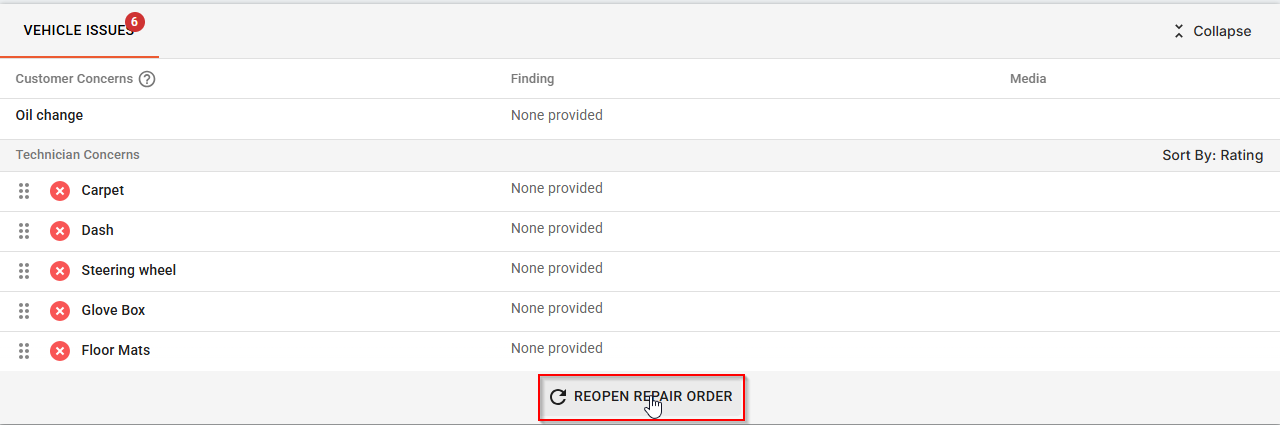
After completing these steps, the repair order will be editable again. Once you have made your necessary changes, you can repost the repair order to finalize it once more.
If you need to change the posted date of the repair order, you can do so once you select "Post Repair Order" again.
If you have any questions or concerns, please do not hesitate to contact us at support@tekmetric.com.