Tekmetric has the ability to export and upload customer lists from the software as well as migrate customer lists from Quickbooks. To learn how to do so, please follow the process below!
Export Your Customer List from Tekmetric
1. Navigate to Customers
2. Select Download CSV
3. Use the Customer List Template to ensure that the fields are filled out accordingly.
4. Once saved, please submit to datamigration@tekmetric.com.
NOTE: Do not upload to the Data Migration Tool - this for customer data migrations only.
Export Your Customer List from QuickBooks Online
1. Log in to QuickBooks Online
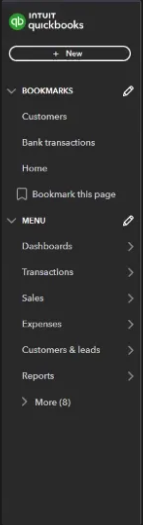
2. Go to Reports > Sales and Customers > Customer Contact List
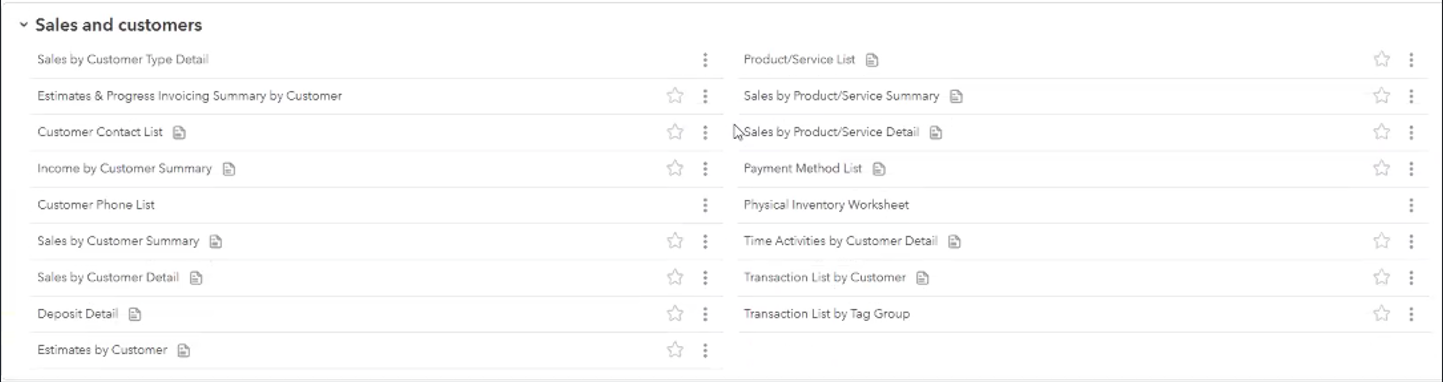
3. Click the three dots (⋮) and select Customer Contact List
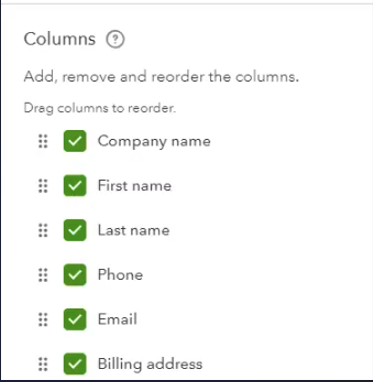
4. Under Columns, check:
- Company
- First Name
- Last Name
- Phone
- Email
- Billing Street / City / State / Zip
- Notes
5. Click Run Report (Optional: Save Customization for future)
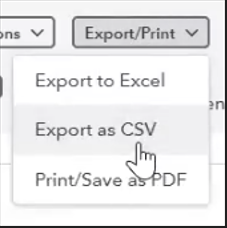
6. Export as Excel (.xlsx) or CSV (.csv)
Format Your File
- Use the Customer List Template
- Copy data from your exported QuickBooks file into the matching columns.
- Follow the sample formatting in the template.
- Only one phone number and one email per customer can be imported.
If You Don't Have Excel
- Go to sheets.google.com
- Create a blank sheet.
- Import your .xlsx file (File > Import > Upload).
- Copy/paste into the template.
- Download as Excel (.xlsx) when finished.
Submit Your List
- Email the completed file to your Onboarding Manager.
Pro Tips
- Save your custom report in QuickBooks for easy future exports.
- Double-check phone numbers, emails, and addresses before sending.