To print lube stickers from your ZEBRA sticker printer, you'll need to complete the following steps. Often, there is a bit of tweaking required depending on the exact printer and stickers your shop uses. We recommend starting and then making small adjustments until the ideal print result is found.
Adjustments to Printer Hardware Settings
-
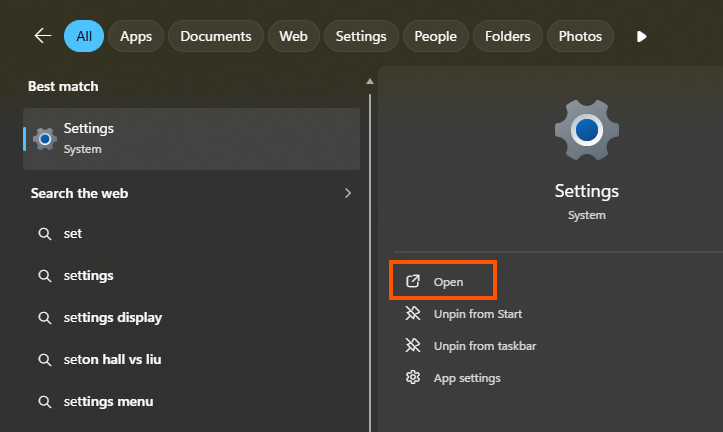
Open the printer hardware settings (this is outside of Tekmetric in your computer settings) by opening your desktop Settings application.
-
Click Bluetooth & devices in the left sidebar, then select Printers & scanners.
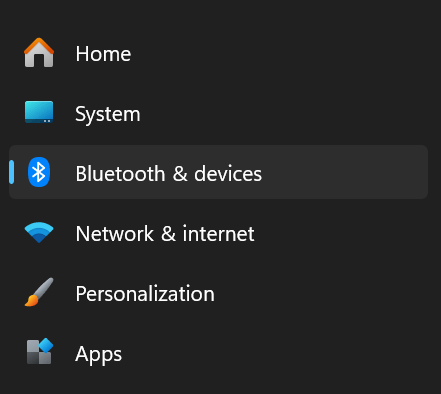
- Choose your specific Zebra printer from the list.
-
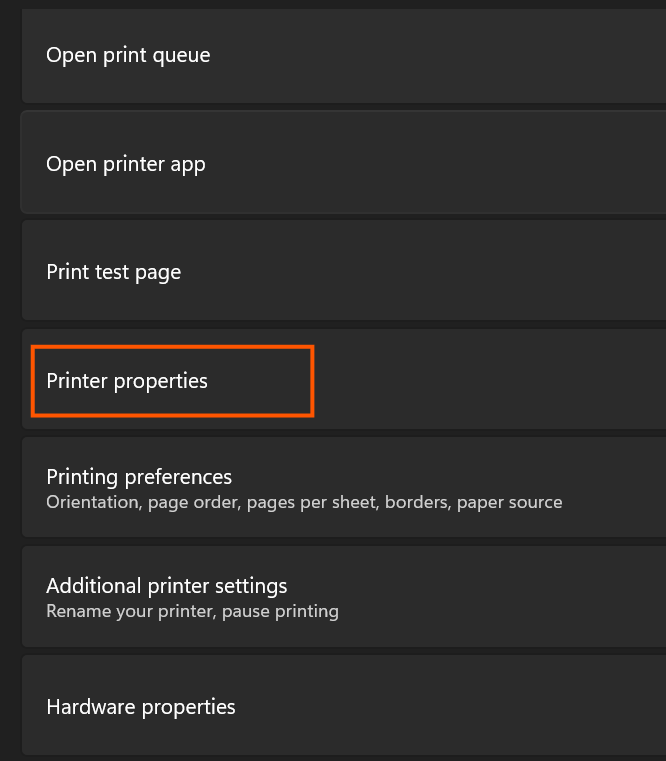
Click Printer properties or scroll down and select More devices and printer settings to access legacy hardware properties.
-
Click on the Options tab at the top of the Printing Preferences window that opens.
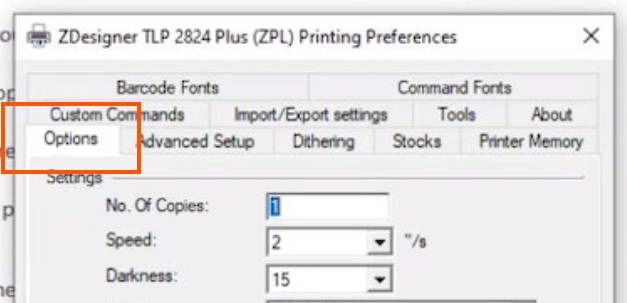
- Make adjustments as shown in the screenshot below:
- Depending on the size of your sticker, you may need to adjust the width and height as well as the orientation (portrait or landscape).
- If you have a logo or other graphic, you will also need to account for those offsets in the Unprintable Area settings.

- Click Apply and then OK at the bottom to save changes.
- Once hardware settings have been changed, navigate to an open Repair Order in Tekmetric.
-
You'll need to make sure the initial (In) mileage is entered on the Repair Order in the top-right corner first.
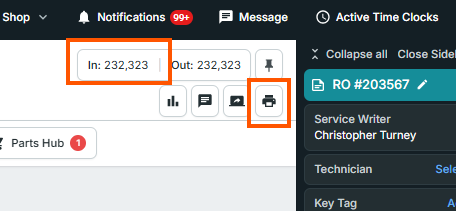
- Then click the printer icon button and choose Print Oil Sticker.
-
Adjust the sticker height and width ratio. Start with the settings below and make small adjustments as necessary depending on your sticker size:

Looking for an Alternative?
Option 1: Canned Job Automations
If your shop uses Tekmetric Marketing, you can skip the sticker and have Tekmetric remind customers automatically when their next oil change is due.
Canned Job Automations send customers a message at the time or mileage you choose. They support both mileage-based and time-based triggers. Instead of relying on a customer to notice a windshield sticker, look up your shop, and call to book, the reminder goes to them at the right moment.
- Set when reminders go out in your shop’s Automation settings.
- No sticker or printer setup is needed.
- Requires Tekmetric Marketing.
Option 2: Print Stickers with the My Oil Sticker Integration
My Oil Sticker is a third-party integration from Detect Dog that adds a print button to your Tekmetric repair orders. It prints custom-branded stickers with your logo, a next-service date and mileage, and a QR code that sends customers to your scheduling site. It uses its own dedicated sticker printer rather than a Godex.
View our My Oil Sticker Integration Guide.