Overview
Global Search is the search bar at the top of Tekmetric. We've rebuilt it so you can find customers, repair orders, vehicles, and vendors with more ways to search and fewer dead ends.
This article explains what's different, what you can search for, and how to get the most out of it.
Please note: This new global search experience is slowly being rolled out to shops starting on November 17th, 2026. Within a few weeks, all Tekmetric shops will have access to the new experience.
What's changing
-
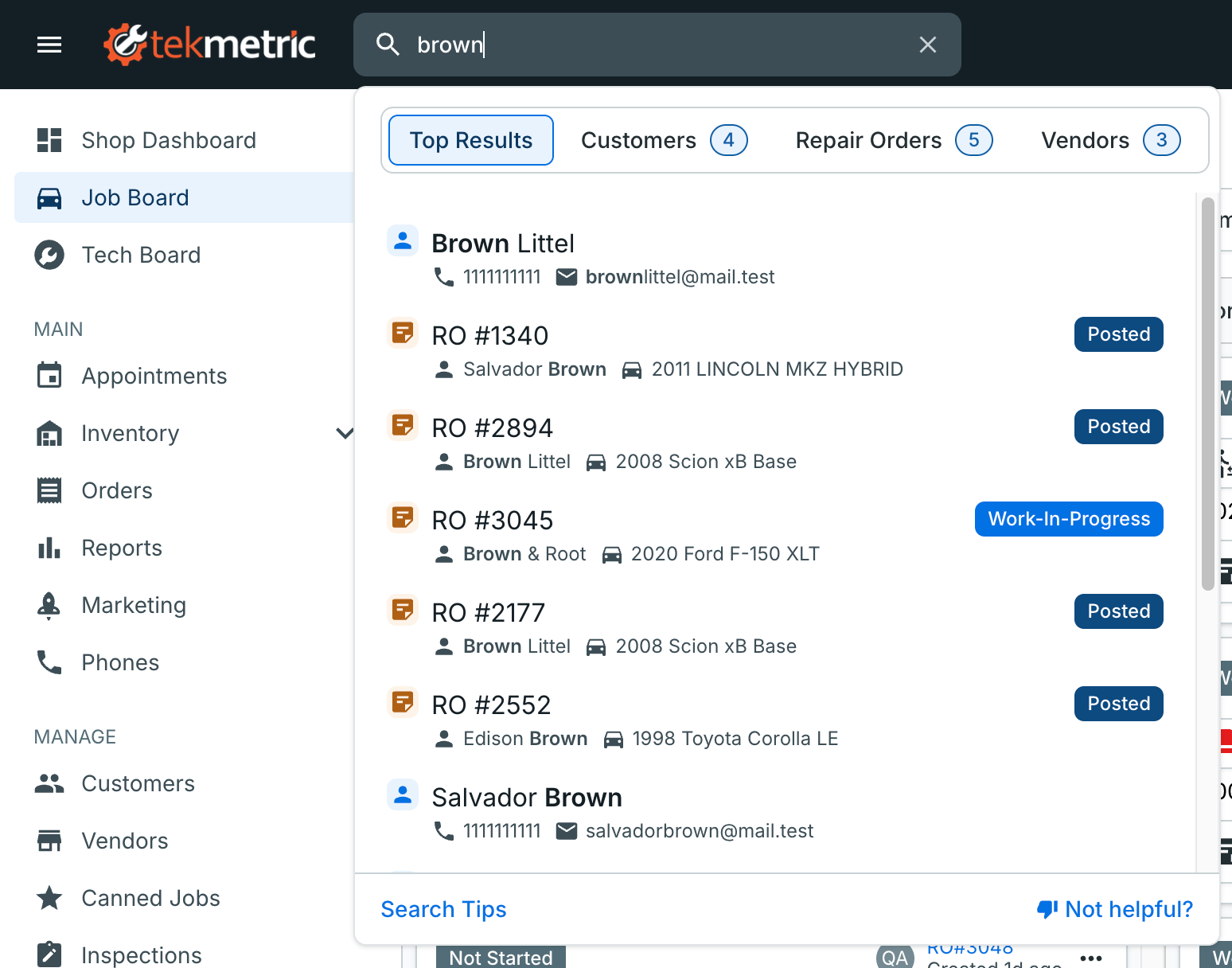
Tabbed results. Results are now organized into Top Results, Customers, Repair Orders, and Vendors instead of one long list.
-
Search more of what you know about a customer. You can now find a customer by their notes, authorized contact, or fleet ID, in addition to name, email, phone, and vehicle.
-
Typo-tolerant customer names. A search for "Jonson" will still find "Johnson," and a partial name like "Jon" will find "Jonathan."
-
Find customers with two names on one profile. If a profile is saved under a couple's names, like "Jim and Jane Smith," you can search for either person ("Jim Smith" or "Jane Smith") and find it.
-
See why a result matched. Matching text is bolded, and if the match came from something not shown in the result (like a customer note), we show you that detail.
-
Load more without searching again. Each tab shows an initial set of results. Load more if you don't see what you need.
-
Find an RO in any format. "1234," "RO 1234," and "RO-1234" all find the same repair order.
Using Global Search
- Click the search bar and type at least 3 characters. Results appear as you type.
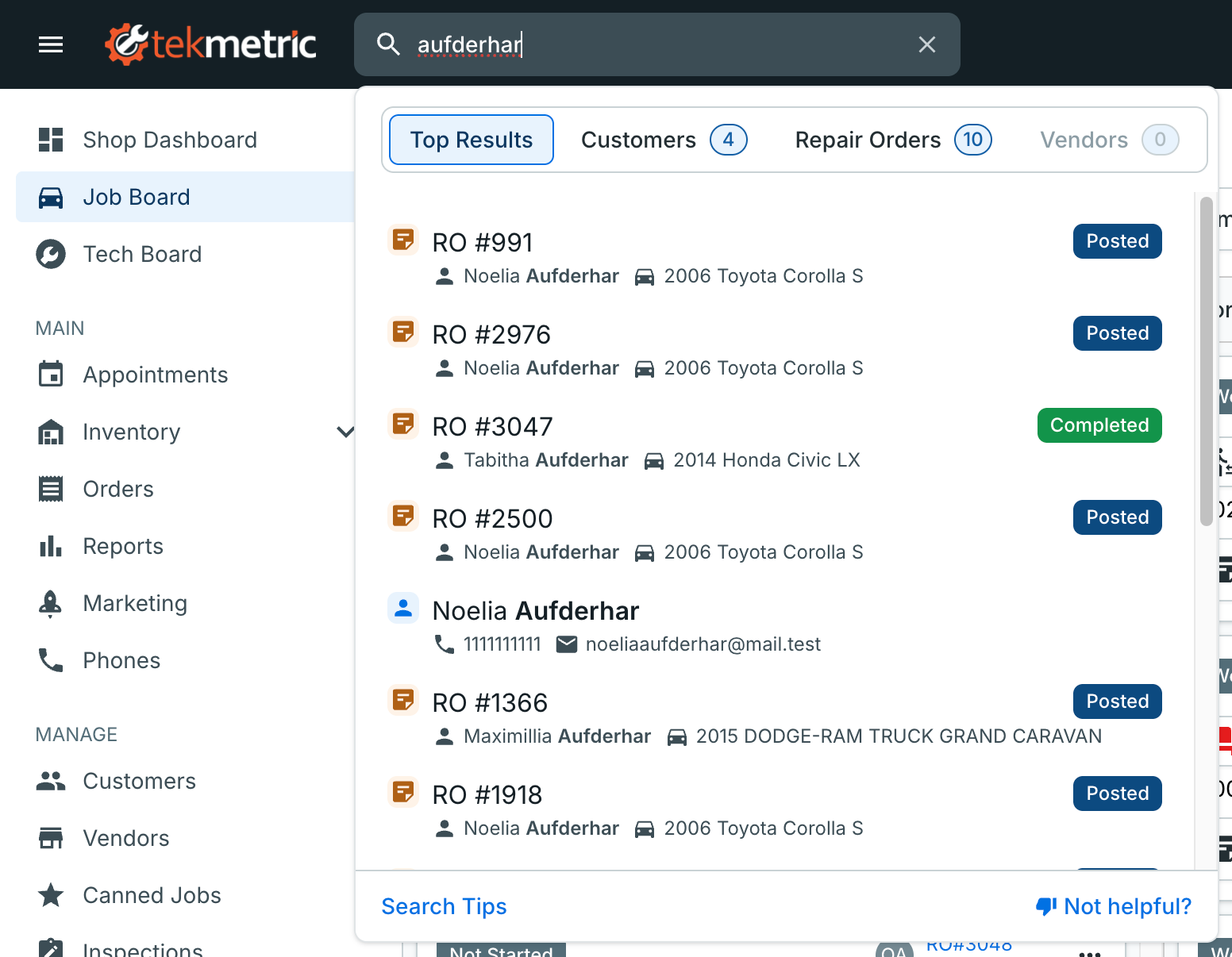
- Use the tabs to narrow results to customers, repair orders, or vendors. Top Results shows the best matches across all three (up to 20). Top Results doesn't have Load more, so open a tab to see more.
- Click a result to open its details page.
Each tab shows how many matches it found. A tab with no matches is grayed out and shows a count of 0, so you can tell at a glance where your search didn't turn anything up.
What you can search for
Customers
Each customer result shows the customer's name, phone number, email, and customer tag.
| Search by |
Notes |
| Name |
First and last name, in any order. Typo-tolerant, partial names work (3+ characters), and accents are ignored ("Jose" finds "José"). Profiles with two people's names, like "Jim and Jane Smith," can be found by searching for either person |
| Email |
Full address or the beginning of an address. A domain alone (like "@gmail.com") won't match |
| Phone number |
The full number, the first digits, the last four or more digits, or the number without an area code. Dashes, parentheses, spaces, and a country code are fine. Matches the customer's primary phone number |
| Authorized contact |
Typo-tolerant |
| Customer notes |
Searches the free-text notes on the customer record. Spelling must be exact. Notes aren't typo-tolerant |
| Fleet ID |
Must match exactly |
| Vehicle details |
Year, make, model, VIN, license plate, or unit number. VIN works from either end (the last 6 characters work). License plate and unit number must start from the beginning. Plates and VINs ignore spaces and dashes. If you include a year, it has to match. See below |
Repair orders
Each repair order result shows the RO number, customer name, vehicle, and RO status.
| Search by |
Notes |
| RO number |
Type the full number, with or without "RO". "1234", "RO 1234", "RO-1234", and "ro1234" all find RO #1234. Partial numbers don't match ("123" won't find RO #1234) |
| Customer name |
Typo-tolerant |
You can't search repair orders by vehicle. To find a vehicle's repair orders, search the vehicle on the Customers tab and open the customer.
Vendors
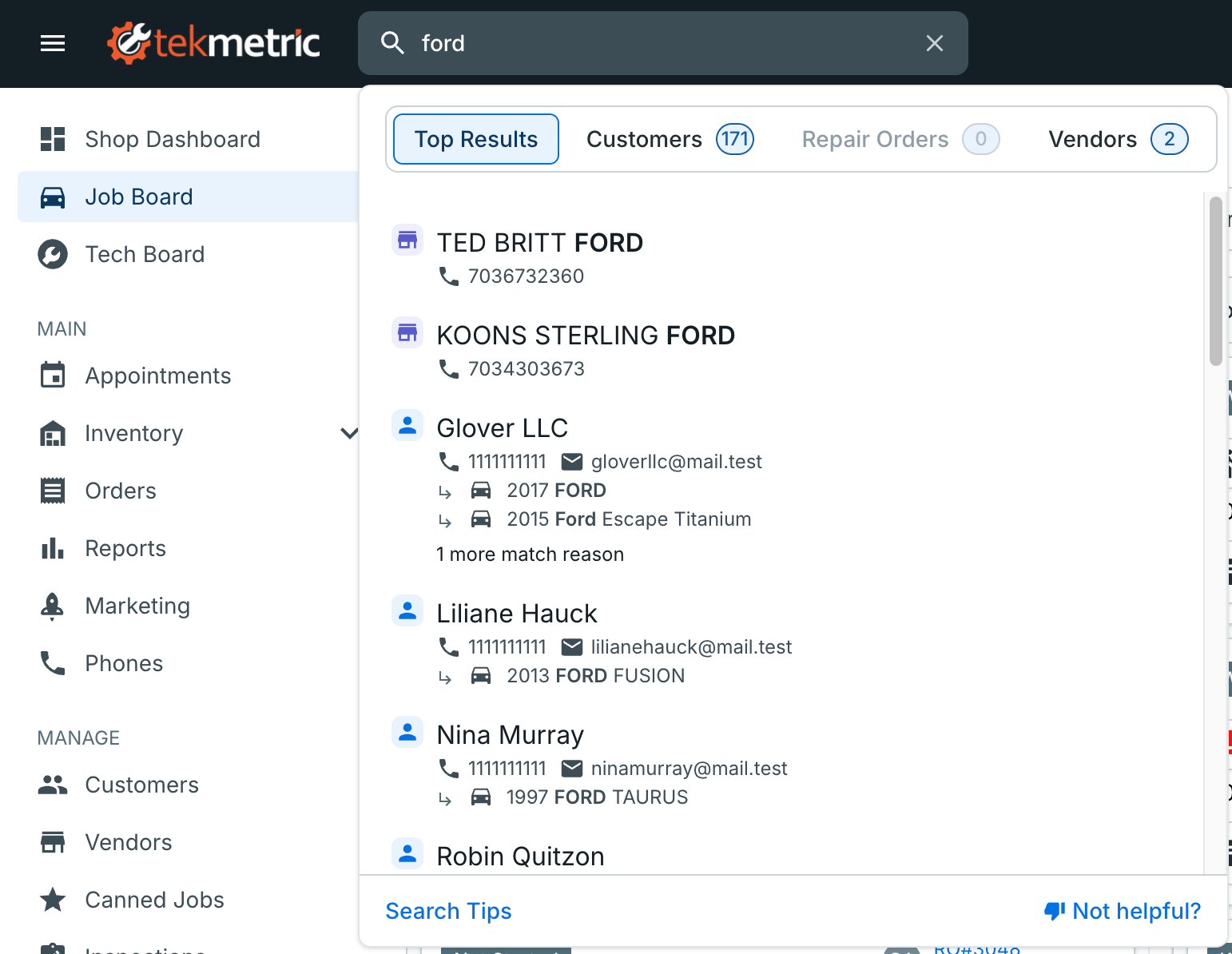
Each vendor result shows the vendor's name, phone number, and email.
| Search by |
Notes |
| Vendor name |
Matches any word in the name, or the beginning of a word. Spelling needs to be accurate |
| Store number |
Type the full store number or a complete word from it. Partial fragments (like "23" for "123") won't match |
| Email |
Full address or the beginning of an address |
| Phone number |
Same options as customer phone numbers |
Vehicles now appear under their customer
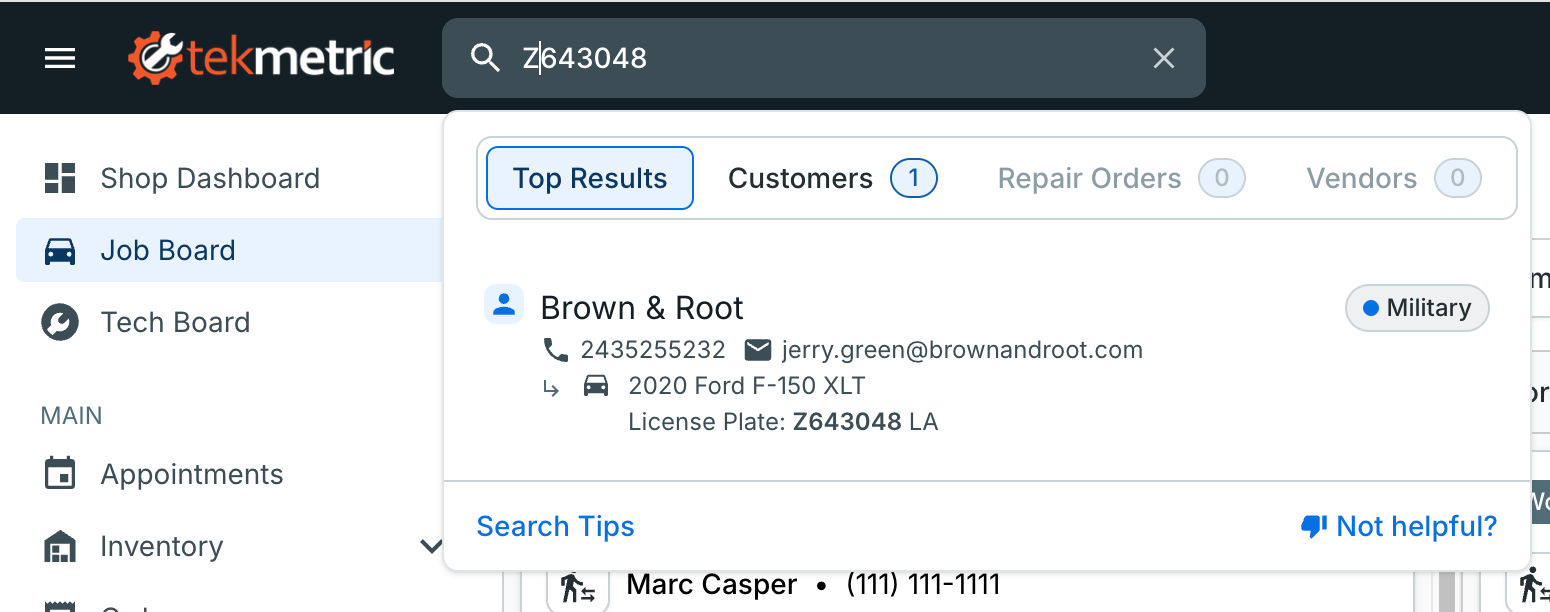
In the old search, vehicles had their own "Vehicles" section. That section is going away. Vehicles are now part of the customer search result, so when you search by VIN, license plate, year/make/model, or unit number, you'll see the customer who owns that vehicle, with the matching vehicle shown inside the result.
Example: searching a license plate used to show a vehicle. Now it shows the customer, with the matching vehicle listed under their name.
Each customer result shows up to 3 matching vehicles. If a customer has more, open the customer record to see them all. Archived vehicles don't appear in search results.
Understanding your results
Every result shows why it matched your search. If the match is in something already shown (like the customer's name), it's bolded. If the match is somewhere else on the record (like a note, authorized contact, or one of their vehicles), we show that detail with the matching text bolded.
A result shows up to two match reasons. If there are more, you'll see "X more match reasons." That text is informational and can't be clicked. Click the result itself to open the customer, repair order, or vendor.
Permissions
You only see what your account has access to.
- Tabs you don't have permission for are hidden.
- If you only have access to your assigned repair orders, the Repair Orders tab only shows those.
If someone on your team says they can't find vendors, customers, or repair orders, check their permissions in Shop Settings.
Tips for better results
- Search for the part you're sure about. A last name plus the end of a phone number works better than guessing at the whole record.
- For repair orders, type the full RO number. Partial numbers won't find a match, and an exact match is listed first.
- For phone numbers, type the digits you know, such as the last four. Formatting doesn't matter.
- If you type only digits, search looks for repair order numbers and phone numbers at the same time, so you may see both.
- Notes are searchable, so a customer can appear because of something in their notes. The match reason tells you why.
- For vehicles, try the VIN, plate, or something like "2019 Camry." Use whole words, like "Camry" instead of "Cam."
- Customer tags appear on results but can't be searched.
- Not finding it? Check each tab, and open Search Tips at the bottom of the results for more ideas.
Help us improve search
If a search comes up empty or doesn't give you what you expected, use the feedback form. Click Not helpful? at the bottom of the results, or answer the prompt when no results are found. We read every response.