Updated Feature: What's New in Gross Profit per Hour (GP/hr) Thresholds
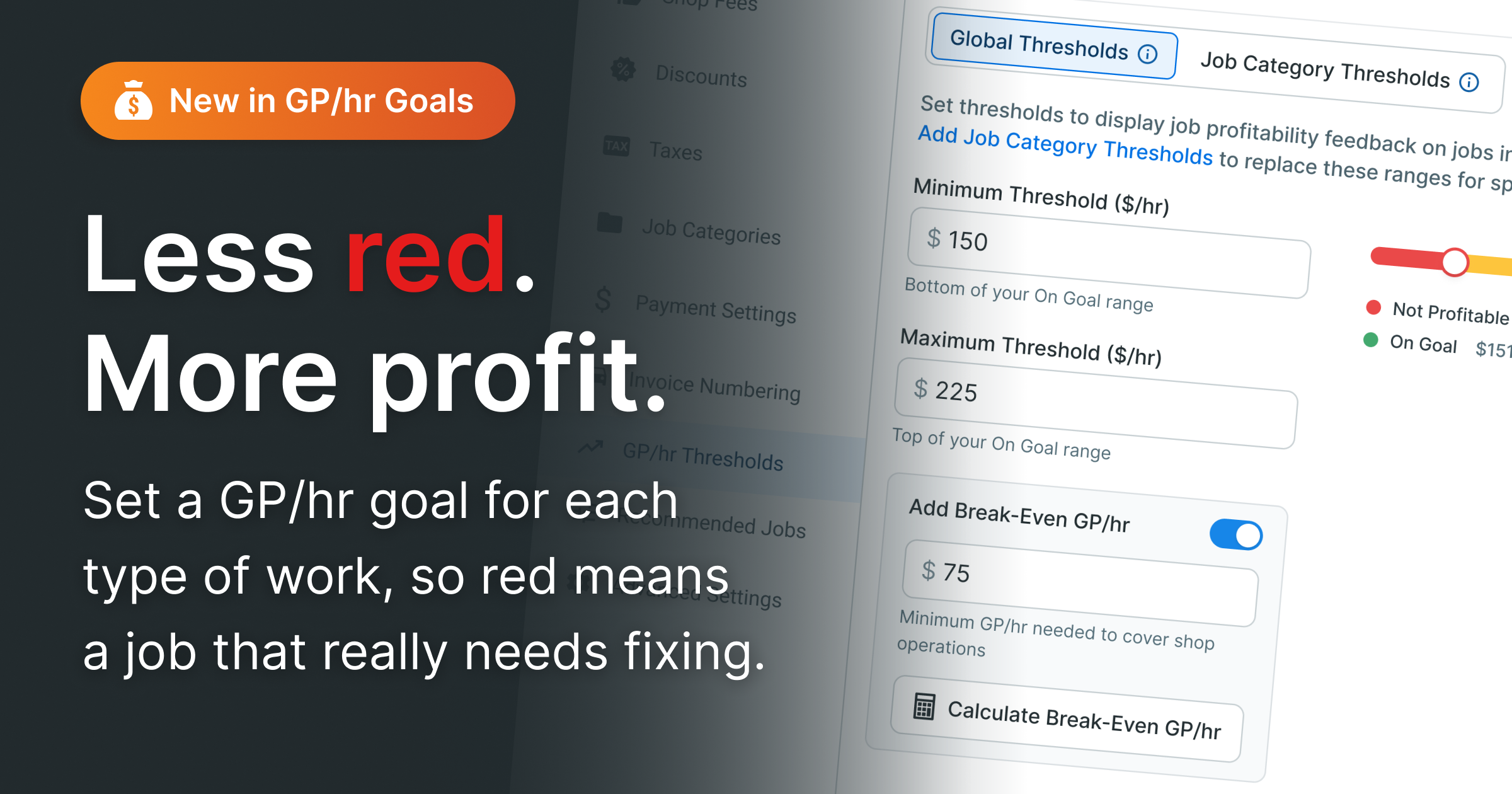
GP/hr Thresholds show your team whether each job on an estimate meets your shop's profitability goals, while there's still time to adjust it. In November of 2026, we’ve made the following improvements to this feature:
-
Four profitability zones. Add a Break-Even GP/hr alongside your Minimum and Maximum to see four zones: Not Profitable (red), Below Goal (yellow), On Goal (green), and Above Goal (purple). A built-in calculator helps you find your Break-Even.
-
Goals by job category. Set separate thresholds for different types of work, so a routine oil change and a major repair are each measured against the right target.
-
A clearer estimate. Each job shows its zone, and hovering the badge shows which thresholds apply. The estimate bar summarizes the whole estimate.
Already using GP/hr Goals? Your existing Minimum and Maximum carry over automatically as your Global Thresholds. Add a Break-Even and any job category thresholds whenever you're ready.
Already using GP/hr Goals? Your existing Minimum and Maximum carry over automatically as your Global Thresholds. Add a Break-Even and any job category thresholds whenever you're ready.
Set up your shop's GP/hr Thresholds
Shop Owners and Shop Admins can set GP/hr thresholds. Your Global Thresholds apply to Repair Orders and every job that doesn't have a job category threshold.
- Go to Shop Settings → RO Settings → GP/hr Thresholds.
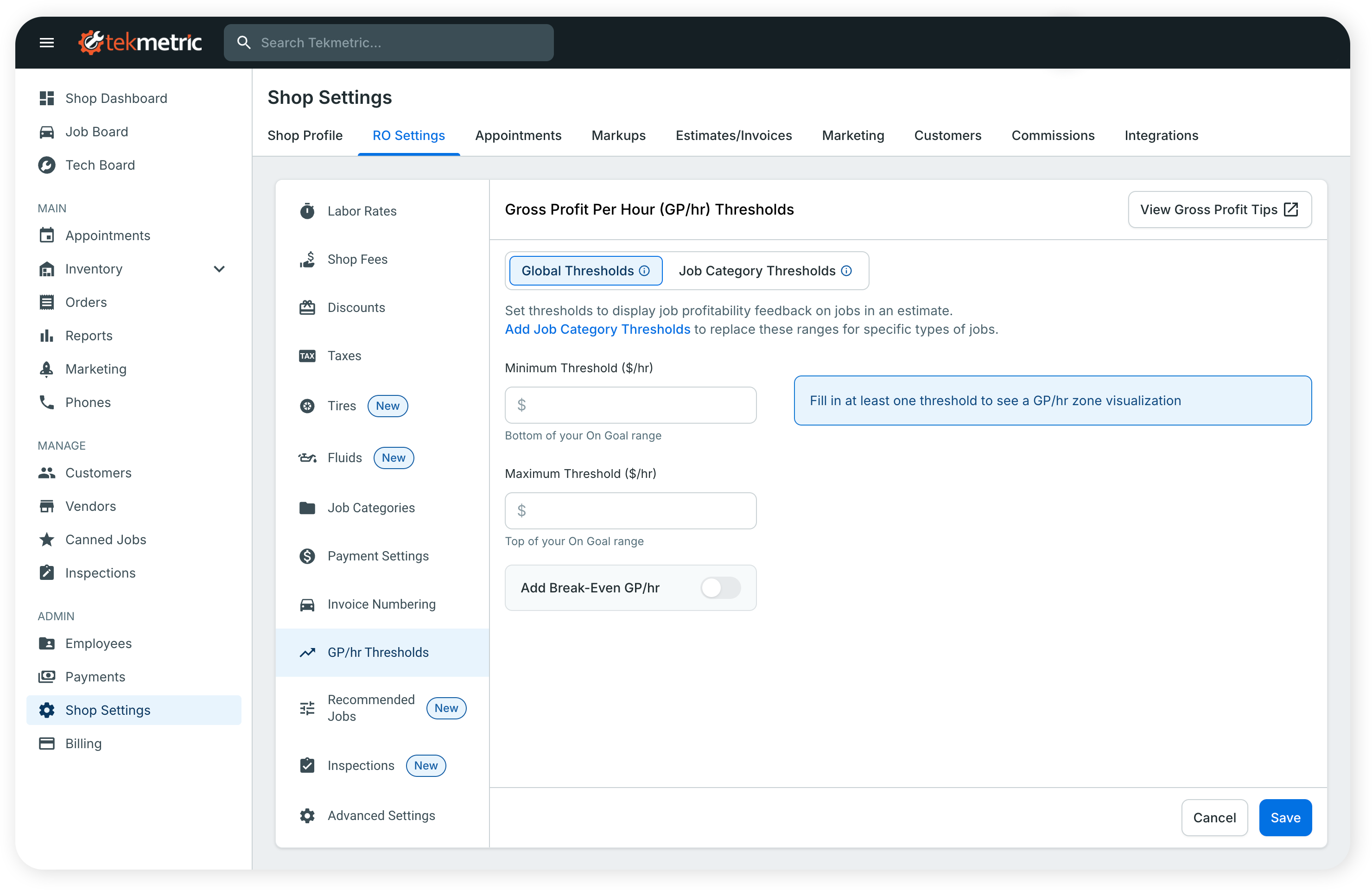
- On the Global Thresholds tab, enter your Minimum Threshold ($/hr). This is the bottom of your On Goal range.
- Enter your Maximum Threshold ($/hr). This is the top of your On Goal range.
- Turn on Add Break-Even GP/hr and enter the minimum GP/hr needed to cover your shop's operating costs. Not sure what it is? Click Calculate Break-Even GP/hr.
- Check the zone slider, then click Save.
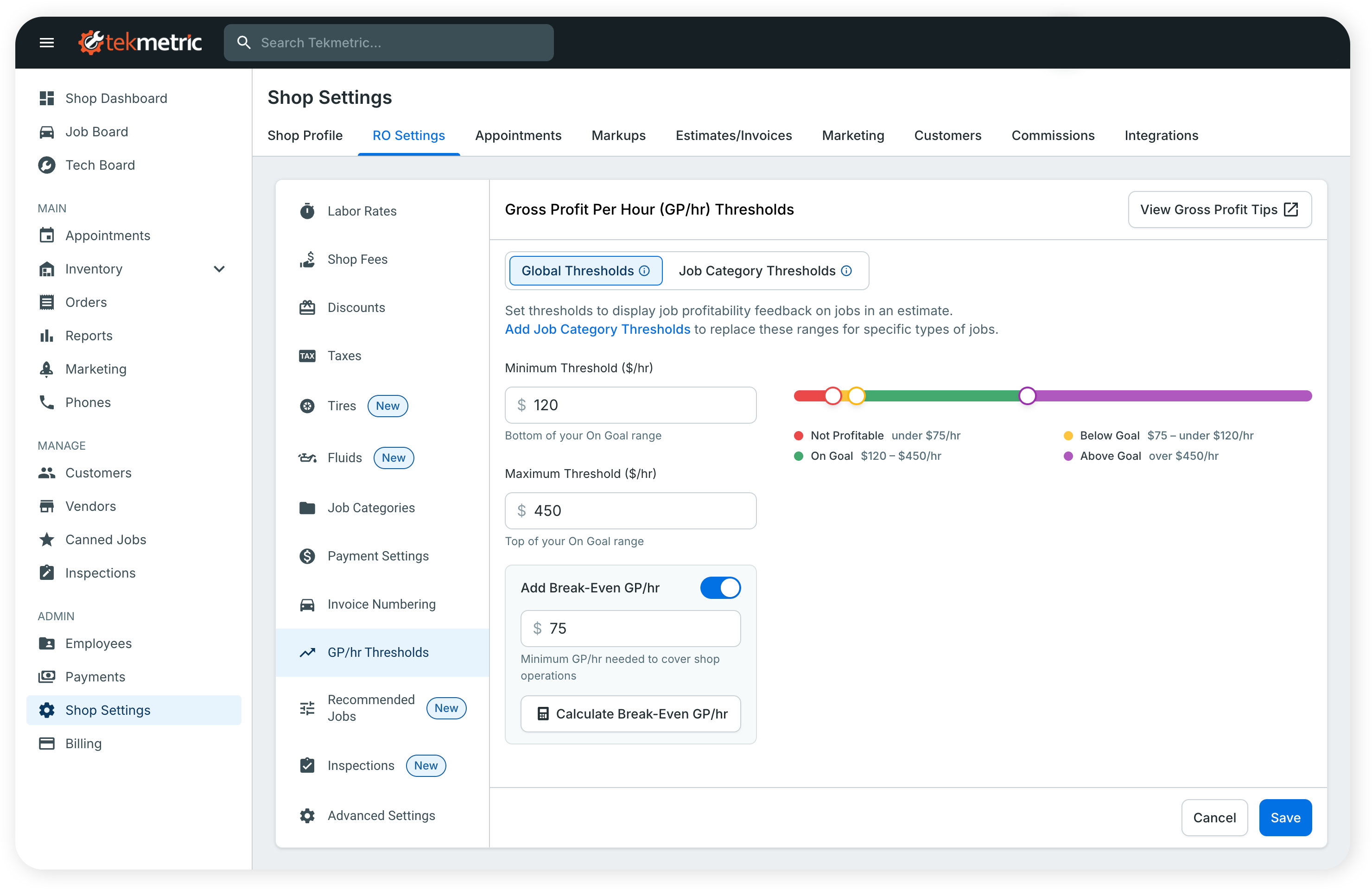
Example: with Break-Even $75, Minimum $120, and Maximum $450, the zones are:
| Zone |
Color |
GP/hr range |
| Not Profitable |
Red |
Under $75 |
| Below Goal |
Yellow |
$75 to under $120 |
| On Goal |
Green |
$120 to $450 |
| Above Goal |
Purple |
Over $450 |
Calculating your Break-Even
Your Break-Even is the GP/hr your shop needs to cover its operating costs. Click Calculate Break-Even GP/hr to open the calculator, then fill in:
| Field |
What to enter |
| Monthly Operating Costs |
Recurring costs such as rent, payroll, and insurance. Don't include parts, sublet, or technician labor. |
| Monthly Billed Labor Hours |
Hours sold on repair orders, not hours clocked or available. |
| Monthly Desired Profit (optional) |
What you want left over after normal costs and a fair owner salary. |
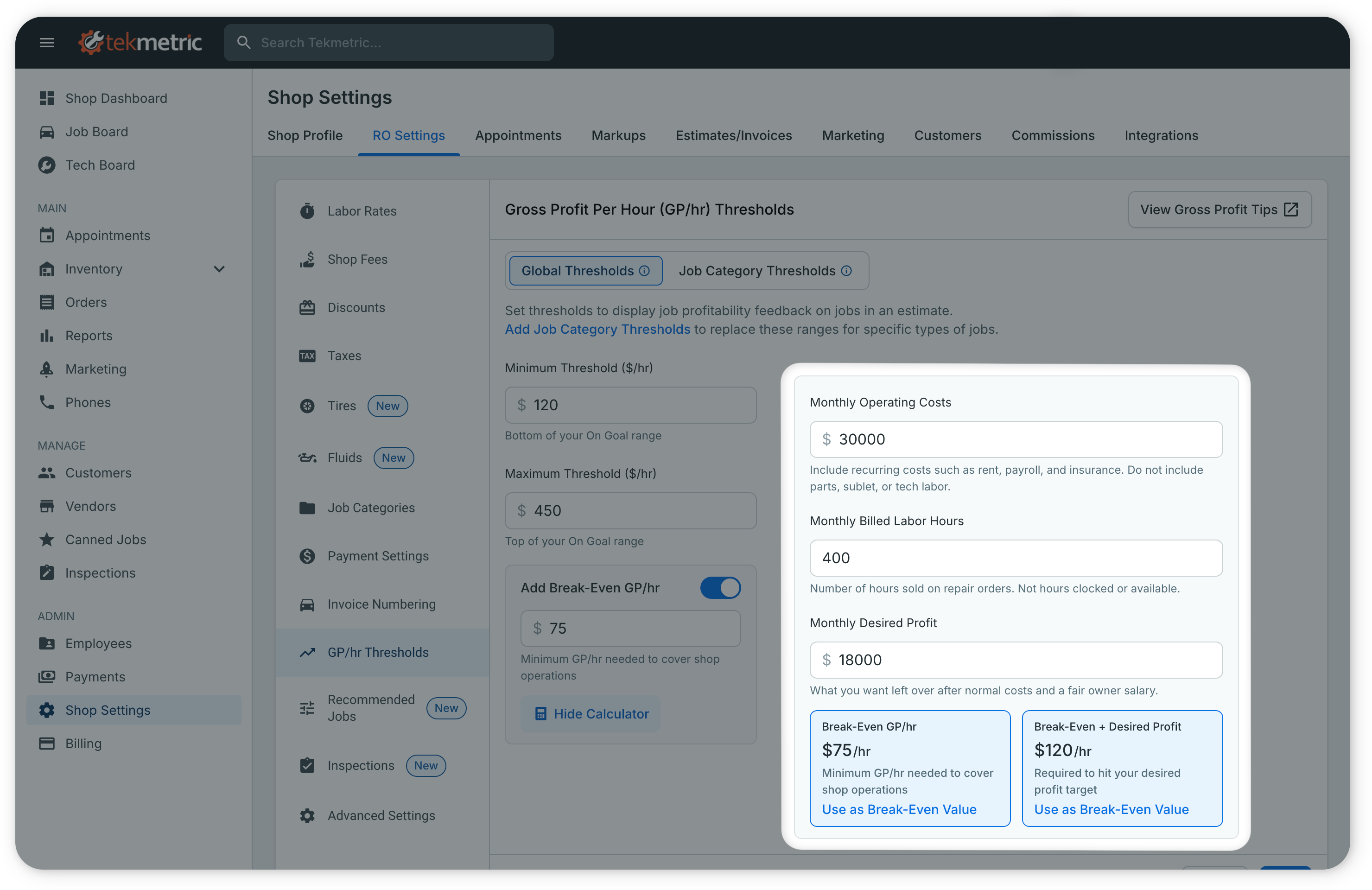
The calculator shows two results. Click Use as Break-Even Value under the one you want to save, then click Hide Calculator.
-
Break-Even GP/hr = Monthly Operating Costs ÷ Monthly Billed Labor Hours. Example: $30,000 ÷ 400 hours = $75/hr.
-
Break-Even + Desired Profit = (Monthly Operating Costs + Monthly Desired Profit) ÷ Monthly Billed Labor Hours. Example: ($30,000 + $18,000) ÷ 400 hours = $120/hr.
You don't need every threshold. Enter any one value to start. The slider appears as soon as one field has a value.
For help choosing your Minimum and Maximum, click View Gross Profit Tips at the top of the settings page, or see Understanding if the Estimate is Profitable.
Set Thresholds by Job Category
Job Category Thresholds replace your Global Thresholds for specific types of work. Use them for jobs that should be measured against a different target, like low-margin maintenance or high-margin diagnostics.
- Go to Shop Settings → RO Settings → GP/hr Thresholds and open the Job Category Thresholds tab. You can also click Add Job Category Thresholds on the Global Thresholds tab.
- Create a new threshold and give it a name. Names must be unique.
- Enter a Minimum and/or Maximum. Break-Even comes from your Global Thresholds and can't be changed here.
- Assign one or more job categories.
- Click Save. Repeat for other types of work.
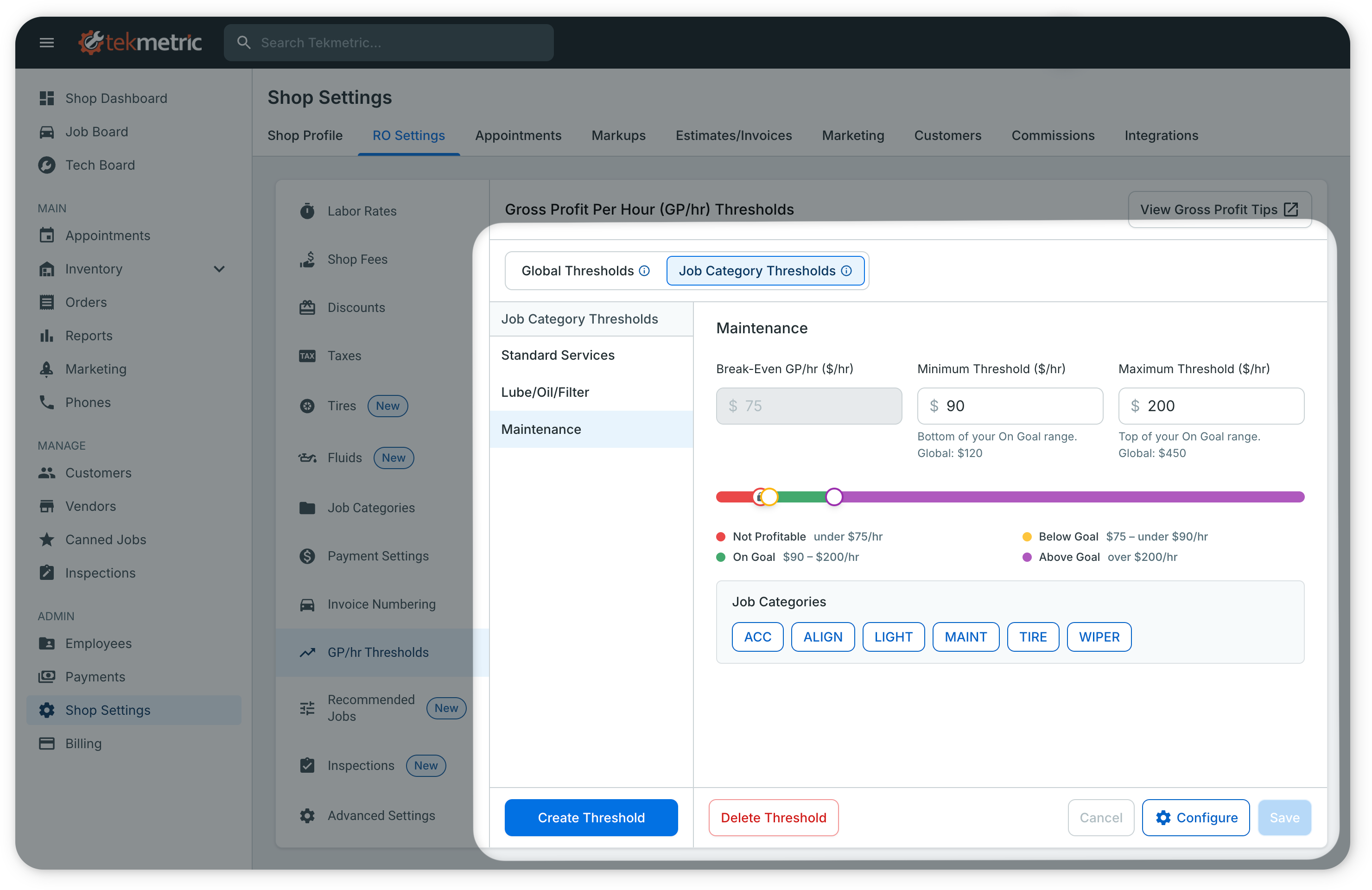
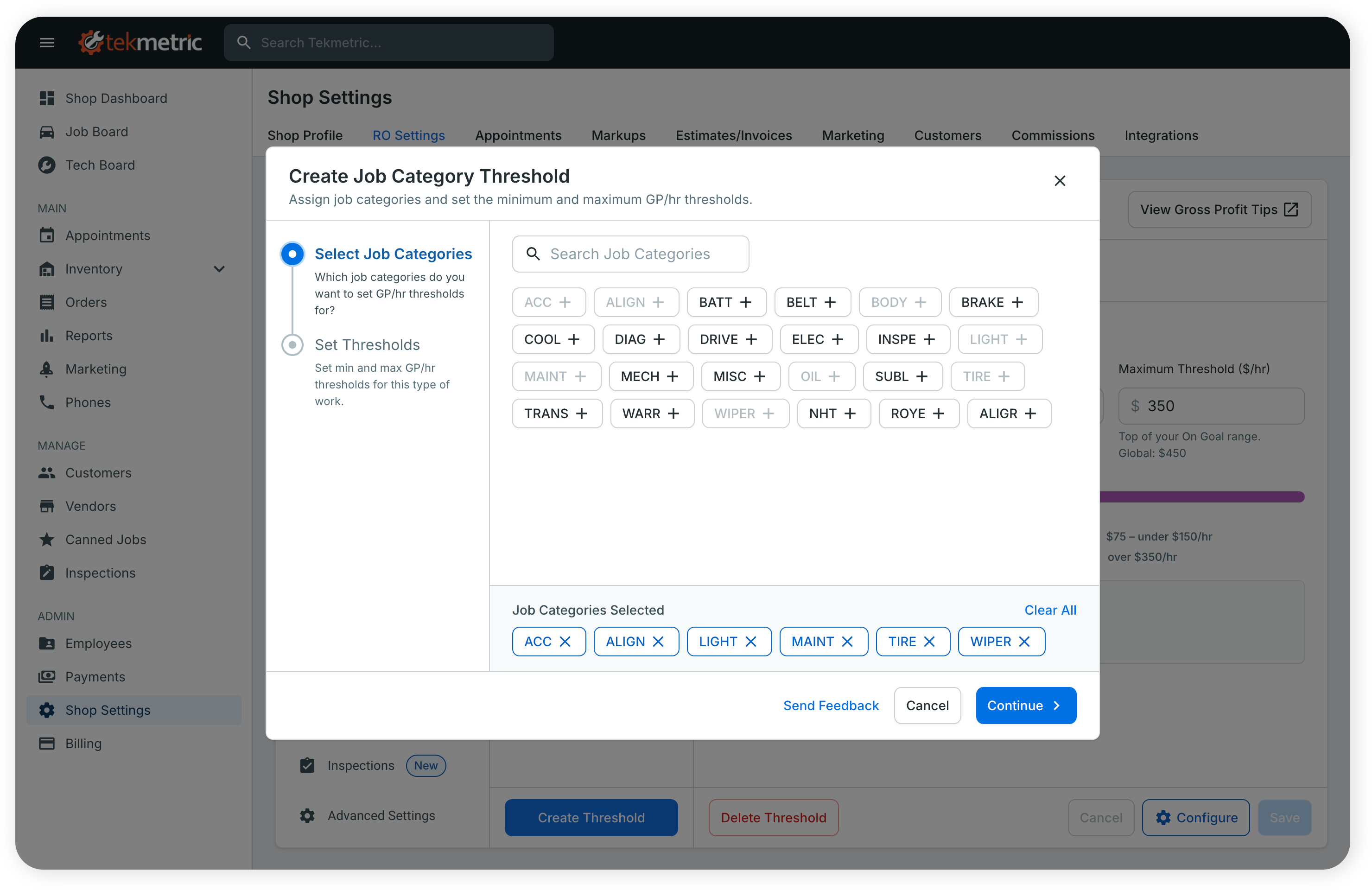
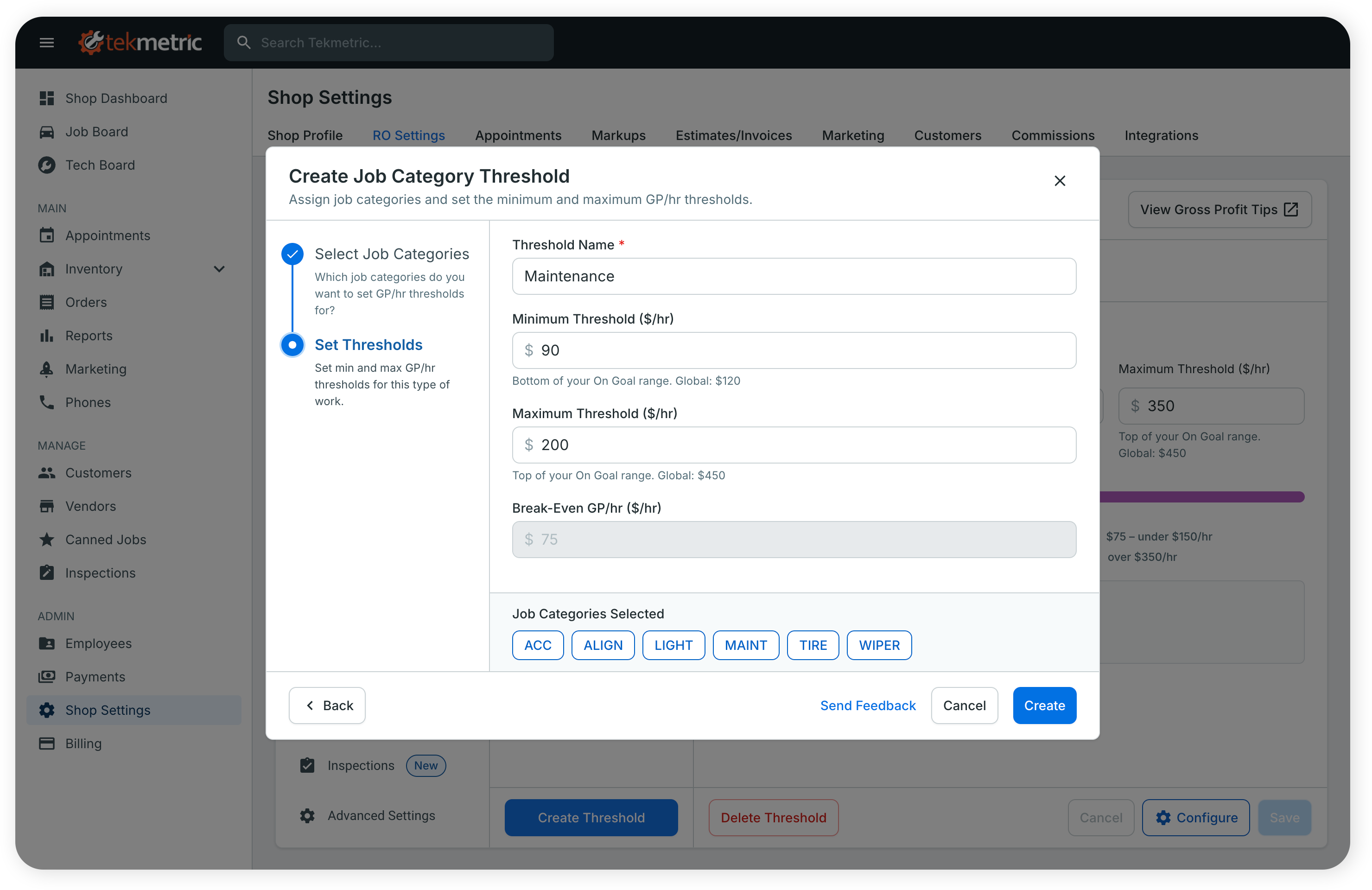
Example: your Global Thresholds are Break-Even $75, Minimum $120, Maximum $450. You create a "Maintenance" threshold with Minimum $90 and Maximum $200, and assign your Oil Change and Tire Rotation categories. A $100/hr oil change now shows On Goal instead of Below Goal.
Good to know
- Category thresholds apply by job category, not by individual canned job. A job only uses a category threshold if it has a category assigned, on the canned job or on the estimate.
- Jobs without a category threshold use your Global Thresholds.
- If you raise your Break-Even above a category's Minimum or Maximum, Tekmetric lists the affected thresholds and asks you to update them before saving.
- If you delete a job category, it's removed from any threshold it was assigned to.
Reading GP/hr on the Estimate
Once your shop has GP/hr goals, everyone building estimates sees each job's profitability zone at the bottom of the job, next to its GP%, GP$, and GP/hr.
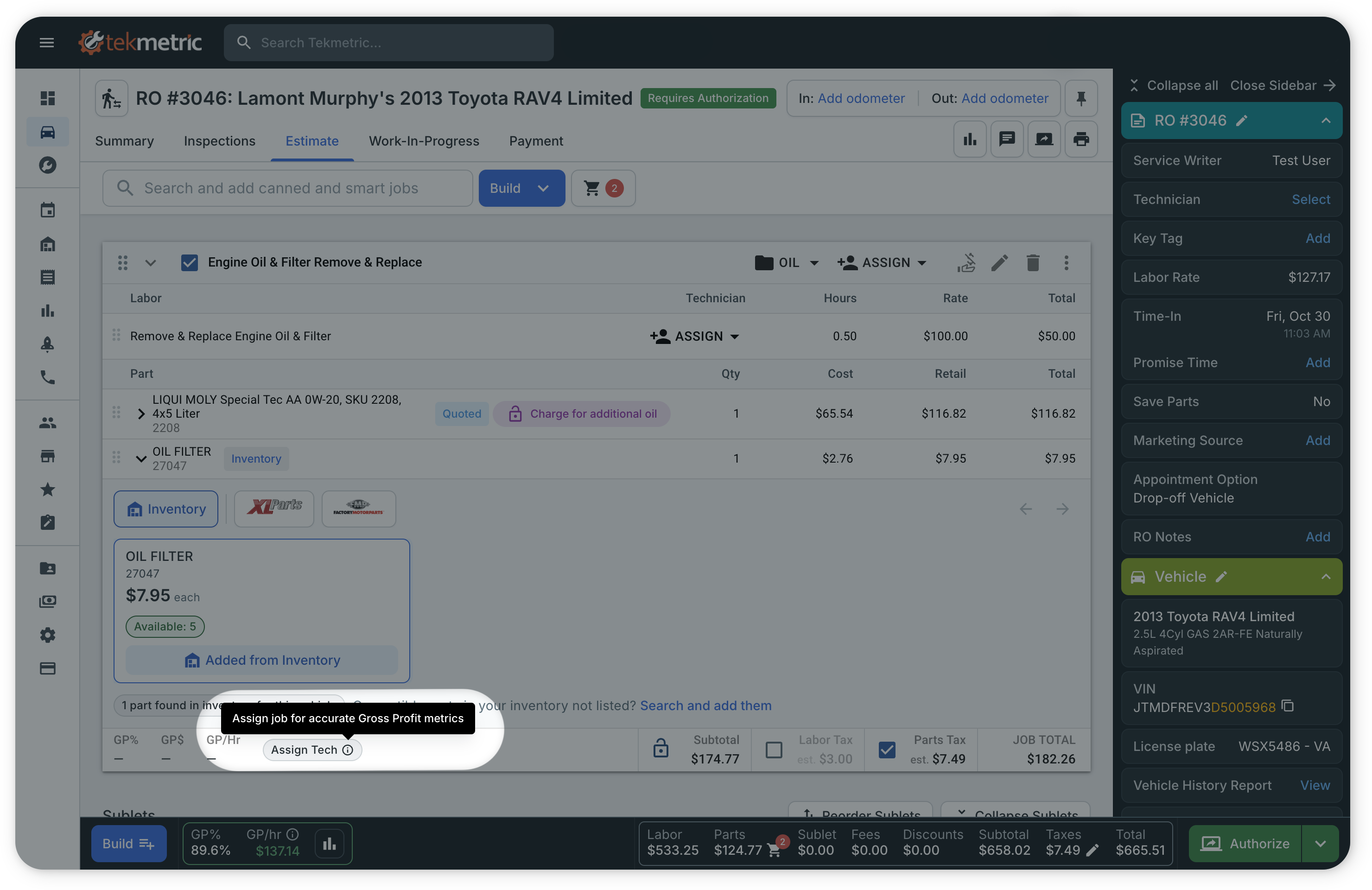
There are six different badges that you'll see displayed at the bottom of the Estimate:
Not Profitable (red): GP/hr is below your Break-Even. This job loses money.

Below Goal (yellow): GP/hr covers your Break-Even but is under your Minimum.

On Goal (green): GP/hr is between your Minimum and Maximum.

Above Goal (purple): GP/hr is over your Maximum. The job may be priced too high.

Assign Tech: No technician is assigned yet. GP/hr depends on the technician's pay rate, so no zone shows until one is assigned.

No Labor: The job has no labor lines, or its labor totals 0 hours. GP/hr shows "–". GP% and GP$ still show.

See which thresholds apply. Hover over a zone badge to see whether the job uses a job category threshold or your Global Thresholds, and the values. For example: "Brakes threshold: Break-Even $75 · Min $200 · Max $250."
Check the whole estimate. The estimate bar at the bottom of the page shows GP%, GP$, and GP/hr for the whole estimate. Hover over it to see how many jobs fall in each zone.

Declined and unselected jobs aren't included in the estimate totals or the job counts.
What to do when a job is outside its goal
Adjust the job before you send the estimate for approval. The most common fixes:
-
Labor time: confirm the hours match the work.
-
Labor rate or labor markup: apply the right rate for this type of job.
-
Parts markup: check the markup on each part.
If a whole type of work keeps showing Below Goal even when it's priced the way your shop intends, the threshold may not fit that work. Ask your Shop Owner or Admin to set a job category threshold for it.
An Above Goal job isn't always a problem. It can mean the job is priced higher than your shop intends, so it's worth a second look before sending.
Frequently Asked Questions (FAQ)
Now that you've seen how to configure your Global and Job Category-Level Gross Profit per Hour (GP/hr) Thresholds and understand the visual indicators that your team will see on the Estimate, here are a few Frequently Asked Questions to help you get started quickly:
Who can configure and edit Gross Profit per Hour (GP/hr) Goals for my shop?
Only Shop Owners and Shop Admins will have the permission level necessary to configure and edit your shop's Gross Profit per Hour (GP/hr) Goals.
Do I need to set every threshold?
No. You can set any combination of Break-Even, Minimum, and Maximum. Zones only appear for the thresholds you set. For example, with only a Minimum, jobs show Below Goal or On Goal.
How do I know what values to set?
Use the Calculate Break-Even GP/hr button to find your Break-Even from your monthly operating costs and billed labor hours. Add a monthly desired profit to see what GP/hr would also cover it. For your Minimum and Maximum, click View Gross Profit Tips on the settings page, or see Understanding if the Estimate is Profitable.
Why doesn't a job show a zone?
Zones only show once a technician is assigned, because the technician's pay rate determines GP/hr. Jobs with no labor show "No Labor." Declined and unselected jobs aren't counted.
Why are so many of my oil changes or other low-margin jobs Below Goal?
One global goal doesn't fit every type of work. Create a job category threshold for those categories with goals that fit that work.
Can I set a different Break-Even for each category?
No. Break-Even is shop-wide and applies to every category threshold. Changing it updates all of them.
What happens if I raise my Break-Even above a category's thresholds?
Before saving, Tekmetric lists the category thresholds that are affected and asks you to set new values.
Can I set a goal for a single canned job?
No. Goals apply by job category. Assign the canned job to a category, then set a threshold for that category.
Can I disable this feature?
Of course! To turn off Gross Profit per Hour (GP/hr) Goals and remove all of the visual indicators shown above, simply clear the contents of the minimum and maximum threshold fields and save the page.