What's New?
- June 25, 2026 - ARO added as a custom filter
- July 10, 2026 - Vehicle Model added as a custom filter
WHAT IS IT?
Customer Segments are pre-built groups of customers that help you organize and target specific audiences within Tekmetric Marketing. Each segment automatically groups customers based on their behavior and history at your shop—like how recently they visited, how much they spend, or whether they have declined services.
Note: Customer Segments are only available to users of Tekmetric Marketing with the appropriate permissions.
Segments are dynamic, meaning they automatically update each night as your customer data changes. A customer might move into or out of a segment based on their latest visit, spending patterns, or other factors tracked in Tekmetric.
WHY IS IT IMPORTANT?
-
Save time with ready-to-use customer groups instead of manually sorting through your customer list
-
Increase campaign effectiveness by sending the right message to the right customers at the right time
-
Focus your marketing efforts on high-value opportunities like win-back campaigns for lapsed customers or thank-you messages for top spenders
-
Better understand your customer base through organized groups that show you who your loyal customers are, who needs attention, and who's ready for follow-up
-
Make data-driven decisions about where to invest your marketing dollars
VIEWING YOUR SEGMENTS
The Segments Page
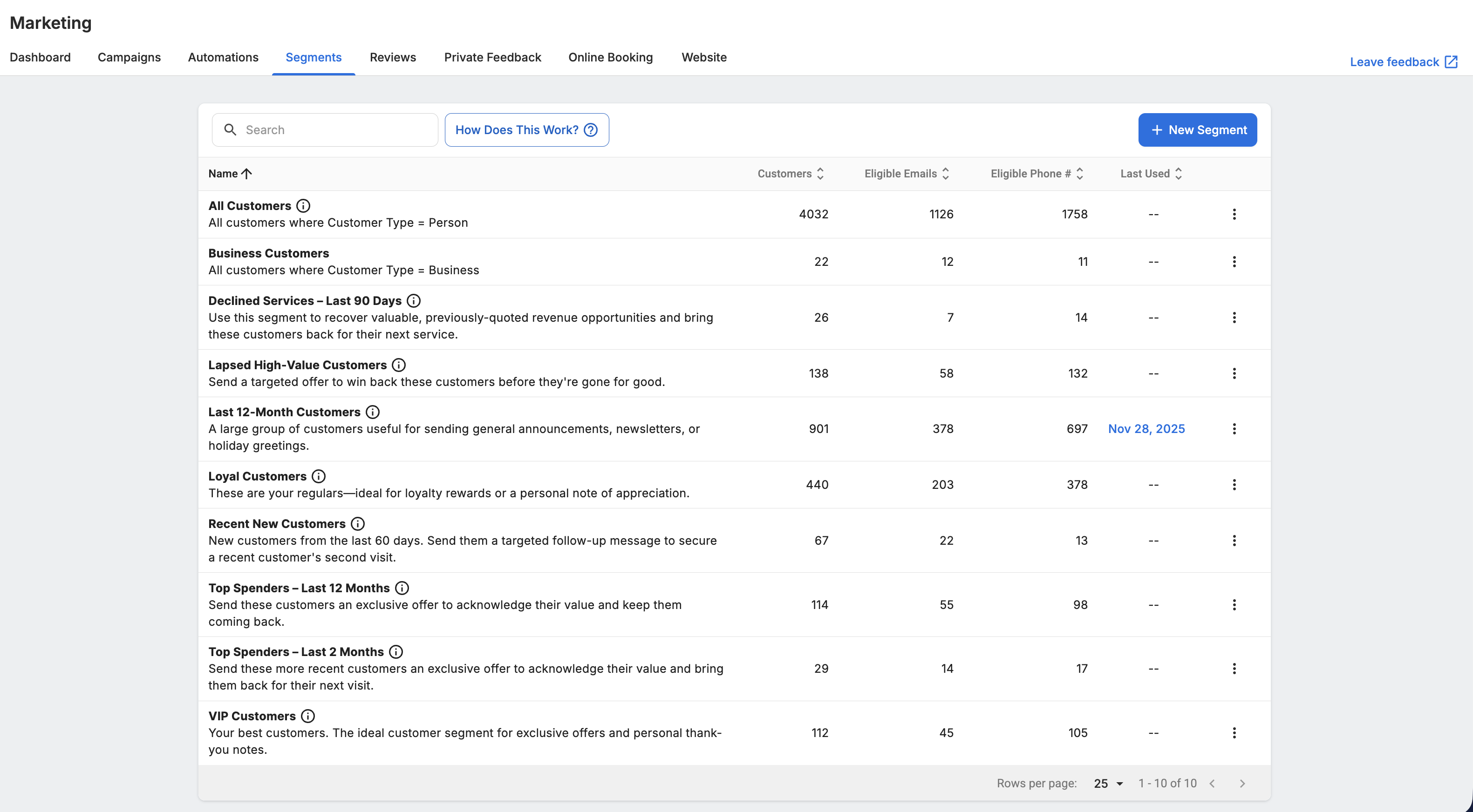
You can access your segments by navigating to Marketing > Segments in Tekmetric. The Segments page displays all available customer segments with key information about each one.
For each segment, you'll see:
-
Segment Name and Description: What the segment is and who it includes
-
Total Customers: The number of customers currently in this segment
-
Eligible Emails: The number of customers in this segment who can receive marketing emails (valid email addresses where customers haven't opted out or bounced)
-
Eligible Phone Numbers: The number of customers in this segment who are subscribed to receive marketing text messages
-
Last Used: The date this segment was last used in a campaign (if applicable)
Understanding your reach: The Total Customers count shows everyone in the segment, but the Eligible Emails and Eligible Phone Numbers tell you how many you can actually reach through each channel. For example, a segment might have 500 total customers, but only 350 eligible emails and 200 eligible phone numbers—meaning you can reach 350 people via email campaigns and 200 via text campaigns from this segment.
Viewing Customers in a Segment
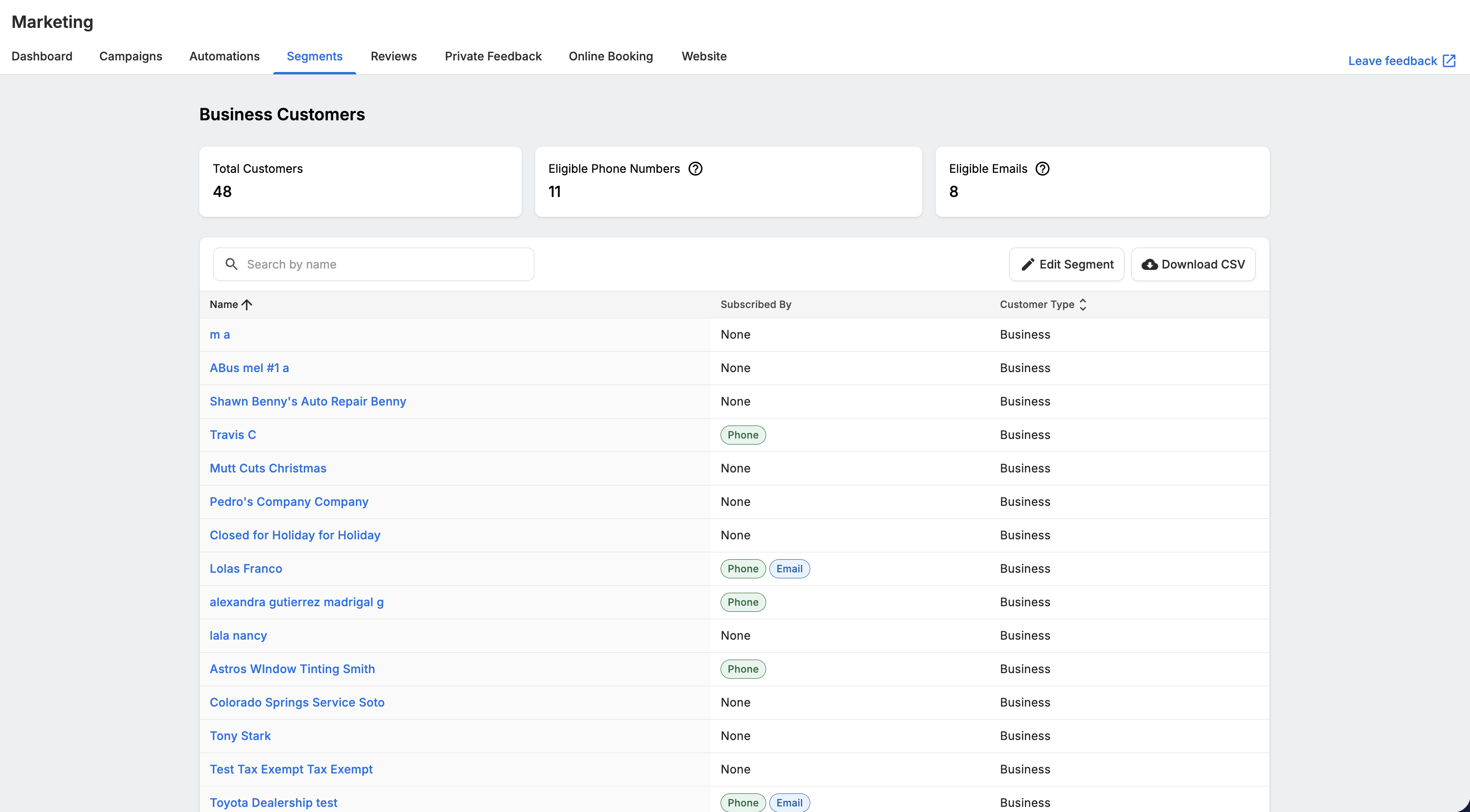
To see the individual customers within a segment, click directly on the segment row. This opens a detailed view showing:
- Segment details (name, description, filters applied)
- Summary counts (total customers, eligible emails, eligible phone numbers)
- A list of all customers in the segment
The customer list includes each person's name, email, phone number, and their subscription status. The subscription status shows which channels each customer is available on:
-
Email: Customer can receive marketing emails
-
Phone: Customer is subscribed to marketing texts
-
None: Customer has opted out or is not subscribed to either channel
DOWNLOADING SEGMENT DATA
Need to use your segment data outside of Tekmetric? You can export any segment as a CSV file by clicking the Download CSV button from either the main Segments page 3-dot menu or while viewing a segment's details.
The CSV export includes:
- Customer name, email, and phone number
- Marketing opt-in status for email and phone
- Customer address
- Customer type (Business or Person)
- First and last visit dates
- Any additional data related to how the segment was created
Note on migrated customer data: For customers that came over via a data migration, Tekmetric uses the actual visit dates from your previous system, not the migration date. This means:
-
First Visit shows the earliest visit date across both your previous system and Tekmetric
-
Last Visit shows the most recent visit date across both your previous system and Tekmetric
This ensures segments accurately reflect your complete customer history. This applies to segment filters, segment CSV exports, and any campaigns using these segments.
Permissions required: To download segment data, you need both the Marketing permission and the Can export customer list permission. If you don't have export permissions, the download button will be disabled.
DEFAULT SEGMENTS
Your shop comes with several pre-configured segments created using your shop's data. These default segments represent common customer groups that most shops want to target. See below for details.
-
Customers who have had a repair order with marketable declined services
within the past 90 days.
-
Customers who have had a repair order with marketable declined services
within the past 90 days.
-
Customers in the top 25% for lifetime spend whose last repair order was
between 6-12 months ago.
-
All 'person' customers whose last repair order was between 1 and 12 months
ago.
-
Customers who have had two or more repair orders in the last 12 months.
-
New customers whose first visit was between 15 and 60 days ago.
-
Customers in the top 10% for total spend in the last 12 months with at
least one repair order in that time period.
-
Customers in the top 10% for total spend in the last 2 months with at
least one repair order in that time period.
-
Customers in the top 5% for lifetime spend and the top 10% for total
lifetime visits, whose last repair order was within the past 9 months.
-
All customers with Customer Type = Person in Tekmetric. This segment includes every customer in your database without any additional
filters
based on visit history, spending, or other criteria.
CREATING CUSTOM SEGMENTS
You can now create your own custom segments to target exactly the customer groups that matter most to your shop. The segment builder gives you complete control over who gets included based on visit history, spending patterns, declined services, location, and more.
Getting Started
To create a new segment:
- Navigate to Marketing > Segments in Tekmetric
- Click the + New Segment button
- The segment builder opens in a full-page view
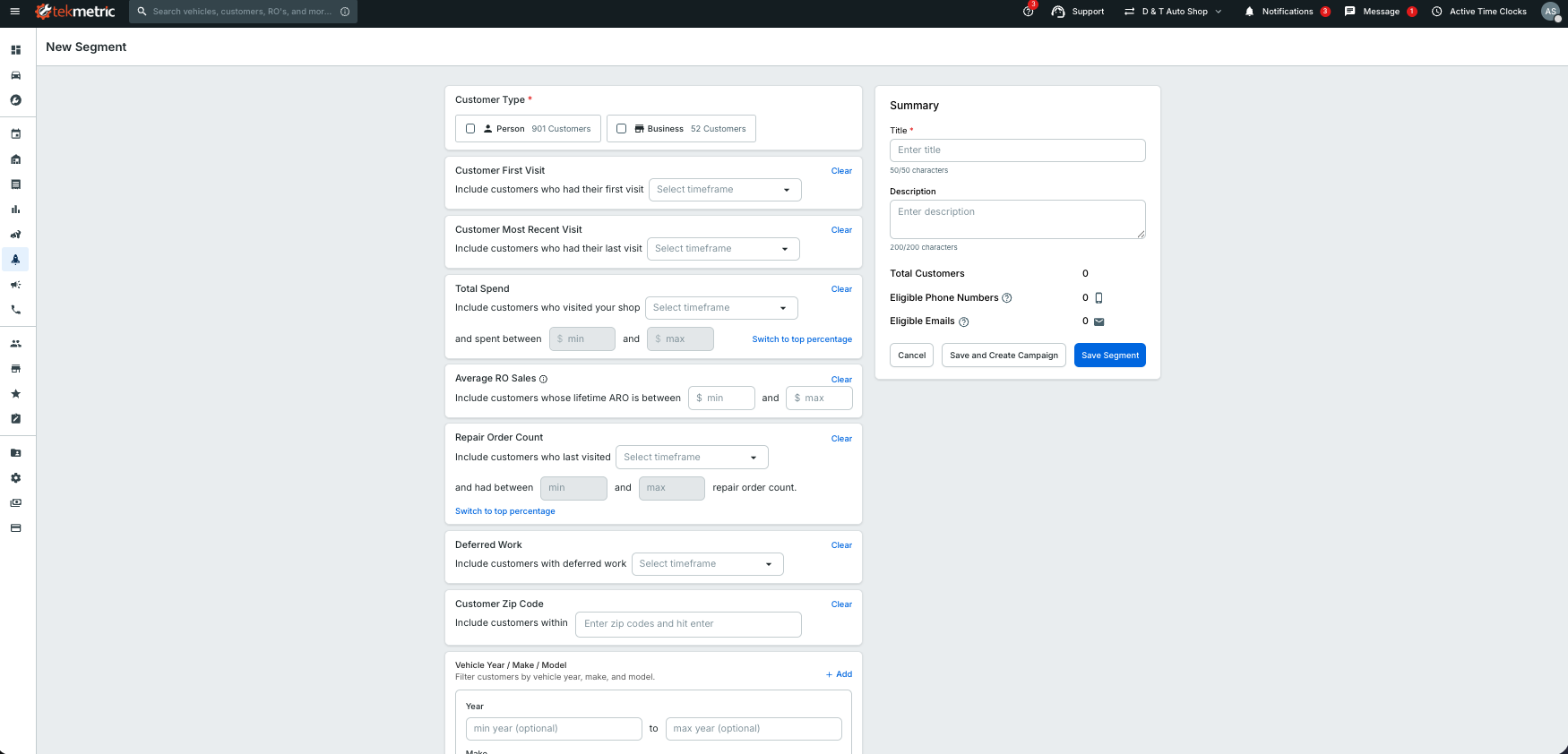
The segment builder is split into two panels:
-
Left panel: Select and configure your filters here
-
Right panel: View real-time counts as you build (Total Customers, Eligible Emails, Eligible Phone Numbers) plus segment details and save options
As you add filters, the customer counts update immediately so you can see exactly how many people match your criteria.
Choosing Your Customer Type
Every segment starts with selecting a customer type—this is the only required filter. You can choose:
-
Person: Individual customers
-
Business: Fleet or commercial accounts
-
Both: All customers regardless of type
All other filters are optional. If you don't configure a filter, it's simply ignored and won't limit your segment.
Adding Filters to Your Segment
Use filters to narrow down your segment to the exact customers you want to reach. You can combine as many filters as you need—for example, "people who visited in the last 90 days AND spent between $500-$1,000 AND have deferred services from the last 6 months."
Available Filters
Customer First Visit Target customers based on when they first came to your shop. Choose from preset timeframes (Last 7 days, Last 30 days, Last 6 months, etc.) or create a custom date range.
Customer Most Recent Visit Filter by when customers last visited. Use this to find recently active customers or identify those who haven't been back in a while.
Total Spend Target customers by how much they've spent at your shop. You can filter by:
-
Dollar amount: Set minimum and/or maximum spend (e.g., customers who spent $500-$2,000 in the last year)
-
Top percentage: Target your top spenders (e.g., top 10% of customers by lifetime spend)
Average Repair Order Filter by a customer's lifetime average repair order value. You can view your shop's lifetime ARO by hovering over the tooltip.
Repair Order Count Filter by how many visits customers have had. Like Total Spend, you can use:
-
Number of visits: Set minimum and/or maximum visit counts
-
Top percentage: Target your most frequent visitors
Deferred Work Find customers who have declined services within a specific timeframe. This helps you follow up on recommended maintenance they haven't completed yet.
Customer Zip Code Target customers by location. You can enter multiple zip codes (up to 100) to focus on specific areas around your shop.
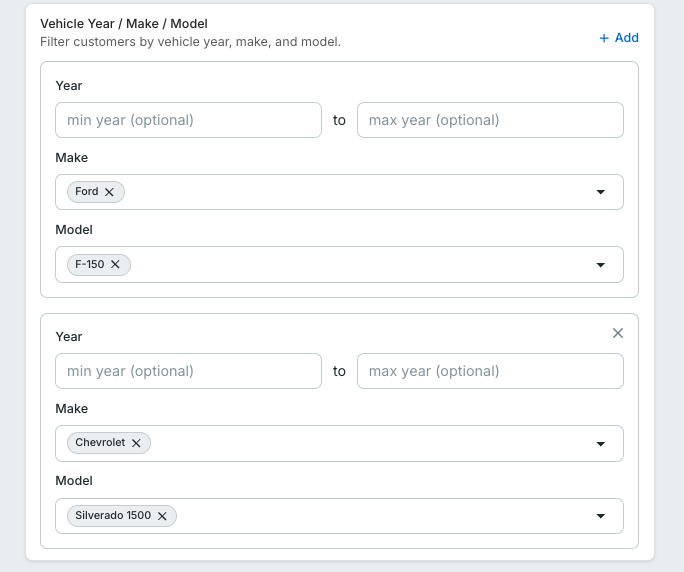
Vehicle Year, Make and Model Use these filters to target owners of specific vehicles, like 2020 Ford Explorer, or 2023 Kia Sorento. Note that if you want to find 'Pickup Truck Owners' and look for customers with both Chevrolet Silverado's and Ford F-150s you'll need to use the '+Add' button to add a new section, like below
How Filters Work Together
When you add multiple filters, they work with "AND" logic—customers must match all the filters you've configured to be included in the segment. For example:
- Customer Type = Person
- Most Recent Visit = Last 90 days
- Total Spend = $500 minimum
This segment includes only individual customers (not businesses) who visited in the last 90 days AND spent at least $500 during that time.
Understanding Real-Time Metrics
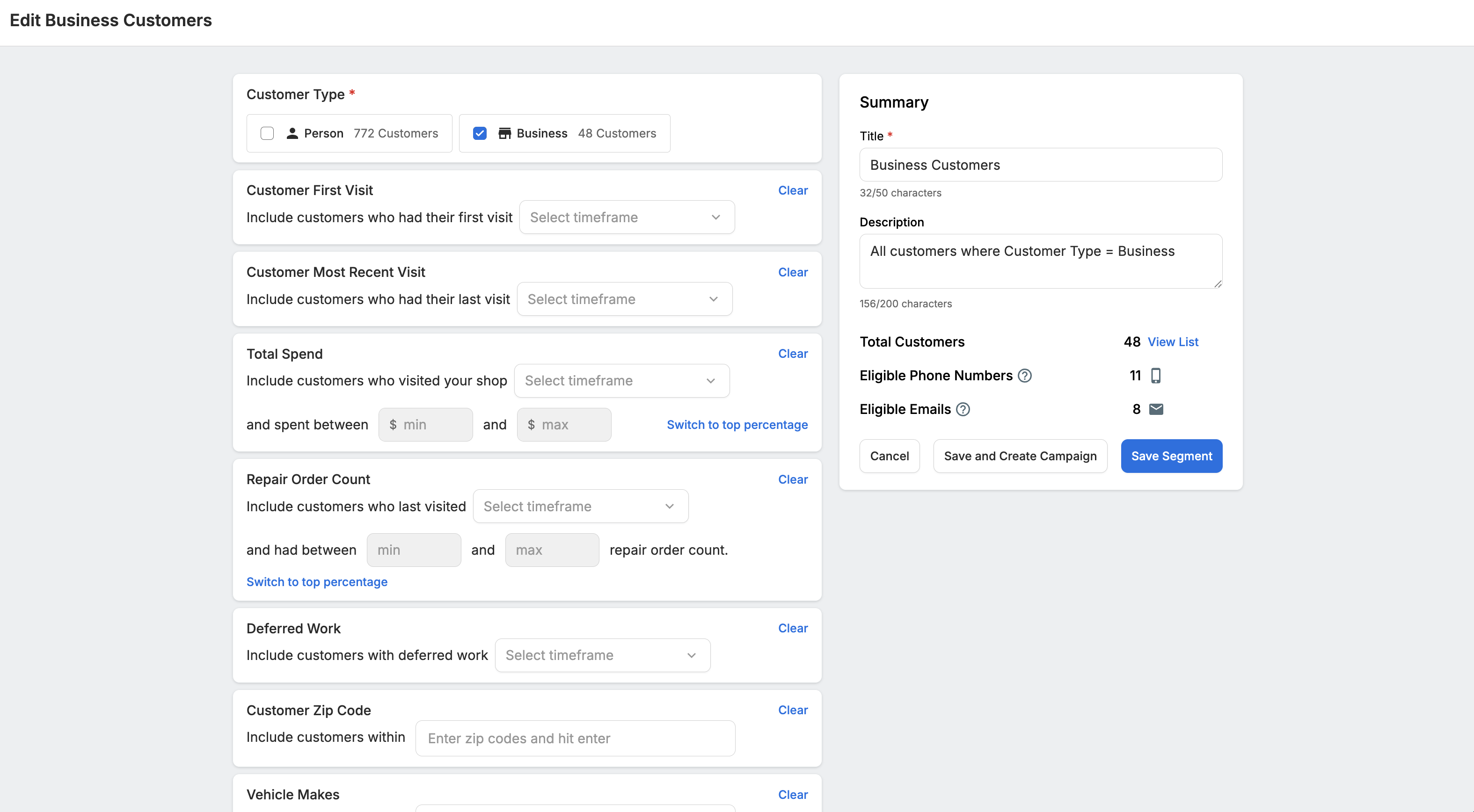
The right panel shows three key numbers that update instantly as you adjust filters:
-
Total Customers: Everyone who matches your current filters
-
Eligible Emails: How many of those customers can receive email campaigns (valid email, haven't opted out or bounced)
-
Eligible Phone Numbers: How many are subscribed to receive text campaigns
These counts help you understand your reach before you save. If you see 1,000 total customers but only 300 eligible emails, you know that an email campaign to this segment will reach 300 people.
Saving Your Segment
Once you've configured your filters, give your segment a name and optional description:
-
Segment Name (required): Keep it clear and descriptive so you'll remember what this segment is later (50 character max)
-
Segment Description (optional): Add context about when or how to use this segment (200 character max)
Campaign Eligibility Warnings
If your segment is larger than campaign send limits, you'll see a warning in the right panel. This doesn't prevent you from saving the segment—it just means you won't be able to use it for certain campaign types until you refine the filters to reduce the size.
Current campaign limits:
-
Email campaigns: 5,000 eligible emails maximum
-
Text campaigns: 2,000 eligible phone numbers maximum
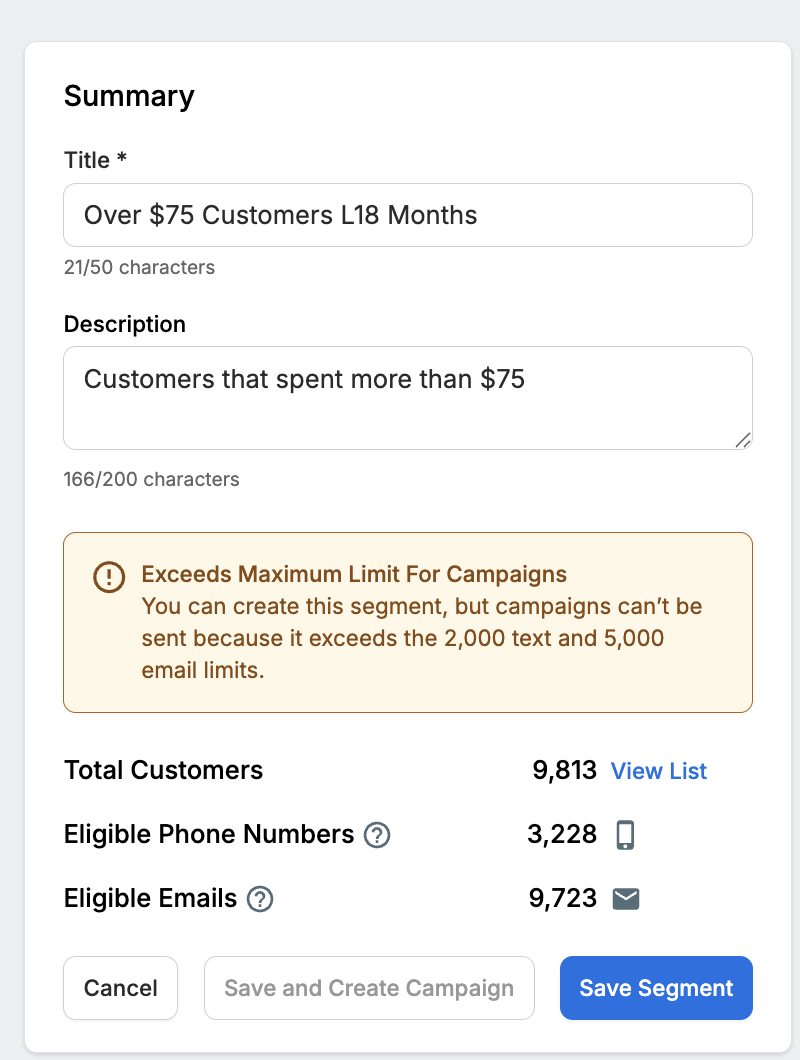
Why these limits exist: To maintain high email deliverability and protect your campaigns from being marked as spam, Tekmetric Marketing enforces these limits.
What to do if your segment is too large:
- Add more filters to narrow your audience (e.g., add a recent visit filter or increase minimum spend)
- Split into multiple segments (e.g., "Top Spenders - Zones 1-3" and "Top Spenders - Zones 4-6" using zip codes)
- Use the segment for reporting purposes by downloading the CSV, even if you can't send a campaign to the full list
Note: If your segment exceeds BOTH the email AND text limits, the "Save and Create Campaign" button will be disabled. You can still save the segment, but you'll need to refine it before using it in a campaign.
Managing Your Custom Segments
After creating a segment, you can:
-
Edit: Click into any custom segment to adjust filters, update the name or description, and re-save.
-
3-Dot Menu on Segments Main Page
-
Duplicate: Create a copy to use as a starting point for a similar segment.
-
Delete: Remove segments you no longer need.
-
Download CSV: Download a CSV to analyze the segment and view additional customer information.
Tips for Effective Segments
-
Start broad, then narrow: Begin with a simple filter like "visited in last 6 months," then add spend or visit frequency filters to refine.
-
Name segments by campaign purpose: "Black Friday - High Spenders" is more useful than "Segment 7."
-
Check eligibility counts: A segment with 500 total customers but only 50 eligible emails might need different filters to be useful for email campaigns.
-
Use deferred work strategically: Combine declined services with time-based filters (e.g., "declined work 6+ months ago") to time your follow-ups appropriately.
-
Test segment size before building a campaign: Save the segment first, review the customer list, then decide if it's the right audience for your message.
USING SEGMENTS IN CAMPAIGNS
Segments are designed to work seamlessly with your marketing campaigns. When you create a campaign, you'll select which segment to send to, and the campaign will automatically target everyone in that segment at the time it runs.
When you see a "Last Used" date on a segment, clicking it will take you to the Campaigns page and show you where that segment was last used. This helps you track which customer groups you've recently communicated with and avoid over-messaging. Learn more about Campaigns here > Marketing Campaigns
CAMPAIGN SEND LIMITS
To maintain high email deliverability and protect your campaigns from being marked as spam, Tekmetric Marketing has the following send limits:
- Email campaigns: Limited to 5,000 email addresses per campaign
- Text campaigns: Limited to 2,000 phone numbers per campaign
What this means for your segments:
When creating a campaign, if your selected segment contains more than these limits, you'll need to choose a different segment with a smaller size before sending. These limits apply to the number of eligible recipients—that is, customers who can actually receive your message on that channel (have valid contact info, are opted in, etc.).
FAQ
Q: How often do segments update with new customer data?
A: Segments update nightly. Any changes to customer visits, spending, or other tracked behaviors will be reflected the next day. This means a customer could move into or out of a segment based on their most recent activity at your shop. Additionally, this means that segments will continue to update for any scheduled campaigns, sending to the most up-to-date list of customers.
Q: What permissions do I need to view and download segments?
A: You need the Marketing permission to view segments. To download segment data as a CSV, you also need the Can export customer list permission. If you're missing either permission, contact your shop administrator.
Q: What does "Eligible Emails" and "Eligible Phone Numbers" mean?
A: Eligible Emails are email addresses that can receive your marketing messages—this means they're valid, haven't bounced, and the customer hasn't unsubscribed out.
Eligible Phone Numbers are phone numbers where the customer is subscribed to receive marketing text messages from your shop. A phone number must be the customer's primary phone number in order to be counted as 'Subscribed'.
These counts help you understand your actual reach for each segment. You can see subscription status within a customer's profile by clicking on 'Edit' on their profile or searching for them within a segment.
Q: What does "Last Used" mean?
A: "Last Used" shows the date when a segment was most recently included in a campaign. This helps you keep track of which customer groups you've communicated with and when, so you can plan your next outreach accordingly. Clicking on the date will take you to your Campaigns to se exactly which Campaign it was used in.
Q: Can I create unlimited custom segments?
A: You can create up to 50 custom segments per shop. This limit is in place to keep your segments list manageable. If you reach the limit, consider consolidating similar segments or deleting ones you no longer use.
Q: Can I edit a segment after I've used it in a campaign?
A: Yes! Segments are dynamic and can be edited anytime. However, keep in mind that any campaigns you've already sent used the segment as it was configured at send time. Future campaigns using that segment will use the updated filters.
Have feedback on Tekmetric Marketing? Submit your suggestions here.