What Is Bulk Upload?
Bulk Upload lets you add large numbers of parts to your inventory using a spreadsheet. It’s the fastest way to set up your inventory, standardize data, and onboard new locations.
Who Has Access?

Bulk Upload is available to users with the Bulk Inventory Changes permission.
If you don’t have access, contact your shop administrator.
Where to Find It
Go to My Inventory
Click Add Parts
Select the Bulk Upload tab (next to “Add Parts”)
Download Your Template
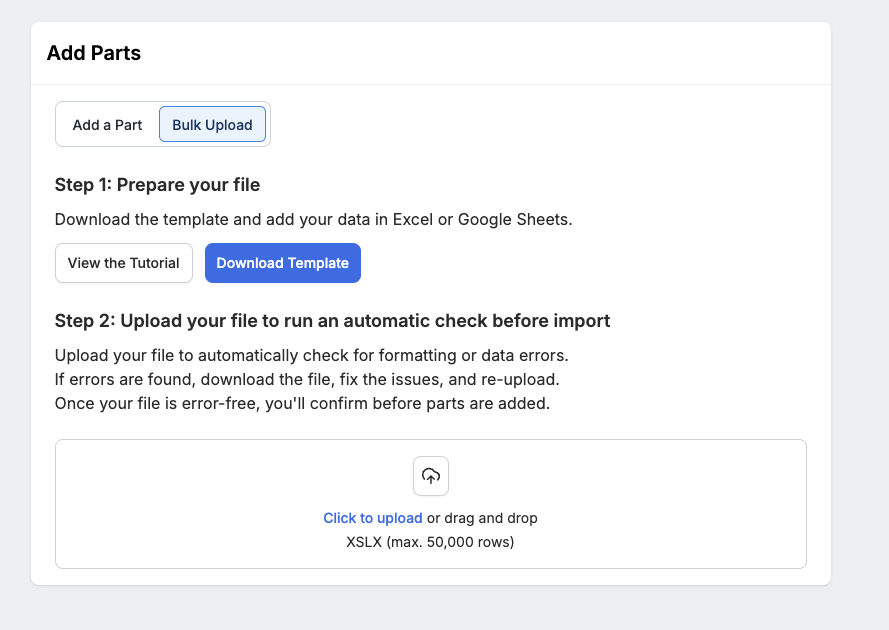
Click Download Template to get your shop’s pre-formatted spreadsheet.
Each template automatically includes:
You can also click View the Tutorial to watch a short walkthrough.
Fill Out the Template
Enter your parts directly into the spreadsheet.
The template will guide you with:
Required fields
Dropdowns for vendor, price matrix, and tire fields
Optional fields you can include (BIN, alternate numbers, etc.)
For retail pricing:
Upload Your File
Return to the Bulk Upload tab and either:
Tekmetric will automatically validate your entire file before importing.
If Your File Has Errors
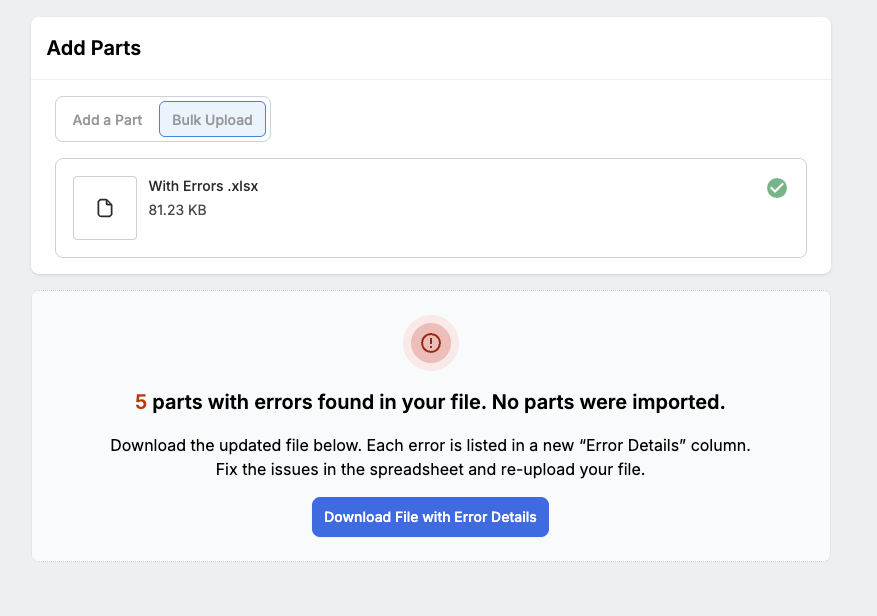
Instead of showing errors in the app, Tekmetric generates an updated version of your file with an Error Details column added to Column A.
You’ll see:
Simply fix the issues in the same file, save it, and re-upload.
Tekmetric will ignore the Error Details column on re-upload.
Step 4: Confirm & Add Parts
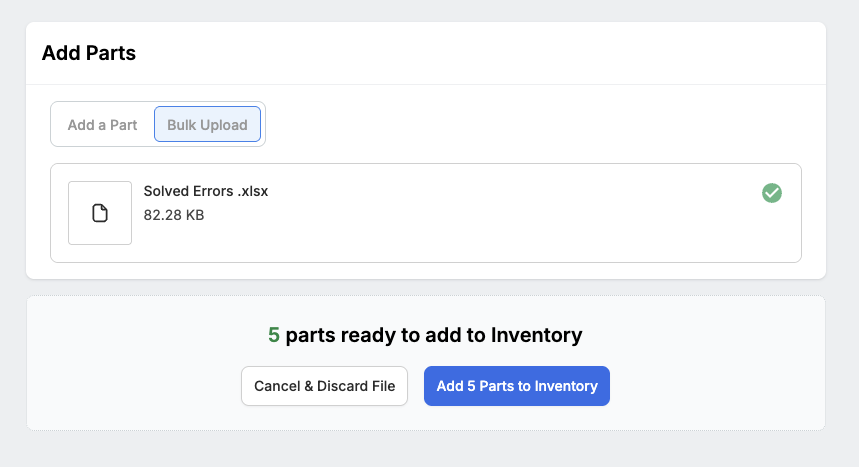
If your file passes validation, you’ll see a confirmation page.
Activity Feed
When a Bulk Upload completes successfully, Tekmetric automatically logs:
Part-Level Entries
“Alex Garcia created part AC Delco Oil Filter PF63E as part of a bulk inventory upload.”
Shop-Level Entries
“Alex Garcia completed a bulk inventory upload, creating 42 parts.”
These entries help your team track who created what and when.