Returning Parts via the Repair Order
High Level Overview: To return a part or move it to inventory, navigate to the Parts Hub directly from the Estimate tab of the RO. This allows you to manage the vendor return or stock placement without navigating away from your active job.
Quick Steps: Managing Returns from the RO
Open the RO: Navigate to the specific Repair Order and select the Estimate tab.
Access Parts Hub: Click the Parts Hub button at the top right of the Estimate screen.

Locate the Part: Go to the Ordered/Received tab within the Parts Hub overlay.
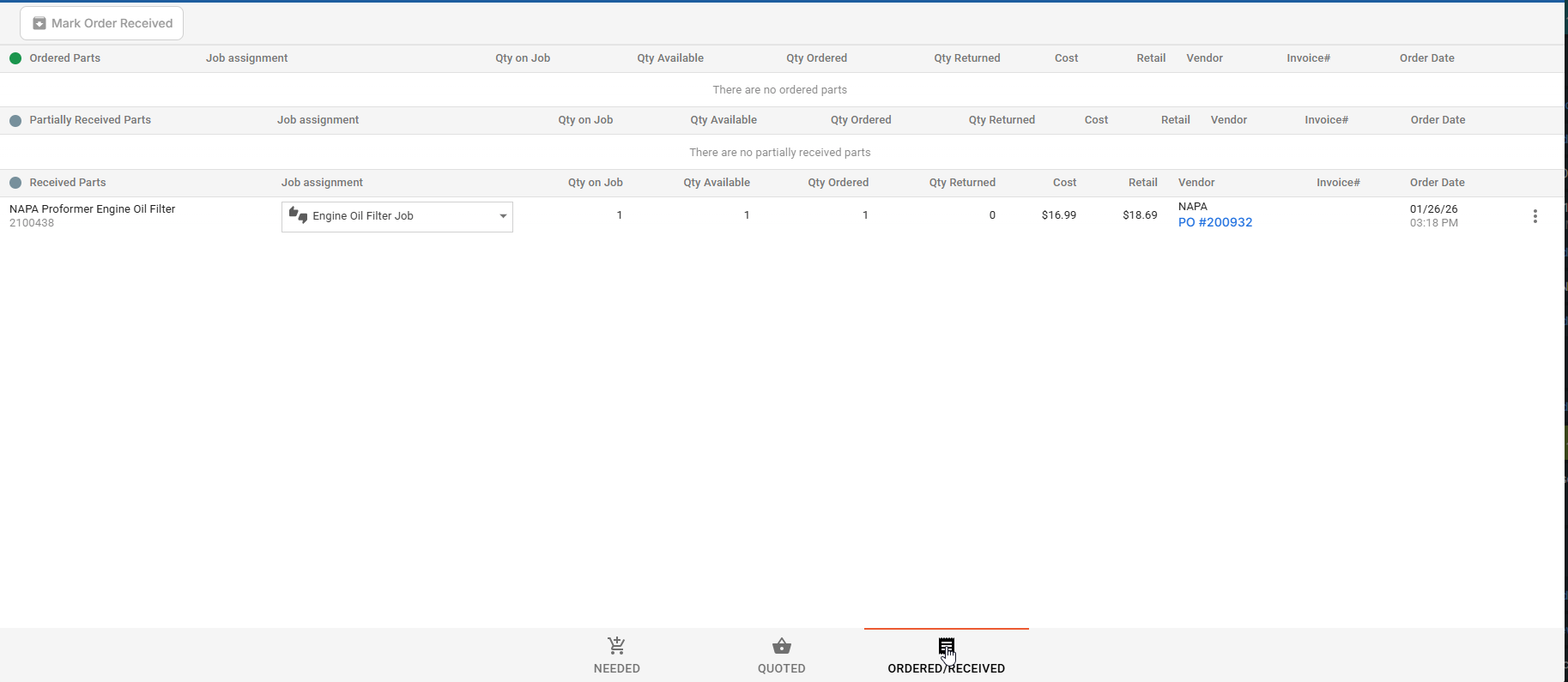
Initiate Action: Click the three dots (vertical ellipsis) next to the part you wish to return.
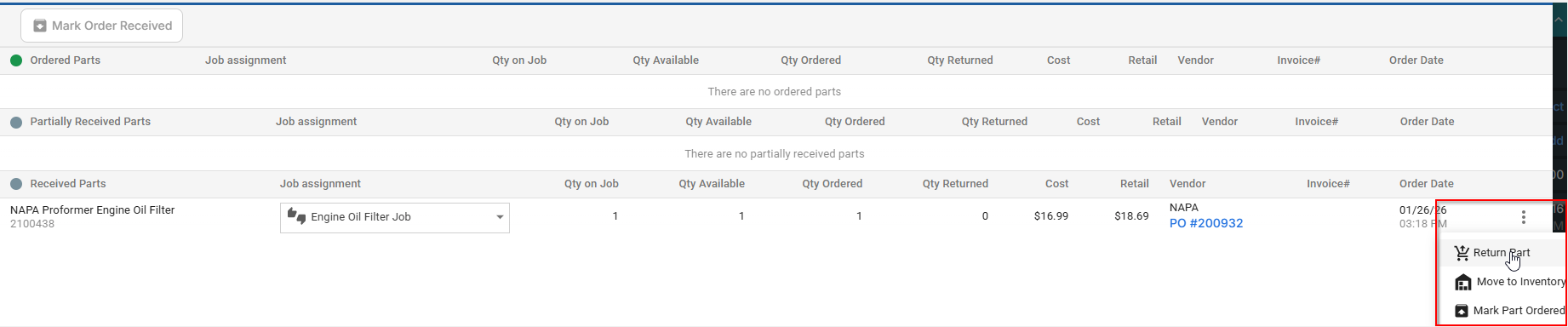
Choose Your Path:
Confirm: Specify the quantity and click CONTINUE.
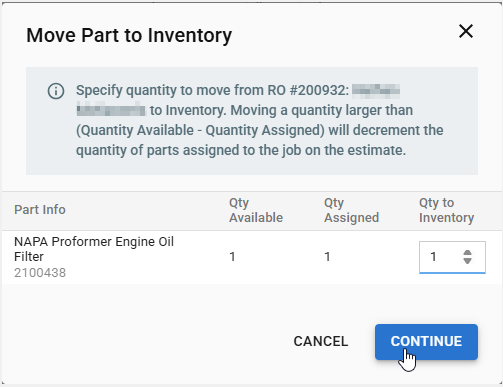
Move to Inventory vs. Return to Vendor
Move to Inventory: Use this if you want to keep the part on your shelf for future use. Tekmetric will prompt you to match it to an existing inventory item or create a new one.
Return Part: Use this if the part is going back to the supplier. This action automatically pushes the part into the To Be Returned list in your main Inventory module, where you can finalize the credit once the driver picks it up.
Pro-Tips
Quantity Check: When moving parts to inventory or returning them, always verify the quantity. If you ordered 4 spark plugs but only used 3, you should only move/return 1.
Status Updates: Once you move a part to inventory or initiate a return from the RO, the line item on the RO will update to reflect that the part is no longer allocated to that job.
Troubleshooting
Missing "Move to Inventory" Option: Ensure the part has been marked as Received. You cannot move or return a part that is still in "Ordered" or "Backordered" status.
RO is Posted/Closed: If the RO is closed, you will need to re-open it to access the Parts Hub and make these adjustments.