What Is It?
The Scheduled Messages tab within Automations gives you visibility into all upcoming automated messages that are queued to send to your customers. Visit Marketing > Automations > Scheduled Messages to see exactly what messages are going out, when they're scheduled, and to which customers.
Scheduled Messages only displays messages triggered by your automations—like Appointment Reminders, Declined Service Follow-Ups, or Lost Customer messages.
Note: Scheduled Message Management is only available to users of Tekmetric Marketing.
Why Is It Important?
Prevent awkward situations. Sometimes circumstances change after an automation is triggered. If a customer books an appointment right after you scheduled a "Lost Customer" message, you can cancel it before it goes out.
See what's going out before it sends. Review your upcoming messages to make sure they're appropriate and timely for each customer.
Stay in control of your messaging. Cancel messages when needed and undo cancellations anytime before the scheduled send time.
Avoid customer complaints. Catch potential issues—like duplicate messages or mistimed follow-ups—before they reach your customers.
Viewing Scheduled Messages
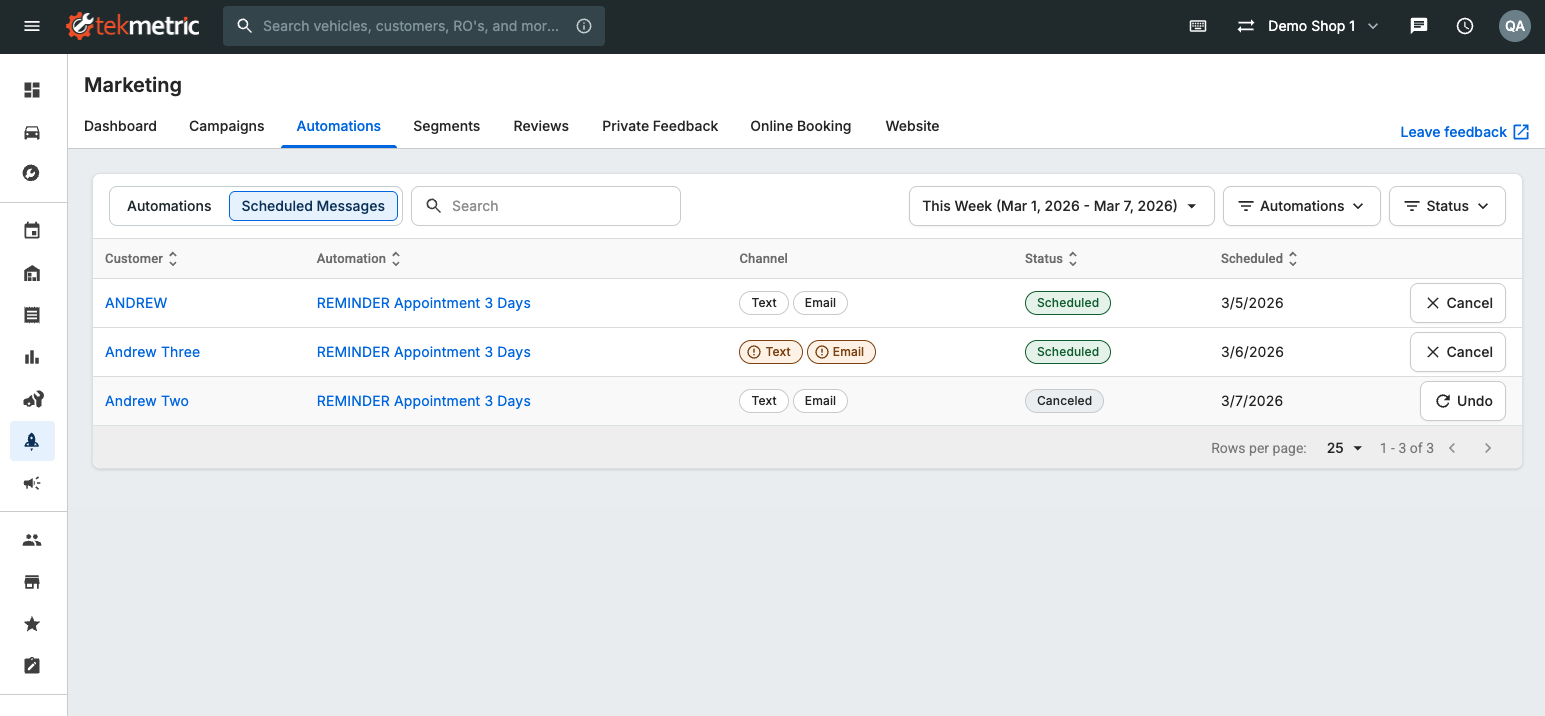
When you open the Scheduled Messages tab, you'll see a list of all upcoming automated messages. Each row shows:
-
Customer name – Click the customer's name to view their full profile
-
Automation name – Which automation triggered this message (e.g., "REMINDER Appointment 1 Hr", "Declined Services Reminder - 6 Weeks")
-
Channel indicators – Pills showing whether the message will send via Text, Email, or both
-
Status – Whether the message is Scheduled or Canceled
-
Scheduled date – When the message is set to send
Filtering Your View
Use the three filters at the top of the page to narrow down what you're looking at:
Date Range – Choose how far ahead you want to see. Options include:
- Next 30 Days (default)
- This Week
- Next Week
Automations – Filter by specific automation type, or leave it set to "Automations" to see everything.
Status – View only Scheduled messages, only Canceled messages, or both.
Understanding Channel Indicators
Most messages will show normal Text and Email pills in gray. But sometimes you'll see an orange channel pill with a warning icon—this means the message can't be delivered through that channel.
To see why a channel is ineligible, hover over the orange pill. Common reasons include:
- Customer is not subscribed to marketing (learn more here)
- Customer has opted out of communications
- Customer does not have a valid email address
- Customer does not have 'Market to Customer' selected in their profile
If a message has one orange channel and one gray channel, the message will still send through the eligible channel.
Managing Messages
Canceling a Message
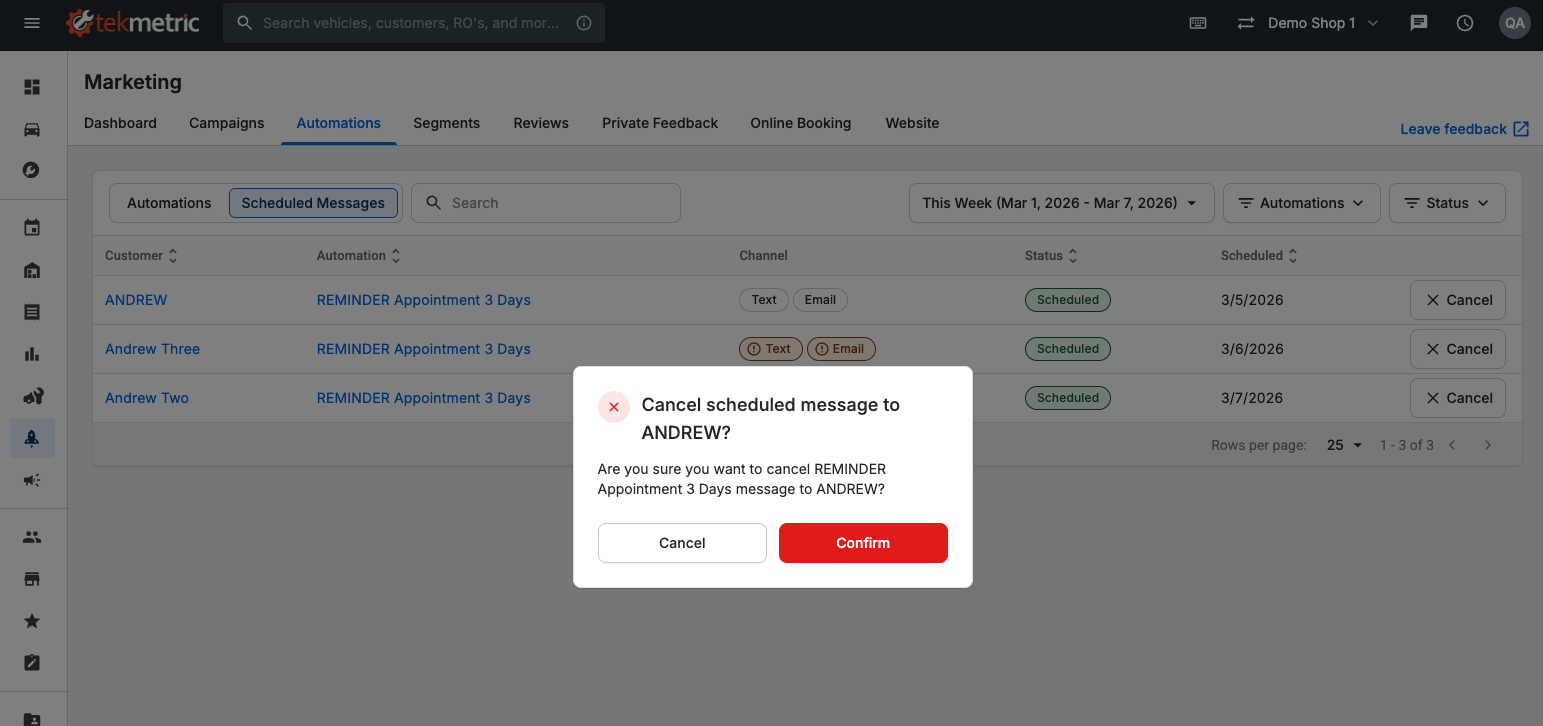
If you need to stop a message from going out, click the Cancel button next to the scheduled message. You'll see a confirmation modal, and then the status will change to "Canceled" and the message will not be sent to the customer.
Common reasons to cancel a message:
- Customer just booked an appointment (no need to send a Lost Customer message)
- Customer called in with a complaint (hold off on the Recent Service Follow-Up or Review Request)
Undoing a Cancellation
Changed your mind? Click the Undo button next to any canceled message to restore it. The message status will return to "Scheduled" and will send as originally planned.
You can undo a cancellation anytime before the scheduled send time. Once the original send time has passed, the message can't be restored.
FAQ
Q: Why don't I see messages from my campaigns in Scheduled Messages?
A: Scheduled Messages only shows automated messages triggered by your automations (like Appointment Reminders, Declined Service Follow-Ups, Lost Customer Follow-Ups, etc.).
Q: What happens if I cancel a message and then the customer triggers the same automation again?
A: A new message will be scheduled based on the automation's current settings. Canceling a message only affects that specific scheduled message—it doesn't disable the automation itself. If you want to stop all messages from an automation, you'll need to disable or edit the automation in the Automations tab.
Q: Can I edit a scheduled message before it sends?
A: Not directly from Scheduled Messages. To change message content, you'll need to edit the automation template itself in the Automations tab. Keep in mind that editing the template won't affect messages that are already scheduled—it only applies to new messages triggered going forward.
Q: Why is a channel showing as orange/ineligible?
A: Hover over the orange channel pill to see the specific reason. The most common reasons are that the customer has opted out of marketing communications, doesn't have a valid email address or phone number on file, or hasn't been marked as eligible for marketing in their customer profile.
Q: How far in advance can I see scheduled messages?
A: By default, you'll see messages scheduled within the next 30 days. You can use the date range filter to narrow your view to This Week or Next Week if you want to focus on what's going out soon.
Q: If I cancel a message, will it automatically reschedule for a later date?
A: No. Once you cancel a message, it will not be sent unless you manually click "Undo" before the scheduled send time. The message won't reschedule itself. If the automation's trigger conditions are met again in the future, a new message will be scheduled separately.
Q: Can I cancel multiple messages at once?
A: Not in the current version. You'll need to cancel each message individually by clicking the Cancel button next to each one. If you need to cancel multiple messages to change content of an automation or other reason, disable the entire automation in the Automations tab.
Related Articles:
Have feedback on Tekmetric Marketing? Submit your feedback here.