Overview
Tekmetric’s integration with WorldPac SpeedDial 2.0 streamlines your parts procurement process by allowing you to search and order inventory directly through a browser-based interface. This feature eliminates manual entry by automatically mapping part numbers, costs, and core charges back to your Repair Order (RO), ensuring your service advisors can move from estimate to order in seconds.
How SpeedDial 2.0 Integration Works
The integration bridges the gap between your Tekmetric Repair Order and WorldPac’s catalog. It supports two primary workflows:
Part-Specific Search: If you already have a part number on a job, Tekmetric "pushes" that data to SpeedDial to find an immediate match.
Open Search: If you are building a job from scratch, you can launch SpeedDial directly from the job to browse the full catalog and "pull" the selected parts back into Tekmetric.
Once an order is submitted in SpeedDial, the part information—including the Purchase Order (PO) number—is sent back to Tekmetric, updating the part status to Ordered.
Step-by-Step Instructions
Prerequisites
Before using these workflows, ensure WorldPac is connected:
Navigate to Shop Settings in the left sidebar.
Select the Integrations tab.
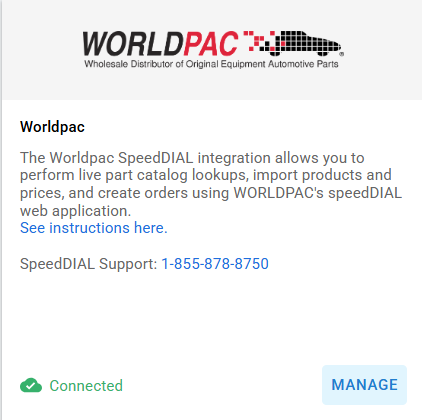
Locate WorldPac and ensure the connection is active.
Workflow 1: Ordering with an Existing Part Number
Use this method when you have already identified a specific part needed for a repair.
Open the Repair Order (RO) and locate the specific job.
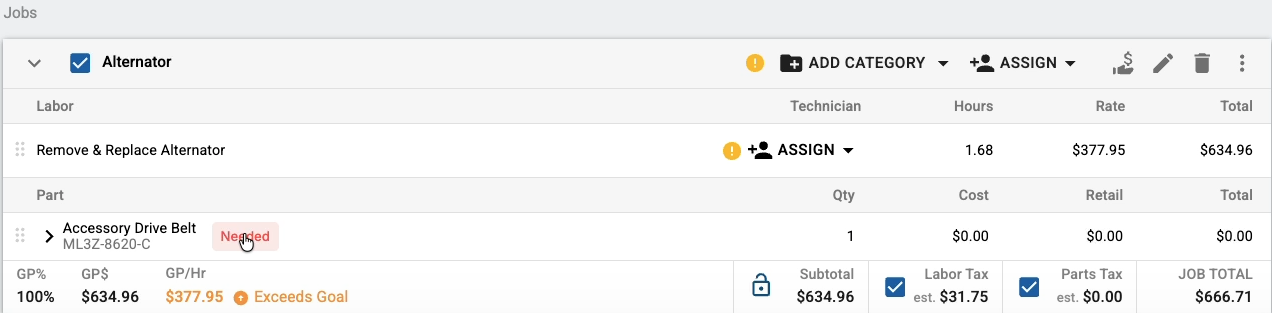
Click the Needed icon next to the part line item to open PartsHub.
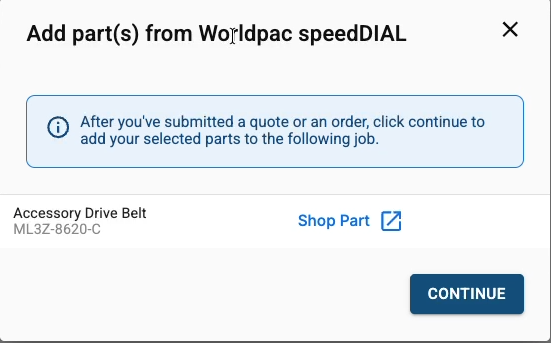
Click the SpeedDial 2.0 button at the top of the PartsHub window.

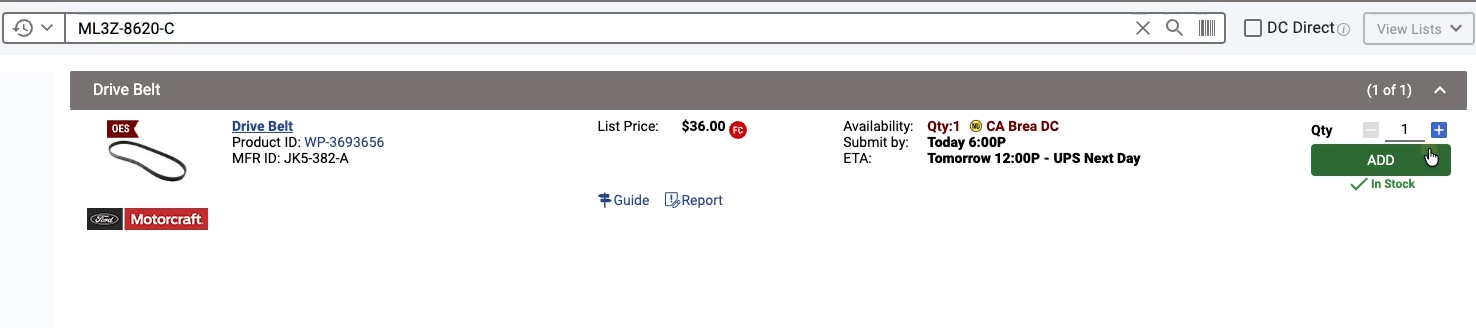
SpeedDial will open in your browser and automatically search for the part number defined in Tekmetric.
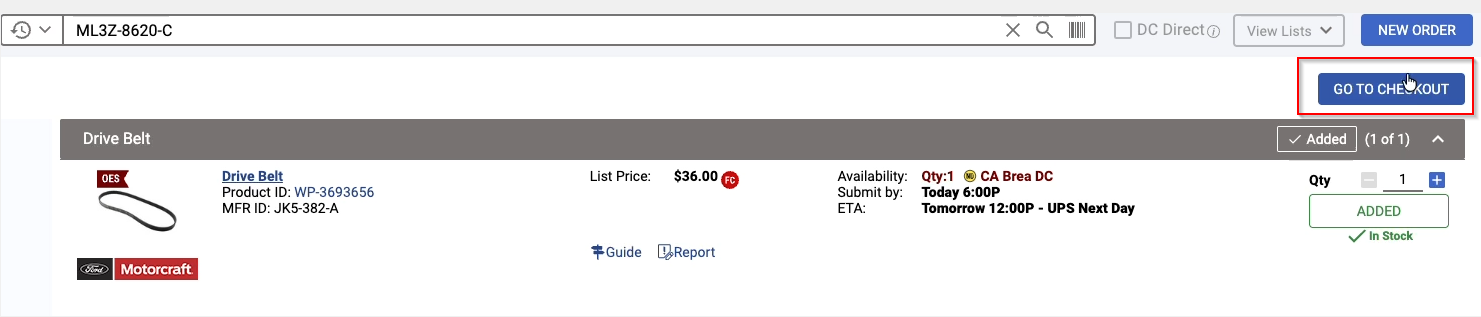
Select the part and Add to Cart & then select "Checkout"
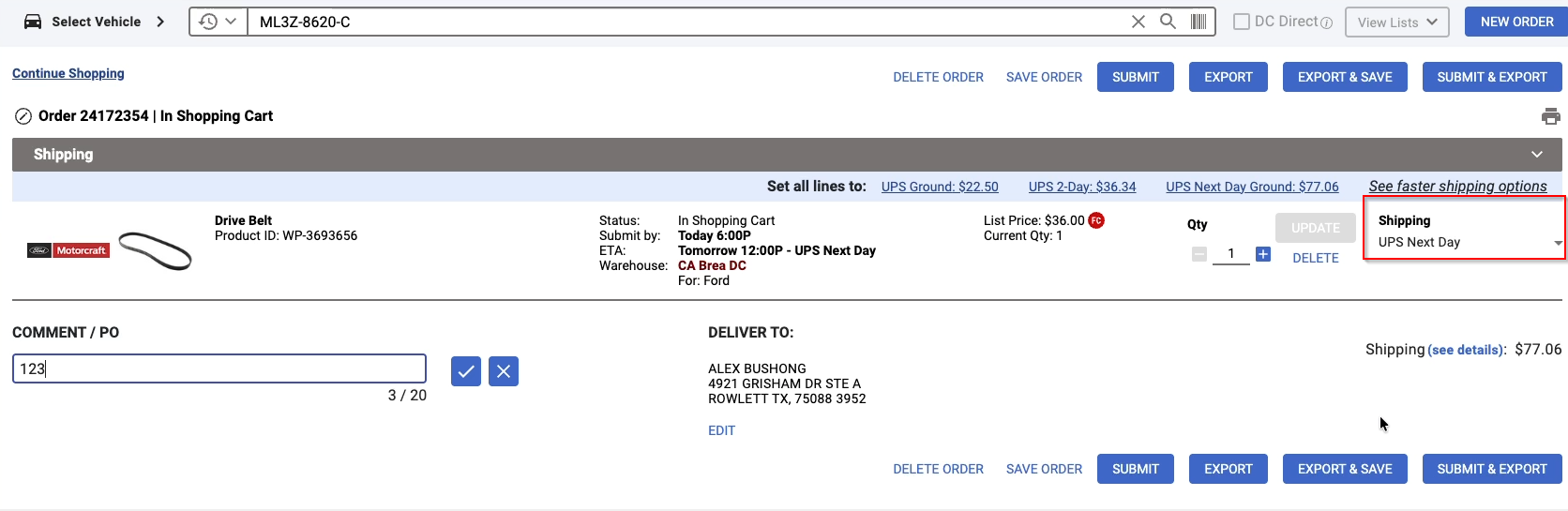
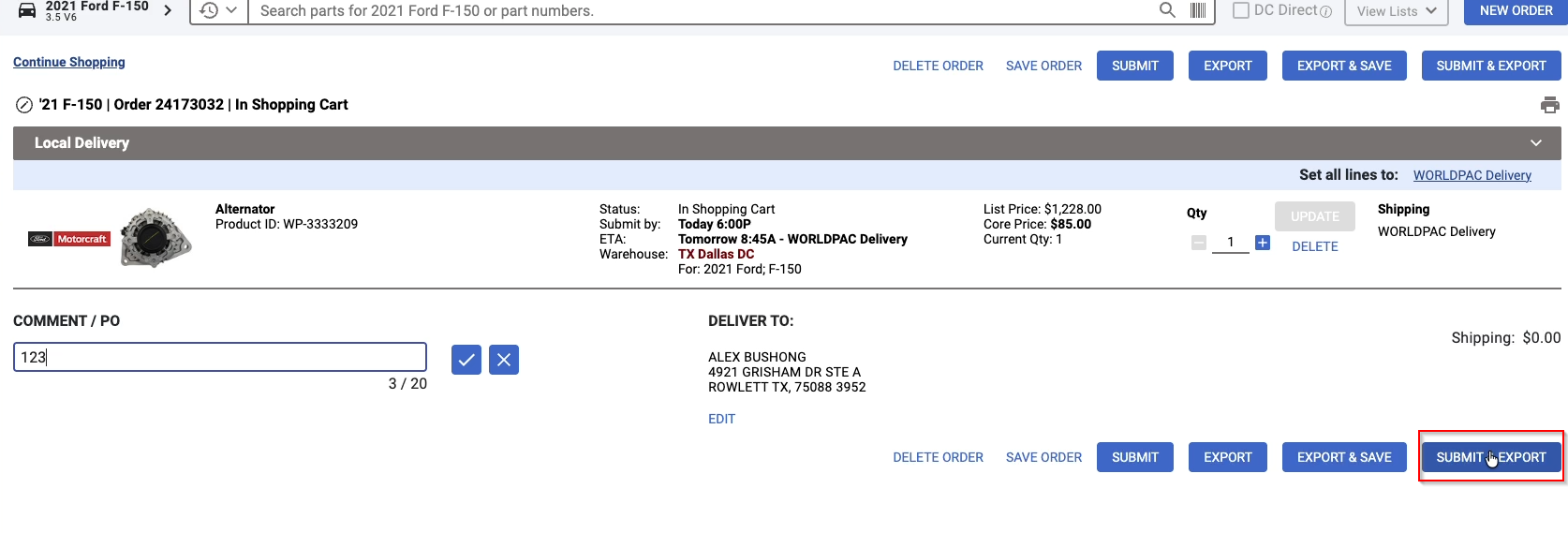
Enter your PO Number within the SpeedDial interface and remember to choose a shipping option if need be.
Click Submit and Export.
Return to Tekmetric and click Continue to map the part back to your RO.
Workflow 2: Building a Job via Open Search
Use this method when you need to browse the catalog for parts to add to a new or existing job.
Within a Repair Order, go to the job you are building.
Click the Add Part dropdown menu.
Select SpeedDial 2.0 from the list.
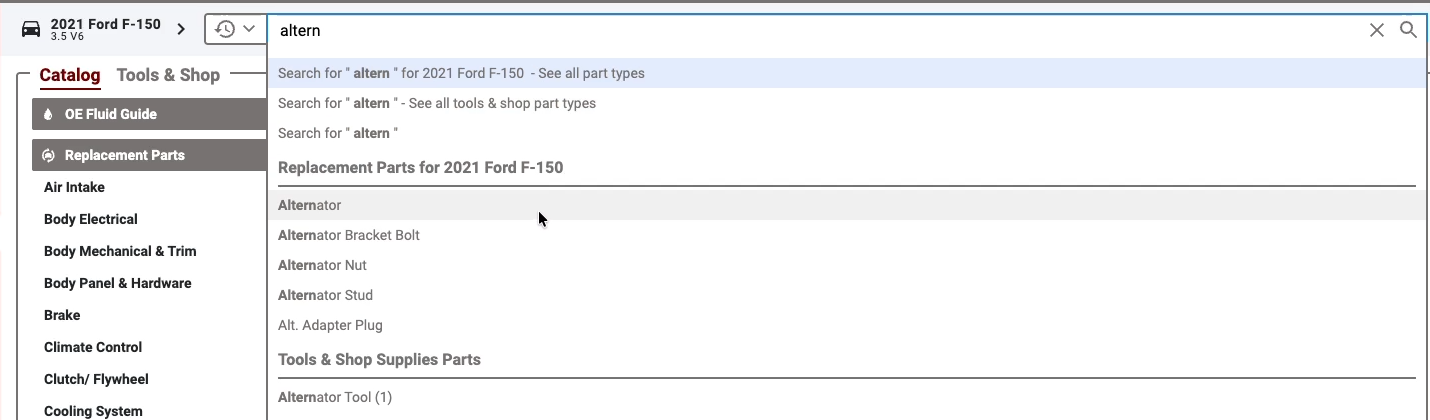
In the SpeedDial window, perform an Open Search (e.g., search for "Alternator").
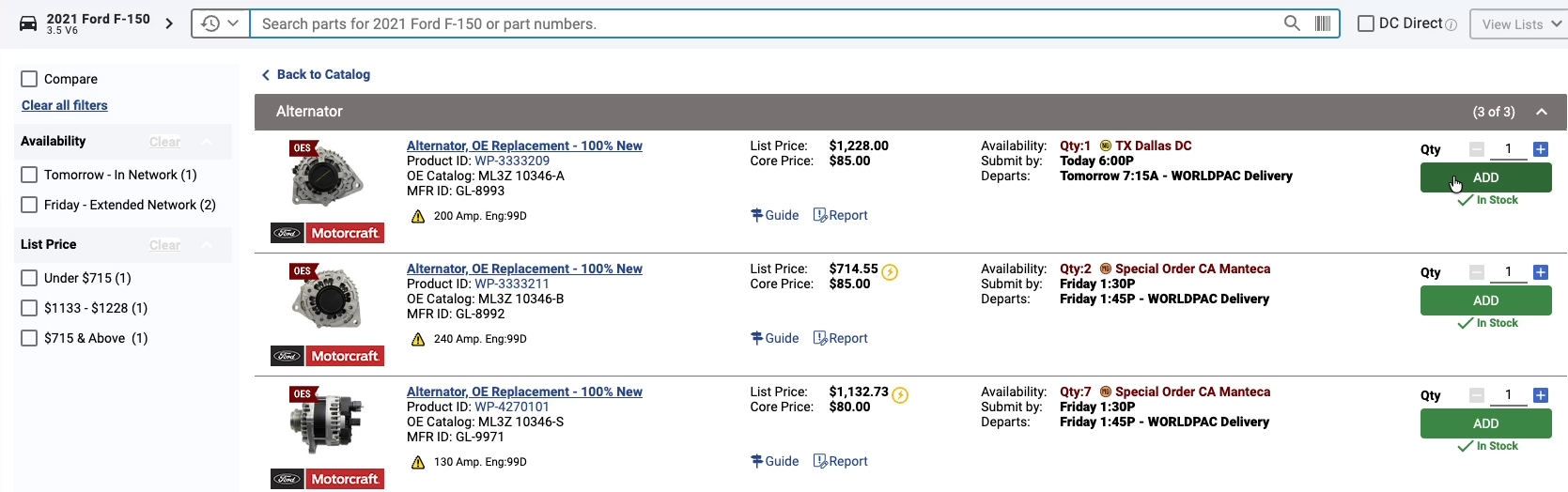
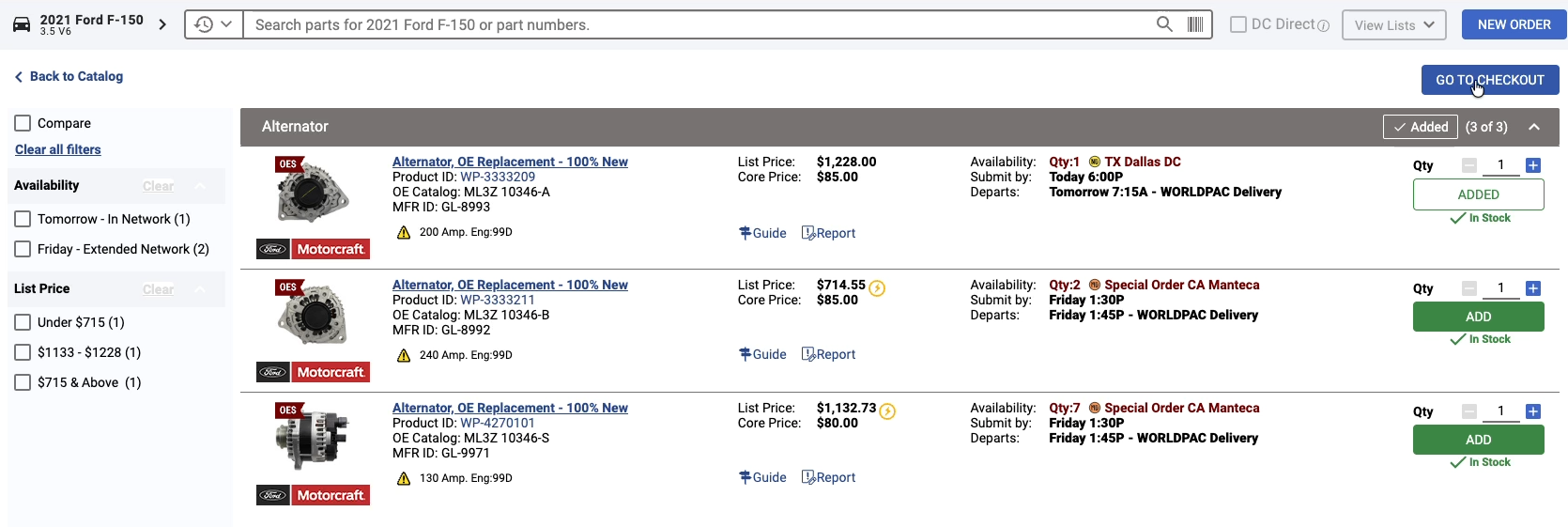
Browse the matches, select your part, and Add to Cart. Note any core charges displayed.
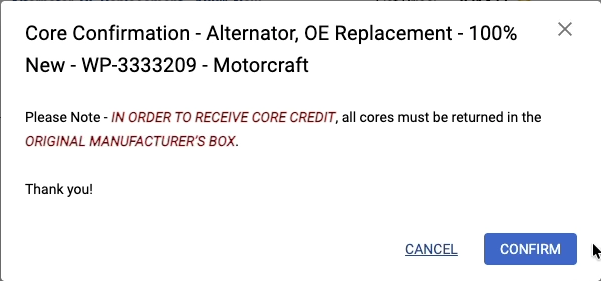
Proceed to checkout within SpeedDial and enter your PO Number.
Click Submit and Export.
In Tekmetric, click Continue. The part will now appear on the job in Ordered status, ready to be received.
Quoting Parts
Both Workflow 1 and Workflow 2 give you the option to bring parts back into Tekmetric as a quote before committing to an order. This is useful when you want to present pricing to a customer for approval, compare options, or simply hold the parts until you're ready to order.
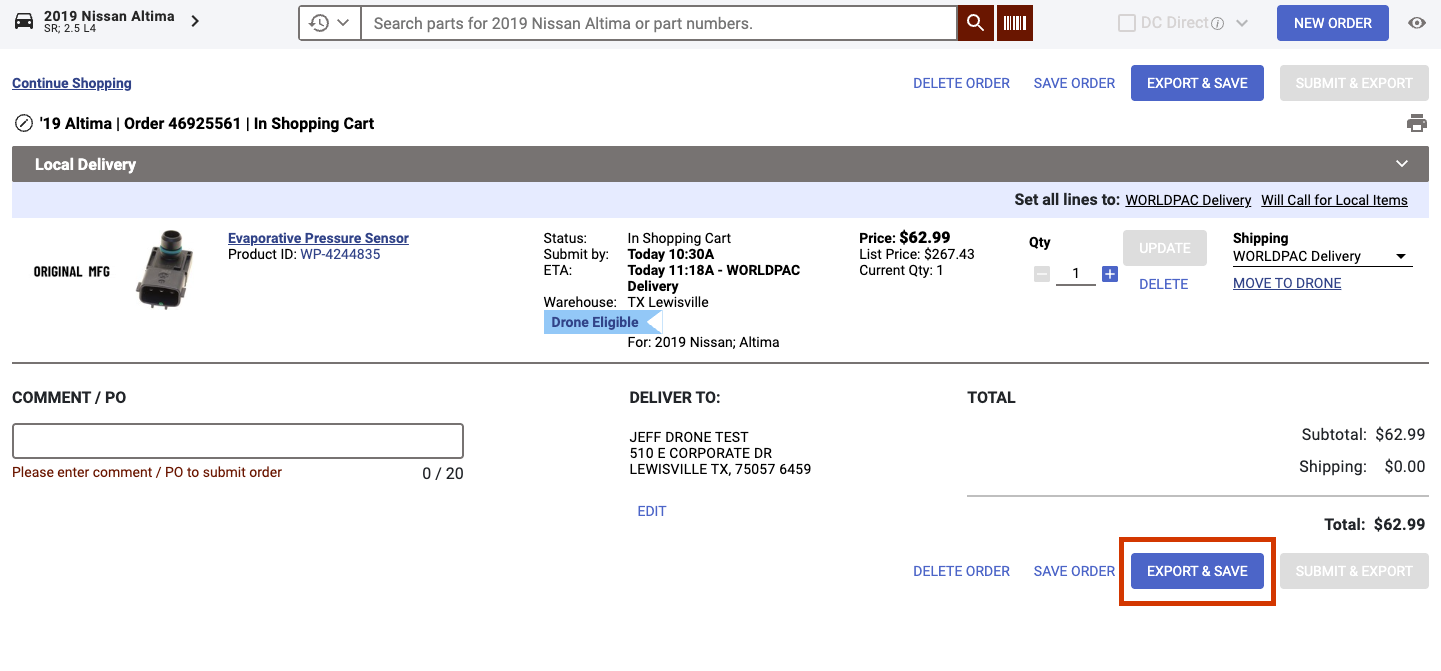
To quote parts instead of ordering immediately, select Export & Save (instead of Submit & Export) at the checkout screen in SpeedDial. The parts will be returned to Tekmetric and appear in the Quoted tab of PartsHub, where they can be reviewed before any order is placed.
Submitting a Quoted Order
When you're ready to place the order:
1. Open PartsHub and navigate to the Quoted tab.
2. Review the quoted parts.
3. Click Submit Order.
You don't need to fill in the PO or comment fields in WorldPac — Tekmetric will populate these automatically when you initiate order submission. If you do fill them in on the WorldPac side, those values will carry over to Tekmetric once the order is placed.

In most cases, the order will be submitted automatically and the parts will move to Ordered status. However, a confirmation screen will appear if any of the following conditions are detected:
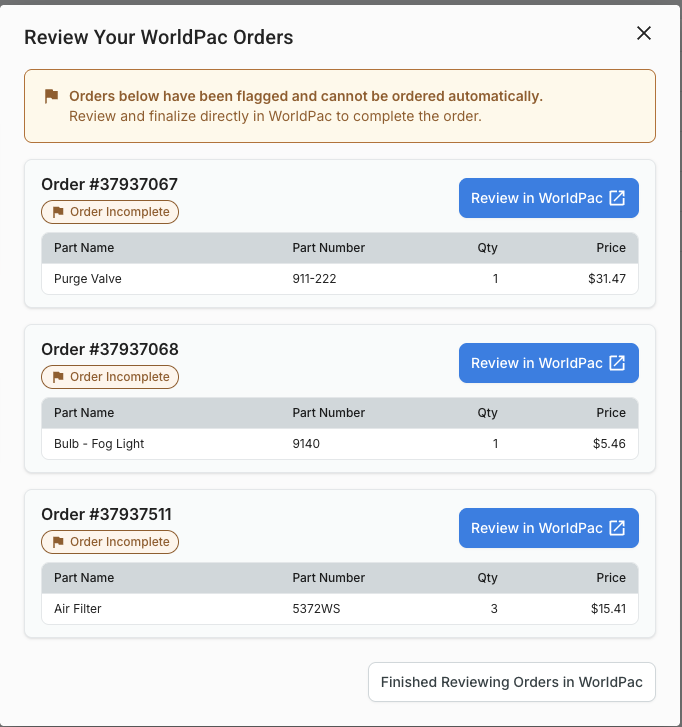
- Price change — the price of one or more parts has changed since they were quoted
- Insufficient quantity — the requested quantity is no longer fully available
- Incomplete order — some items in your quote WorldPac order are not selected
You'll need to return to Worldpac SpeedDIAL, update/remove the items in your cart, then come back to Tekmetric and click Finished Reviewing Orders in WorldPac.
FAQs
Q: Do I need to manually enter the cost or part number once I order?
A: No. The "Submit and Export" action automatically sends the part number, description, and cost back to Tekmetric, mapping it directly to the RO.
Q: What happens to core charges?
A: If a part has a core charge in SpeedDial, that information is imported into Tekmetric along with the part details, ensuring your margins and totals remain accurate.
Q: Can I use this if I don't have the SpeedDial desktop application installed?
A: Yes! This integration utilizes the browser-based version of SpeedDial 2.0, allowing you to search and order without needing separate software installed on every terminal.
Q: How do I know the part was successfully ordered?
A: Once you hit "Continue" in Tekmetric after exporting from SpeedDial, the part status on the RO will change to Ordered. You can then receive it like any other electronic parts order.
Q: Can I change the shipping?
A:Yes, you may choose the shipping speed in SpeedDial before submitting the order.
Q: What is the difference between Export & Save and Submit & Export in SpeedDial?
A: Export & Save brings your selected parts back into Tekmetric in a Quoted status without placing an order. This lets you review pricing, get customer approval, or hold the parts until you're ready. Submit & Export places the order with WorldPac immediately and returns the parts to Tekmetric as Ordered.
Q: What triggers the confirmation screen when I submit a quoted order?
A: A confirmation screen appears if Tekmetric detects a price change on one or more parts, insufficient available quantity, or missing required fields like a PO number. If none of these conditions apply, the order is submitted automatically.