What Is the Onboarding Checklist?
The Onboarding Checklist is a self-serve guide that lives inside your shop during the first weeks of your shop setup. It gives you a clear path through the most important setup steps so you can start writing repair orders right away.
You don't have to wait for a meeting or a call to get going. Everything you need is in the checklist, and you can work through it at your own pace.
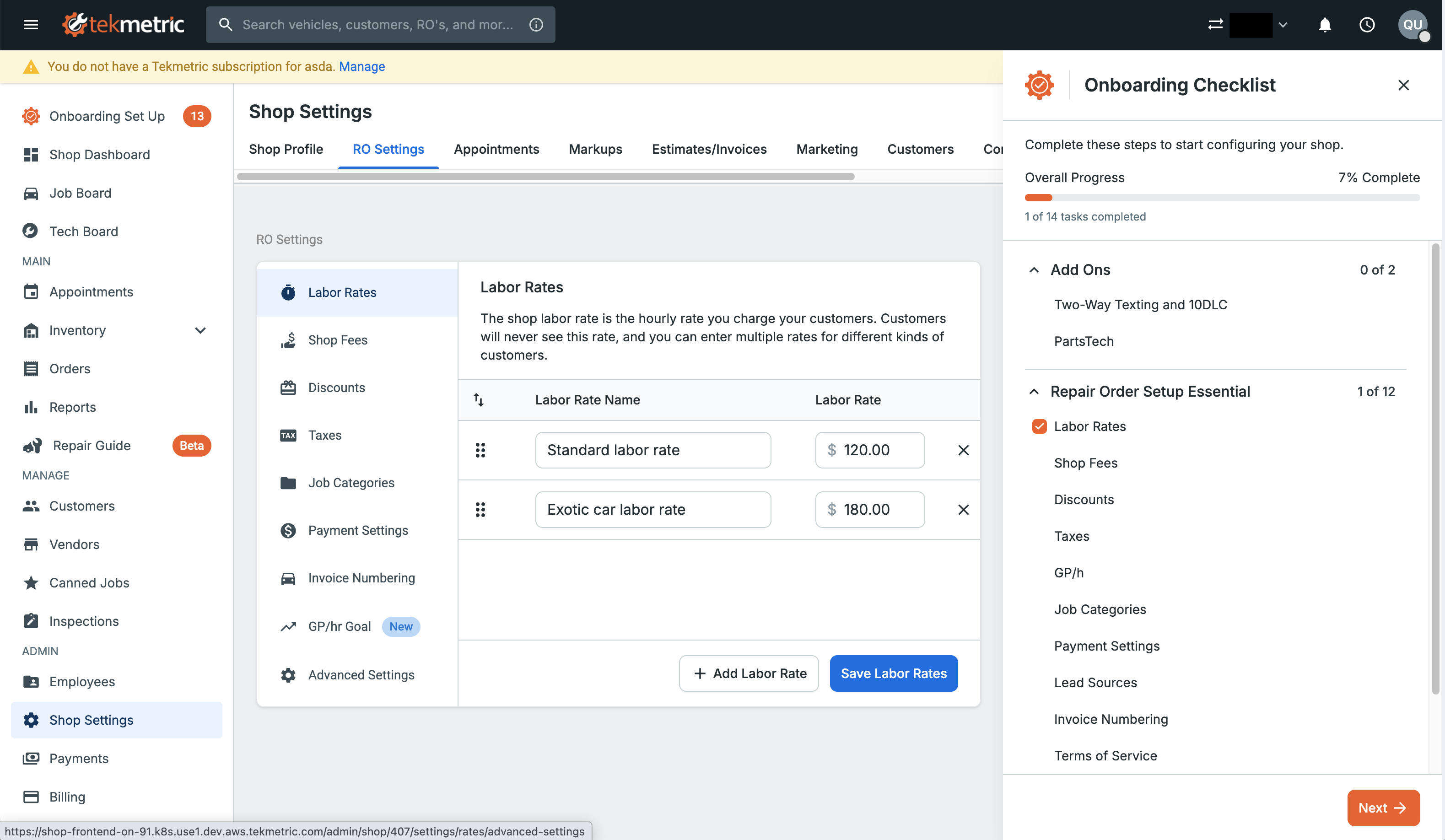
Opening the Checklist
Look for the Onboarding Setup link in the top-left of the navigation. You can open the checklist from anywhere in the app, so it's always one click away.
When you open it, you'll see:
- Overall Progress at the top, showing the percentage of steps you've completed
- A list of modules grouped by topic
- A step counter for each module (for example, 3 of 6)
What's in the Checklist
The checklist is organized into two main sections.
Repair Order Essentials
These are the core settings every shop should review:
- Labor Rates
- Shop Fees
- Discounts
- Taxes
- GP/h
- Job Categories
- Payment Settings
- Lead Sources
- Invoice Numbering
- Terms of Service
- Advanced RO Settings
- Parts Matrix
Key Add-ons
Speed up your onboarding by connecting these add-ons:
- TekMessage and 10DLC (available on Scale plans)
- PartsTech
- Migrations
How to Work Through the Checklist
You can tackle steps in any order. There's no required sequence, so start with whatever matters most to you.
To begin a step:
- Click any step in the list, or
- Click the Set Up button that appears when you hover over a row, or
- Use the Next button to jump to the next incomplete step
When you click into a step, the checklist takes you straight to the relevant settings page. A side panel stays open with helpful tips, similar to what you'd hear from an onboarding manager.
Some steps will have a button to 'Skip' the step task. This is designed for shops that may not want or need that specific setup. When you click this button the step will be marked as completed; however you can always go back to the step and go through the instructions. Clicking skip only impacts the checklist.
Working with Defaults
To save you time, your shop comes with smart defaults already filled in for many settings. On each setup page, you'll see a banner with three options:
- Keep the defaults as they are
- Clear them and start fresh
- Edit and save your own values
Any of these actions will mark the step as complete.
Note: A few settings (like GP/h, Terms of Service, and Invoice Numbering) don't include defaults. You'll need to fill these in yourself.
How Steps Get Marked Complete
Steps are marked complete automatically when you take a meaningful action. You can't manually check off a step; this is intentional, so you know your settings are actually saved.
Here's how completion works for each type of step:
- Repair Order Settings: Save the setting, or react positively to the defaults banner
- TekMessage: Submit your 10DLC verification or click Skip
- PartsTech: Enter and save your credentials or click Skip
- Migration: Upload your data file into the Migration section in Integrations or click Skip
For TekMessage and PartsTech, you'll see a status indicator (like In Progress) in the checklist while the integration is being verified. Hover over it for more detail.
Using Ava with the Checklist
Each step gives you a chance to talk to Ava, your AI assistant. Open Ava directly from a step to ask questions, get clarification, or learn more about a setting. Ava is a great resource if you're new to Tekmetric or want extra context as you go.
When You're Done
Once you complete all the steps, the checklist will reflect 100% progress.
If you'd rather not finish every step, you'll see a Mark as Complete button after about two weeks. You can use this to dismiss the checklist for good.
A few things to know:
- The checklist cannot be dismissed during the first two weeks
- After two weeks, dismissing it is permanent, so make sure you're ready
Tips for a Smooth Setup
- Start with what you use most. Labor Rates, Taxes, and Shop Fees are great first steps.
- Use the side panel. It highlights what to watch out for as you set things up.
- Ask Ava if you get stuck on any step.
- You can pause anytime. The checklist saves your progress and is always accessible from the navigation.
Need Help?
If you run into questions, reach out to your Customer Onboarding Manager or contact Tekmetric support. We're here to help you get up and running.