Phones is a capability built into Tekmetric that connects your phone system to your shop workflow. It links your existing RingCentral account with Tekmetric and surfaces customer identity, vehicle history, and active repair orders in real time during calls, bringing call activity and shop context together in one place. Tekmetric does not provide phone service directly.
This guide walks through how to set up Phones with your RingCentral account.
Jump to:
Now Available!
Phones is now available to customers on the Scale plan and is included at no additional cost. An active RingCentral account is required to use Phones, as RingCentral provides the underlying phone system.
-
Already on RingCentral? Follow the steps below to connect your RingCentral account to Tekmetric and unlock all of the available Phones capabilities.
-
Interested in RingCentral? Through our partnership with RingCentral, Tekmetric customers are eligible for preferred partner pricing and will be connected with a dedicated RingCentral sales and implementation team to help evaluate their needs and guide them through setup and migration.
👉 Get Started with RingCentral
Once you submit the form, RingCentral’s team will reach out to walk you through pricing, answer your questions, and guide you through onboarding.
Phones is available exclusively to customers on the Scale plan and is included at no additional cost.
Release Announcement Video
Setup Guide
Connect RingCentral Integration
- Log in to Tekmetric and ensure you’ve selected the correct shop location/account.
- Navigate to Phones in the side menu
- Select Connect RingCentral
- You’ll be redirected to RingCentral to:
- Log in
- Authorize the integration
- Confirm account access
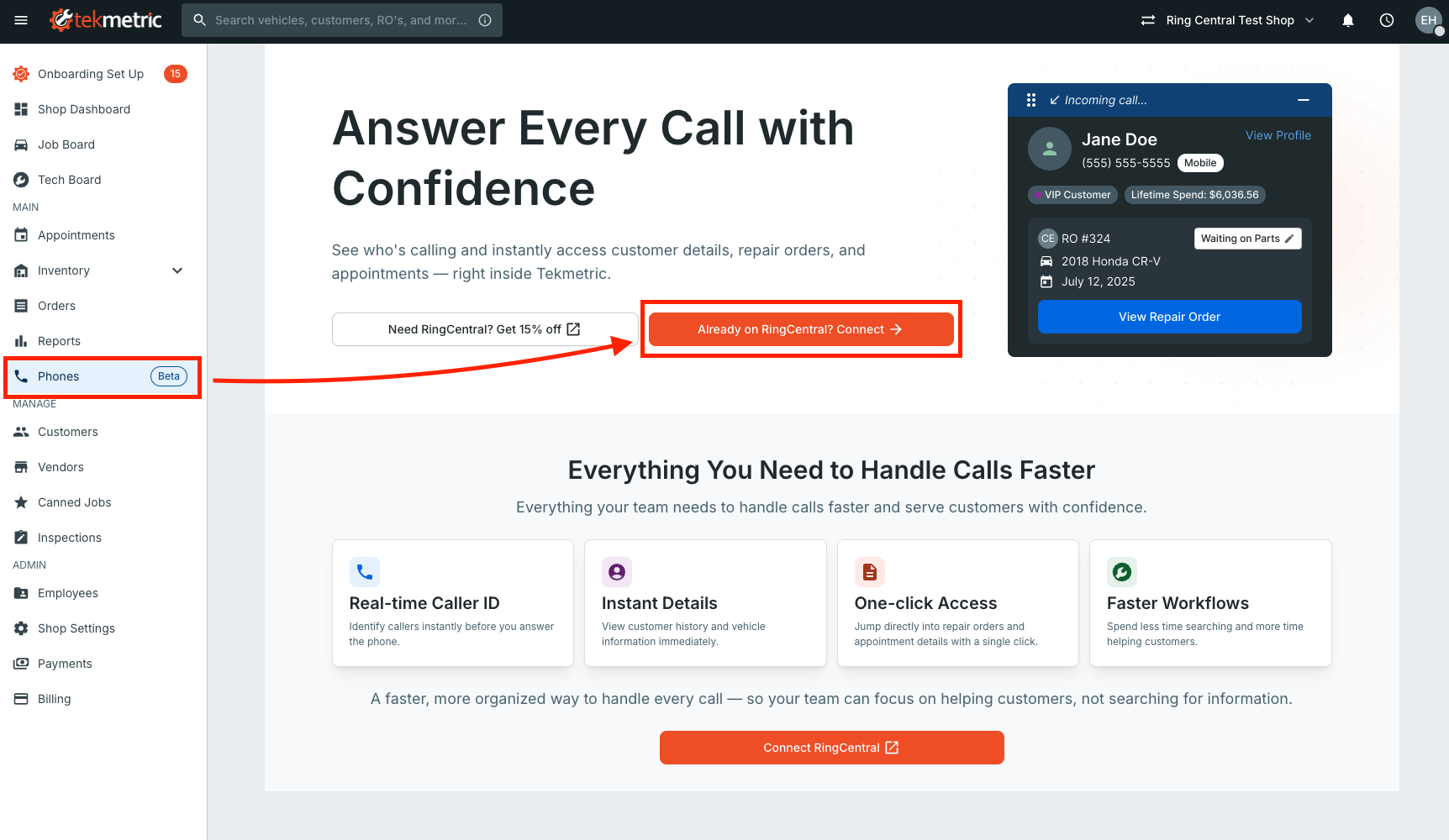
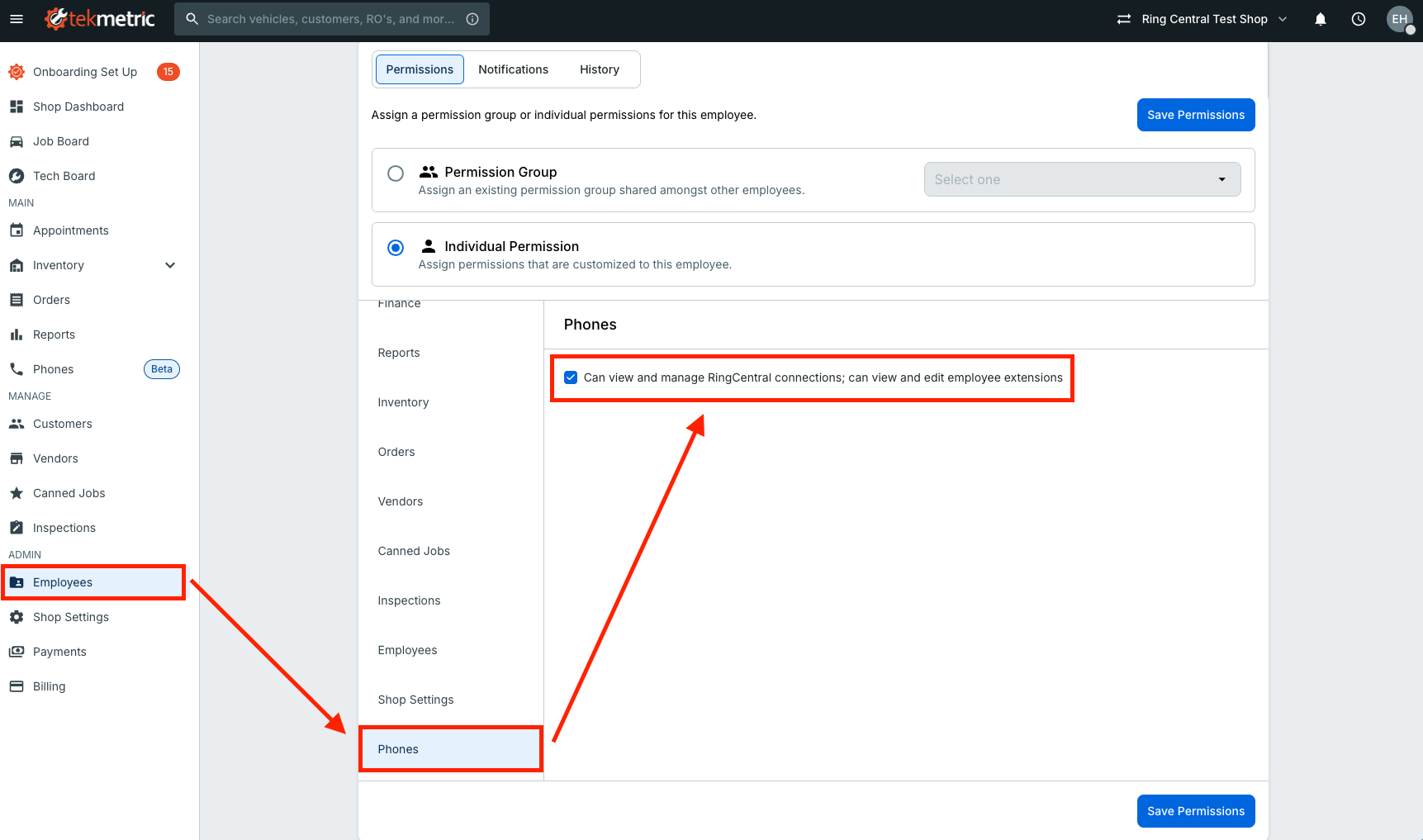
If you don’t see the Phones option in the side menu, please make sure your employee account has the Phones permission enabled.
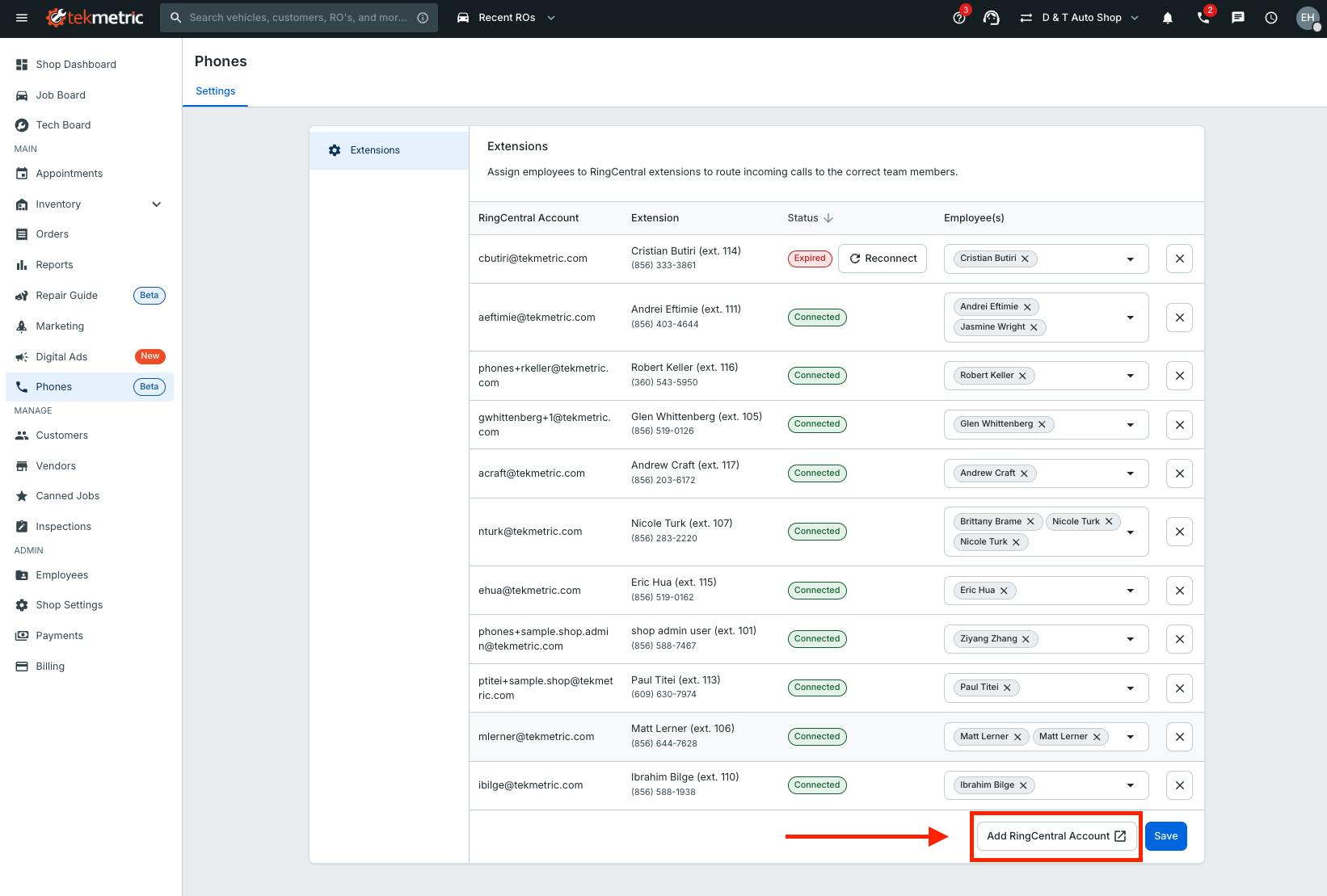
Phones Settings & Mapping Users
Once you successfully authorize the RingCentral connection, you will automatically be redirected to the Phones Settings tab. This tab only appears after you successfully authorize the RingCentral integration.
In the Phones Settings tab, map each Tekmetric user to their corresponding RingCentral extension and click Save to save your changes.
- Depending on your RingCentral configuration, we recommend mapping individual RingCentral accounts/extensions to each Tekmetric user whenever possible for the best call handling and notification experience.
- Some RingCentral extensions may require unique email addresses, meaning they must be authorized individually using their own RingCentral login credentials. You can authorize additional accounts by clicking Add RingCentral Account.
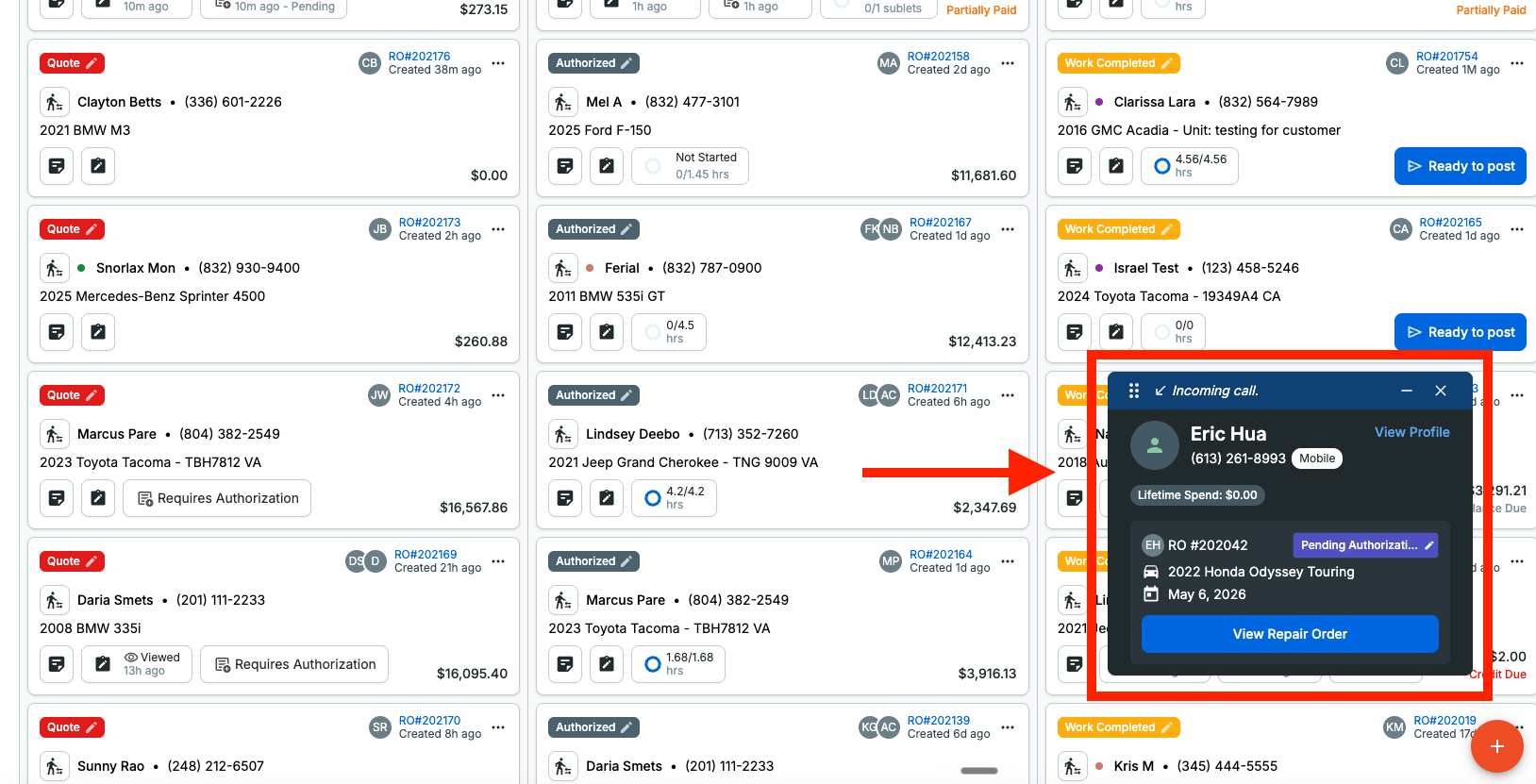
Call Pop Notifications
Once setup is complete:
- Call notifications (inbound and outbound) will automatically be displayed in Tekmetric
- A call pop notification will appear with:
- Customer information
- Vehicle details
- Active repair orders (ROs)
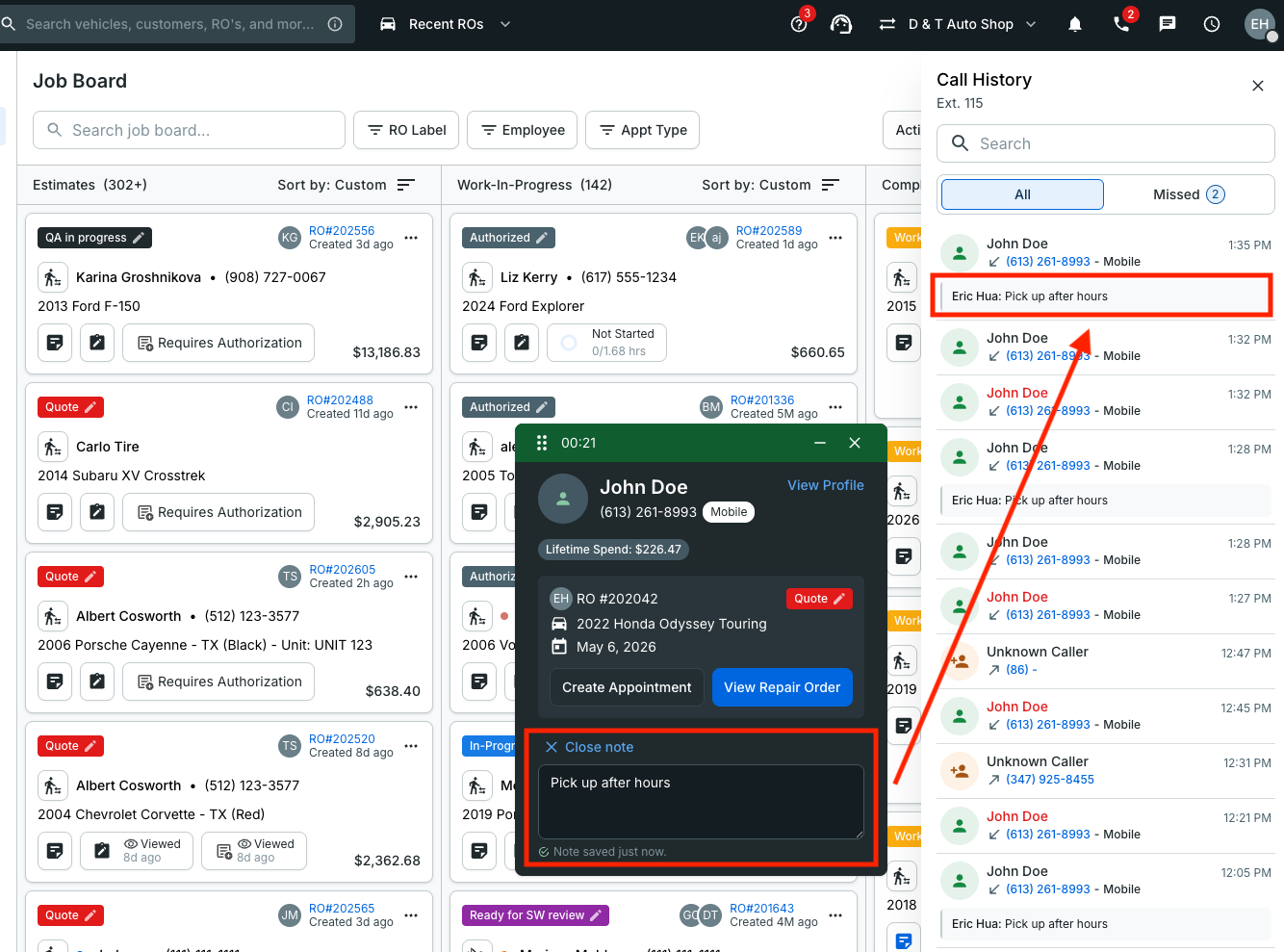
- Ability to add Call notes
- If the caller is a new customer, Tekmetric will provide the option to create an appointment instead.
Capture important details while the conversation is still fresh by adding a Call Note. Once saved, your Call Note automatically appears in the Call History panel, making it easy to reference past conversations and keep your team aligned.
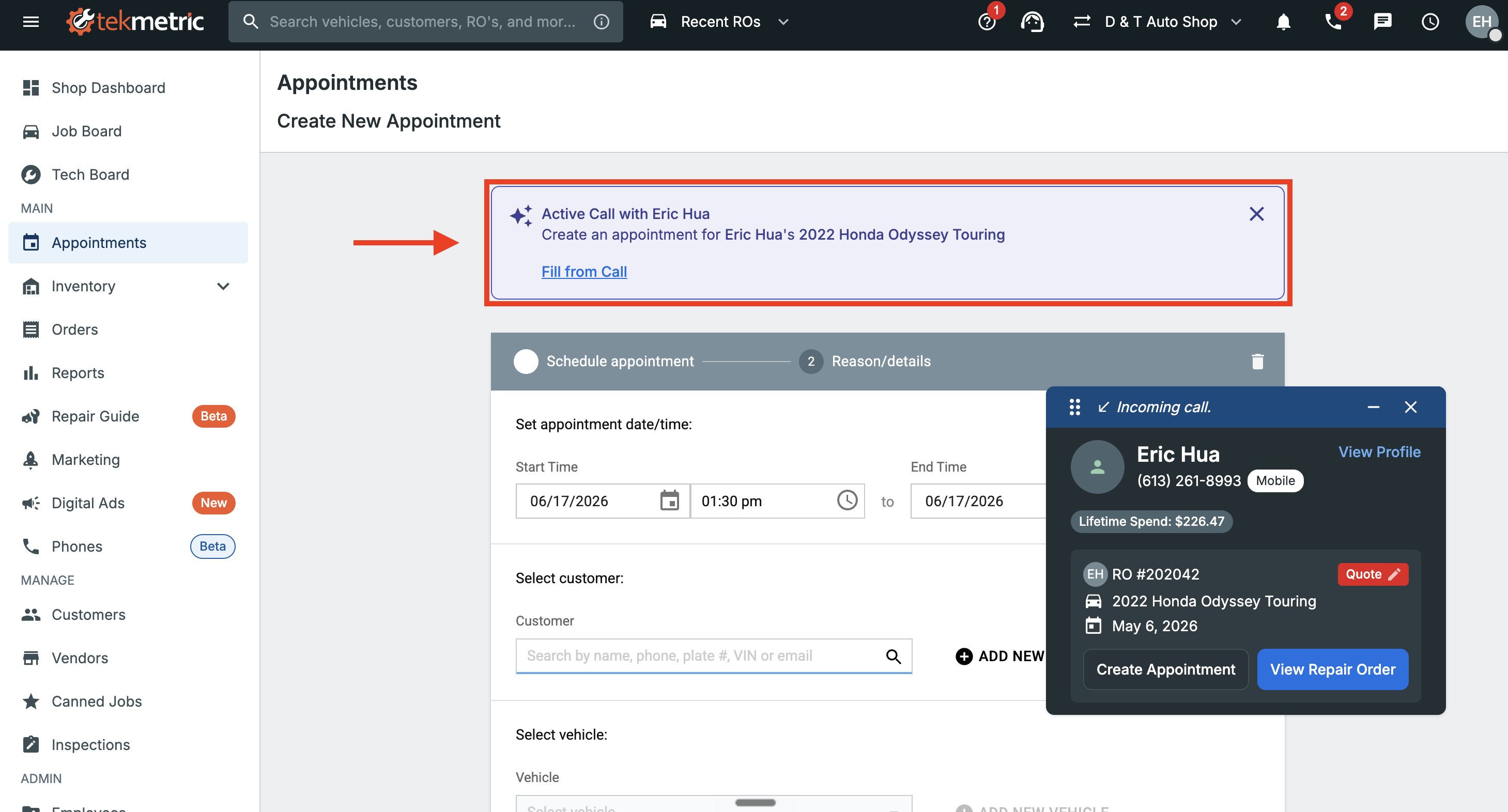
When selecting Create Appointment, you will first be routed to the scheduler to review availability and select a time slot before proceeding with booking.
Once you continue to appointment creation, a Fill from Call option becomes available that automatically pulls relevant details from the active call—such as customer name, phone number, and vehicle information—and pre-populates the appointment fields to reduce manual entry and save time.
Click-to-Call (from Repair Order)
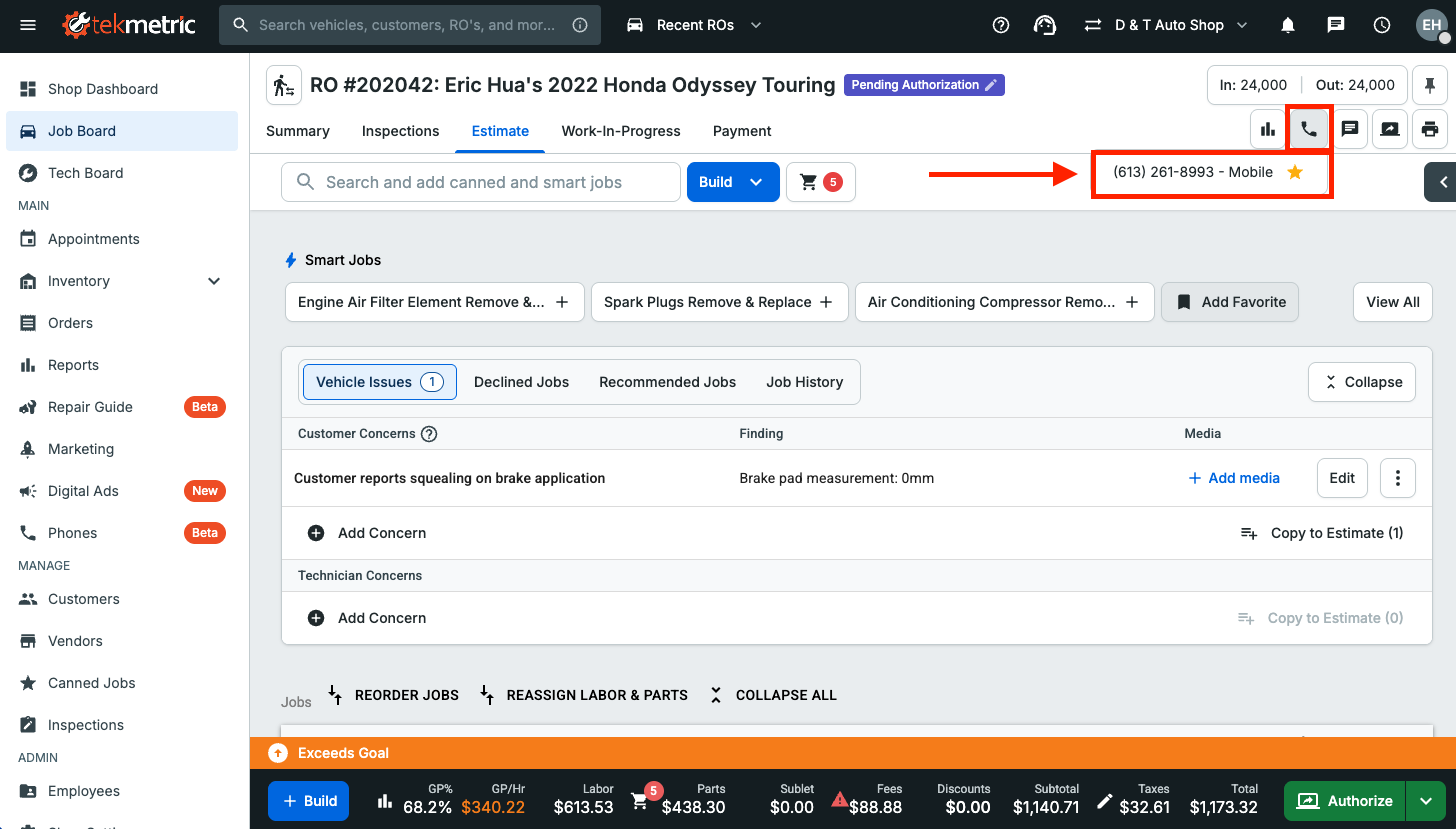
You will also be able to launch calls directly from a repair order with a single click.
Your connected physical phone or RingCentral app (tied to your extension) will ring first. Once you answer, the system will automatically dial the selected customer—eliminating the need for manual dialing.
Note: Click-to-call currently supports connected physical RingCentral desk phones only. Outbound call routing to the RingCentral desktop or mobile apps is not supported at this time.
For shops using shared RingCentral extensions across multiple users, all physical devices connected to that extension will ring when a call is initiated.
Call History
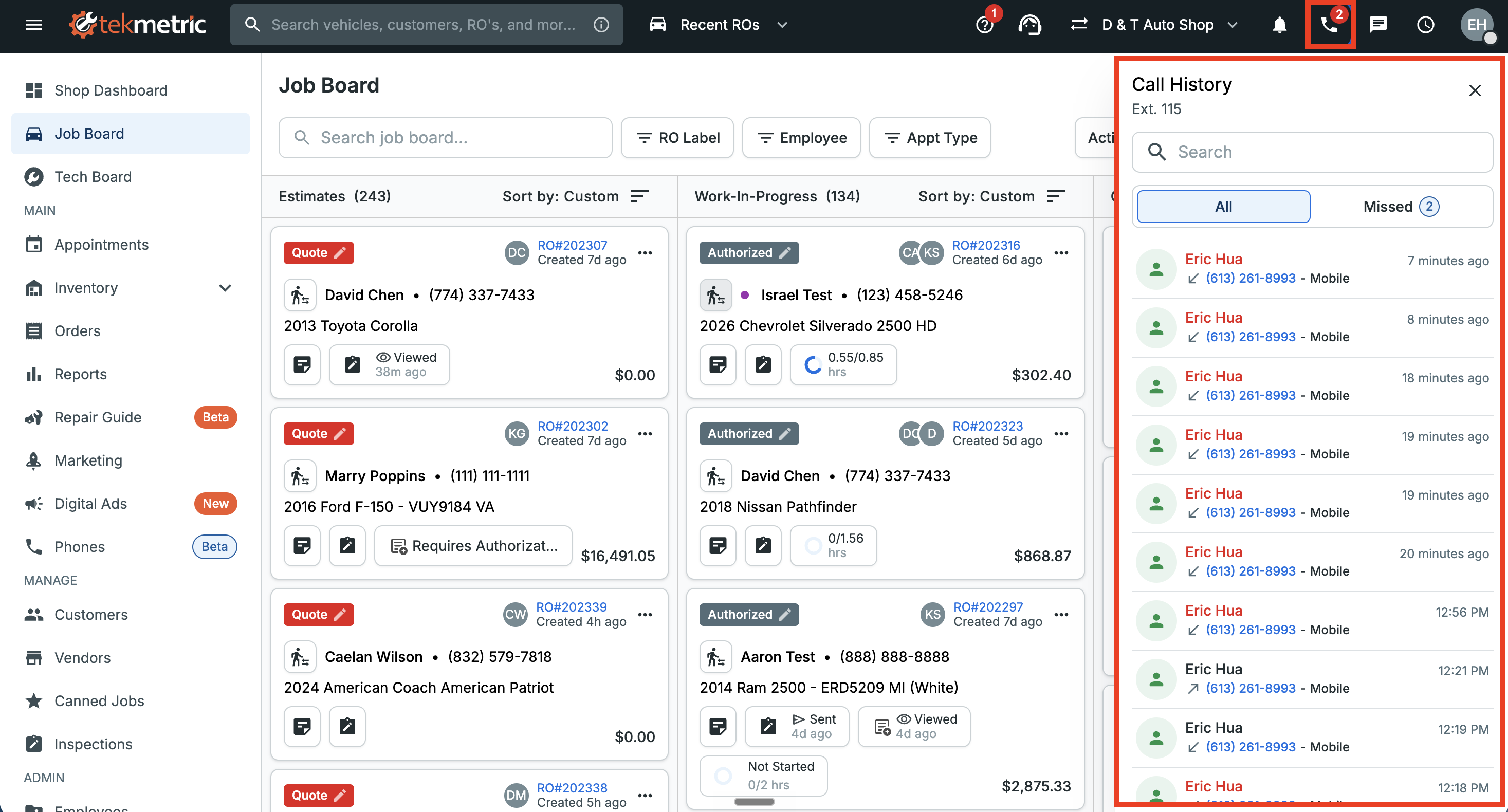
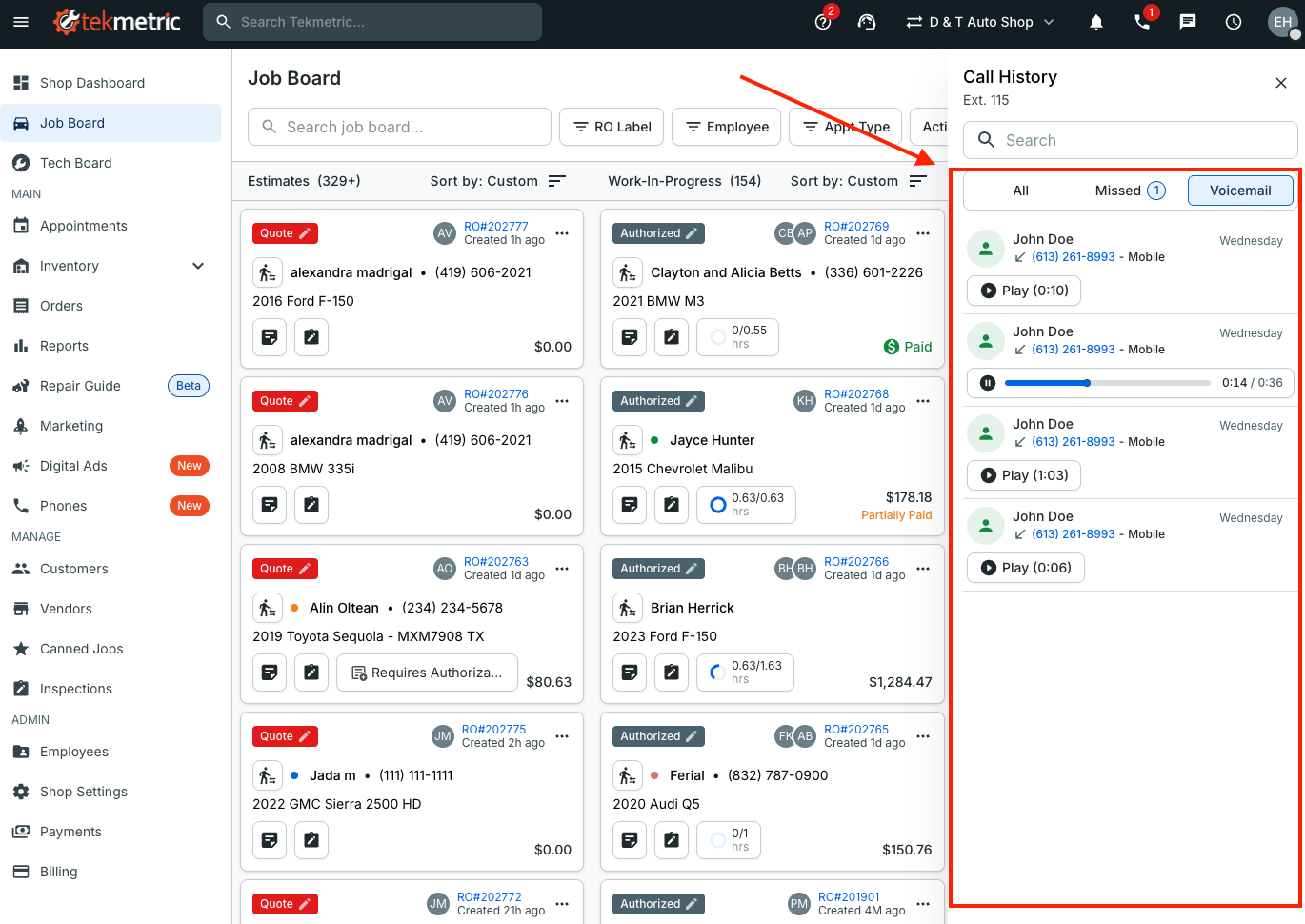
Selecting the phone icon in the top navigation displays your RingCentral extension call history, including all calls made, received and missed from your physical device or RingCentral app.
Note: this view is currently extension-specific, meaning you will only see calls associated with your individual mapped extension. Shop-wide call history and voicemail visibility across multiple extensions is planned for a future release.
Voicemail
Listen to voicemail messages directly from your RingCentral call history in Tekmetric. View voicemail records, play messages without leaving Tekmetric, and quickly catch up on missed messages—all from the Call History panel.
Note: this view is currently extension-specific, meaning you will only see voicemails associated with your individual mapped extension. Shop-wide call history and voicemail visibility across multiple extensions is planned for a future release.
Customer Profile Call History
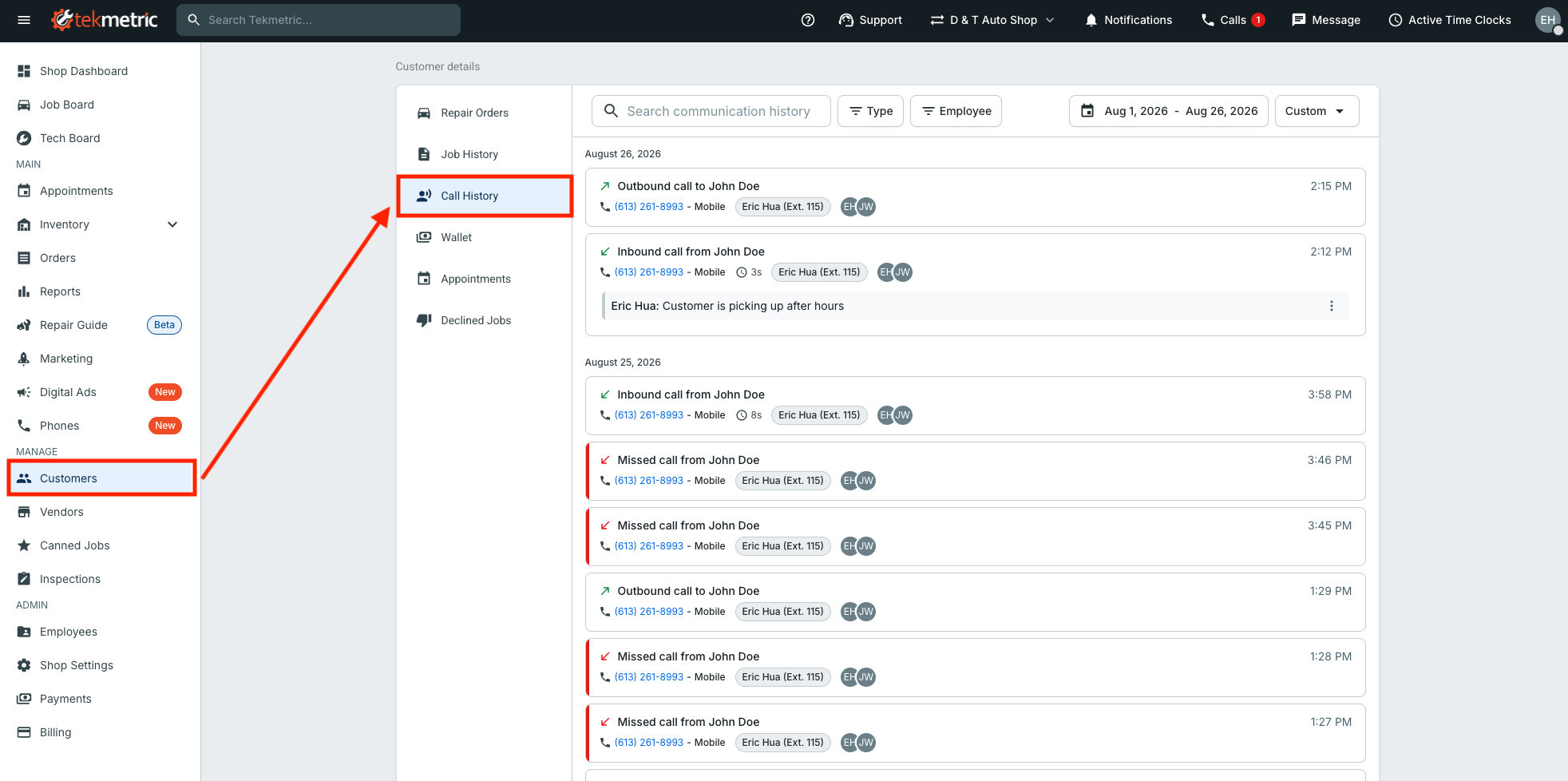
Opening a Customer Profile displays a dedicated call history log for that specific customer, consolidating their call interactions in one place. Review all call history for that customer including call notes (editable), play voicemail messages left by the customer, and see which extension handled each call.
Note: this list displays call history across all connected extensions, so you'll see every call your shop has had with that customer — not just the ones handled by your own extension.
Call Insights
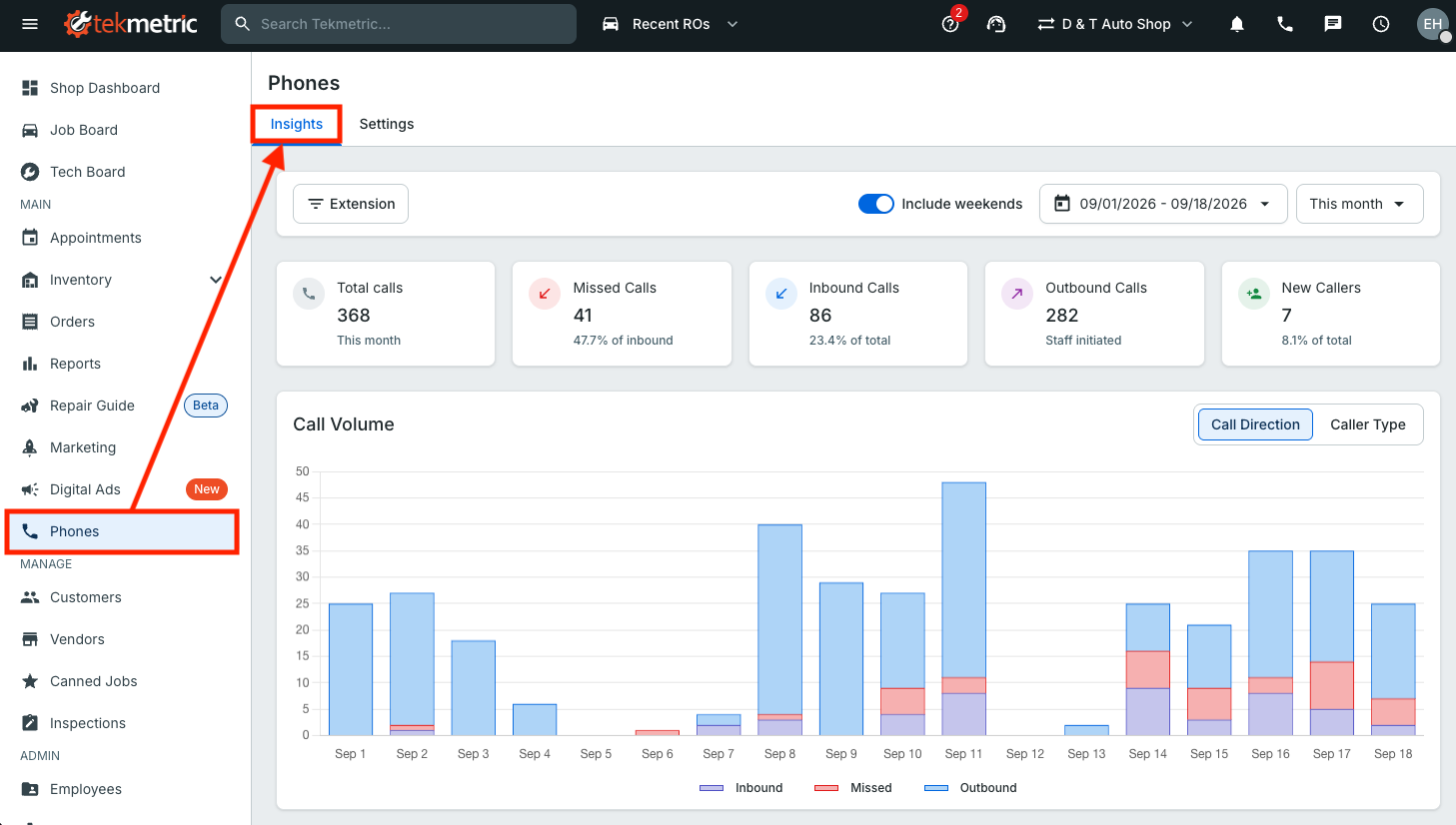
The Insights tab provides a shop-wide view of your call activity across all connected RingCentral extensions. View key metrics including total, missed, inbound, outbound, and new caller calls, and filter your insights by date range or specific extension. You can also see how your calls break down between New Callers—phone numbers that don’t currently match a customer record—and Existing Customers whose phone numbers are already associated with a customer in Tekmetric.
Frequently Asked Questions
Do I need a specific RingCentral plan to use Phones?
No — Phones capabilities works with all RingCentral plans, including Core.
No upgrade is required for the integration itself. We recommend selecting your RingCentral plan based on your shop’s communication needs, such as call volume, number of users, and any messaging requirements.
Do I need to enable RingCentral messaging (SMS)?
Not necessarily. SMS is only required if you want to send text messages directly through RingCentral.
If you already use TekMessage, enabling RingCentral SMS may be unnecessary and can create overlapping messaging workflows. We recommend choosing a single messaging system to avoid duplication.
Are there other phone provider integrations supported besides RingCentral?
At this time, Phones capabilities are only integrated with RingCentral.
We may expand support to additional phone providers in the future, but no other integrations are available or planned for currently.
Can I migrate my phone service to RingCentral without downtime?
Yes. RingCentral supports a parallel run approach, which allows your existing phone system and RingCentral to operate at the same time during migration. This lets your team configure and validate the setup before fully switching over.
You can also begin using RingCentral before your numbers are fully ported. During setup, RingCentral assigns temporary Direct Inward Dial (DID) numbers, which allow full system configuration, testing, and usage ahead of the final number transfer. Once porting is complete, your existing business numbers automatically replace these temporary numbers.
What phones are compatible with RingCentral?
RingCentral supports a wide range of VoIP desk phones. You can view supported devices here:
Compatible Phones for RingCentral
Can I access call recordings in Tekmetric?
Not yet. Call recordings are not currently embedded in Tekmetric. However, call recordings can still be enabled through RingCentral, and recordings can be accessed directly through the RingCentral application.
Call recording functionality within Tekmetric may be supported in a future update.
What is the impact to TekMessage texting when switching to RingCentral?
If your shop is currently using TekMessage with your main business line, your existing texting functionality will remain unaffected when moving your main business number to RingCentral for calling capabilities.
During the RingCentral porting process, only the voice portion of the number is ported behind the scenes, so your existing texting capabilities will continue as normal.
Who should I contact for help during or after migration, or for questions/issues with Phones features in Tekmetric?
For help across setup, porting, and post-implementation stages:
-
Implementation Support – For help during implementation, setup, or porting: support@deployright.io
-
RingCentral Support – For post-implementation support, including configuration or service-related questions: please visit RingCentral (Contact Support)
-
Phones Capabilities Support – For questions related to the integration or features within Tekmetric: phones@tekmetric.com