Tekmetric's Smart Canned Jobs utilize advanced data integrations to transform standard templates into dynamic, vehicle-specific tools. When an advisor adds a Smart Canned Job to an estimate:
Automated Fluid & Filter Lookup: Tekmetric automatically references the vehicle's VIN/submodel to pull the exact oil capacity, recommended viscosity, and matching oil filter part number.
Package Pricing Flexibility: Most shops sell oil changes as a flat-rate package (e.g., $49.99 for up to 5 quarts). Tekmetric lets you lock in that package price while automatically calculating and adding an upcharge for the retail cost of any additional quarts required by larger engines (such as a truck or luxury SUV requiring 6 or more quarts).
Smart Discounting Calculations: To maintain your flat package price, Tekmetric dynamically applies an internal package discount to the job. You can choose exactly how this discount is calculated using three methods:
Equal-Weighted: The internal discount is split evenly across both labor and parts lines.
Labor First: Tekmetric discounts the labor line first to reach the package price, then marks down parts only if labor drops to zero.
Part First: Tekmetric discounts the parts lines first before reducing any labor.
Step-by-Step Instructions
Follow these instructions to build a new Smart Canned Job for your Lube, Oil, and Filter (LOF) services.
Step 1: Navigate to Canned Jobs
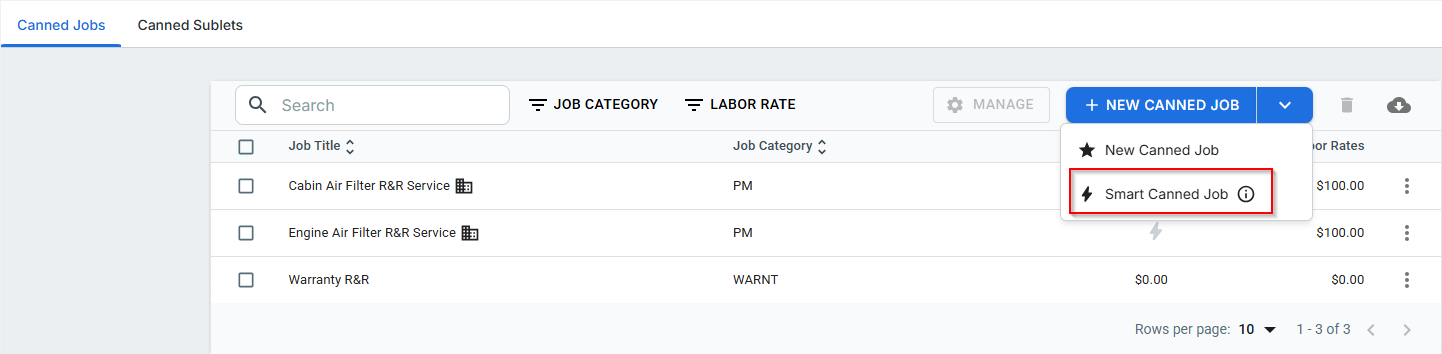
On the left-hand navigation menu of Tekmetric, click Canned Jobs.
In the top-right corner of the page, click the New Canned Job button.
Select Smart Canned Job from the dropdown menu.
Step 2: Select the Engine Oil & Filter Smart Job
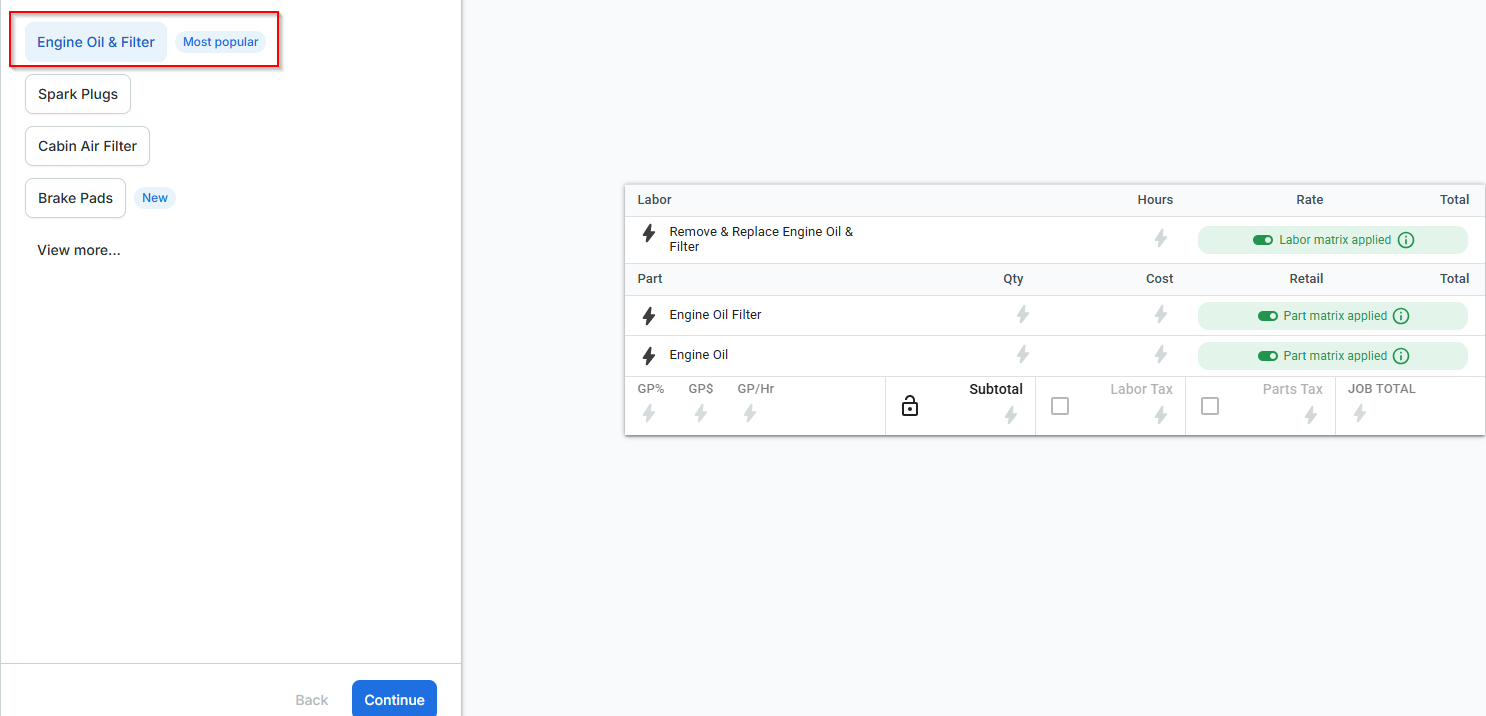
Select the Engine Oil & Filter option.
Click Continue to move to the configuration screen.
Step 3: Configure Job Details & Package Pricing
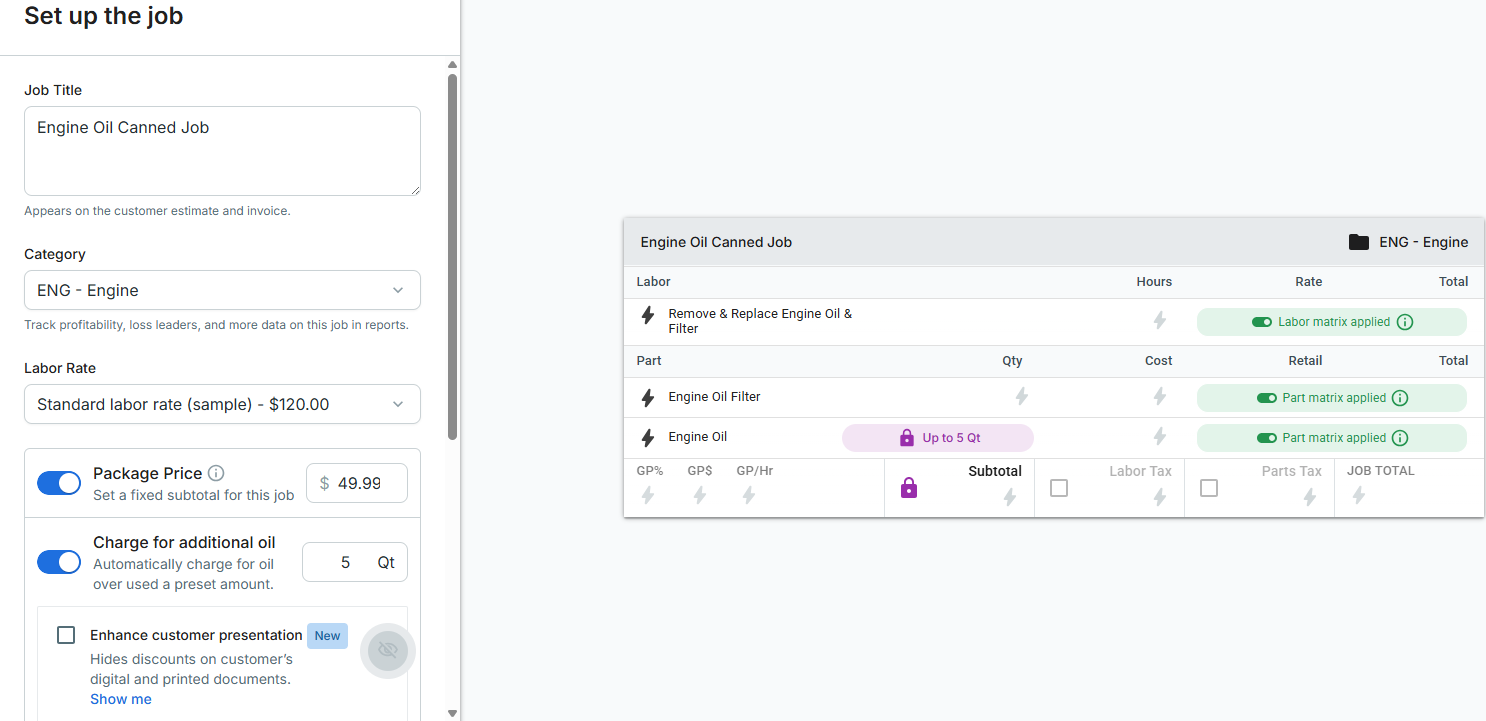
Name & Category: Verify or enter your preferred job title (e.g., Full Synthetic Oil Change Service) and assign it to the appropriate Job Category (e.g., Maintenance) for accurate financial reporting.
Labor Rate: Select the default labor rate that applies to this job.
Toggle Package Pricing: Switch on the toggle for Package Pricing to unlock flat-rate billing.
Set Base Price & Constraints:
Enter your flat Package Price (e.g., 49.99).
Click the Charge for additional oil pill or lock icon.
Define the maximum amount of fluid included in that price (e.g., up to 5 Quarts or Liters).
Choose Calculation Method: Select how you want Tekmetric to distribute the package discount (Equal-Weighted, Labor First, or Part First).
Customer Presentation: Check the box to Hide package price discount lines if you want your customer-facing estimate to show a clean, simple flat rate rather than individual line-item deductions.
Step 4: Select Oils From Inventory
Engine Oil:
- Click on the "Edit" button with the house icon. It will open another screen for building a customizable list.
- Use the checkboxes to choose the various engine oils from your inventory. The system will generate a list of these oil options for your Service Writer to quickly pick from when building ROs with this Smart Canned Job in the future. Note: The order in which you click on the oil checkboxes is the order that the list will display horizontally inside of the Smart Canned Job.
- Click the blue "Continue" button at the bottom.
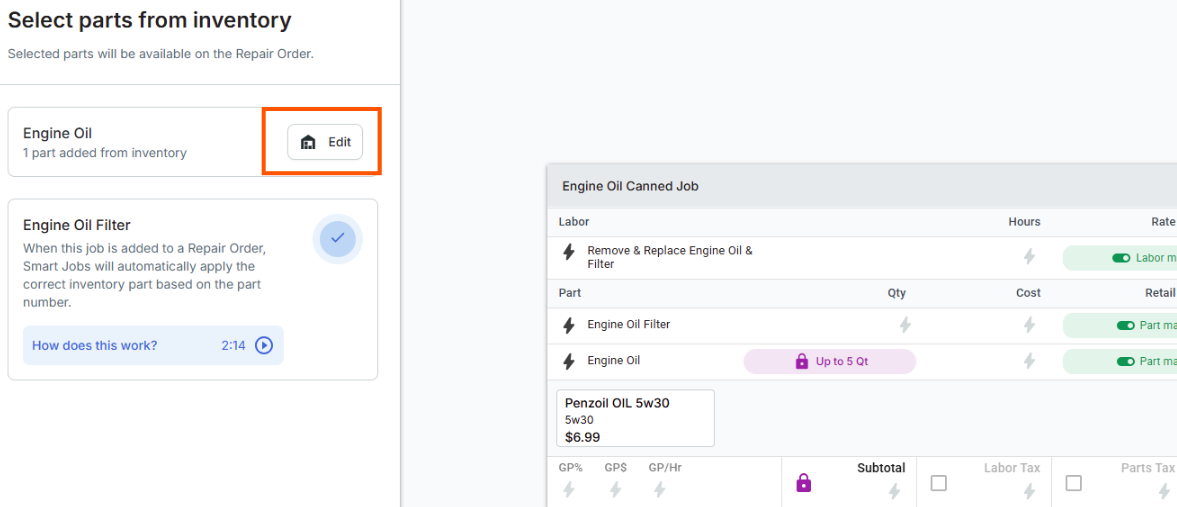
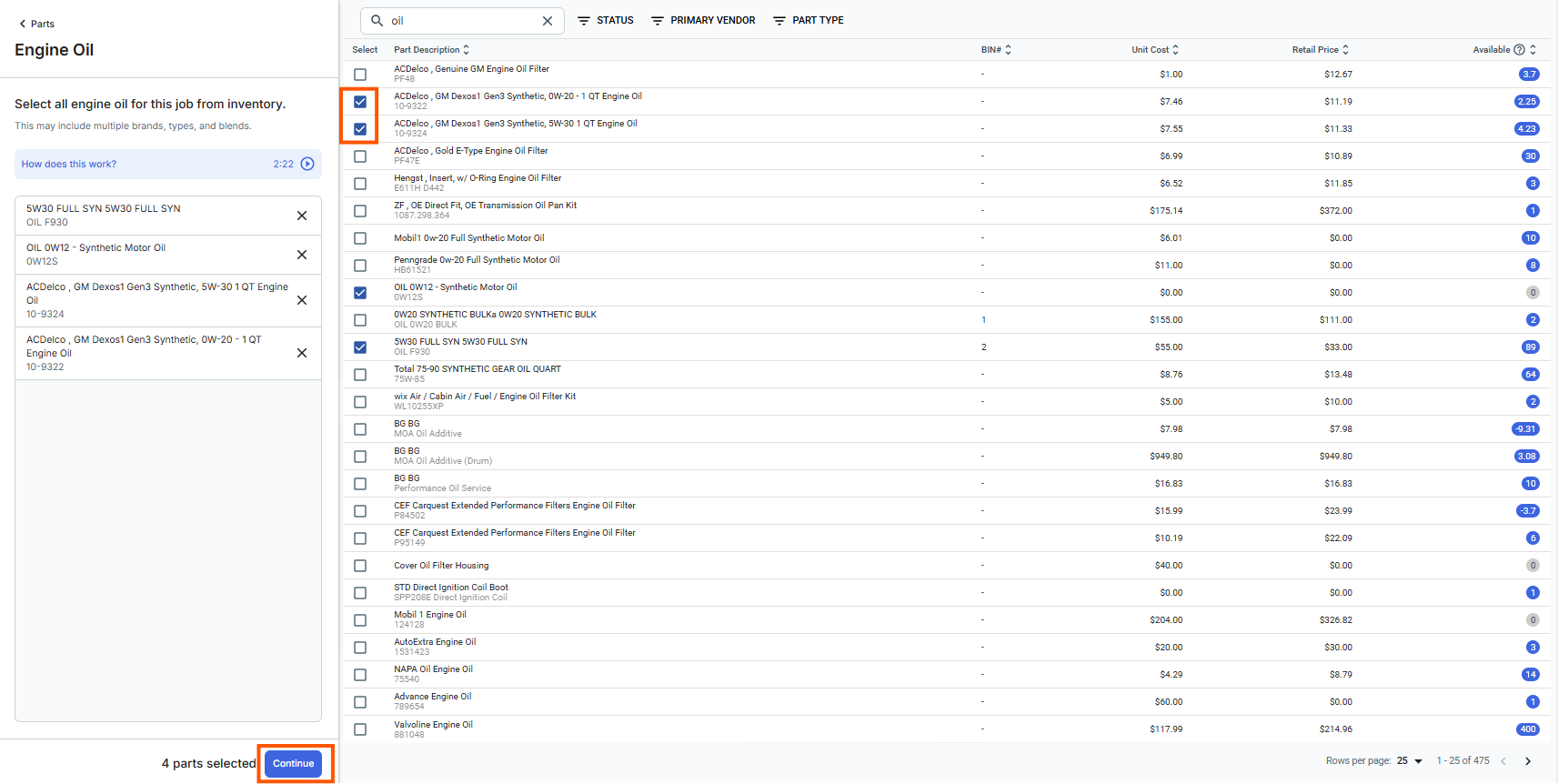
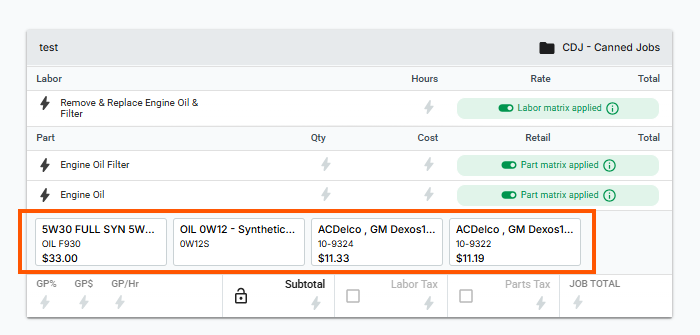
Note: This is the only time when you can edit or change order of the oils showing in this list. If you need to edit them later on after saving the Smart Canned Job, you will need to recreate the Smart Canned Job via the Smart Job Wizard.
Engine Oil Filter:
- When this job is added to a Repair Order, Smart Jobs will automatically apply the correct engine oil filter inventory part based on the part number and fitment data for the VIN.
- No additional actions or options need to be picked for this section.
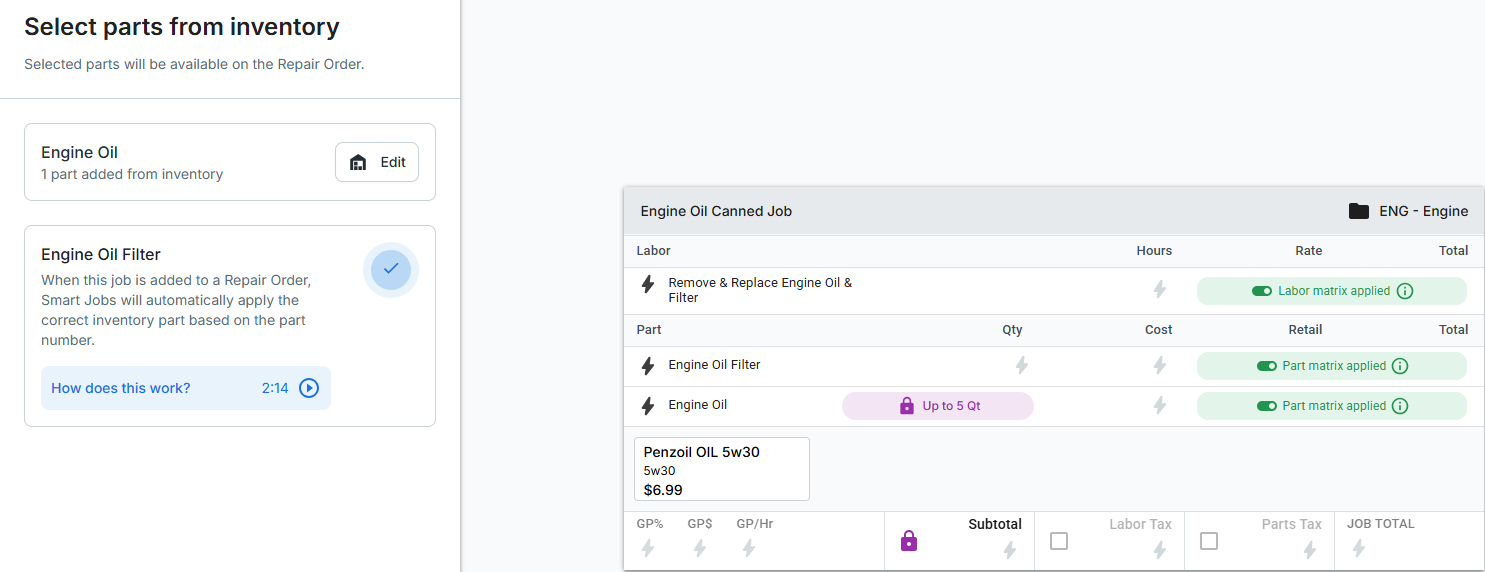
Step 5: Review and Save
Preview the layout of your smart labor and fluid lines at the bottom of the wizard page.
Click Save Canned Job. Your new smart job will now feature a blue lightning bolt icon in your system, signaling it is fully automated and ready for use on any active estimate.
💡 Shop Pro-Tip: Depending on your geographical location, your shop may measure fluid volumes differently. Service managers and shop admins can adjust the global fluid measurement settings by navigating to the gray sidebar within an active RO, clicking the Gear Icon next to the Fluids section, and toggling between Quarts and Liters.
Frequently Asked Questions (FAQs)
Q: What happens if a vehicle requires 6.5 quarts of oil, but our smart job is set to a flat rate for up to 5 quarts? A: Tekmetric handles the math automatically. It applies your base package price to the first 5 quarts and calculates the remaining 1.5 quarts at your standard inventory retail price. The final subtotal displayed to the service advisor will instantly reflect the base price plus the exact parts upcharge for the extra 1.5 quarts.
Q: Why isn't the smart canned job pulling parts or labor times when I add it to an estimate? A: Smart jobs rely entirely on accurate vehicle data to query the catalogs. Ensure that the vehicle on the estimate has been properly decoded using a valid license plate lookup or VIN scan. If the vehicle is manually built with missing submodel details, the system will not have the information necessary to automate the lookup.
Q: Can I edit an existing, traditional oil change canned job to make it "Smart"? A: Yes. Navigate to your traditional canned job, click the Edit (Pencil) Icon, and select the Engine Oil & Filter option from the smart job menu. You can then map the smart lines into place and delete your old manual placeholder lines. However, if you are updating an older version of a smart job, it is highly recommended to delete the old template entirely and build a fresh one via the Smart Canned Job Wizard to ensure compatibility with the latest fluid catalog enhancements.