High Level Video Overview
Detailed Written Overview
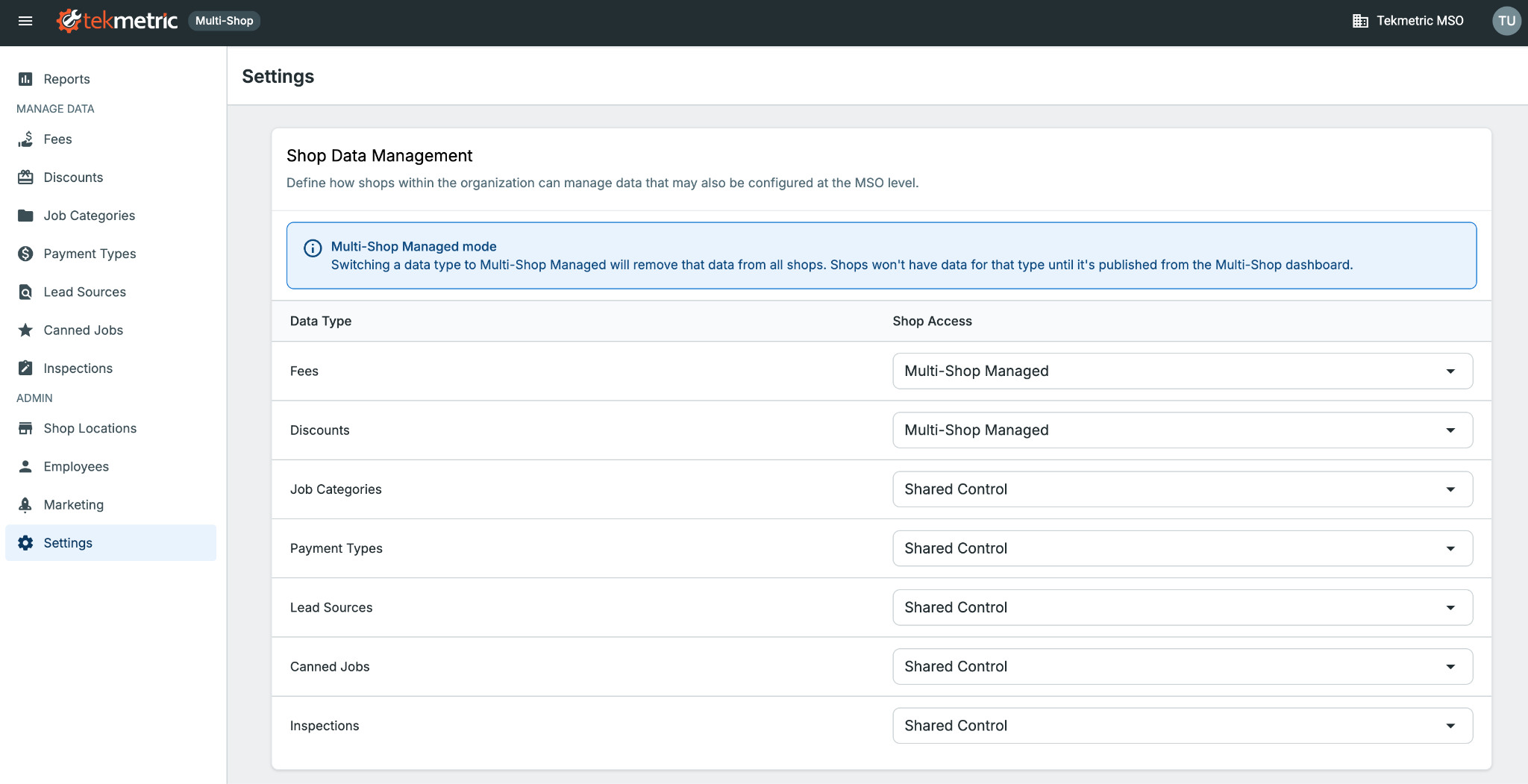
The Shop Data Management settings page gives Multi-Shop Organization (MSO) owners and admins centralized control over how individual shops manage shared data types - Fees, Discounts, Job Categories, Payment Types, Lead Sources, Canned Jobs, and Inspections.
For each data type, you choose between two modes:
| Mode | What it means |
|---|
| Multi-Shop Managed | Data is controlled at the org level. Individual shops cannot create, edit, or delete data of this type.* |
| Shared Control | Shops can manage their own data freely, but cannot edit or delete data that was pushed from Multi-Shop.* |
*Inspections and Canned Jobs have special handling. See "How Individual Shops are Affected" section below.
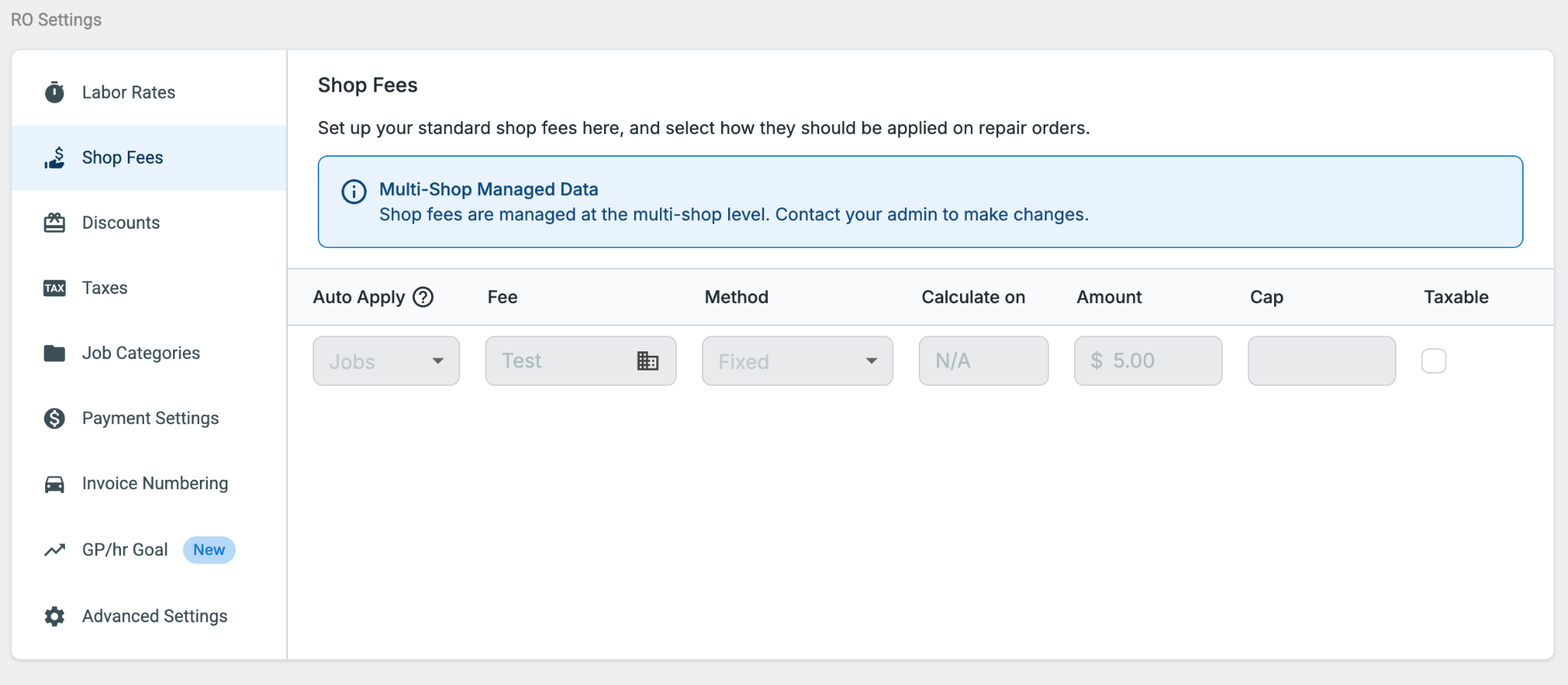 Multi-Shop Managed Example: All fees are controlled at the multi-shop level.
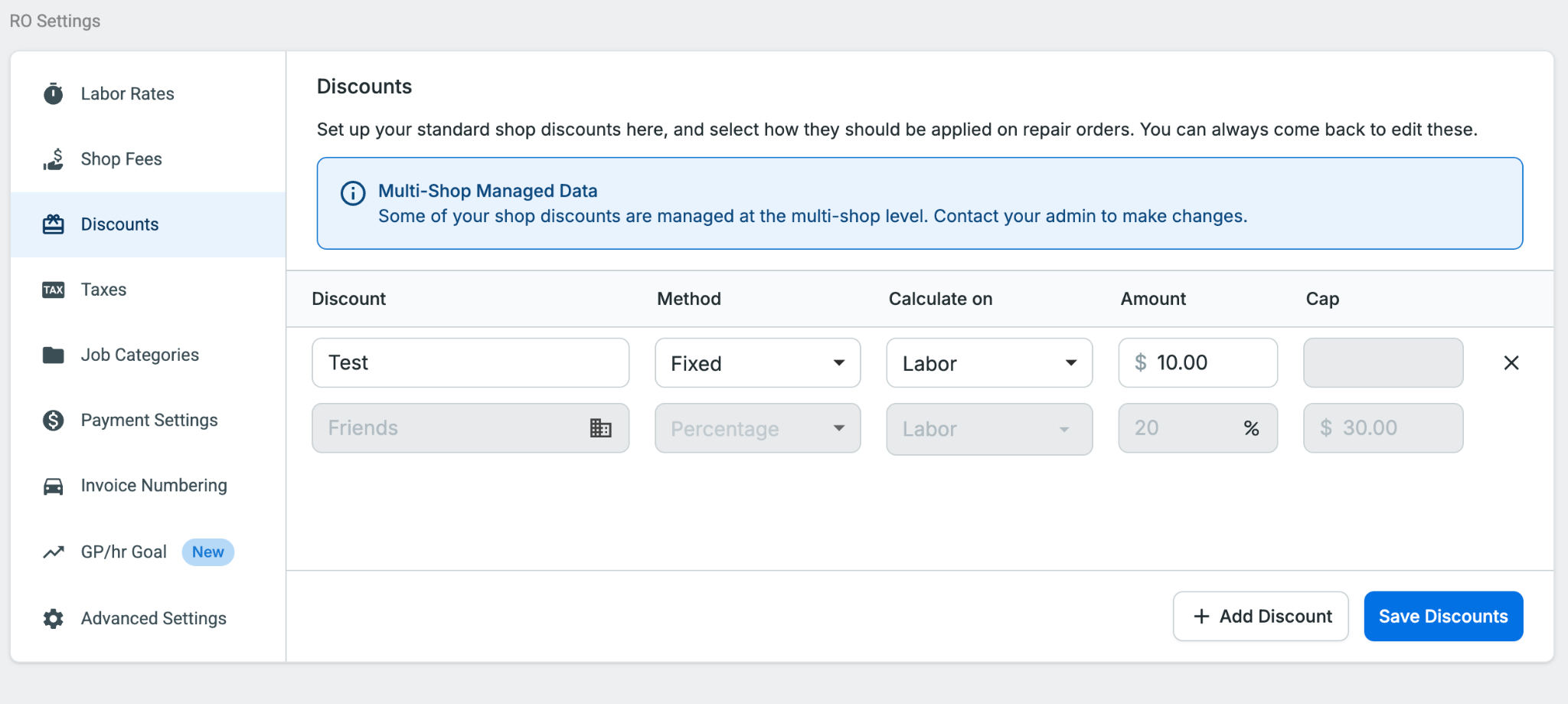 Shared Control Example: Shop can manage its own discounts in addition to the Multi-Shop Managed discounts.
Important: When you switch a data type to Multi-Shop Managed, all shop-specific data of that type will be permanently deleted from every shop in the organization. Shops will have no data for that type until you publish it from the Multi-Shop dashboard.
By default, all data types were set to Shared Control when this feature was released.
Who Can Access the Settings Page
| MSO Account Type | Can see Settings? | Access Level |
|---|
| Org Owner | ✅ Yes | Full edit |
| Edit | ✅ Yes | Full edit |
| Read Only | ✅ Yes | Read-only |
| Limited Reporting | ❌ No | No access |
Setting a Data Type to Multi-Shop Managed
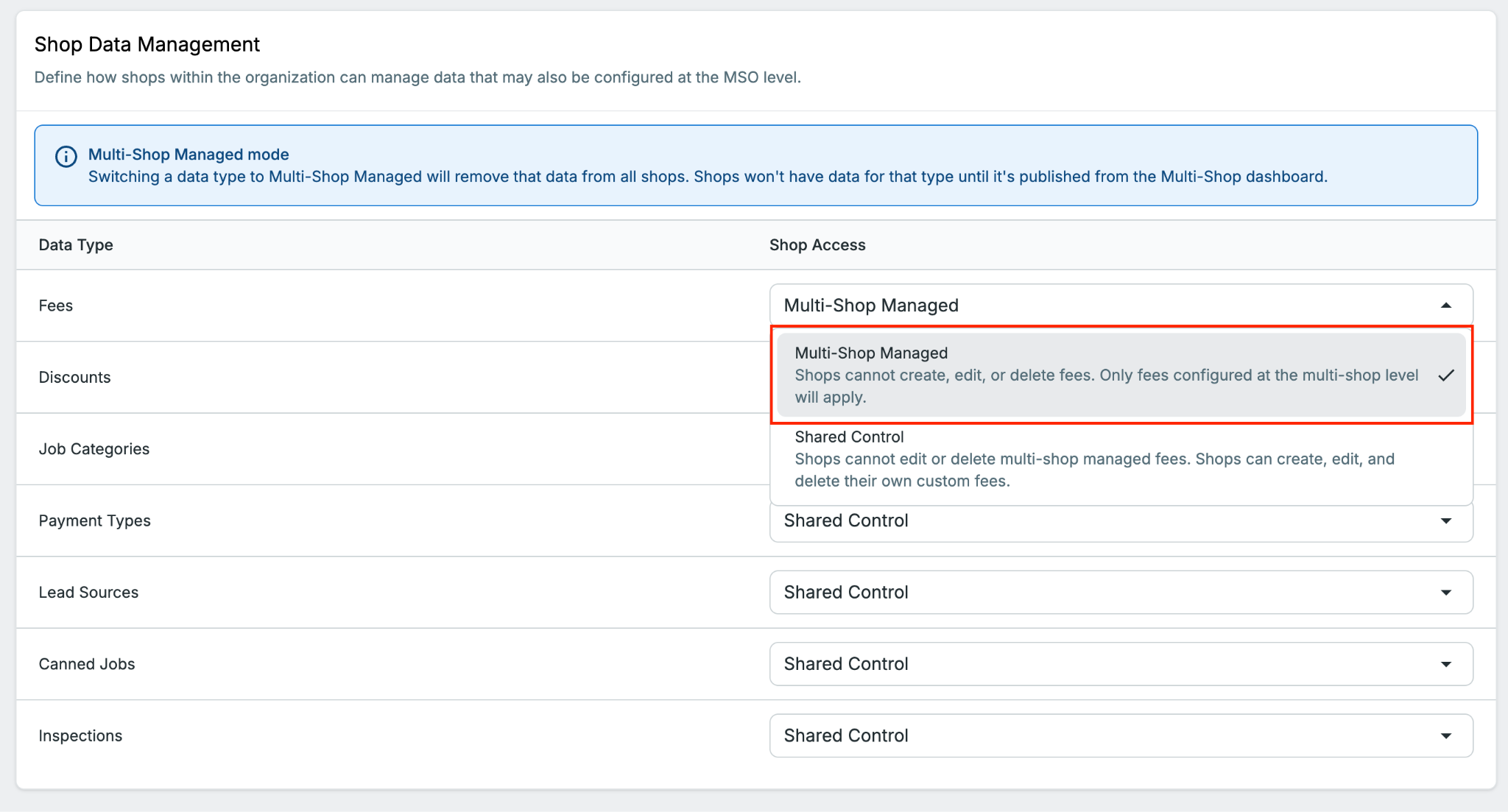
Step 1: Choose a data type
On the Shop Data Management page, find the data type you want to centrally control (e.g., Discounts) and click its Shop Access dropdown.
Step 2: Select "Multi-Shop Managed"
The system will check whether any shops in your org have shop-specific data of that type. What happens next depends on what it finds. See the scenarios below for details.
Scenario A: No shop-specific data exists
If no shops have their own data of that type, the setting saves immediately and a success notification appears. No further action is needed.
Scenario B: Shop-specific data exists (Fees, Discounts, Payment Types, Lead Sources, Inspections)
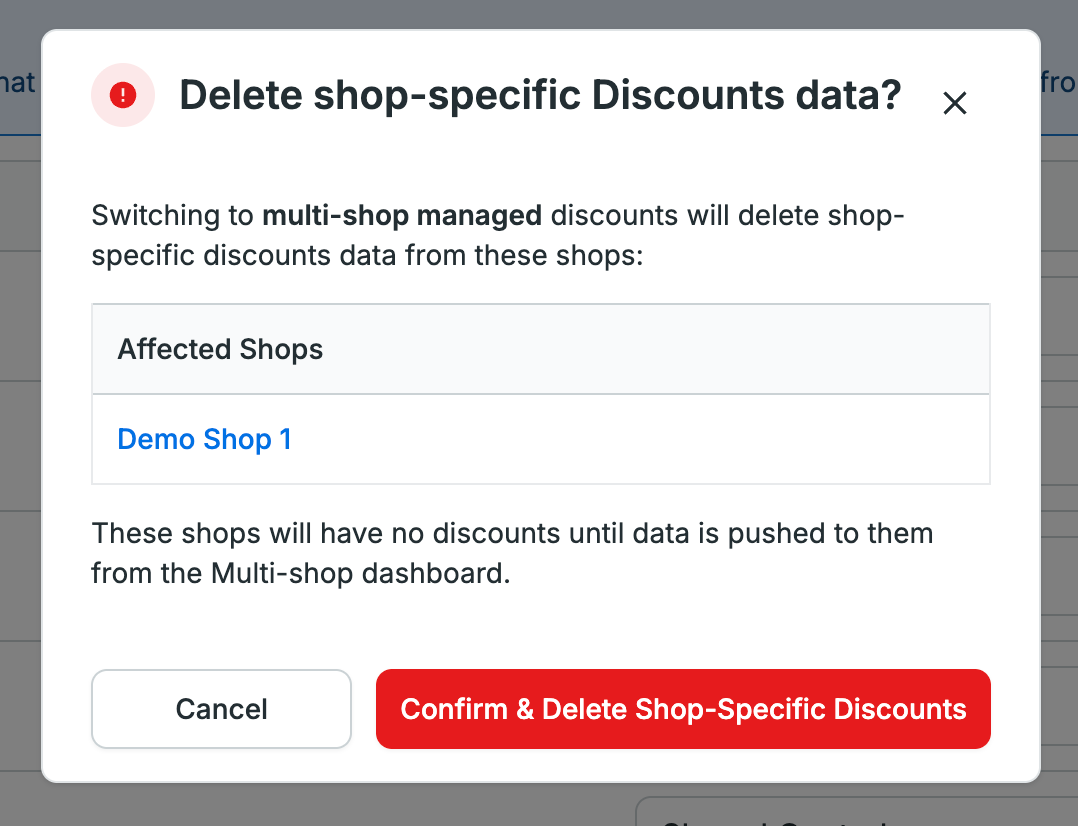
A confirmation modal appears listing all affected shops. Review the list carefully - this action is permanent and cannot be undone.
- Click Confirm & Delete Shop-Specific [data type] to proceed. The system will delete all shop-specific data of that type across every shop in the org.
- Click Cancel to revert the dropdown back to Shared Control without making any changes.
Org-level (Multi-Shop managed) data is never deleted - only shop-specific data is affected.
Scenario C: Job Categories - special handling
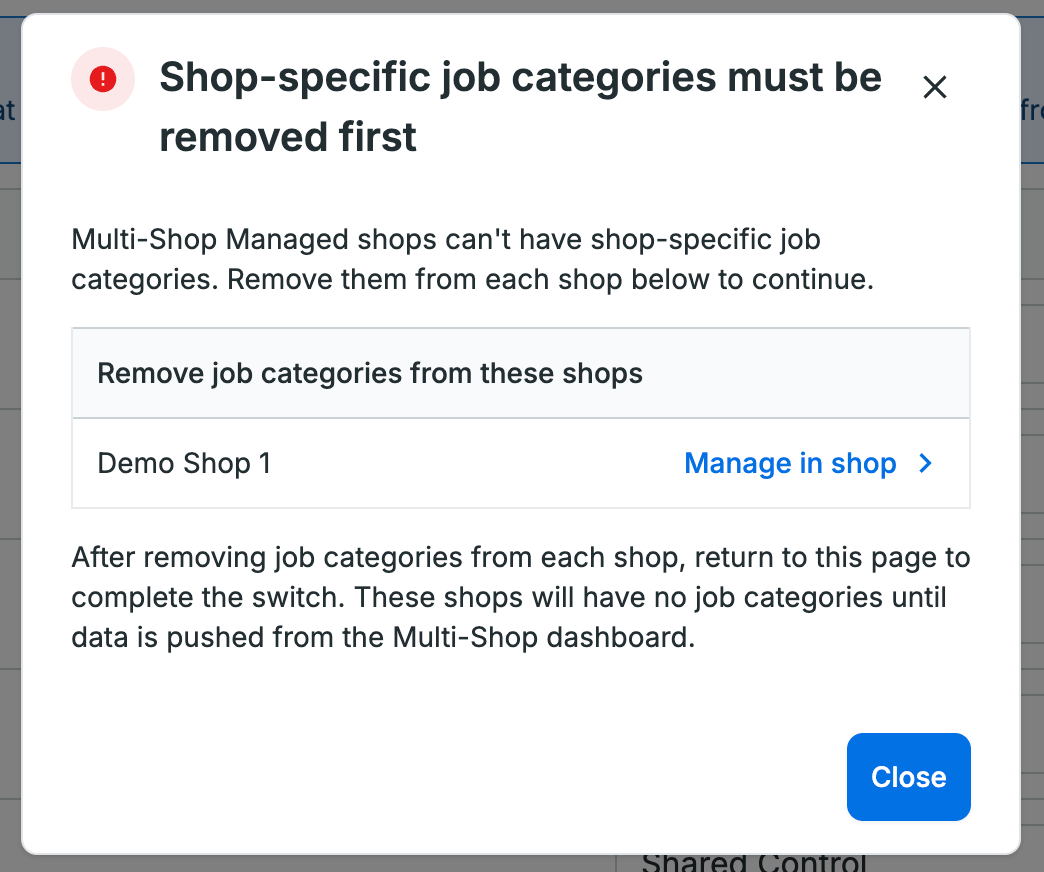
Job Categories have additional logic depending on whether any categories are tied to commission structures in your shops.
If no Job Categories are tied to commissions: The standard auto-delete modal appears (same as Scenario B). The system can delete the shop-specific categories for you automatically.
If at least one Job Category is tied to a commission structure: A different modal appears with a table of all affected shops (see image above). Because of the commission link, you must go into each shop and delete the affected Job Categories manually before you can switch to Multi-Shop Managed.
- Click the Manage in shop link next to each affected shop.
- Delete the conflicting Job Categories in that shop.
- Return to the MSO Settings page and try again.
Scenario D: Canned Jobs - special handling
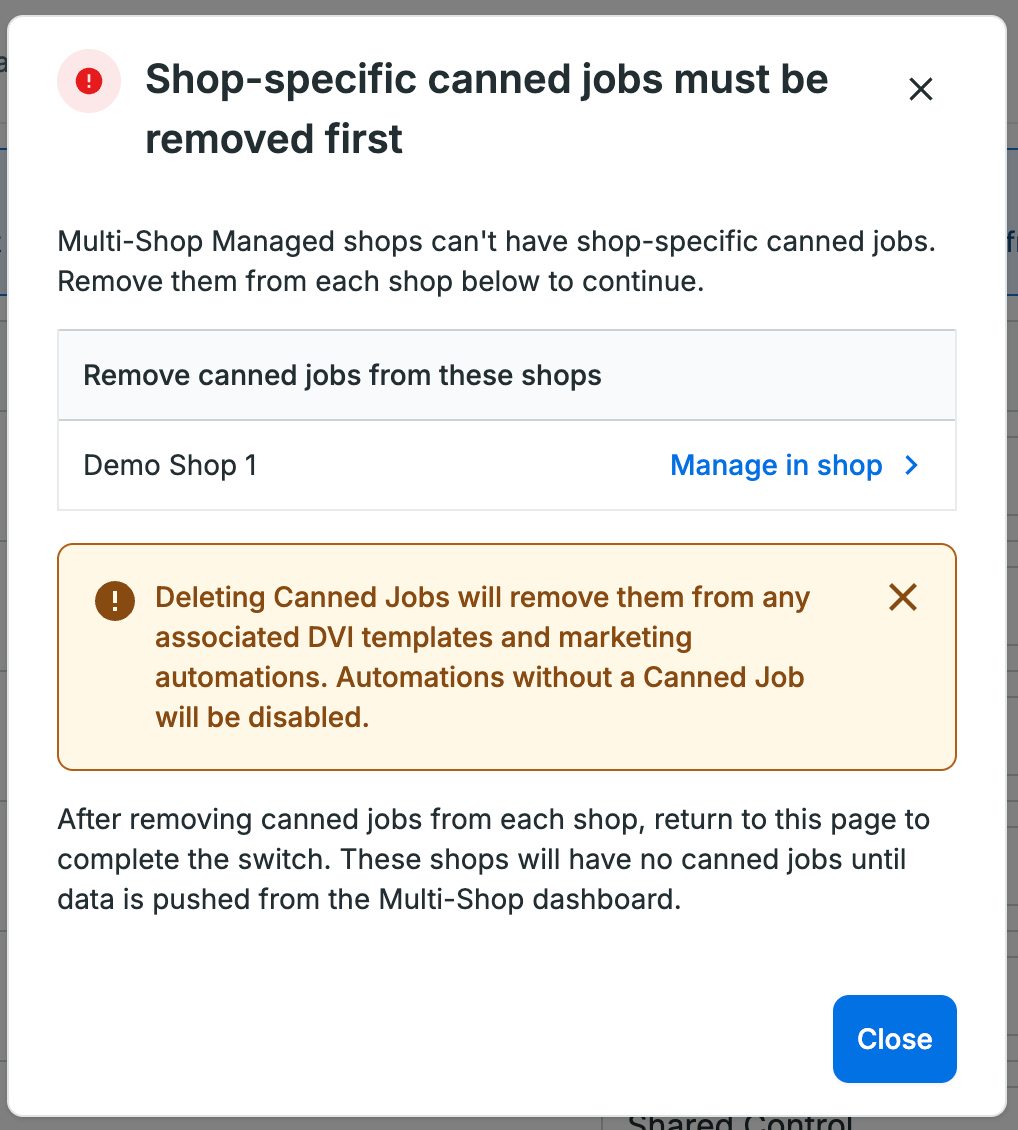
Canned Jobs have additional logic depending on whether any canned jobs are tied to inspection task lines in your shops.
If no Canned Jobs are linked to inspection task lines: The standard auto-delete modal appears (same as Scenario B). The system deletes shop-specific Canned Jobs automatically on confirmation.
If Canned Jobs are linked to inspection task lines: A manual removal modal appears (see image above).
You must go into each affected shop and remove the linked Canned Jobs manually before the switch can be completed.
Note on BG Integration Canned Jobs: Canned Jobs created via the BG Integration are excluded from this process entirely. They remain in each shop and are not deleted when switching to Multi-Shop Managed, since the integration is controlled at the shop level.
Switching Back to Shared Control
To give shops back control over a data type, simply select Shared Control from the dropdown. No confirmation is required - the setting saves immediately.
Previously deleted shop-specific data is not restored. If shops need data of that type again, it must be re-created at the shop level or published from Multi-Shop.
How Individual Shops Are Affected
Here’s how these settings affect individual shops:
| Action | Multi-Shop Managed | Shared Control |
|---|
| Create shop-specific data | ❌ Not allowed | ✅ Allowed |
| Edit shop-specific data | ❌ Not allowed | ✅ Allowed |
| Delete shop-specific data | ❌ Not allowed | ✅ Allowed |
| Edit or delete MSO-managed data | ❌ Not allowed* | ❌ Not allowed* |
| Duplicate MSO-published Inspections | ❌ Not allowed | ✅ Allowed |
| Duplicate MSO-published Canned Jobs | ❌ Not allowed | ✅ Allowed |
*Inspections and Canned Jobs have special handling. See below.
Inspections: shop-level actions that are always allowed
Even when Inspections are set to Multi-Shop Managed, individual shops can still:
- Map Canned Jobs to inspection task lines
- Attach MotoVisual animations to task lines
- Mark an inspection as the default
- Mark an inspection as internal only
Canned Jobs: shop level actions that are always allowed
Individual shops can always edit MSO-published Canned Jobs, with the exception of Job Title and Job Category.
Frequently Asked Questions
What happens to my org-level data when I switch a data type to Multi-Shop Managed? Nothing - your Multi-Shop managed data is never affected. Only shop-specific data (data created within individual shops) is deleted.
Can shops still use MSO-managed data after the switch? Yes, but only data that you publish from the Multi-Shop dashboard. Until you publish something, shops will have no data of that type.
If I switch back to Shared Control, will deleted shop data come back? No. Previously deleted shop-specific data is not restored. Shops would need to re-create their own data or have new data published from Multi-Shop.
Can I undo a bulk deletion of shop data? No. Deletions made when switching to Multi-Shop Managed are permanent.
What if I don't have access to a shop to clean up data manually? You'll need to either be listed as an employee in that shop, or coordinate with someone who has the appropriate shop-level permissions to delete that data type.