Overview
Recommended Jobs helps your service advisors recommend the right maintenance at the right time — without extra research and having to manually check multiple sources. When an advisor creates a repair order and enters the customer's vehicle and odometer reading, Tekmetric automatically surfaces maintenance items that are overdue or coming up soon, based on the vehicle's mileage and service history from both Tekmetric and Carfax. Adding any of those jobs to the estimate takes a single click.
Learn more about this new feature by watching the video below:
How It Appears for Service Advisors
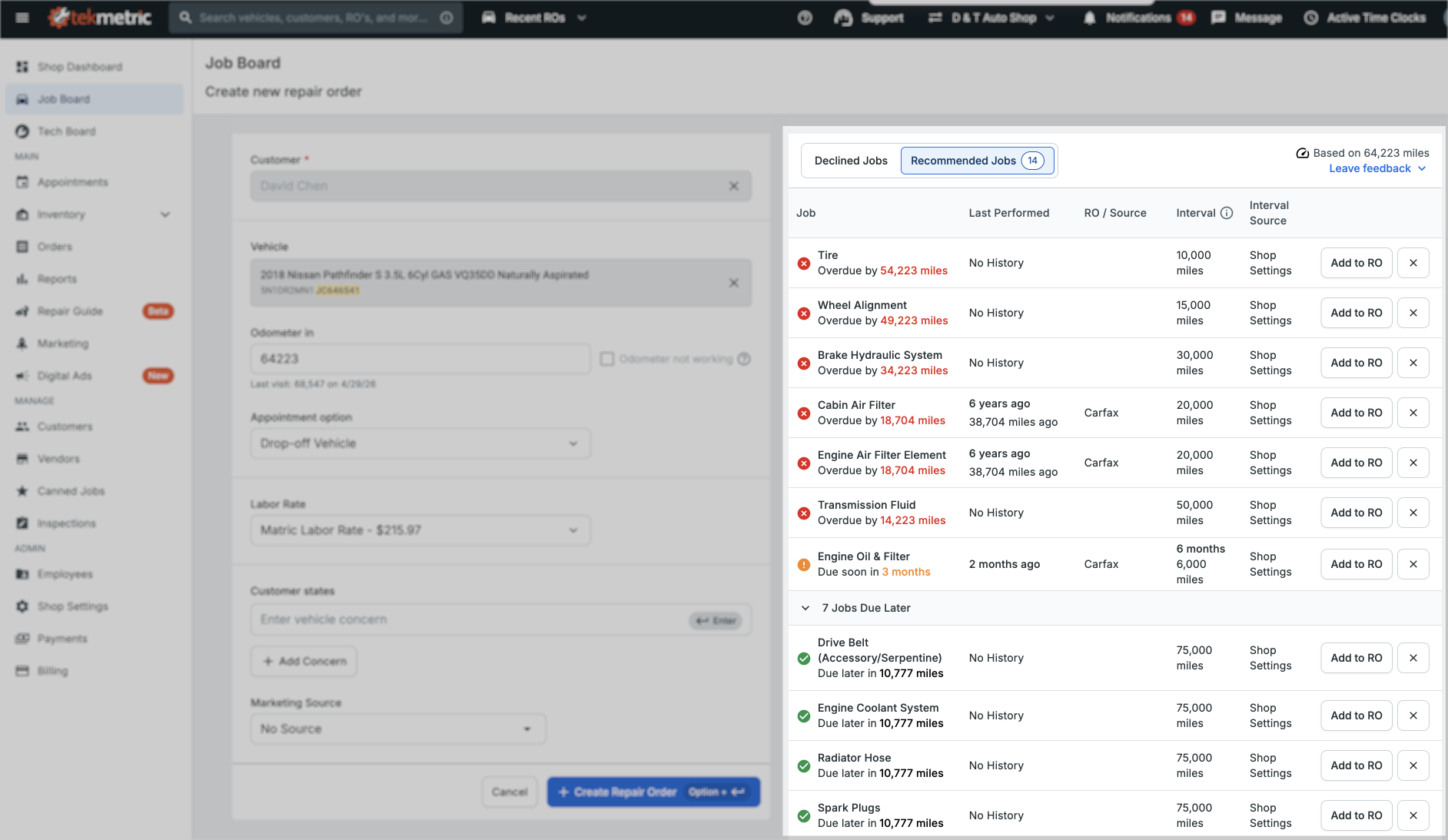
When creating a repair order, advisors will see two tabs: Declined Jobs and Recommended Jobs.
- Declined Jobs appears as soon as the customer and vehicle are selected.
- Recommended Jobs activates once an odometer reading is entered, displaying a list of maintenance services that are overdue or upcoming for that specific vehicle.
When viewing an Estimate, advisors will see the new Recommended Jobs tab in the Vehicle Issues table, right below the Smart Jobs Favorites bar.
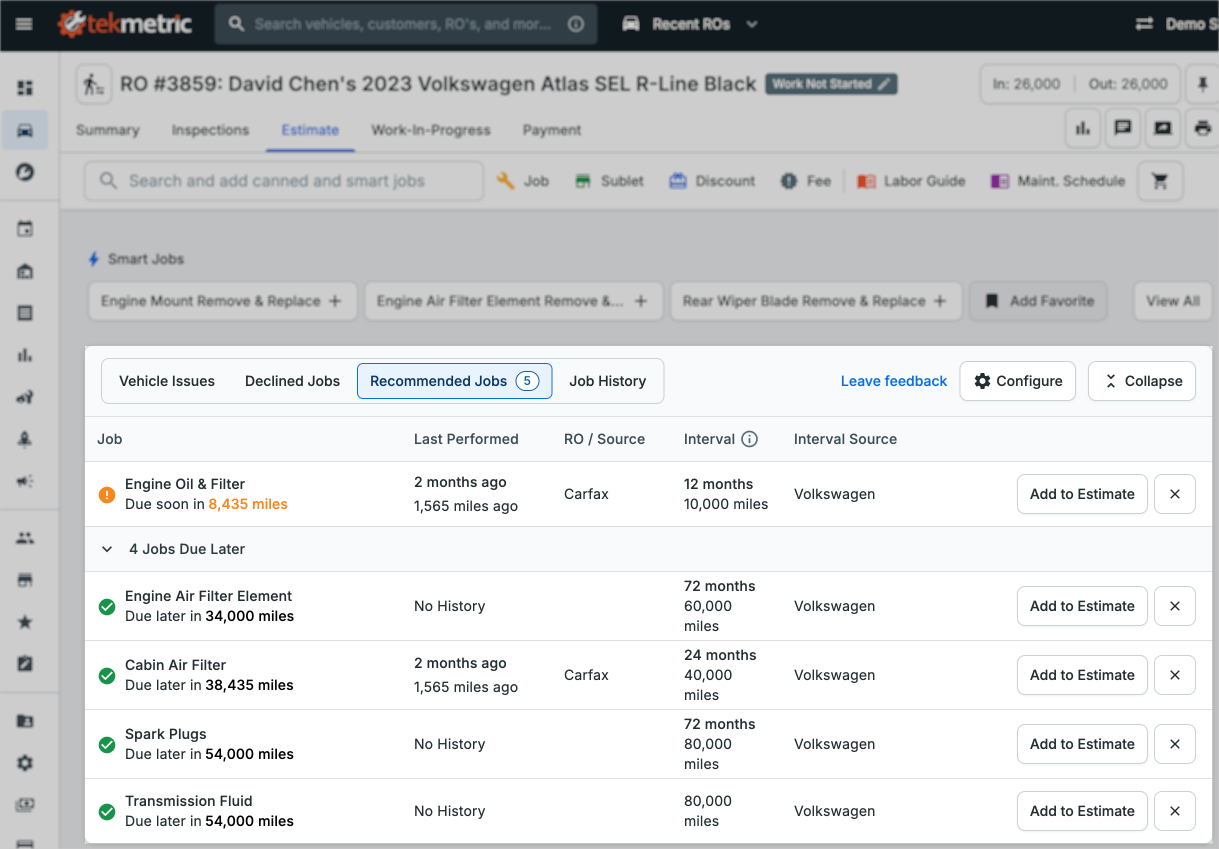
Advisors can add any recommended job to the repair order with a single click — more on job mapping below.
Configuring Recommended Jobs Settings
This rest of this article walks you through how to configure Recommended Jobs so it reflects how your shop actually operates.
Shop Owners and Admins are able to configure their Recommended Jobs Settings. To begin, navigate to Recommended Jobs Settings in your shop's settings menu. You'll see a table listing the most commonly-performed maintenance job types that Tekmetric can recommend.
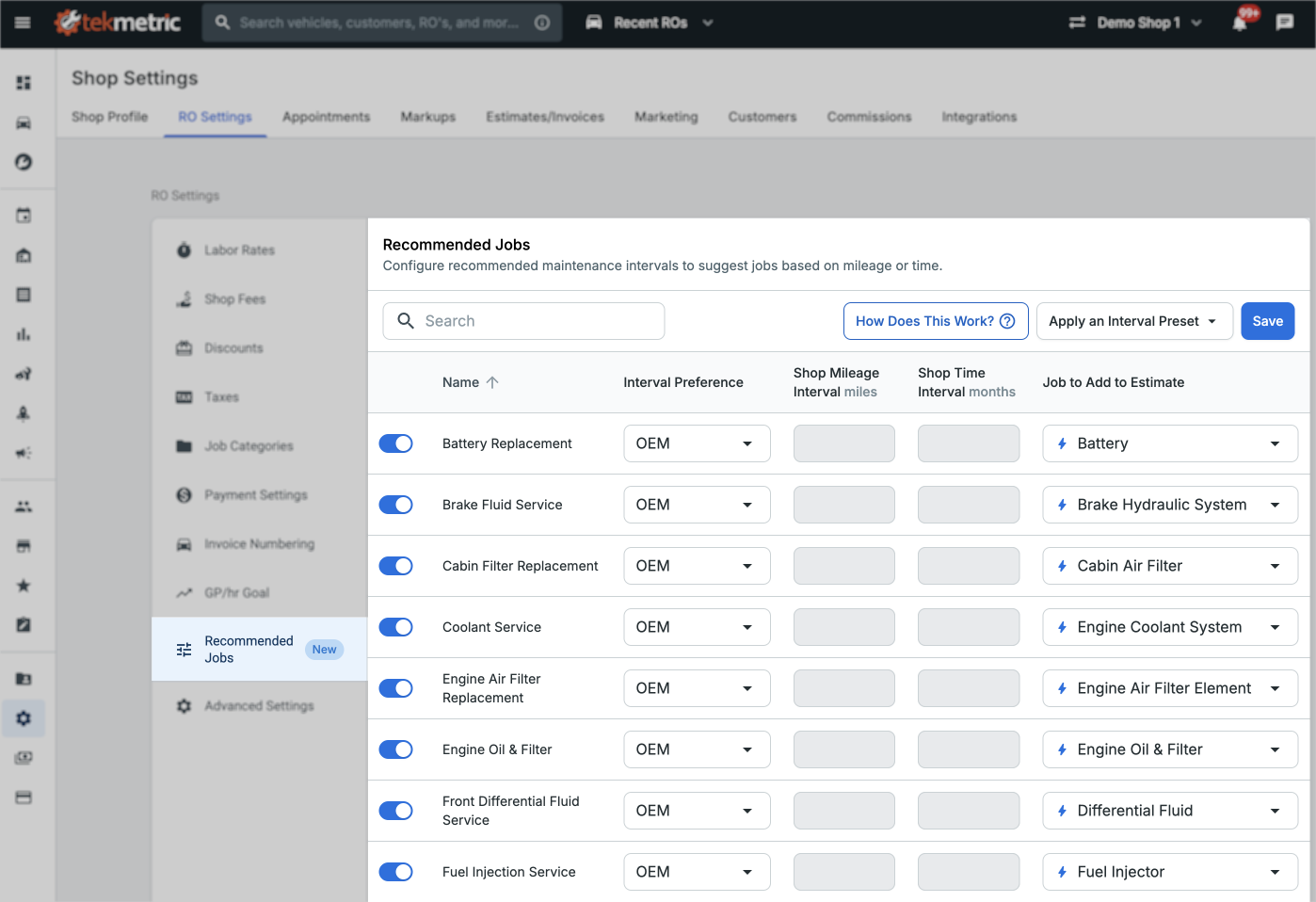
Here's what each column controls:
Toggle (On/Off)
Enable or disable each job type for your shop. If your shop doesn't perform a particular service — like wheel alignments — turn it off. That job type will no longer appear as a recommendation for your advisors.
Job Name
The type of maintenance service associated with each row. Recommendations are triggered based on the manufacturer's maintenance schedule and/or intervals you configure for each job type.
Interval Preference
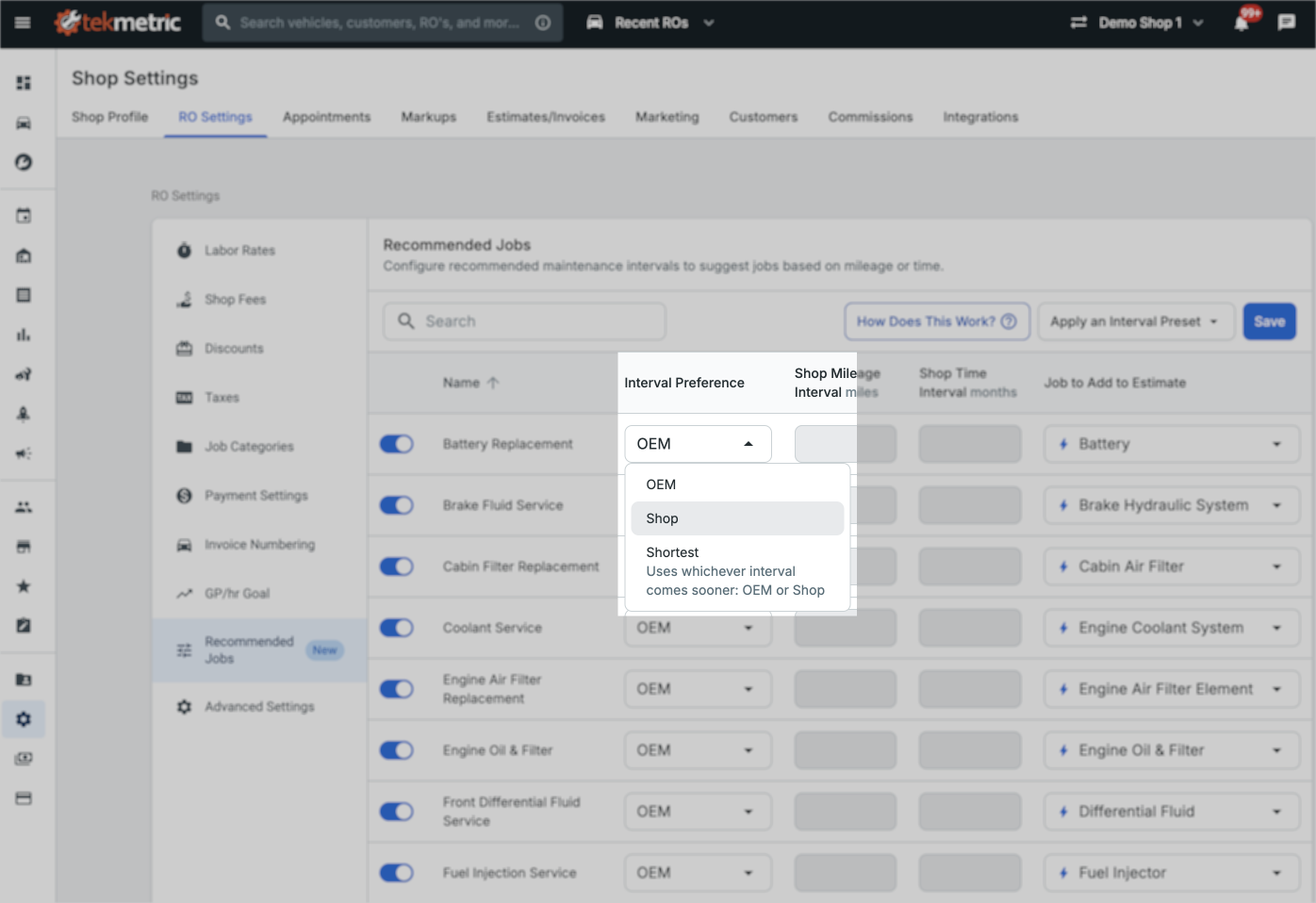
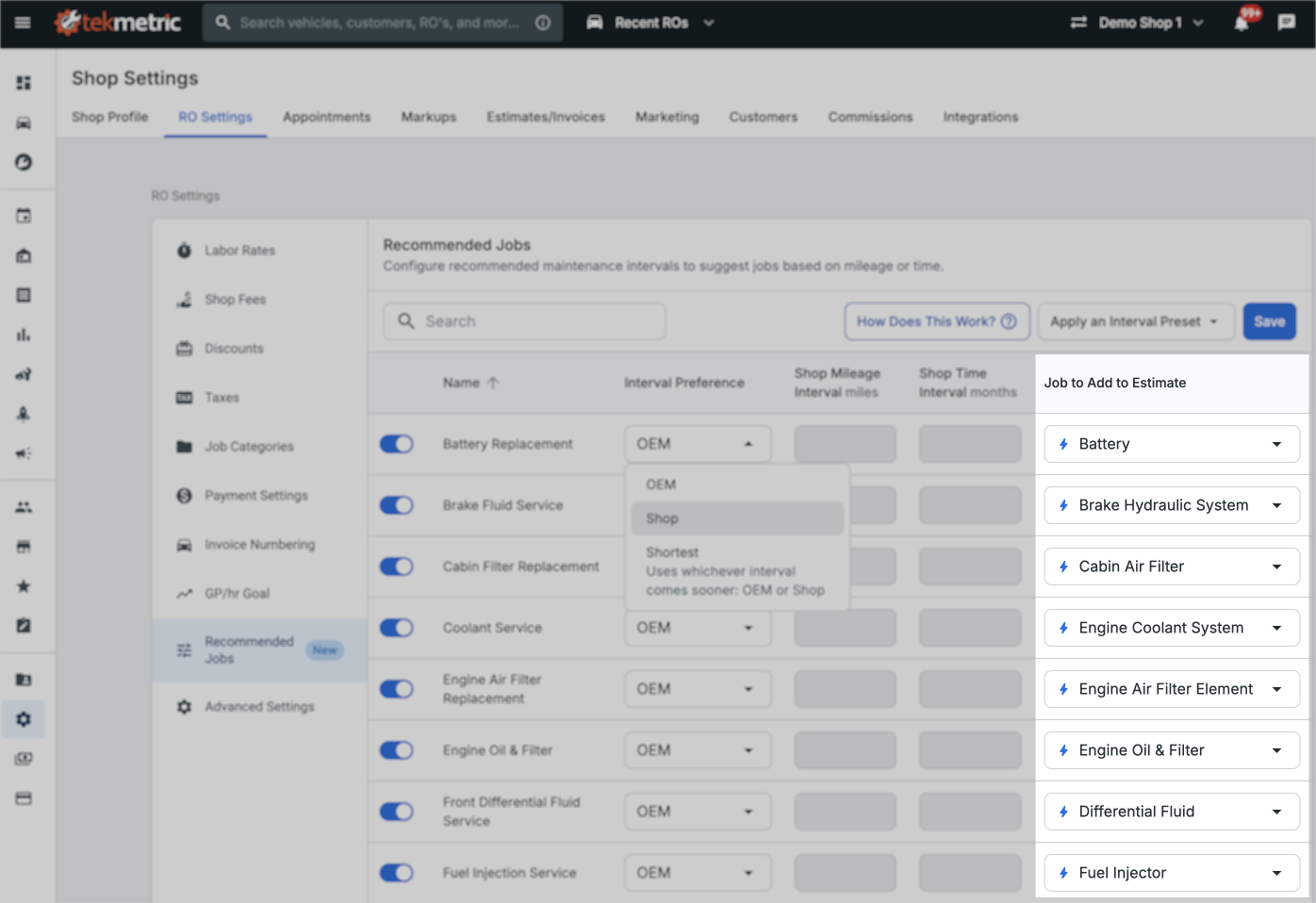
This setting controls which interval Tekmetric uses to determine when a job is due. You have three options:
| Option | How It Works |
|---|
| OEM (default) | Uses the manufacturer's recommended service intervals when available. Note: not every vehicle has OEM intervals defined for every job type. |
| Shop | Uses the custom mileage and/or time intervals you define. If you enter both, Tekmetric triggers the recommendation based on whichever threshold is reached first. |
| Shortest | Compares your shop intervals with OEM intervals and uses whichever comes first for that vehicle. |
Example: A customer brings in a Honda Accord for a cabin air filter replacement. Your shop interval is set to 20,000 miles, but Honda's OEM interval is 15,000 miles. With Shortest selected, Tekmetric will use Honda's 15,000-mile interval since it's the shorter of the two.
Applying Presets
If you'd prefer not to configure every job individually, use the Apply Preset button in the upper-right corner of the settings table. Two preset options may be available:
- Tekmetric Presets — Intervals built from Tekmetric's own research for each job type. Available to all shops.
- BG Presets — Intervals based on BG's recommendations. Available only if your shop has the BG integration enabled.
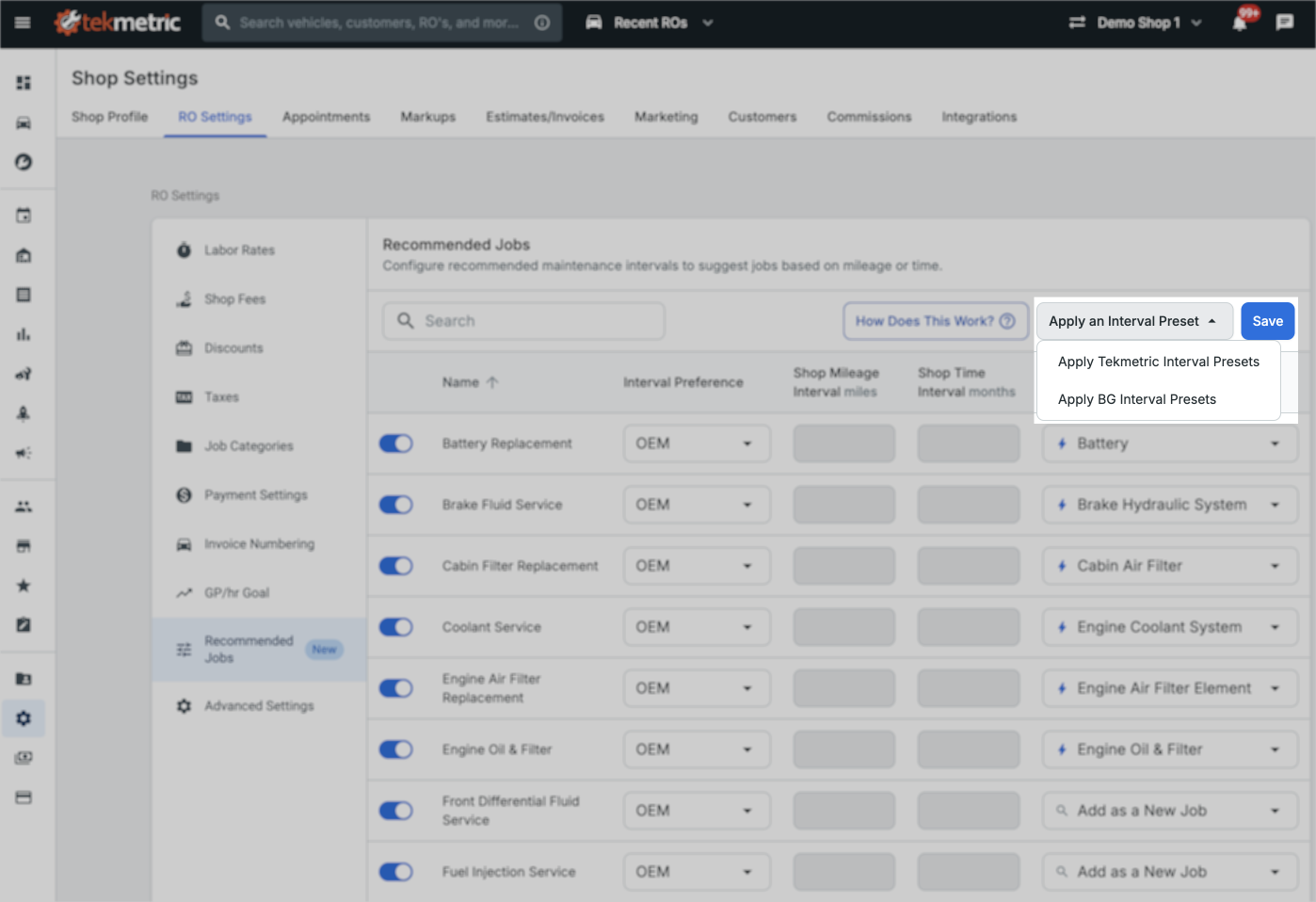
Presets are a great starting point. You can apply one and then adjust individual jobs from there.
Mapping Recommended Jobs to Canned Jobs
The last column in the settings table is where Recommended Jobs saves your advisors the most time. You can map each recommended job type to a specific Canned Job, Smart Canned Job, or Smart Job in your shop's catalog.
When a mapping is configured, adding a recommended job to an estimate automatically populates it with your predefined labor, parts, and pricing — no searching, no manual entry required.
Saving Your Settings
Once you've configured your toggles, intervals, and job mappings, click Save. Your service advisors will immediately see your shop's custom intervals and job mappings reflected in the Recommended Jobs tab on every new repair order.
Tips & Things to Keep in Mind
- OEM intervals aren't available for every vehicle/job combination. If you rely solely on OEM and no interval is defined, a recommendation may not trigger. Consider using Shortest to ensure your shop intervals serve as a fallback.
- Both mileage and time intervals can be set simultaneously under the Shop option — Tekmetric will fire the recommendation on whichever condition is met first.
- Presets don't lock you in. Apply a preset to get started, then fine-tune individual jobs to match your shop's preferences.
- Job mappings are optional but highly recommended. Without a mapping, advisors can still add recommended jobs to an estimate — they'll just need to fill in the details manually.