What Is It?
The Tire Smart Job is a faster way to quote and sell tire installations right inside Tekmetric's Estimate Builder. Instead of bouncing between a separate tire-quoting tool and your repair order, you build the whole job in one place: pick tires that fits the vehicle, let Tekmetric apply your labor and fees automatically, and present clean pricing to your customer for approval.
Think of it as a ready-made tire job that already knows how you price installs. Your shop sets it up once, and from then on your advisors can drop a tire job onto any estimate and have the tire search, labor, and fees handled for them.
Note: The Tire Smart Job is part of Tire Suite and is currently available to a limited group of shops as a closed beta.
Why Is It Important?
Quoting tires has traditionally meant working outside Tekmetric and then rebuilding the job by hand in your repair order. It's slow, error-prone, and awkward when it's time to show the customer. The Tire Smart Job fixes that by keeping everything in one workflow. Here's how it helps your shop:
- Save time on every tire quote: No more double entry. Search, price, and add a tire job without leaving the estimate you're already working in.
- Cut pricing mistakes: Labor, fees, and totals are calculated for you, so the number your advisor quotes is the number that lands on the estimate.
- Win more tire sales at the counter: A clean, customer-facing view lets you flip the screen and present options like good / better / best, turning a quote into an easy yes.
- Keep pricing consistent: Fees and labor follow the rules your shop sets, no matter which advisor is writing the estimate.
- Sell tires like they belong in your shop: Tire jobs finally feel native to Tekmetric instead of a workaround.
Setting Up Your Tire Smart Job
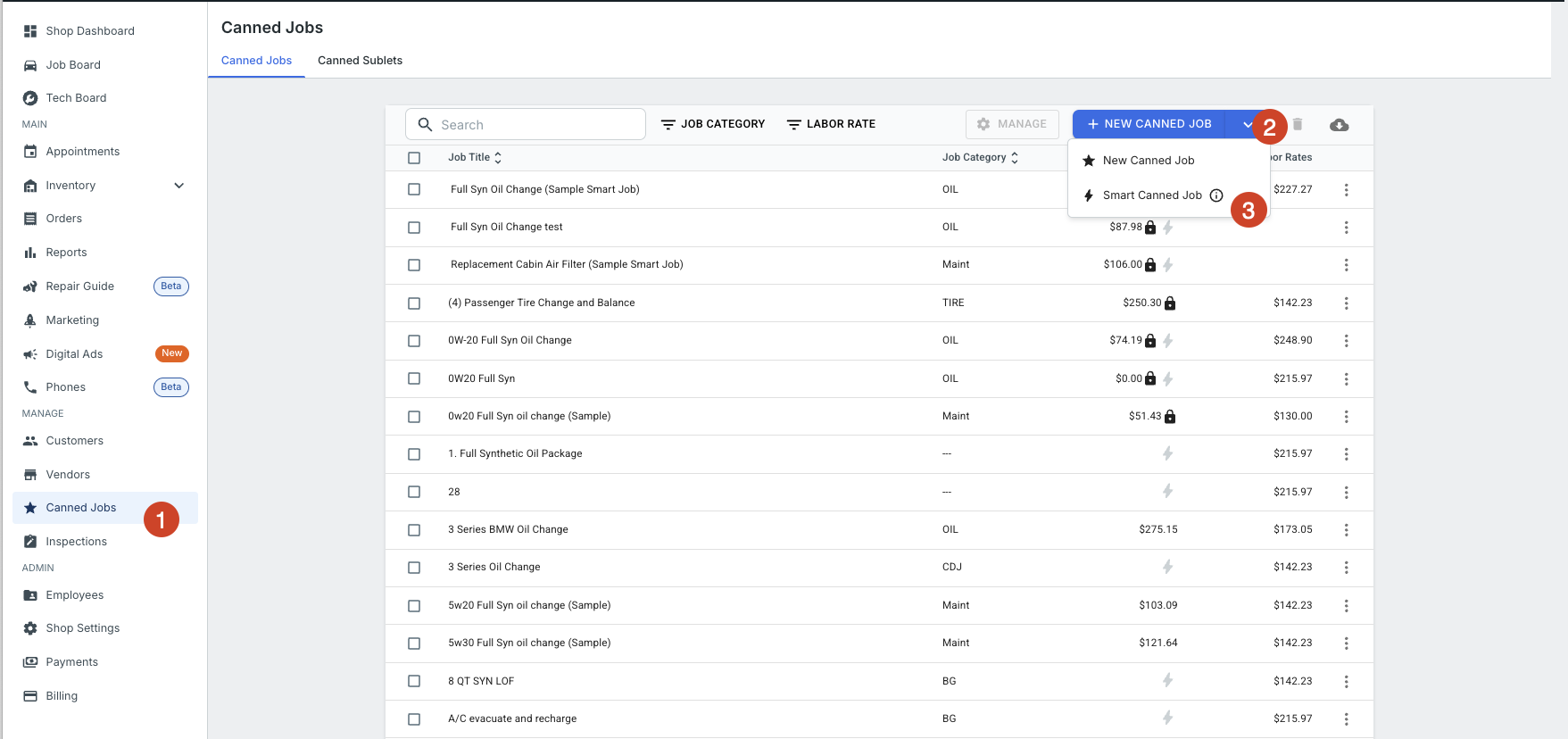
Before your advisors can use it, an admin sets up the Tire Smart Job one time. This is where you tell Tekmetric how your shop prices tire installations so every quote comes out right automatically.
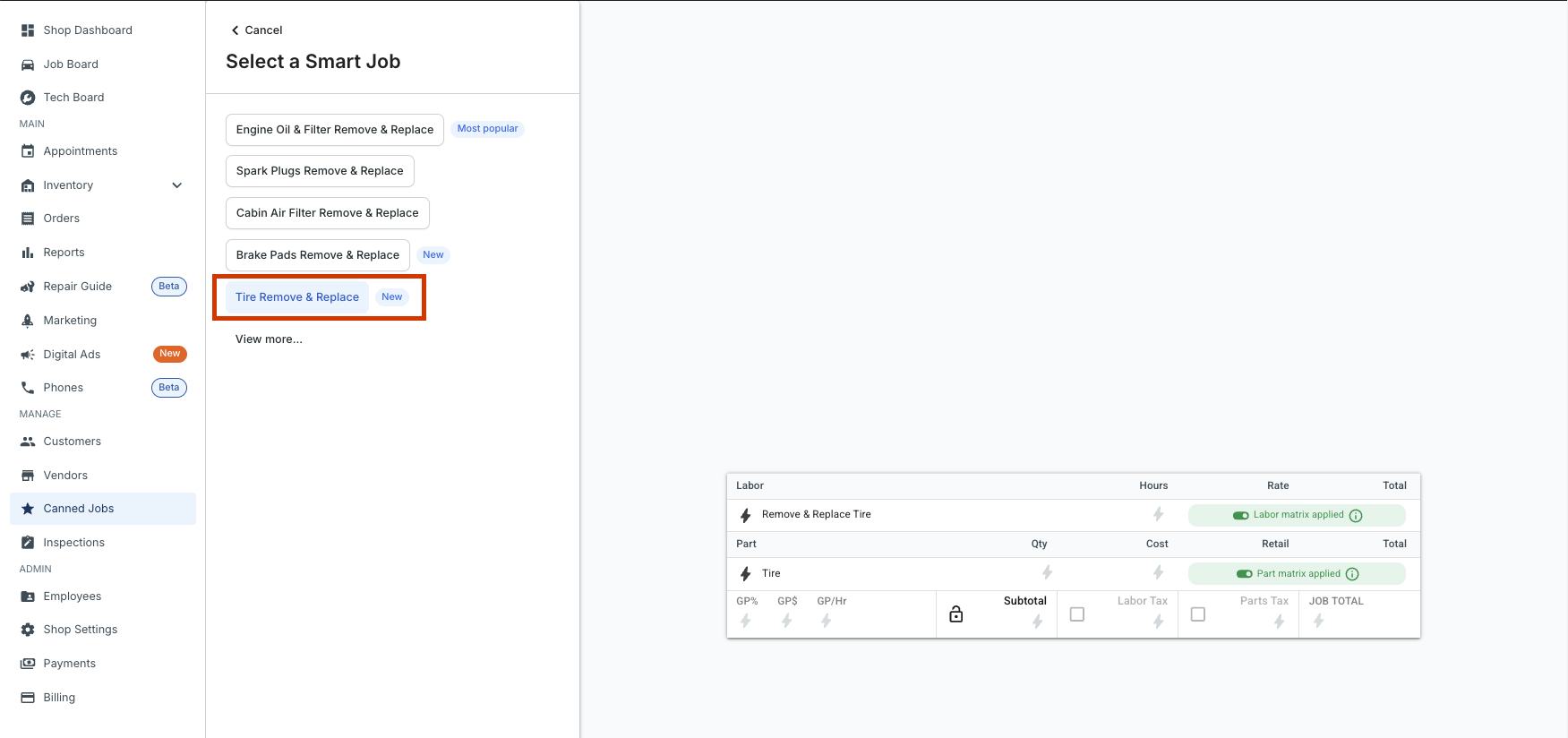
During setup, you'll decide:
- How you charge for labor: Choose a flat number of hours per job, or hours that scale with the number of tires, whichever matches how your shop bills installs.
- Which fees apply: Turn on the fees you charge and set the price for each. Per-tire fees add up by quantity, so a $2 disposal fee on a four-tire job adds $8.
Once it's set up, the Tire Smart Job comes pre-loaded with your configured labor, your standard rate, additional parts, and any fees.
Setting Up Preferred Brands
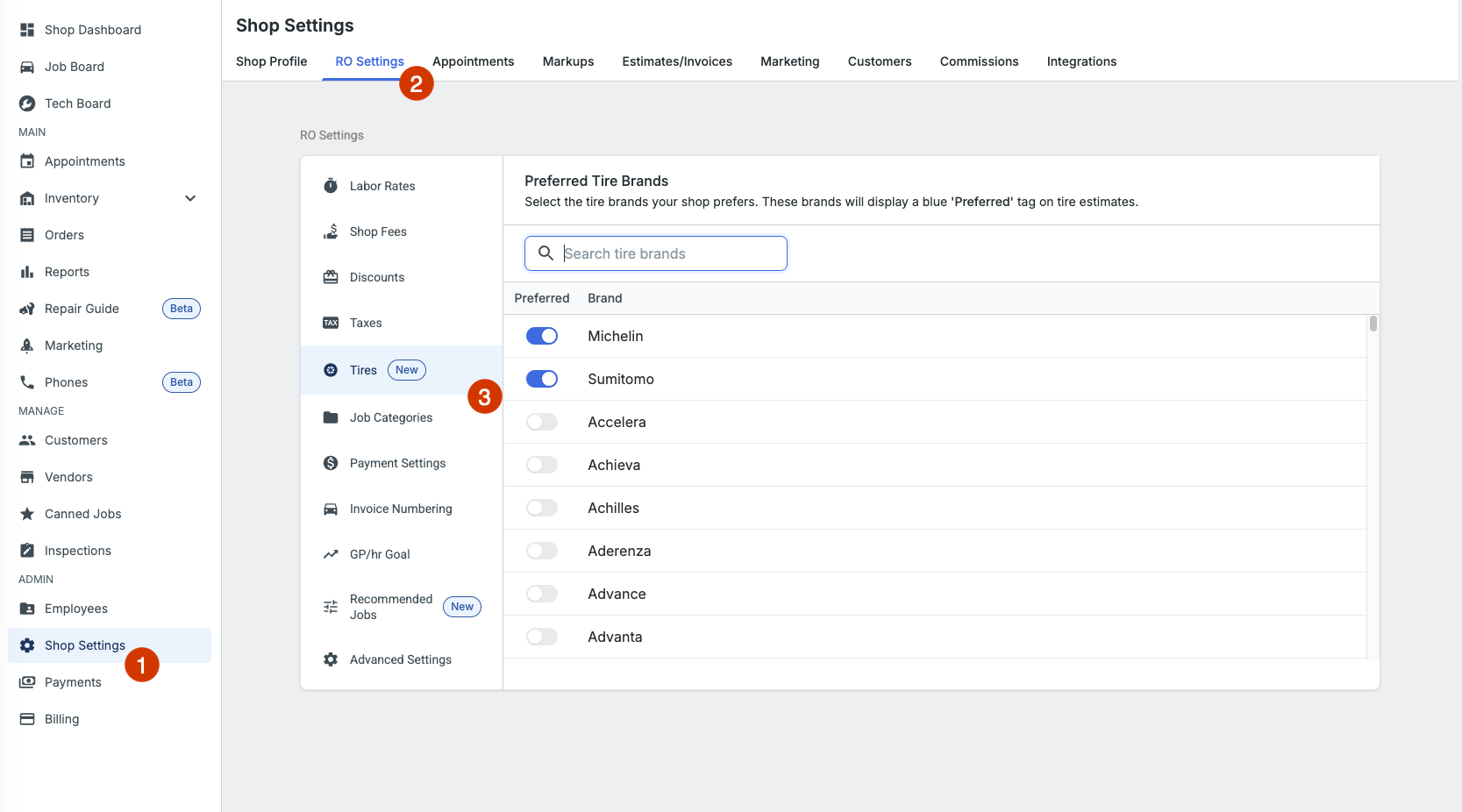
Your preferred tire brands are set in Shop Settings. Once configured, tires from your preferred brands get a clear Preferred label in search results, so advisors can spot them at a glance and recommend them quickly.
This is a simple way to steer your team toward the brands you want to sell, whether that's what you keep in stock, the brands you carry the best margins on, or the lines you've negotiated the best pricing for.
Shopping for Tires
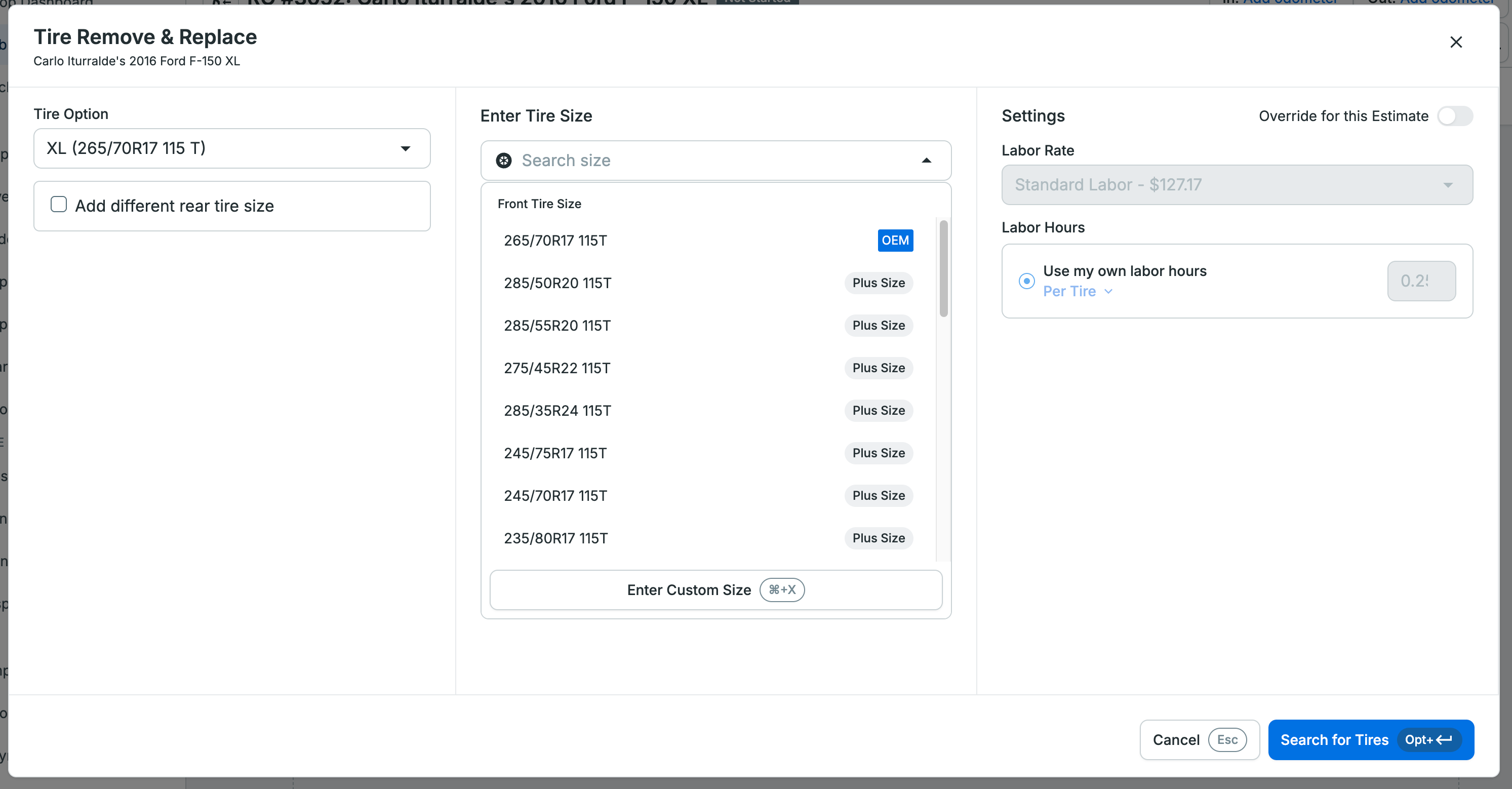
When an advisor adds the Tire Smart Job to an estimate, Tekmetric opens a tire search that already knows what fits the vehicle. Fitment simply means the tire sizes and specs that match that specific car, so your advisor isn't guessing or looking up sizes by hand. Tekmetric also supports staggered fitments, where a vehicle uses a different tire size on the front and rear axles, and detects them automatically so each axle is quoted at its correct size.
If a tire falls below the vehicle's original load index or speed rating, Tekmetric shows a warning so your advisor can make a safe, informed recommendation. The warning is informational and doesn't block the sale. And if the vehicle is missing information needed to determine fitment, Tekmetric will prompt the advisor to fill in those details first, so quotes are always based on accurate vehicle data.
Set the Quantity First
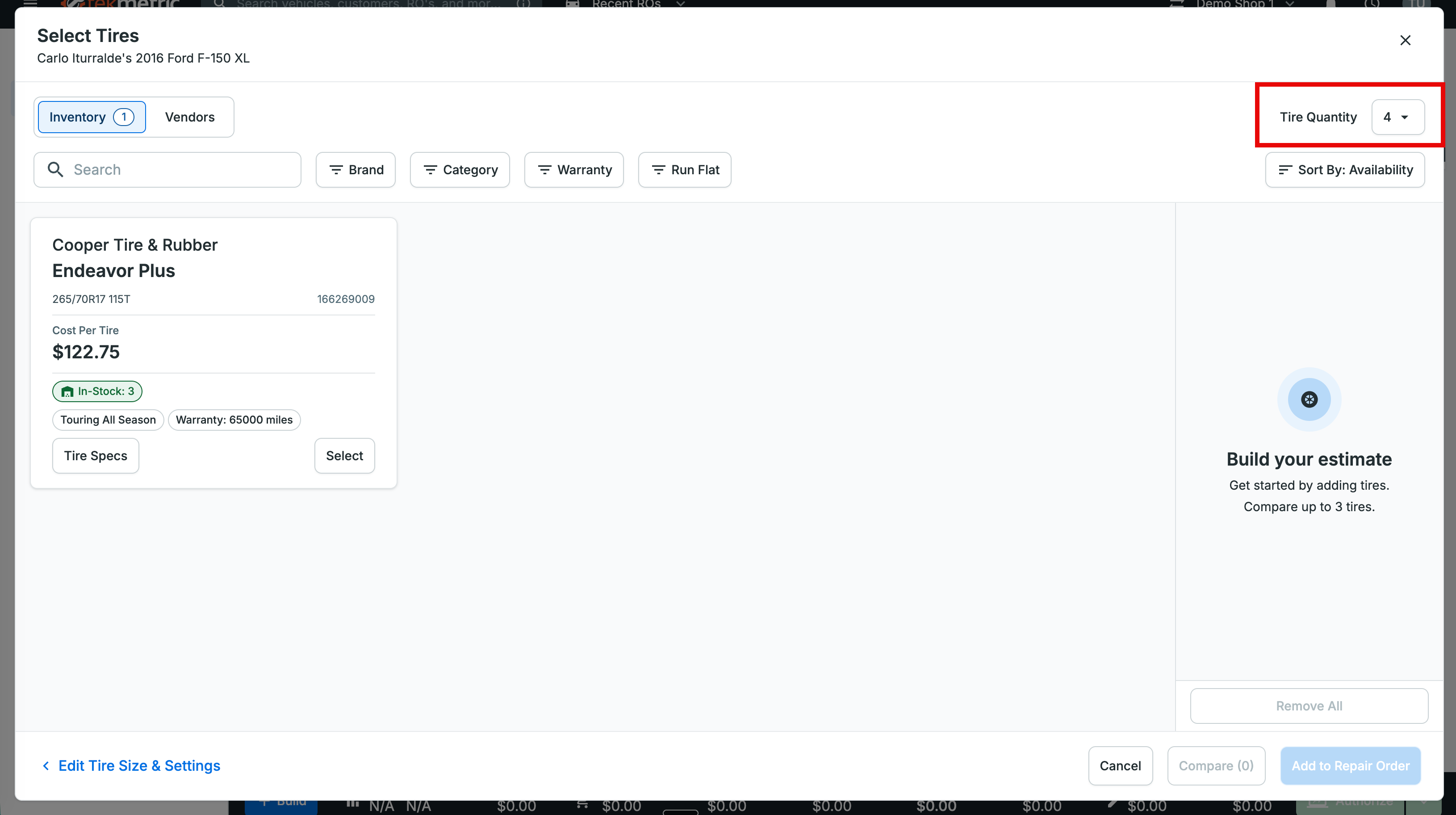
The first thing your advisor sets is the quantity, using the quantity selector at the top of the search, above the Inventory and Vendors tabs. This sets how many tires the job is for and applies to everything at once, so every price and total reflects the full set as the advisor shops. It starts at four tires (two front, two rear) and can be adjusted to match what the customer needs.
Inventory
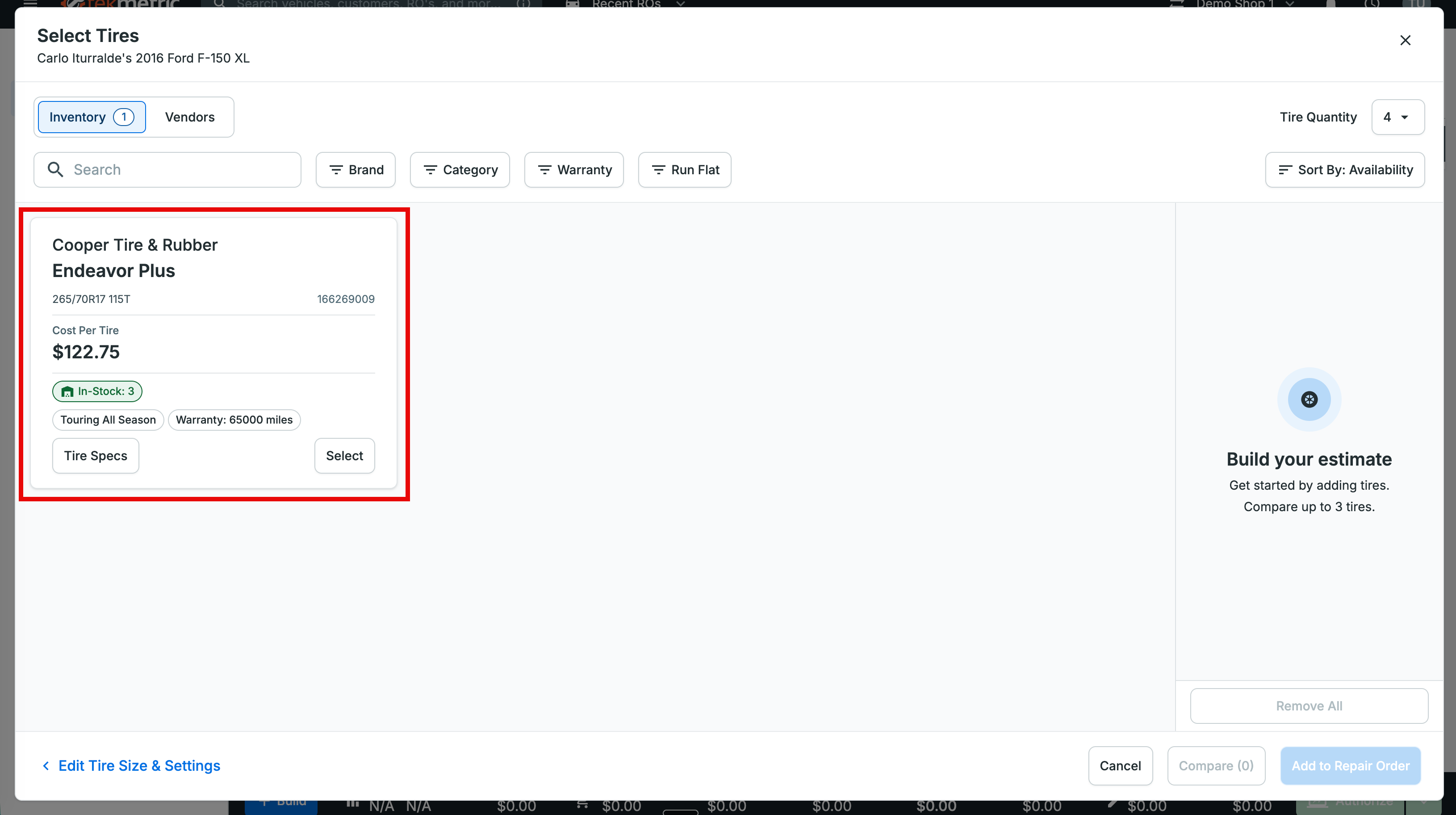
The Inventory tab shows the tires you already have on your shelves that fit the vehicle, along with your stock counts. This makes it easy to sell what you have on hand first, moving existing inventory and getting the customer back on the road instead of waiting on an order.
Vendors
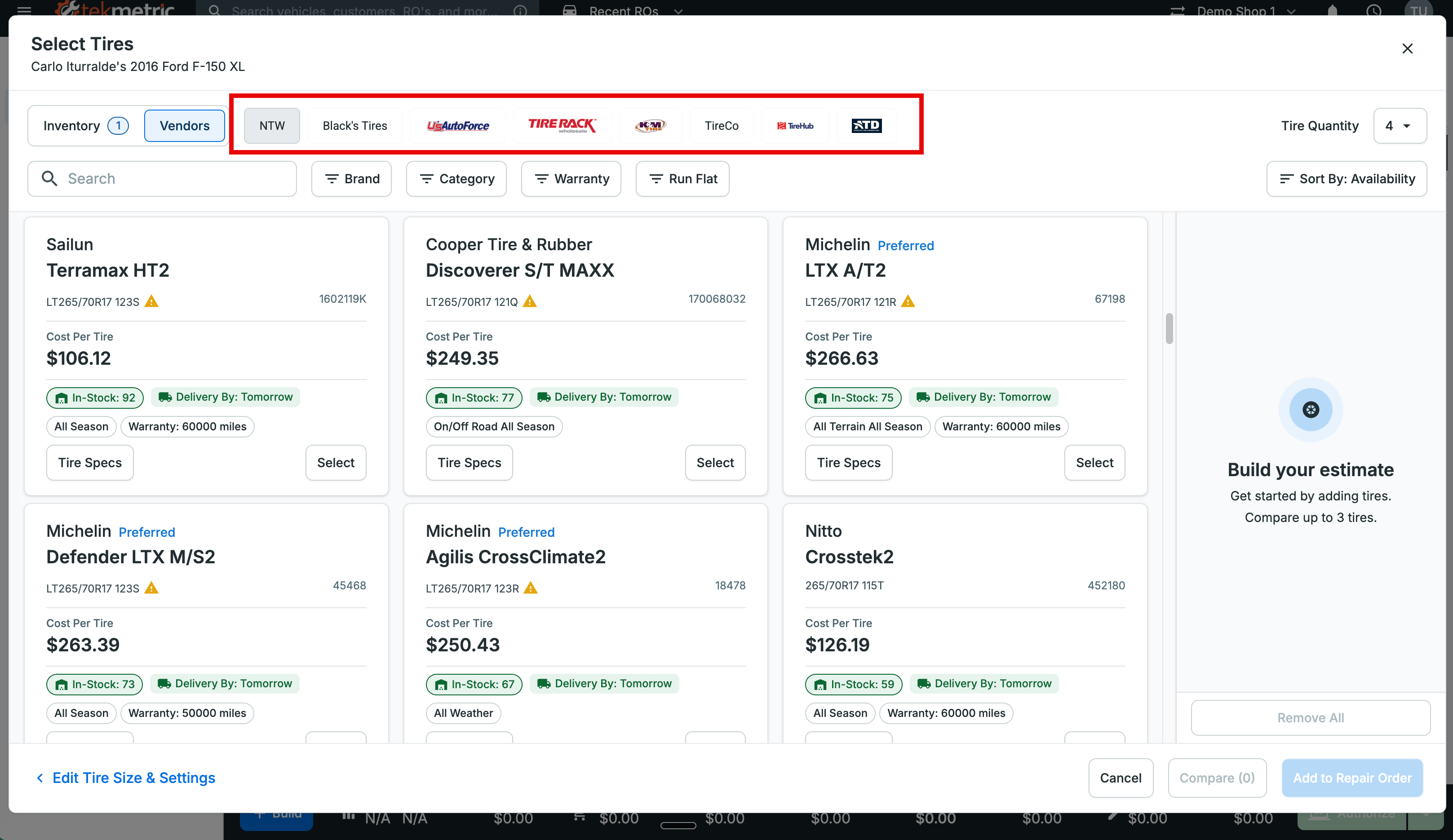
The Vendors tab is powered by PartsTech. It shows live tire options from the suppliers connected to your PartsTech account, with up-to-date pricing and availability. Instead of checking one supplier at a time or logging into a separate portal, your advisor sees options across your PartsTech vendors together, making it simple to find the right tire at the right price and availability, right inside the estimate.
Note: The Vendors tab requires a PartsTech account connected to your shop. If your shop doesn't have PartsTech set up, your advisors will shop from the Inventory tab only.
Out-the-Door Pricing
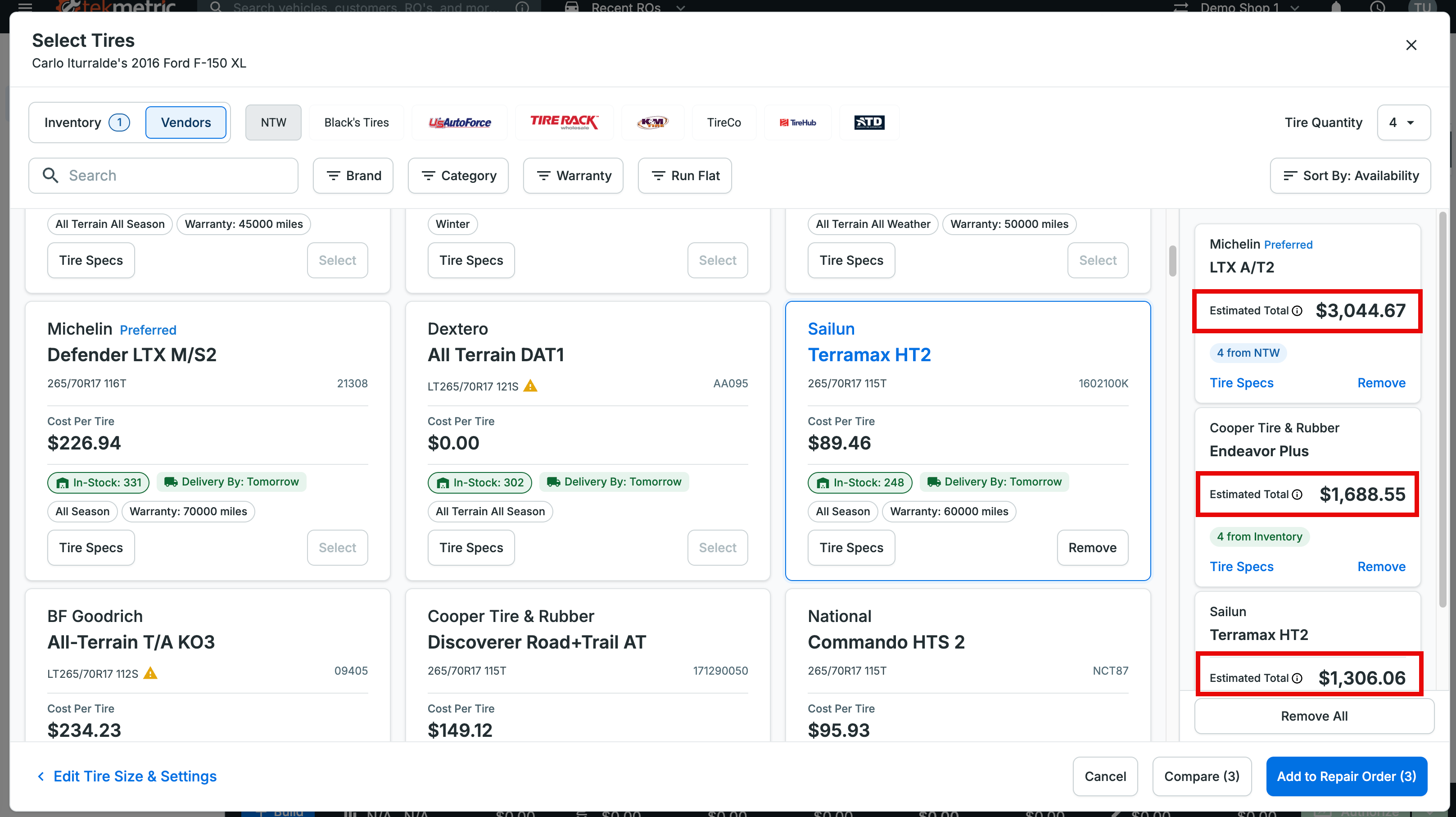
The Tire Smart Job does the math for you. As soon as a tire is selected, the price reflects the full out-the-door cost: the tire, plus the labor and fees you configured during setup. No manual calculation, no missed charges.
A few things worth knowing about how pricing works:
- Retail price follows your markup rules. If you've set up markup rules, they're applied on top of the PartsTech price. If you haven't, the retail price comes straight from the PartsTech price.
- Advisors can still adjust the customer's price. Retail price stays editable so your team can honor a negotiated price, while the underlying tire details and fees stay locked.
Comparing Options
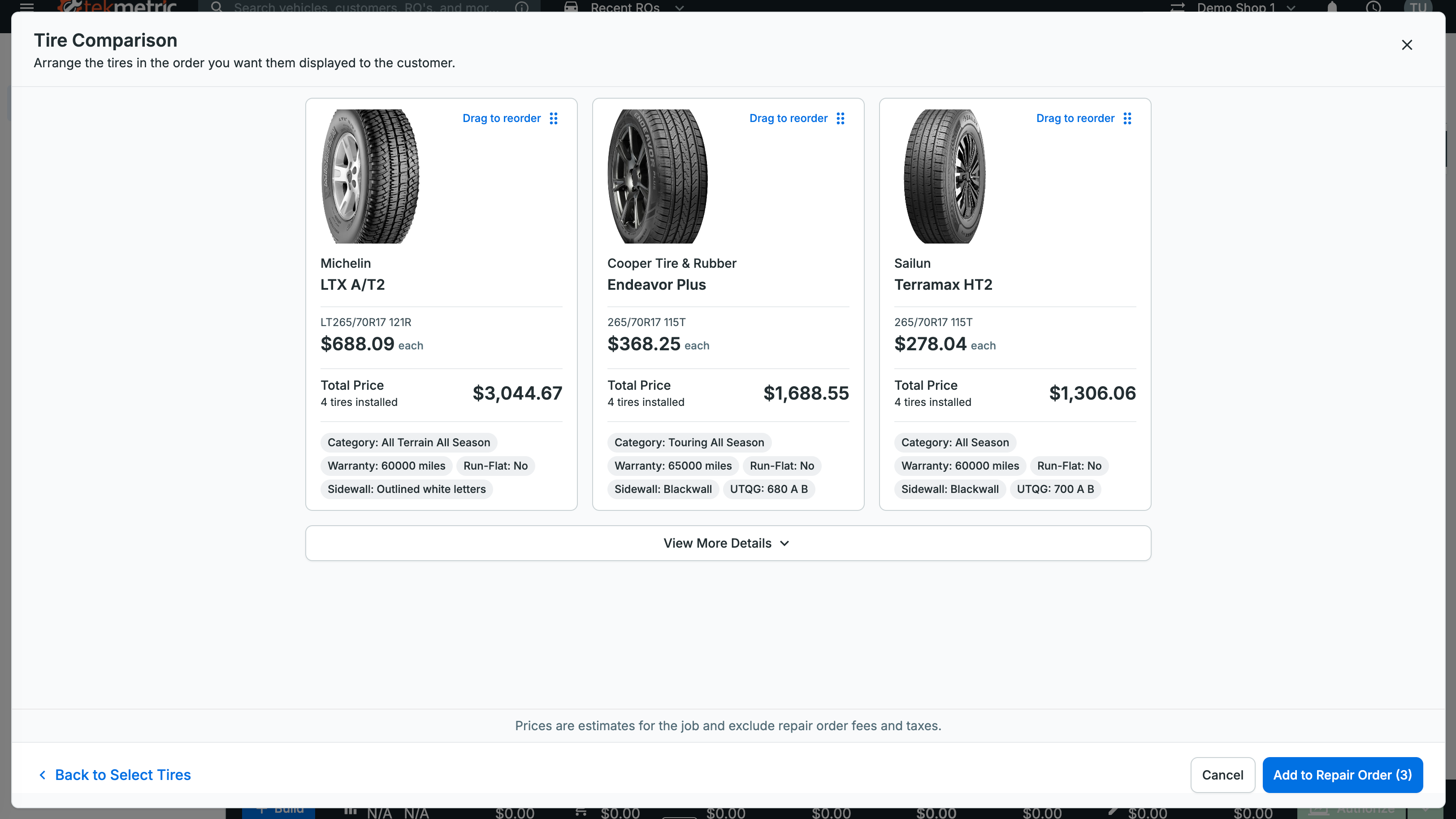
Your advisor can line up up to three tires in a comparison view, a clean way to present good / better / best choices. It's built for the screen flip: turn the monitor toward the customer and they'll see retail pricing only, with all of your cost numbers hidden, so the conversation stays focused on what the customer is buying.
Tire Options on the Estimate
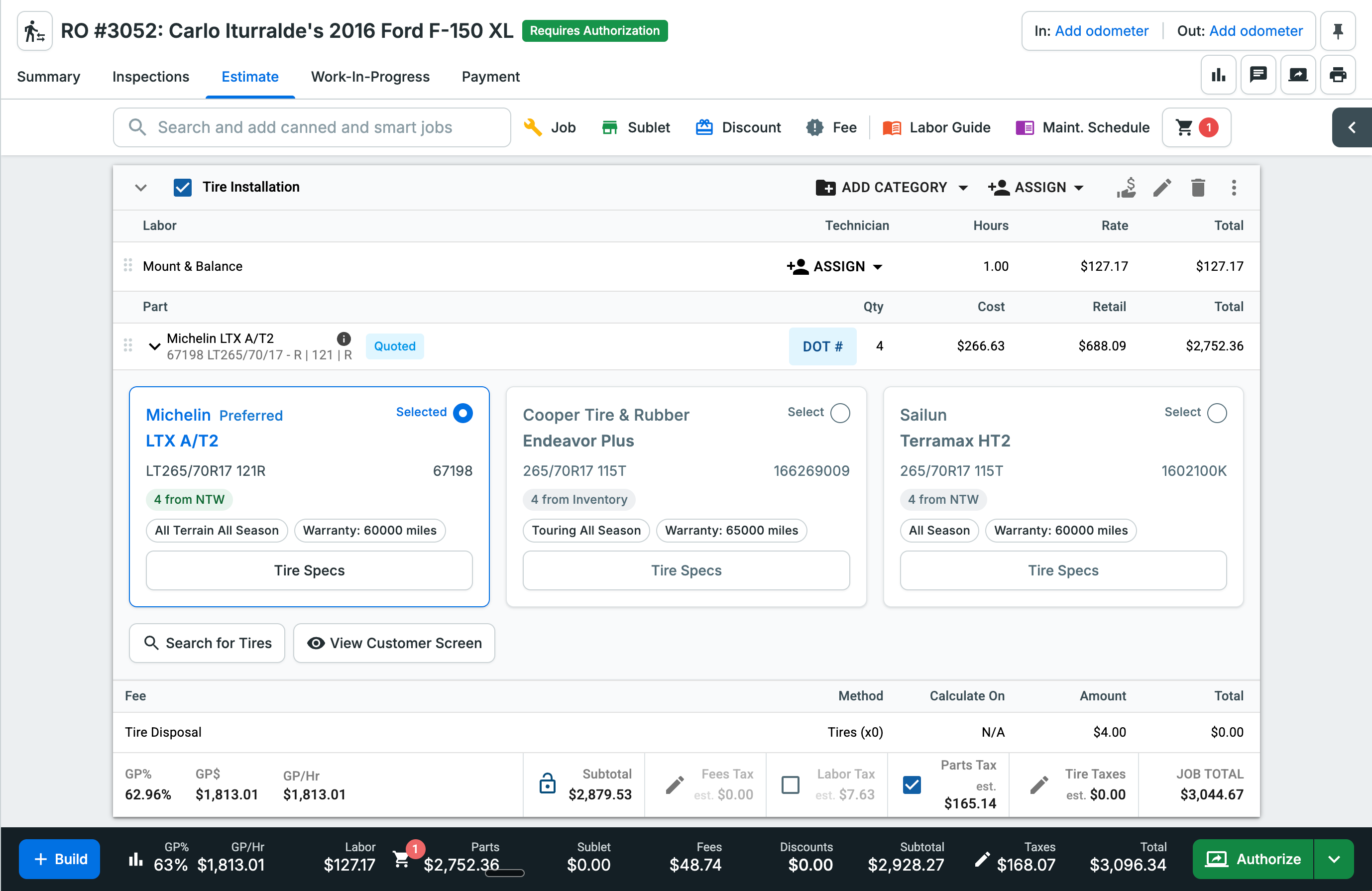
Once your advisor has added tires to the repair order, the Tire Smart Job lands on the estimate with up to three tire options presented side by side. Think of these as placeholders the advisor lines up for the customer, a built-in good / better / best without any extra setup.
One option is marked Selected at any given time. As your advisor toggles between the three options, the job total in the bottom right updates instantly to reflect whichever tire is currently selected. This makes it easy to talk through the trade-offs live: flip to the premium option and the customer sees the number move, flip to the value option and it moves back.
These three options stay in place as working placeholders until one of two things happens: the customer approves one of the three options, or the entire job is declined. Up to that point, nothing is locked in, so your advisor is free to keep refining the quote.
Researching and Swapping Options
Not happy with one of the options? Your advisor can use Search for Tires to jump back into the tire search and research alternatives, then swap out one or more of the presented options. This means the advisor can fine-tune the lineup, for example replacing a value tire with a different brand, without starting the job over.
Re-Opening the Customer View
When there's a customer at the counter, your advisor can select View Customer Screen to re-invoke the customer-facing comparison at any time. This brings back the clean, retail-only view of the options so you can turn the screen toward the customer whenever the conversation calls for it.
What Can and Can't Be Edited
To keep quotes accurate some details on each tire option are locked and others stay flexible:
- Tire details are locked. The brand, model, and size of each tire are set in stone based on where the tire came from, either your Inventory or PartsTech. This guarantees the tire on the estimate exactly matches the real product, with no risk of a mismatched spec.
- Quantity is fixed here. The number of tires can't be changed on this screen. Quantity is set earlier while shopping.
- Cost is locked, retail price is editable. Your advisor can't change the underlying cost of a tire, but they can adjust the retail price as needed.
Customer Authorization
When the customer is ready to decide, the authorization screen captures their approval right on the estimate. The customer can review the details of the tire option they're considering, choose the option they want and authorize the work, or decline the job entirely.
Like the comparison view, the authorization screen shows retail pricing only, so it's safe to turn toward the customer. This keeps the approval moment clean and clear, and records the customer's decision directly on the repair order.
FAQ
Q: Do I need anything special to use the Tire Smart Job?
A: Yes. The Tire Smart Job is part of Tire Suite and is currently available to a limited group of shops during its closed beta.
Q: Can I edit a tire job after it's added to the estimate?
A: You can manually edit the tire's retail price and the labor cost. The tire data itself, like the brand, model, and quantity, is locked to keep pricing accurate. To change the tire reopen the tire search and reselect.
Q: Can I quote a tire size that isn't in the vehicle's fitment data?
A: Yes. Advisors can enter a custom tire size in the search bar, which accepts sizes outside the standard fitment set.
Q: What if a tire doesn't meet the vehicle's original ratings?
A: Tekmetric shows a warning when a tire is below the vehicle's load index or speed rating, so your advisor can make an informed, safe recommendation. It's informational and doesn't block the sale.