What Is It?
Worldpac Stock Ordering lets shops with the Worldpac SpeedDIAL 2.0 integration place inventory replenishment orders through Tekmetric. You initiate the order from the Tekmetric Parts Hub, place it via a punch-out to Worldpac in a new tab, and the order returns to Tekmetric automatically when submitted.
Before this, Worldpac shops had to order parts in SpeedDIAL and then manually create those purchase orders. Now, orders return to Tekmetric automatically, create a purchase order record, and update your inventory quantities on receipt — no manual reconciliation required.
Note: This feature requires the Worldpac SpeedDIAL 2.0 integration and the Orders permission. SpeedDIAL 1.0 (legacy) is not supported.
Why It Matters
- No more manual reconciliation. Orders placed through the punch-out return to Tekmetric automatically — no re-entering purchases by hand.
- Keep inventory accurate. Orders return via integration and update your inventory quantities automatically when parts are received.
- Get a full PO trail. Every stock order creates a purchase order record in Tekmetric — the same experience other part integrations already have.
How to Place a Stock Order
1. Go to Inventory → Parts Hub.
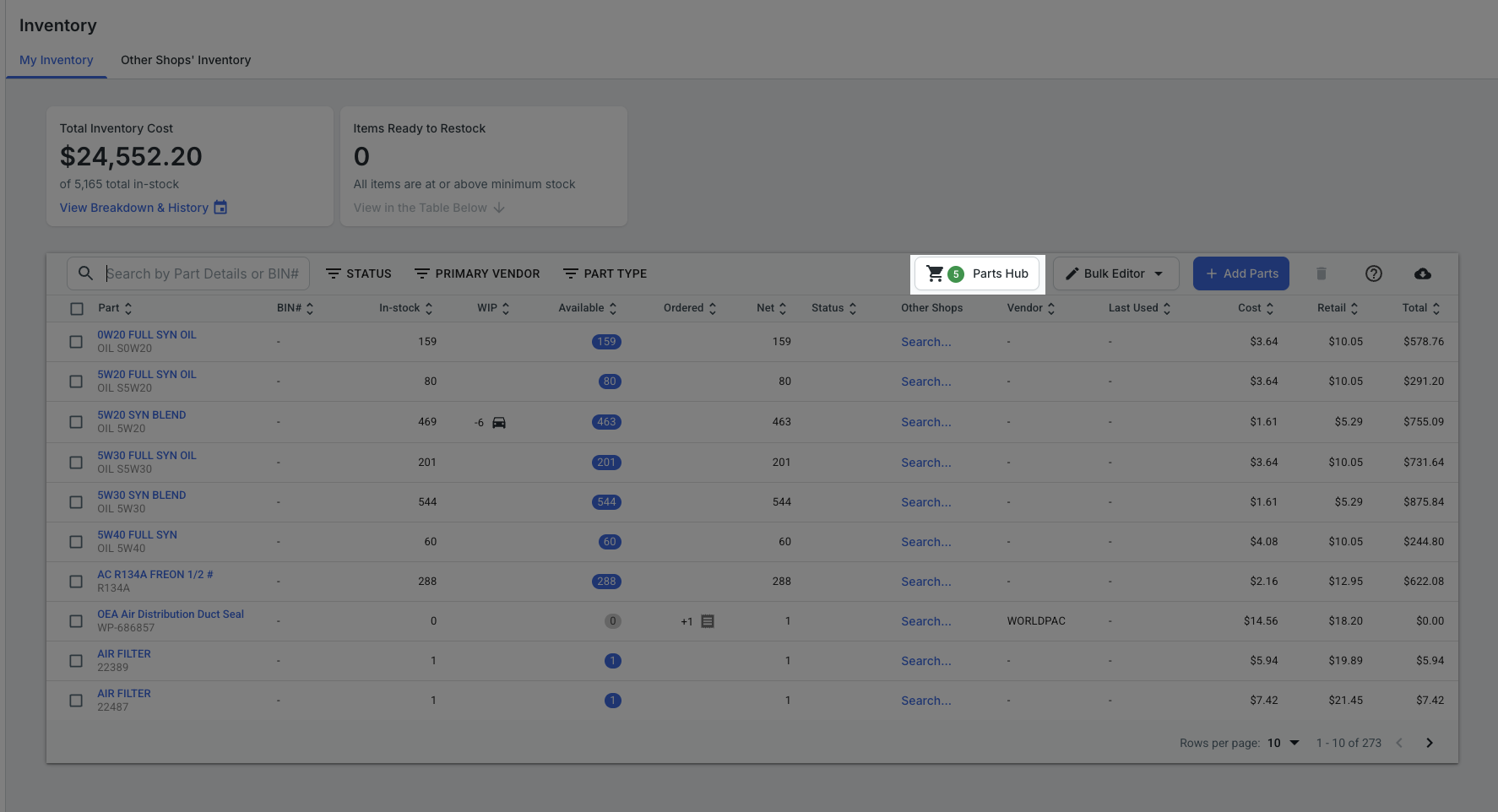
2. Do not select any parts before clicking Shop Worldpac.
The Shop Worldpac button is disabled when parts are selected in the Parts Hub. This is by design — part selection data is not passed to Worldpac for stock orders. If the button appears grayed out, deselect any checked parts and try again.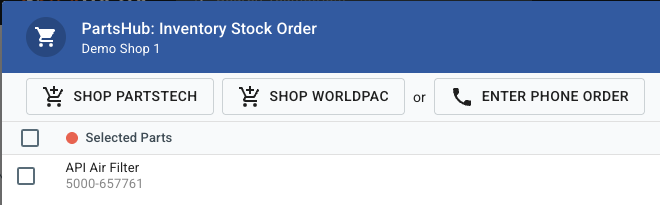
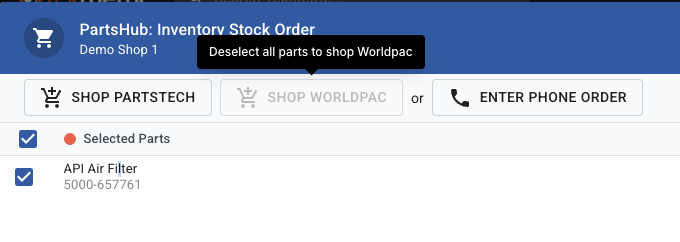
3. Click Shop Worldpac to open the Worldpac punch-out.
You'll be taken into the Worldpac ordering interface.
4. Search for parts and add them to your cart.
If you're placing a DC Direct order, note that DC Direct parts and standard parts cannot be mixed in a single order. The order type is set by the first part you add to the cart. If you need both, place two separate orders.
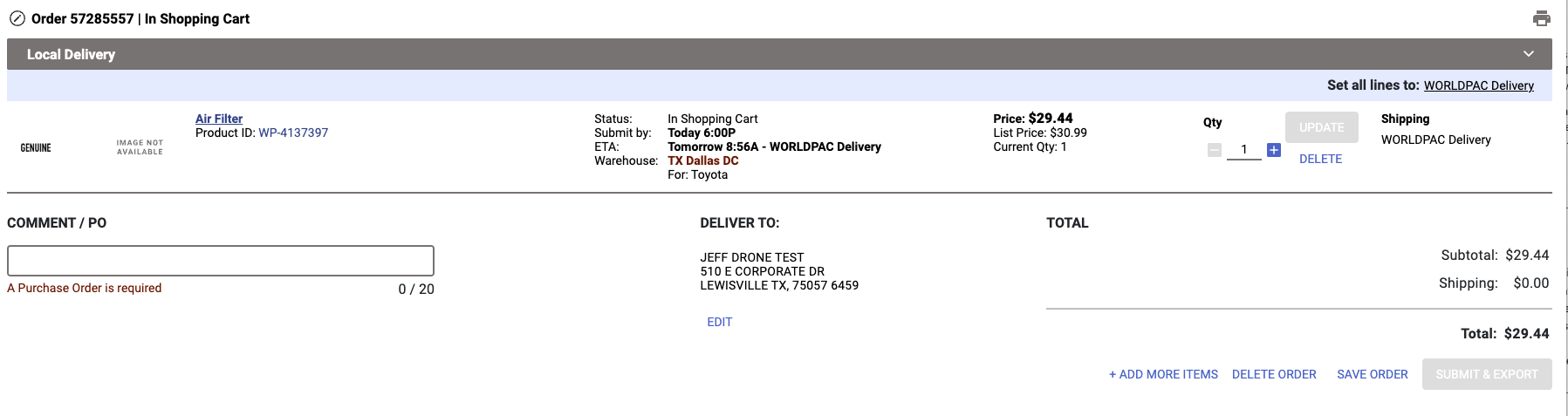
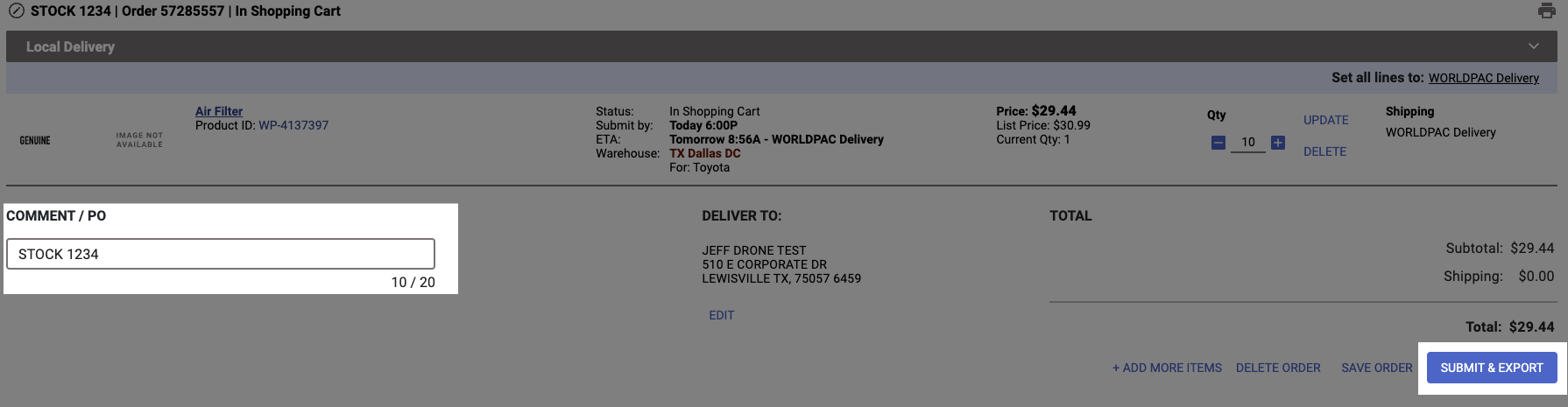
5. Submit & Export your order in Worldpac.
Before submitting, enter a purchase order number in Worldpac — this is required to complete the order. Then click Submit and Export. Once submitted, the order returns to Tekmetric automatically via webhook. You don't need to do anything to trigger this.
6. Receive the order.
Once the order arrives, mark it as received in the Orders section. Inventory quantities update automatically.

7. Review auto-mapping in Tekmetric.
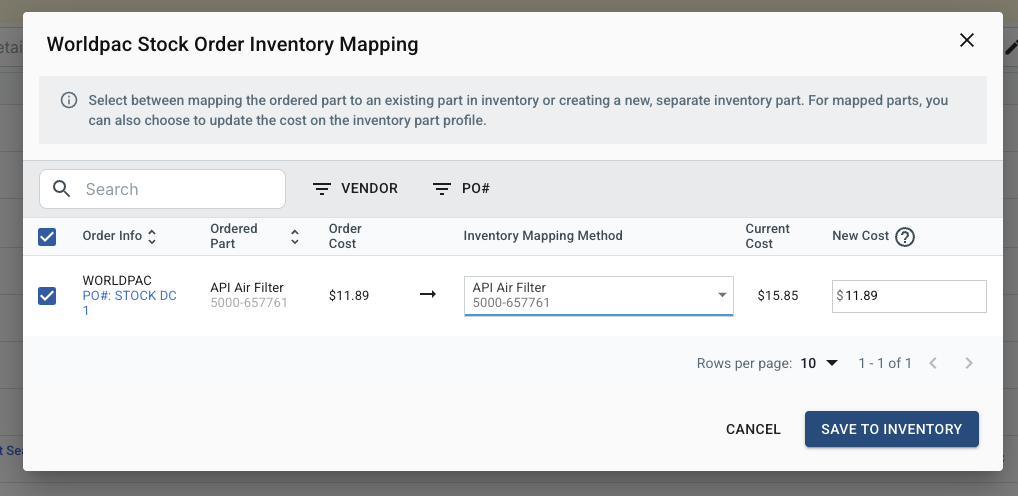
Once the order is marked received , Tekmetric attempts to link each part to an existing inventory record. Here's how it works:
- No existing inventory record: Tekmetric creates a new inventory part automatically and links it. No action needed.
- One record matches the part number and cost: Tekmetric links to it automatically. No action needed.
- The part number exists but the cost doesn't match, or multiple records share the same part number: Tekmetric can't resolve a single clear match and flags the part with an unmapped warning. You'll need to map it manually.
In short: if there isn't a clear single match, you'll see a warning.

FAQ
Q: Does this work with SpeedDIAL 1.0?
A: No. Stock ordering requires the Worldpac SpeedDIAL 2.0 integration. If your shop is still on the legacy SpeedDIAL, you'll need to migrate to 2.0 to use this feature.
Q: Why is the Shop Worldpac button grayed out?
A: The button is disabled when parts are selected in the Parts Hub. Deselect any checked parts and the button will become active.
Q: What is DC Direct, and can I use it here?
A: DC Direct is Worldpac's bulk replenishment program for parts shipped directly from their distribution centers, typically at lower per-unit pricing. It requires a minimum order amount and is only available to eligible Worldpac customers. If you have DC Direct access, you can use it through this same workflow — just keep DC Direct parts and standard parts in separate orders.
Q: Can I mix DC Direct and non-DC Direct parts in one order?
A: No. Worldpac sets the order type based on the first part added to your cart. DC Direct and standard parts must be placed as separate orders.
Q: What happens if a part doesn't auto-map?
A: Any part that doesn't match an existing inventory record by part number will require manual mapping before the order can be received. You'll see these flagged in the order after it returns to Tekmetric.