DVI Quick Capture lets technicians finish a digital vehicle inspection (DVI) by walking around the vehicle instead of typing notes task by task. Capture photos, video and voice notes in the Tekmetric mobile app, and Tekmetric assigns the media to the right inspection tasks and writes the findings for you to review.
Quick Capture is an enhancement to the DVI you already use. It is optional, and the standard DVI workflow is always available.
How it works
-
Capture. Walk around the vehicle and capture photos, video and voice notes in bulk. You don't need to assign anything while you capture.
-
Assign. Tekmetric automatically assigns your media to the correct inspection tasks.
-
Generate. Tekmetric writes findings in customer-ready language from your photos and voice notes.
-
Approve. Review each finding, then accept, adjust or reject it. Mark the inspection complete when you're done.
Nothing goes to the customer without the technician's approval.
Who can use it
DVI Quick Capture is in Early Access for eligible Scale plan customers, starting November 3, 2026. It is not available on Start or Grow plans at this time.
- Quick Capture works with any inspection template your shop already uses, including custom templates.
- It uses your existing Tekmetric login. There is no separate app or account.
- English only at launch.
- The full experience, including voice notes, requires the Tekmetric mobile app.
Not sure if your shop is eligible, or want access? Submit the DVI Quick Capture interest form.
Turn on DVI Quick Capture
Quick Capture is turned on for the whole shop, not for individual users. Only a user with the Inspection permission can turn it on or off.
- In the Tekmetric desktop app, click Inspections in the left navigation.
- Click the Quick Capture banner at the top of the page to enable it.
Use DVI Quick Capture on an inspection
- Open the inspection in the Tekmetric mobile app.
- Tap Start Quick Capture at the bottom of the inspection. The first time, a short tutorial walks you through the flow.
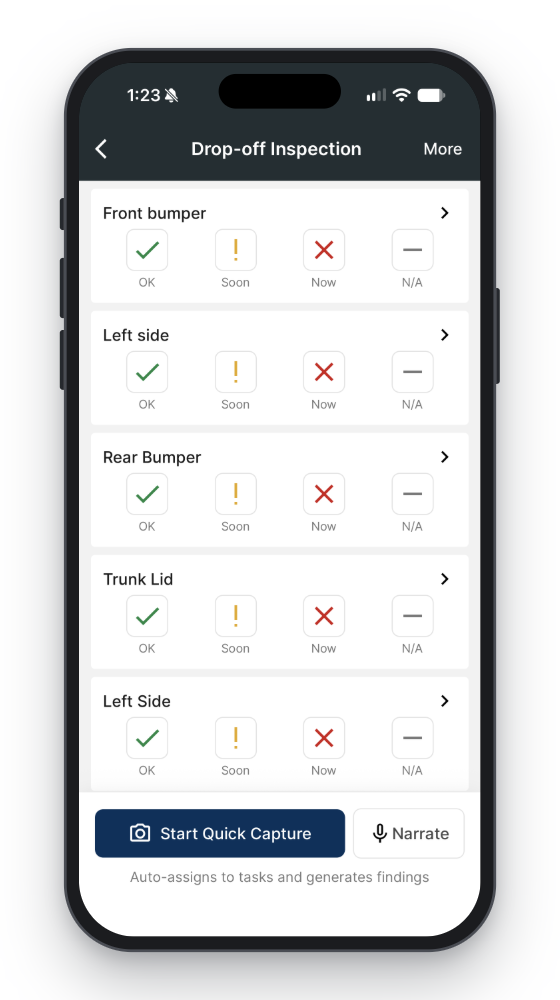
- Walk around the vehicle. Take photos, record video and narrate what you see.
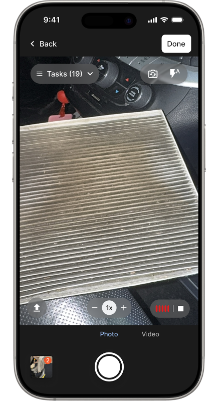
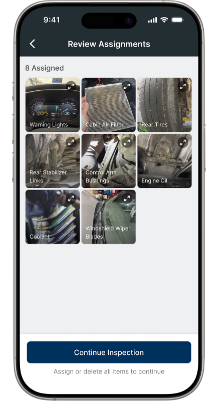
- When you finish capturing, review the task assignments
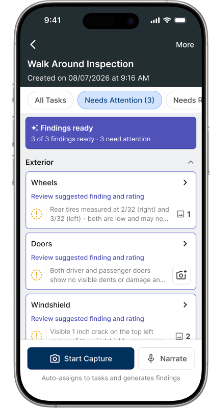
- Review the findings Tekmetric prepared. Accept, adjust or reject each one.
- Ensure all tasks have been complete. You can go in and out of Quick Capture as many times as you need during one inspection, for example once with the vehicle on the ground and again with it raised. You can also complete any part of the inspection with the standard DVI workflow.
Bonus: The "Narrate" button next to Start Quick Capture is the audio only version of Quick Capture. Tap Narrate to talk to the app; findings will be prepared after you end the narrate session.
Tips for the best results
-
Narrate as you capture. Findings are more accurate when you describe what you see. Uploading photos without voice notes produces less accurate findings. Tap "Narrate" on the camera window.
-
Review every finding. Generated findings are a starting point. You are the final check before anything is used.
-
Fix assignments if needed. If a photo or video lands on the wrong task, reassign it to the correct one.
-
Start small. Have one technician try Quick Capture on a single inspection before rolling it out to the whole team.
Use Quick Capture on the web app
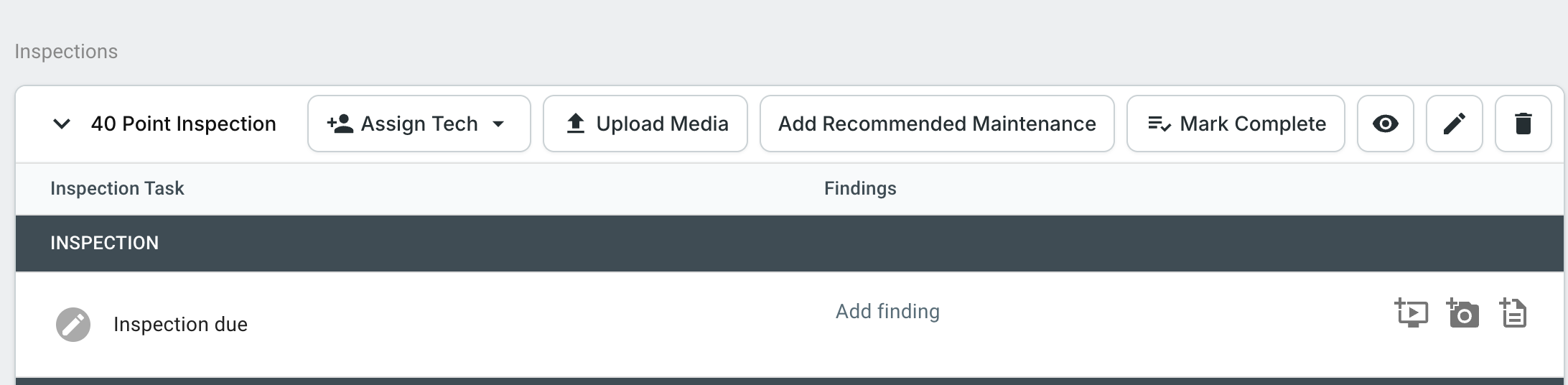
A condensed version is part of Early Access on the web app. Upload multiple photos, have them assigned to tasks automatically, and get suggested findings. Voice notes and live photo capture are not available on the web, so use the mobile app for the full experience.
To use this, select "Upload Media" on the inspection
Frequently asked questions
Does Quick Capture replace the standard DVI? No. It uses the same inspection templates and the same connection to the repair order. The Start Quick Capture button is optional, and no inspection data is lost if you switch back to the standard workflow.
Does the technician still review the findings? Yes. Every finding is reviewed by the technician, who can accept, adjust or reject it before the inspection is complete.
Can I turn it on for just one technician? No. Quick Capture is enabled for the whole shop. Technicians who prefer the standard workflow can simply skip the Start Quick Capture button.
How do I turn it off? An owner or admin with the Inspection permission can turn off Quick Capture from the Inspections page on the desktop app. The standard DVI workflow stays fully available.
Does it cost anything? Quick Capture is included at no additional cost for eligible Scale customers through the end of 2026. There is no setup fee and no separate add-on. Pricing for 2027 and beyond has not been decided, and we will let you know before any change takes effect.
I'm on the Scale plan but don't see Quick Capture. Confirm you are an owner or admin with the Inspection permission, then check the Inspections page for the banner. Access is rolling out gradually to eligible Scale shops. If you still don't see it, submit the interest form or contact Tekmetric Support.
Are the generated findings always right? Not always. Findings are suggestions based on your photos and voice notes, so review each one. Narrating while you capture gives the best results.
Need help?
Contact Tekmetric Support and tell us what you saw. Early Access feedback helps us improve Quick Capture, so include an example of any finding or photo assignment that looked wrong.