New Feature: Set Customer-Level Estimate Settings
In the Customers section, you can now set a default labor rate, discounts, and fees for each customer. Tekmetric applies them to every new repair order for that customer, so your advisors no longer have to remember them.
This is useful for:
- Fleets with an agreed-upon labor rate.
- Individual customers who get a standing discount, like veterans, friends and family, or churches.
- Customers who shouldn't be charged shop fees, like shop supplies.
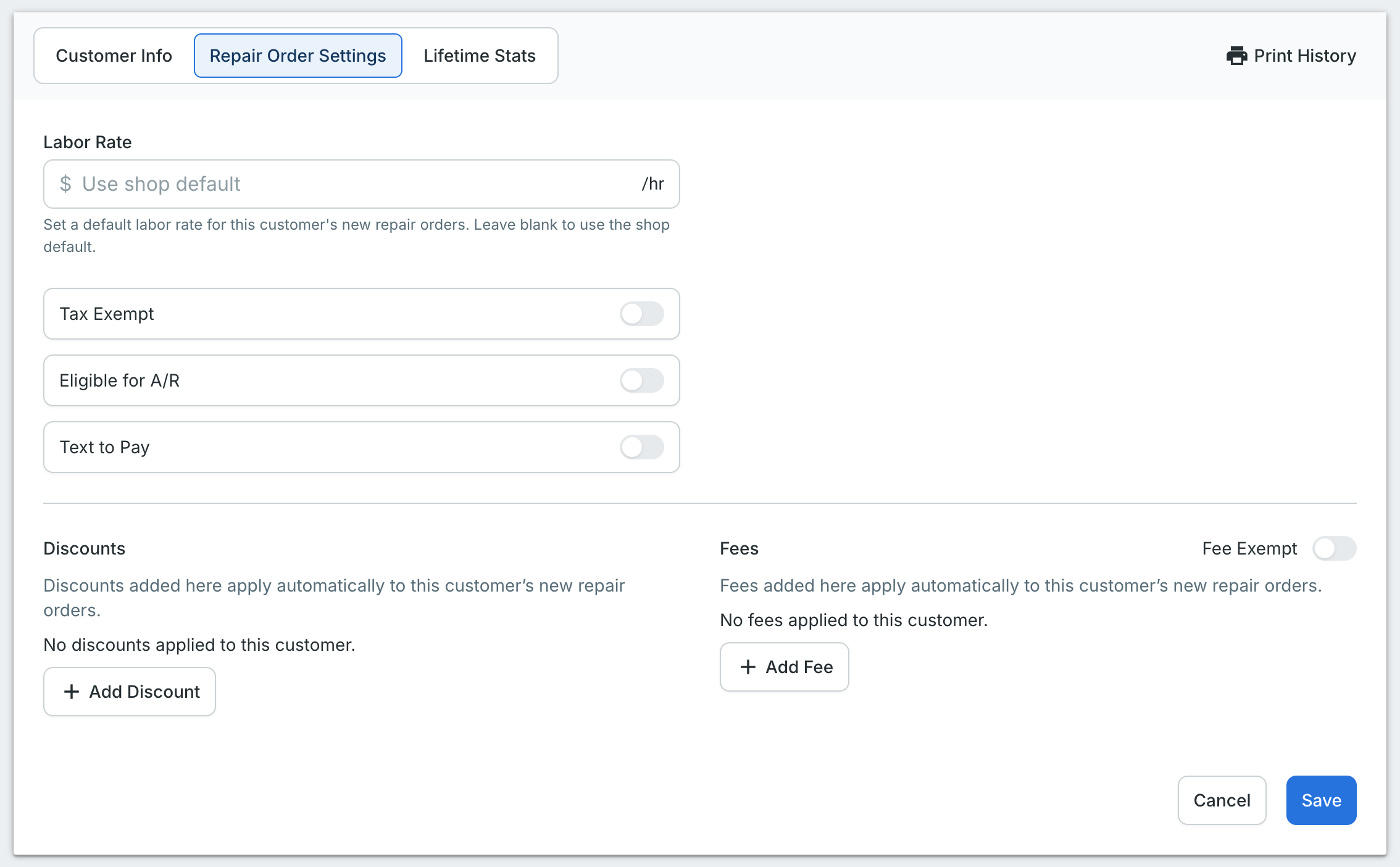
Before You Begin
- You need permission to edit customers.
- Discounts and fees come from the presets in your Shop Settings. Create the discounts and fees you want to use there first.
- Labor rates can come from your shop's labor rates, or you can enter a custom rate.
Set Repair Order Settings for a Customer
- Click the Customers section on the left menu bar.
- Click the customer you want to update.
- Click Edit, then click the Repair Order Settings tab.
- Labor Rate: Select one of your shop's labor rates or enter a custom rate per hour. Leave it blank to use the shop default.
- Discounts: Click + Add Discount and select a discount from your Shop Settings presets. Fixed-amount discounts can’t be added to customer profiles.
- Fees: Click + Add Fee and select a fee from your Shop Settings presets. Fees that auto-apply to ROs or tires can’t be added to customer profiles.
- Fee Exempt: Turn this on to stop your shop's automatic fees from being added to this customer's repair orders.
- Click Save.
The Repair Order Settings tab also holds Tax Exempt (with Tax ID) and Eligible for A/R (with Credit Limit). These settings work the same as before.
Update Multiple Customers at Once
Use Bulk Edit to set a labor rate or Fee Exempt for many customers, like all of your fleet accounts, in a couple of minutes.
- Click the Customers section on the left menu bar.
- Check the box next to each customer you want to update.
- Click Bulk Edit.
- Set the Labor Rate and/or Fee Exempt.
- Click Confirm.
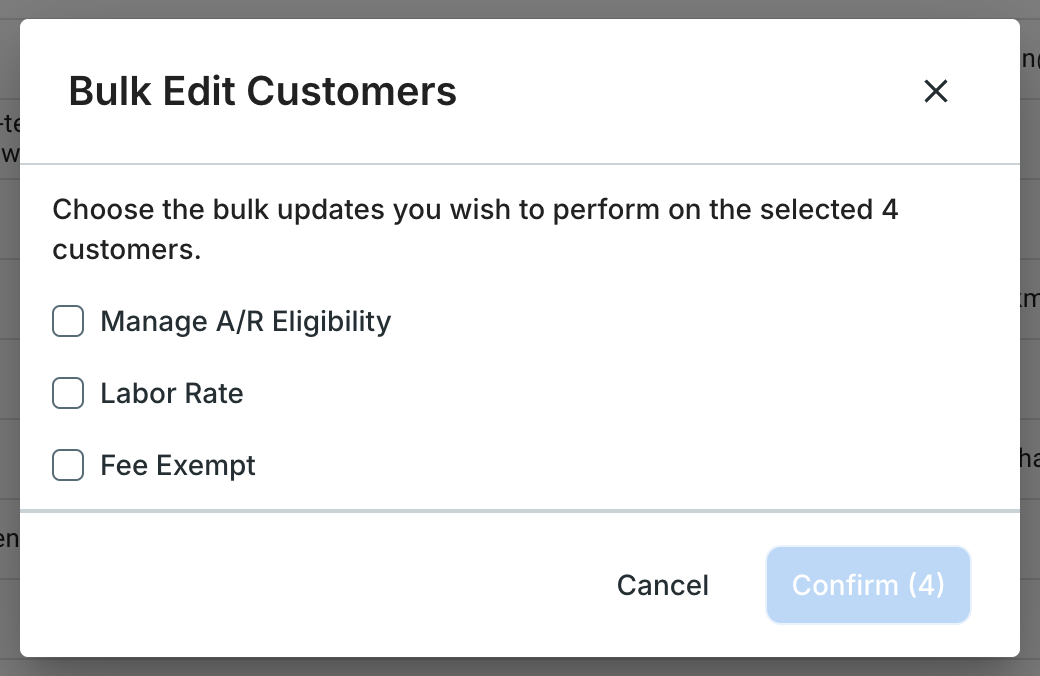
Discounts and fees can't be bulk edited. Add them to each customer from the Repair Order Settings tab.
How Settings Apply to Repair Orders
- When you create a repair order for a customer with a default labor rate, the Labor Rate field fills in automatically. To use a different rate on that repair order, remove it and select another one.
- The customer's discounts and fees are added to the new repair order, and Fee Exempt keeps your shop's automatic fees off it.
- Settings only apply to new repair orders. Existing repair orders don't change.
Frequently Asked Questions
Will this change my existing repair orders? No. Customer settings only apply to new repair orders created after you save them. Existing repair orders keep their current labor rate, discounts, and fees.
Why can't I add a fixed-dollar discount to a customer? Customer discounts are percentage-based for now. Because the discount is applied as soon as the repair order is created, before any jobs are added, a fixed-dollar discount would leave the repair order with a negative total. You can still add fixed-dollar discounts to individual repair orders the usual way.
Will editing my shop-wide Labor Rates, Discounts, and/or Fees affect customer profiles that have been configured using these settings? Yes, assigning a customer a Labor Rate, Discount, or Fee from the list creates a link between that customer profile and that item. Editing the Labor Rate, Discount, or Fee will update all customer profiles that are assigned to that item.
Will this apply to all of my locations? Not yet. Settings apply to the customer at one location. You can use Bulk Edit to set fleet labor rates for dozens of customers at each location in a couple of minutes.
Can I set these when I create a new customer? Not yet. Create the customer first, then open their profile and set them on the Repair Order Settings tab.
What happens if I merge a customer who has these settings applied? When you merge two customers, you can choose which Labor Rate and Fee Exempt setting to keep on the merged profile.
Where did Tax Exempt and A/R go? They moved to the Repair Order Settings tab on the customer profile, alongside labor rate, discounts, and fees. They work the same as before.