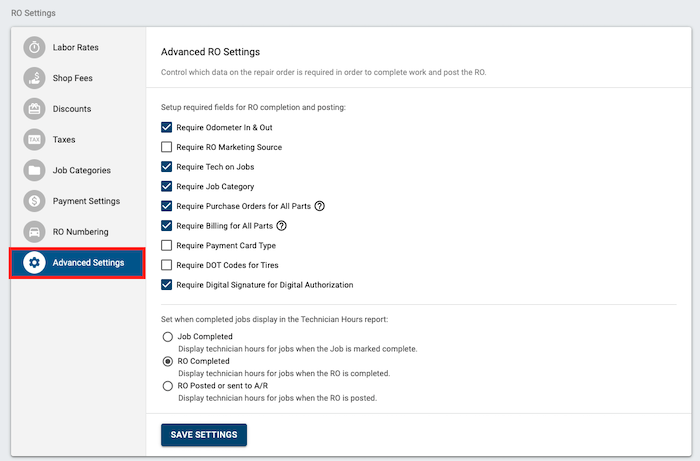
Tekmetric's RO Advanced Settings section gives you additional configuration options for repair orders. You can:
- Control which data on the repair order is required in order to complete work and post the RO.
- [NEW] Control which data is required to delete and save a repair order for later.
- Control when your technicians receive credit for the work they've done.
Here's how to navigate to this section of Tekmetric:
- Click the Shop Settings section on the bottom left of the menu bar.
- Click the 2nd tab, RO Settings.
-
RO Settings Table - This table is where you set up your labor rates, shop fees, discounts, taxes, job categories, other payments and advanced settings.
- Click Advanced Settings.
Control which data is required to complete work and post a repair order:
-
Odometer In & Out - If this is checked, the RO will not post unless you have mileage entered in the odometer fields.
-
RO Marketing Source - If this is checked, the RO will not post unless you have an RO marketing source selected in the repair order. If you select this option, you will want to ensure RO Marketing Sources have been created.
-
Tech on Labor - If this is checked, you will not be able to complete the work on a repair order unless a technician is assigned on every labor line on the estimate.
-
Job Category - If this is checked, you will not be able to complete the work or post the RO unless you have a job category assigned to each job on the estimate. If you select this option, you will want to ensure Job Categories have been created.
-
Purchase Orders for All Parts - If this is checked, you will not be able to complete the work or post the RO unless every part on the RO has a purchase order associated with it (vendor information, etc).
-
Billing for All Parts - If this is checked, it will ensure that all parts ordered on a RO are accounted for. Which means they have either been assigned to a job an approved job on that RO, have been moved to inventory, or have been moved into the returns process.
-
Payment Card Type - If this is checked, the RO will not post unless you enter the card type when taking credit or debit card payments.
-
DOT Codes for Tires - If this is checked, it will ensure that all tires entered on repair orders will have the DOT number entered on the part for compliance purposes.
-
Digital Signature for Digital Authorization - If this is checked, customers will be required to sign digital estimates they approve.
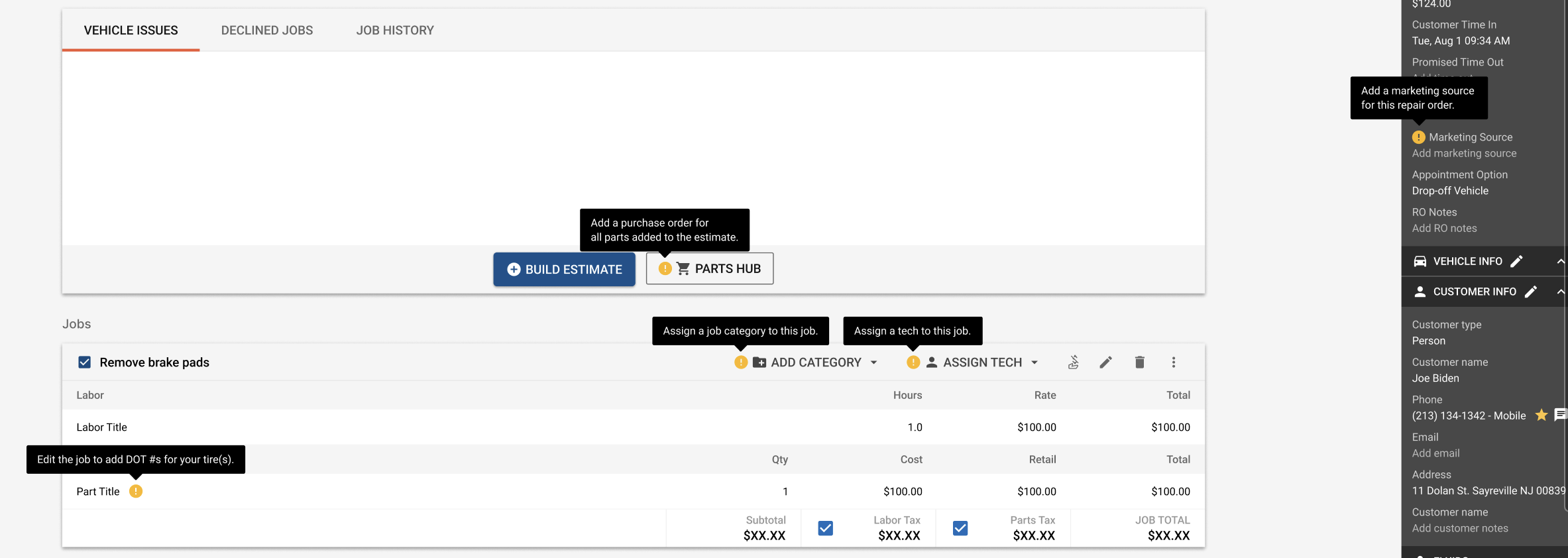
Once you enable any some of these RO requirement settings, your service writer(s) will see warning icons throughout the estimate. This will allow them to quickly identify what information is missing, and to adjust it accordingly.
Sample of warning icons:
[NEW] Control which data is required to delete and save a repair order for later
-
Ordered or received parts to be returned or moved to inventory:
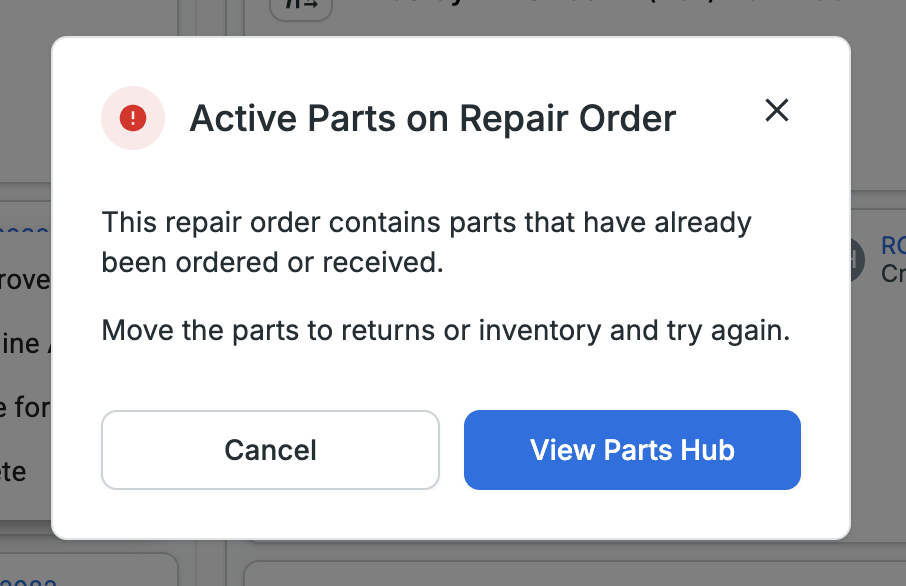
- When this setting is on, employees will not be able to delete repair orders or save them for later if there are ordered or received parts on those repair orders. Users will see a warning modal (see below) when attempting a delete or move to saved for later.
- Parts must be moved to returns or inventory before the repair order can be deleted or saved for later.
Set Up Tech Pay Settings
Here, you can also choose when Technicians receive credit for their work.
-
Job Completed - If this method is chosen, then the technician receives credit per individual job completed. The whole RO does NOT have to be completed in order for them to receive credit. The benefit of this option is that you are able to pay your technicians for the jobs they complete within the pay period they complete them in.
-
RO Completed - If this method is chosen, then the technician receives credit when the entire RO is completed; however, the RO does NOT have to be paid for and closed out. The benefit of this option is that it motivates your technicians to complete the entire RO sooner rather than later so they get compensated for their work.
-
RO Posted or sent to A/R - If this method is chosen, then the technician receives credit when the entire RO is posted or sent to A/R. If the RO is actively on the job board, then your technician will not receive credit. The benefit of this option is that the shop has accounted for the RO revenue and the technician's expense in it's end of day numbers.
Note: The setting you select will affect your Technician Billed Hours report and how the data is generated!