WHAT IS IT?
The Marketing Dashboard is your central hub for tracking the performance of your marketing efforts and usage in Tekmetric. It gives you a quick, at-a-glance view of how your online booking, automations, and Google reviews are performing—all in one place.
Whether you're checking how many appointments came through online booking, seeing which automations are active, or monitoring your Google review count and rating, the Marketing Dashboard brings it all together so you can make informed decisions about growing your shop.
Note: The Marketing Dashboard is only available to users of Tekmetric Marketing.
WHY IS IT IMPORTANT?
Running a successful shop means staying connected with your shop and your customers, and knowing what's working. The Marketing Dashboard helps you:
-
See your ROI at a glance: Quickly understand how much revenue your Online Booking is generating without digging through reports.
-
Identify what's working (and what's not): Spot trends in booking patterns, and automation performance.
-
Find opportunities to grow: Discover which tools you haven't turned on yet and get recommendations on opportunities to drive more business.
-
Save time: Everything you need to know about your marketing performance is in one convenient location—no more jumping between different pages or tools.
TURN ON THE TOOLS THAT DRIVE REAL RESULTS
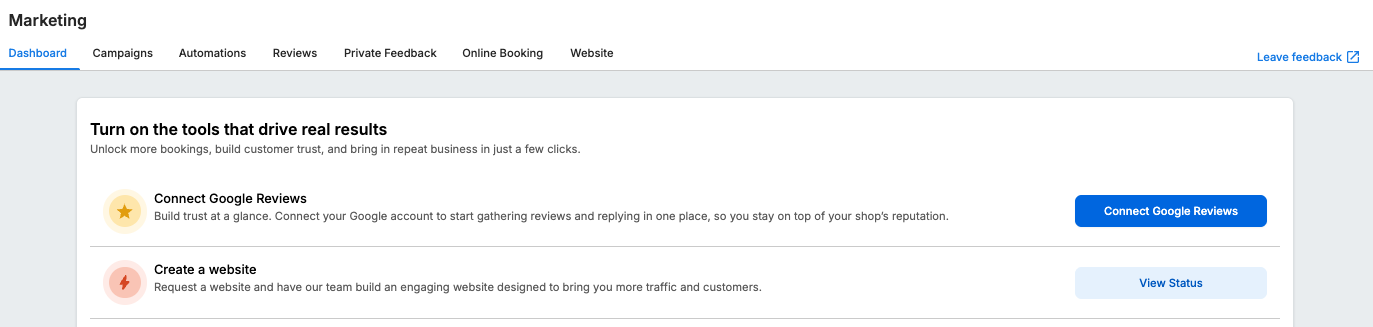
This section highlights the foundational marketing tools available to you and helps you get them set up.
You may see cards for:
-
Create a Website: Request a custom website built by Tekmetric to bring more traffic and customers to your shop. Custom Websites
-
Connect Google Reviews: Integrate your Google Business Profile to manage and respond to reviews directly from Tekmetric. Reviews Management
-
Explore Online Booking: Set up your online booking widget so customers can schedule appointments 24/7. Tekmetric Online Booking Settings
-
Explore Automations: Start using automated messages to stay in touch with customers and drive repeat business. Marketing Automations
As you complete each action (like connecting Google Reviews or enabling online booking), the corresponding card will disappear from this section. This ensures the dashboard stays focused on what you still need to set up.
APPOINTMENT AND BOOKING PERFORMANCE
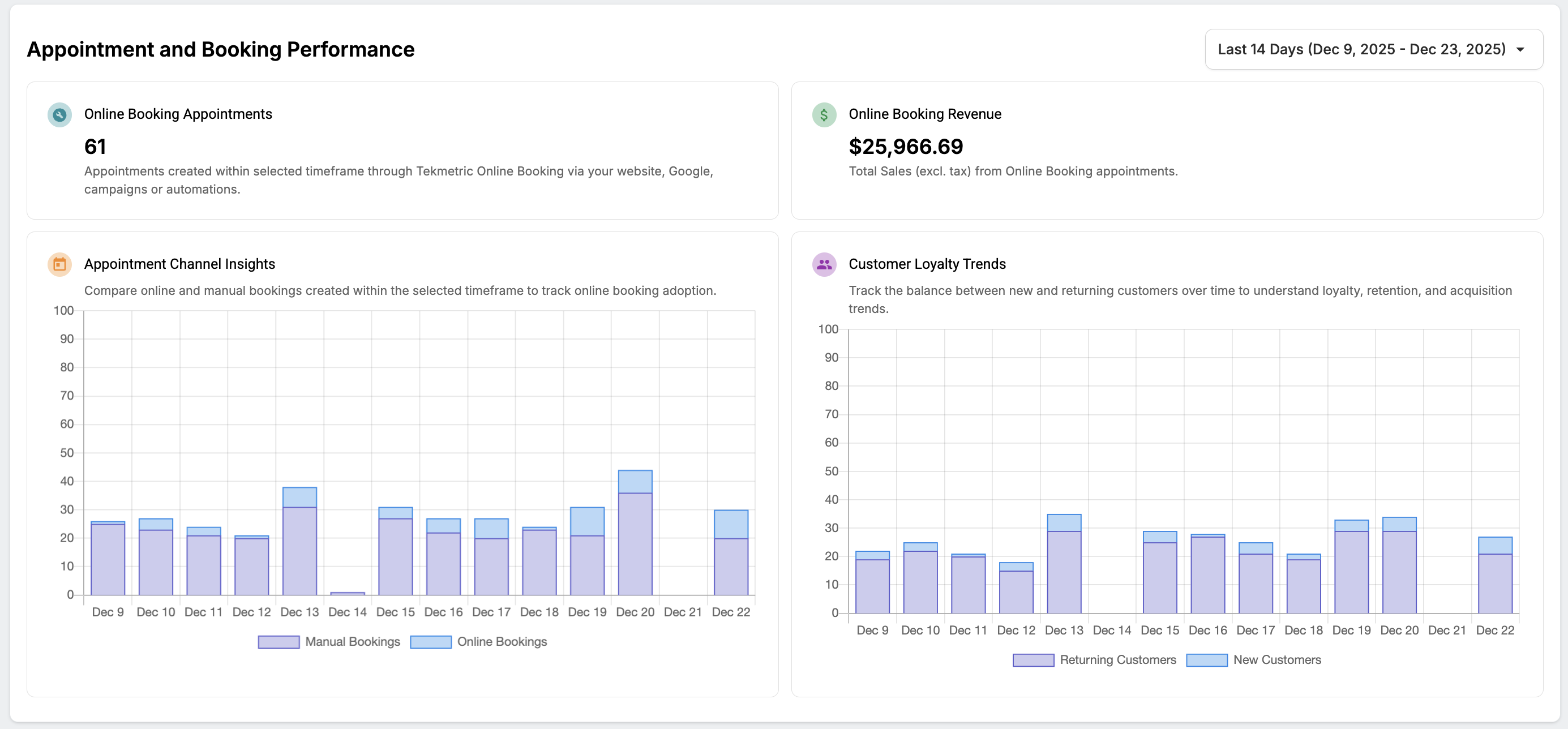
This section shows you how your appointments and online booking are performing over time. It includes:
Key Performance Indicators (KPIs)
-
Online Booking Appointments: The total number of appointments made through your online booking widget within the selected time period. Appointments are counted by their Created Date.
-
Online Booking Revenue: The total sales (excluding tax) generated from appointments booked via your online booking widget.
If you haven't enabled online booking yet or haven't received any online booking appointments, these widgets will display a dash (-).
Time Filter
Use the time filter in the top-right corner to adjust the date range for all the data in this section. You can choose from:
- This Week
- Last Week
- Last 14 Days
- This Month
- Last Month
- Last 6 Months
- Year to Date
Graphs
Appointment Channel Insights
This graph shows you how appointments are being made over time, broken down by:
-
Manual Bookings: Appointments entered by your staff directly into Tekmetric.
-
Online Bookings: Appointments made via your online booking widget.
This helps you understand where your appointments are coming from and identify trends in how customers prefer to book with you. Appointments are counted by their Created Date.
Customer Loyalty Trends
This graph tracks the balance between new and returning customers over time, broken down by:
-
Returning Customers: Customers who have previous history at your shop (based on posted ROs).
-
New Customers: First-time customers.
This metric helps you understand customer retention and acquisition trends. If you're seeing a healthy mix of both, it means you're not only attracting new business but also keeping your existing customers coming back.
RECOMMENDED AUTOMATIONS
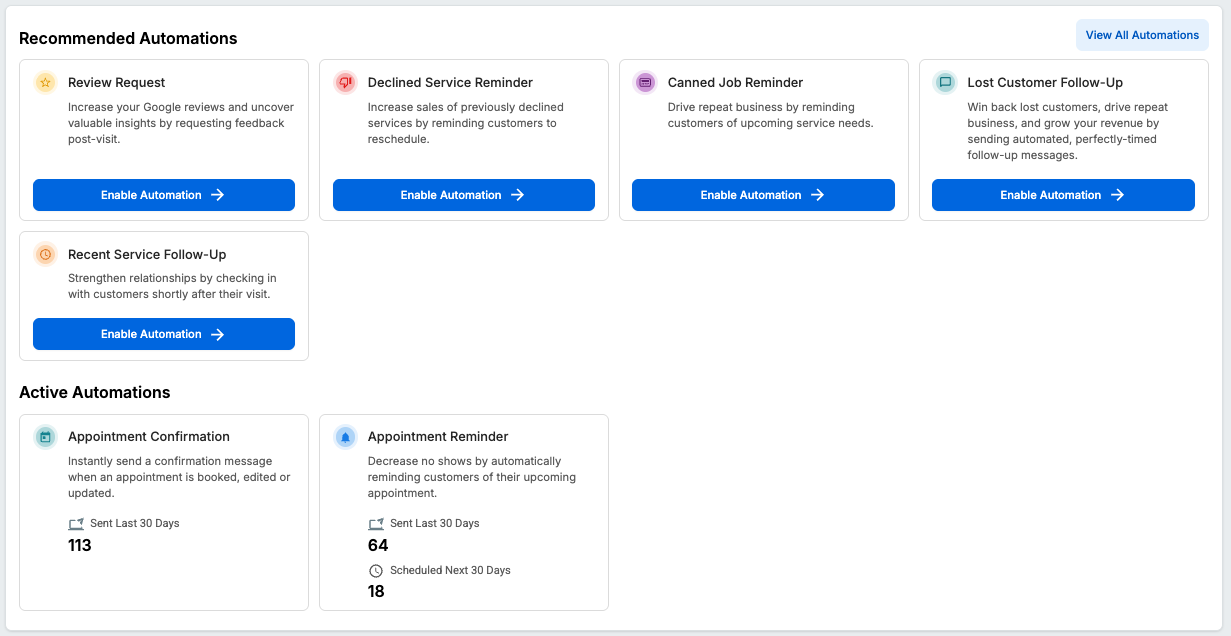
This section suggests automations you haven't set up yet. Automations help you stay connected with customers automatically—reminding them about appointments, following up after visits, requesting reviews, and more. Marketing Automations
How does this section work?
Any automation that doesn't have at least one channel (text or email) enabled will appear in this section.
If you've enabled all available automations, this section won't appear on your dashboard.
ACTIVE AUTOMATIONS
This section displays performance metrics for the automations you currently have running. It shows you how your automated messages are helping you stay connected with customers.
For each active automation, you'll see:
-
Messages Sent (L30): The number of messages sent in the last 30 days.
-
Messages Scheduled: The number of messages scheduled to go out in the next 30 days (where applicable).
If you want to see all your automations or adjust their settings, click the "View All Automations" button to go to your Automations management page. Marketing Automations
GOOGLE REVIEWS
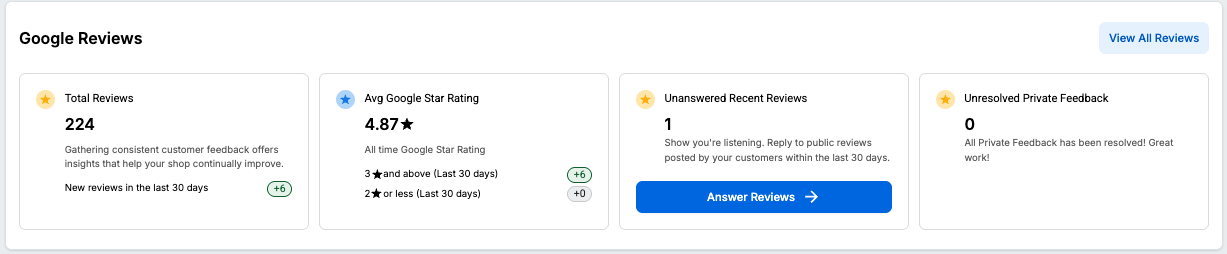
This section provides an overview of your shop's Google review performance and private feedback submissions.
When Google is Not Connected
If you haven't connected your Google Business Profile yet, you'll see an empty state with a "Connect Google Reviews" button. Clicking this button will open the Google authentication modal so you can integrate your account. Reviews Management
When Google is Connected
Once connected, you'll see the following widgets:
Total Reviews
- Displays your total count of Google reviews.
- Shows a growth indicator (green arrow with a number) representing how many new reviews you've received in the last 30 days.
- Displays the count of new reviews in the last 30 days.
Avg Google Star Rating
- Shows your overall average Google star rating.
- Breaks down your reviews into:
-
3+ Star reviews: Count of positive reviews from the last 30 days.
-
2 Stars and below: Count of negative reviews from the last 30 days.
Unanswered Recent Reviews
- Displays the count of Google reviews from the last 30 days that haven't received a response yet.
- If there are unanswered reviews, you'll see an "Answer Reviews" button that takes you to the Reviews management page.
Unresolved Private Feedback
- Shows the count of unresolved private feedback submissions.
- Private feedback is submitted by customers who choose to send feedback directly to your shop instead of leaving a public Google review.
- If there's unresolved feedback, you'll see a "Resolve Private Feedback" button that takes you to the Private Feedback tab.
To manage all your reviews and private feedback in detail, click the "View All Reviews" button to go to your Reviews management page.
FAQ
Q: What time periods can I view in the dashboard?
A: The Appointment and Booking Performance section includes a time filter with the following options: This Week, Last Week, Last Two Weeks, This Month, Last Month, and Year to Date. The default view is "Last Two Weeks."
Q: Why don't I see any data in the Appointment and Booking Performance section?
A: If you're not seeing data, it could be because:
- You haven't set up online booking yet, or you haven't received any appointments through online booking.
- The time period you've selected doesn't include any appointments with Start Dates in that range. Try adjusting the time filter to a broader range.
Q: What does "Online Booking Appointments" mean?
A: Online Booking Appointments are appointments made by customers through your shop's online booking widget. These are counted by the appointment's Start Date within the selected time period. They don't include appointments that staff manually enter into Tekmetric.
Q: How are Returning Customers vs New Customers calculated?
A: This is calculated based on posted repair orders (ROs). If a customer has a previous posted RO at your shop, they're considered a Returning Customer. If it's their first posted RO, they're a New Customer.
Q: Why don't I see the "Recommended Automations" section?
A: If you've enabled all available marketing automations (meaning each automation has at least one channel—text or email—turned on), the Recommended Automations section will not be displayed.
Q: Can I see more detailed information about my automations or reviews?
A: Yes! The Marketing Dashboard is designed to give you a high-level overview. For more detailed information, click the "View All Automations" or "View All Reviews" buttons to navigate to the full management pages for those features. For more granular performance reporting, check out the RO Marketing Source report.
Have feedback on Tekmetric Marketing? Submit your suggestions here.