'Tekmetric Receptionist' only answers calls that your phone system forwards to it. This guide shows you how to add your Tekmetric Receptionist number as an external forwarding number in RingCentral, so calls your team can't answer, and after-hours calls, go to your receptionist instead of voicemail.
Jump to:
📌 Note: Call forwarding is configured in RingCentral, not in Tekmetric. Tekmetric can't change or verify these settings for you. You'll need RingCentral admin access to follow this guide.
⚠️ Early Access Notice
Tekmetric Receptionist is currently in Early Access. During this phase, we’ll gradually roll out the Receptionist to shops already connected to RingCentral through our Phones capabilities.
Not using RingCentral? Submit this form to join our Receptionist waitlist and be notified when it becomes available to you at a later date.
Interested in learning more about RingCentral and its connected capabilities with Tekmetric? Connect with the RingCentral sales team to learn more and find the right setup for your shop.
Before You Begin
- If you haven't activated Tekmetric Receptionist yet, start with Tekmetric Receptionist - Overview & Setup Guide.
-
Copy your Tekmetric Receptionist number. In Tekmetric, go to Receptionist > Settings and copy your dedicated 10-digit number. You'll paste it several times.
-
Log in to the RingCentral Admin Portal with an admin account.
-
Find out how calls reach your team. In the Admin Portal, select Company Call Handling (under your business information on the right side of the page), then expand Call Handling:
- If calls go directly to a call queue (sometimes called a call group), follow Option 1: Call Queue Setup.
- If callers first hear a menu like "Press 1 for service, press 2 for parts," you're using an IVR (auto-attendant). Follow Option 2: IVR Setup.
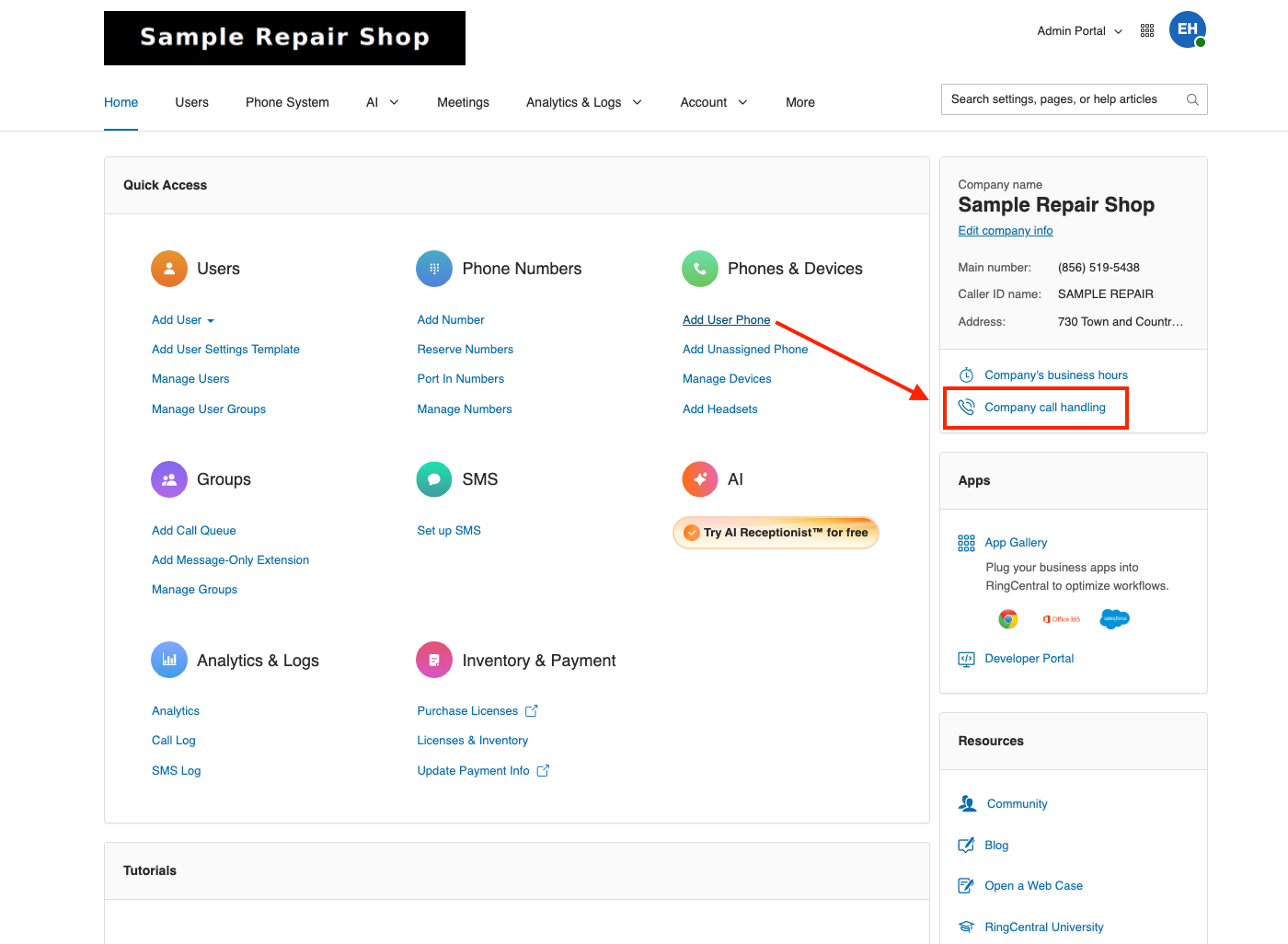
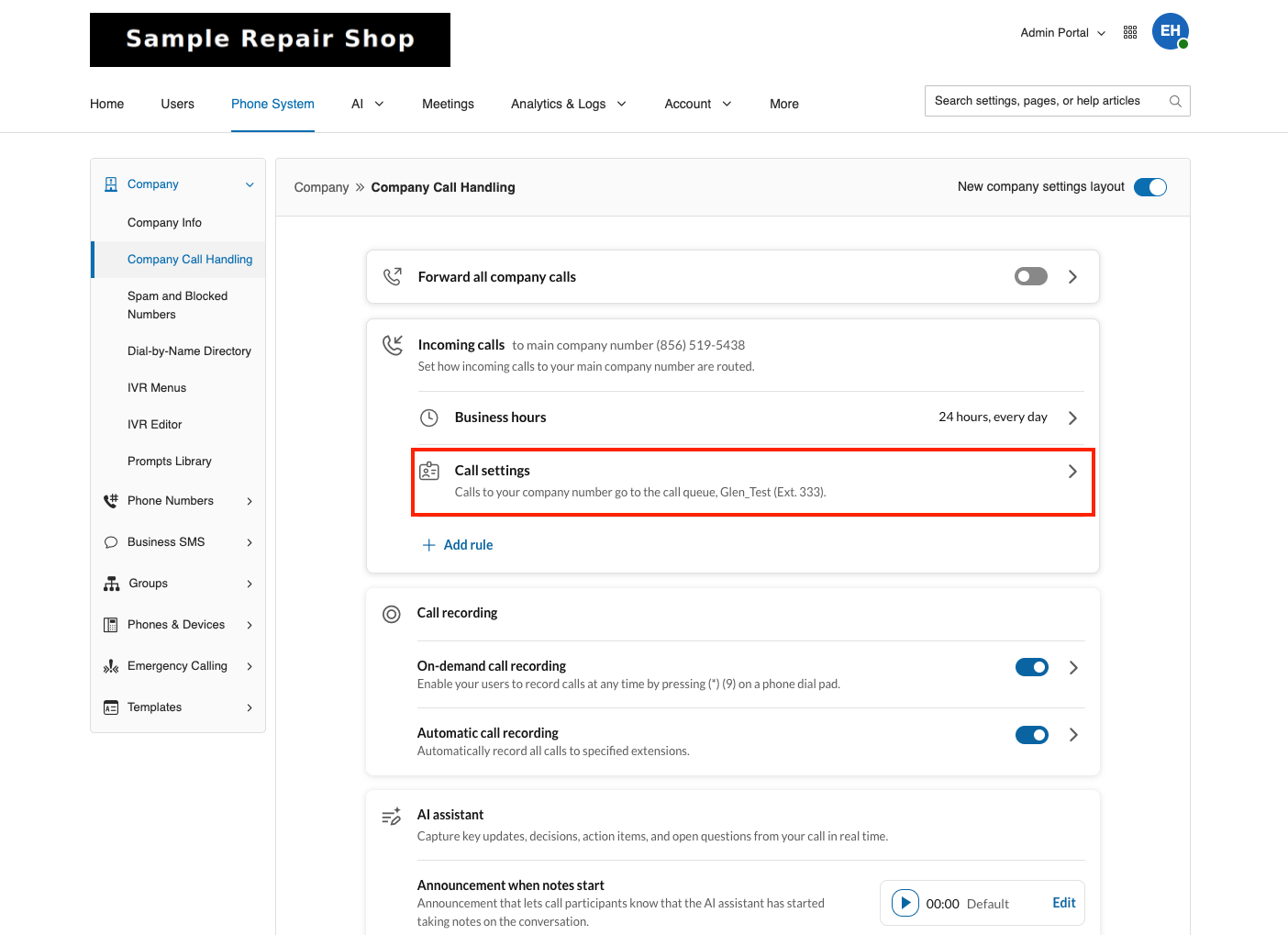
Option 1: Call Queue Setup
Use this option if calls to your main number ring a call queue (call group) directly. When you're done, calls ring your team first. If no one answers, the line is busy, or the shop is closed, calls forward to your receptionist.
Step 1: Send all calls to your call queue
This lets the call queue's own business hours decide when calls go to your team and when they go to your receptionist.
- In the Admin Portal, select Company Call Handling.
- Expand Schedule and set it to 24 hours, 7 days a week.
- Expand Call Handling and confirm calls route to your call queue.
- Select Save.
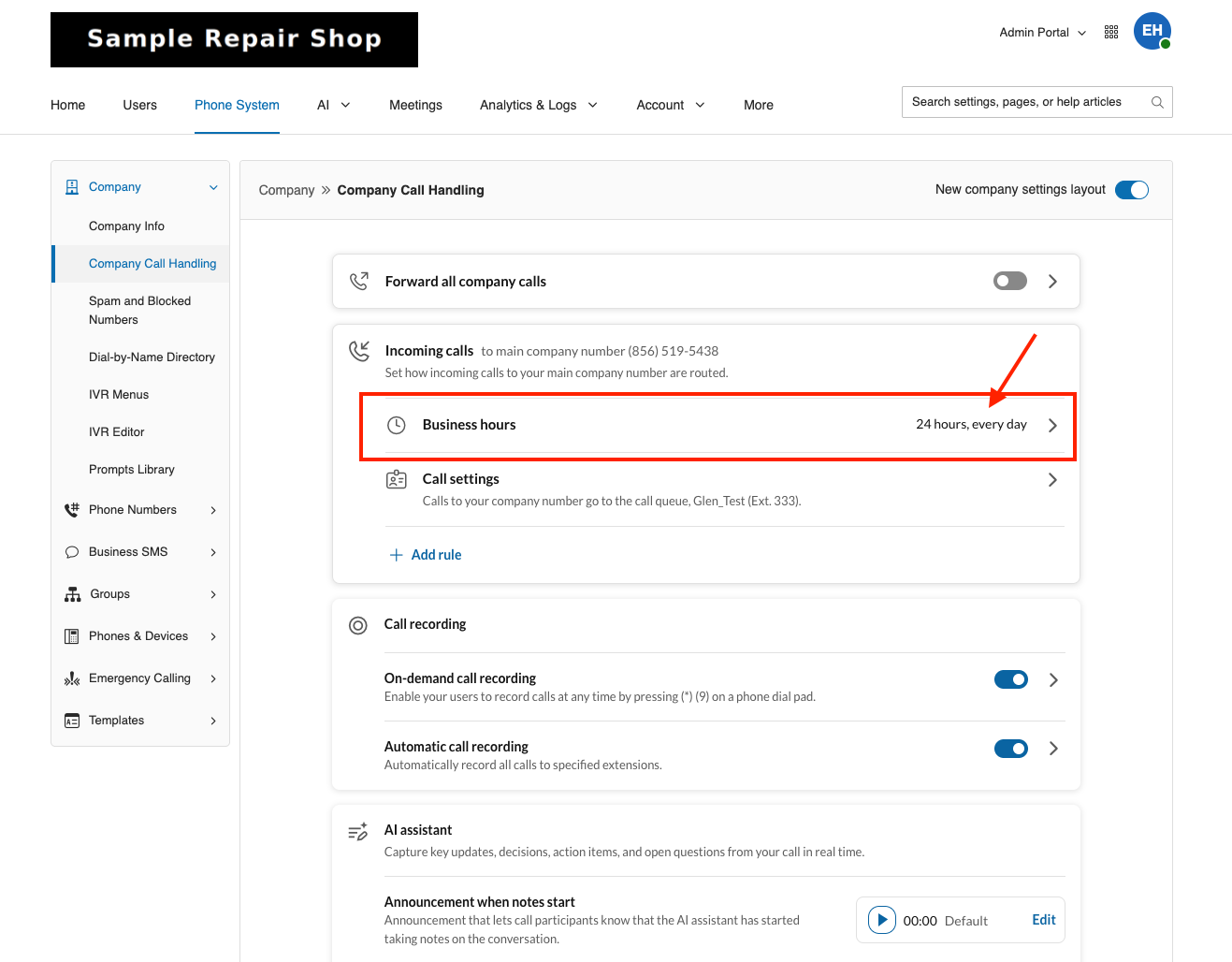
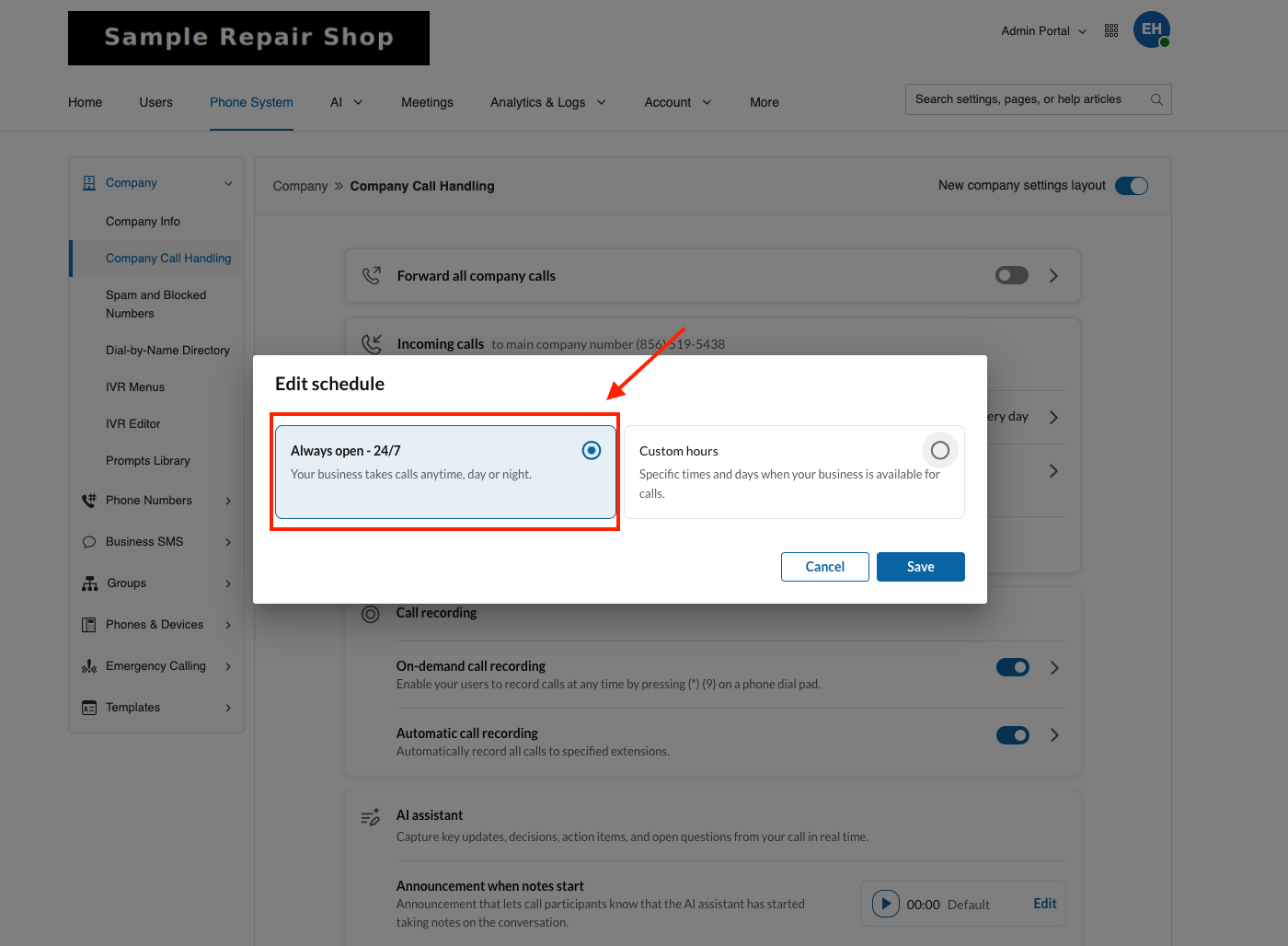
Step 2: Open your call queue
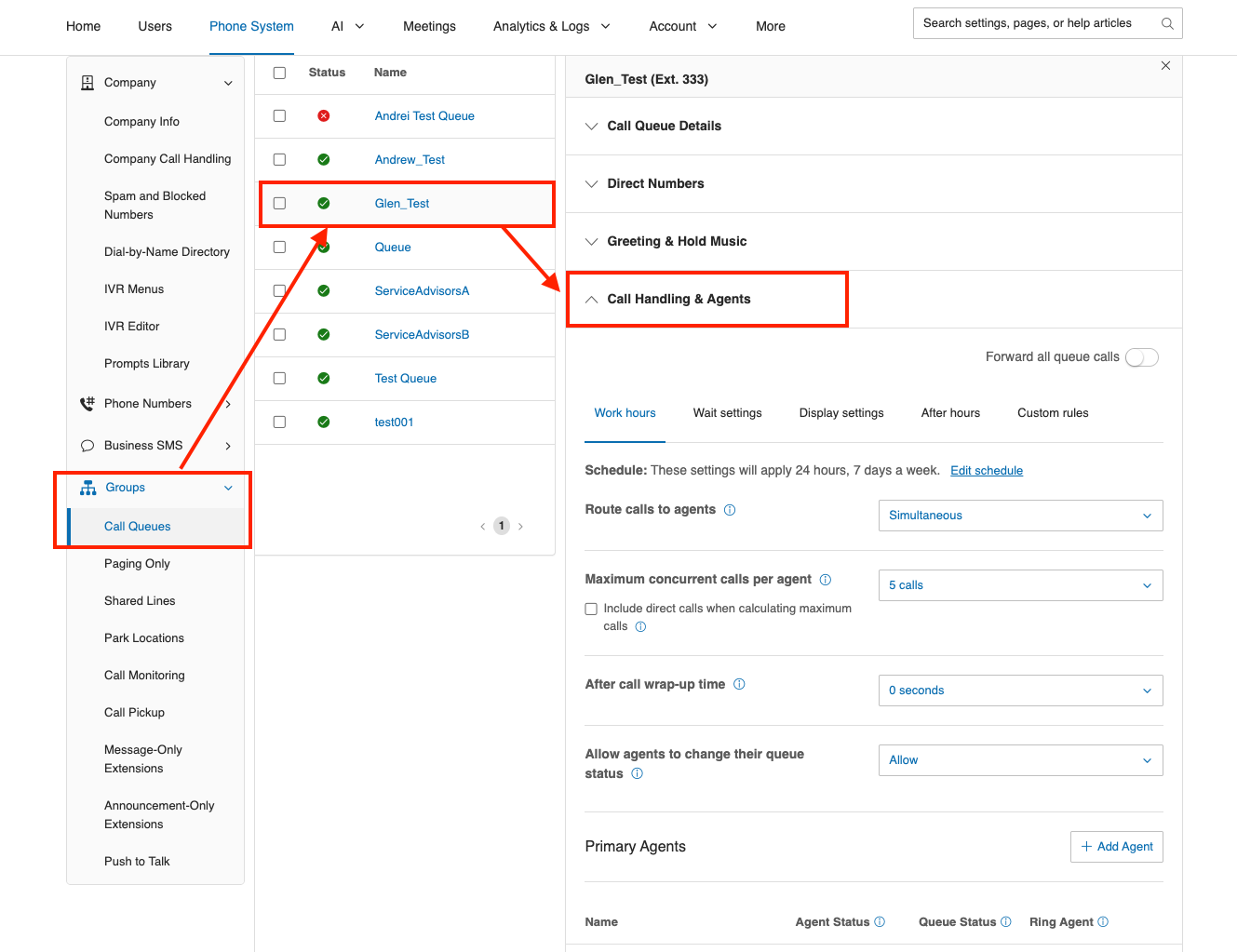
- In the left menu, expand Groups and select Call Queues.
- Select the call queue your customers call (for example, Main or Service).
- Select Call Handling & Agents.
Step 3: Review agents and ring settings (Work Hours)
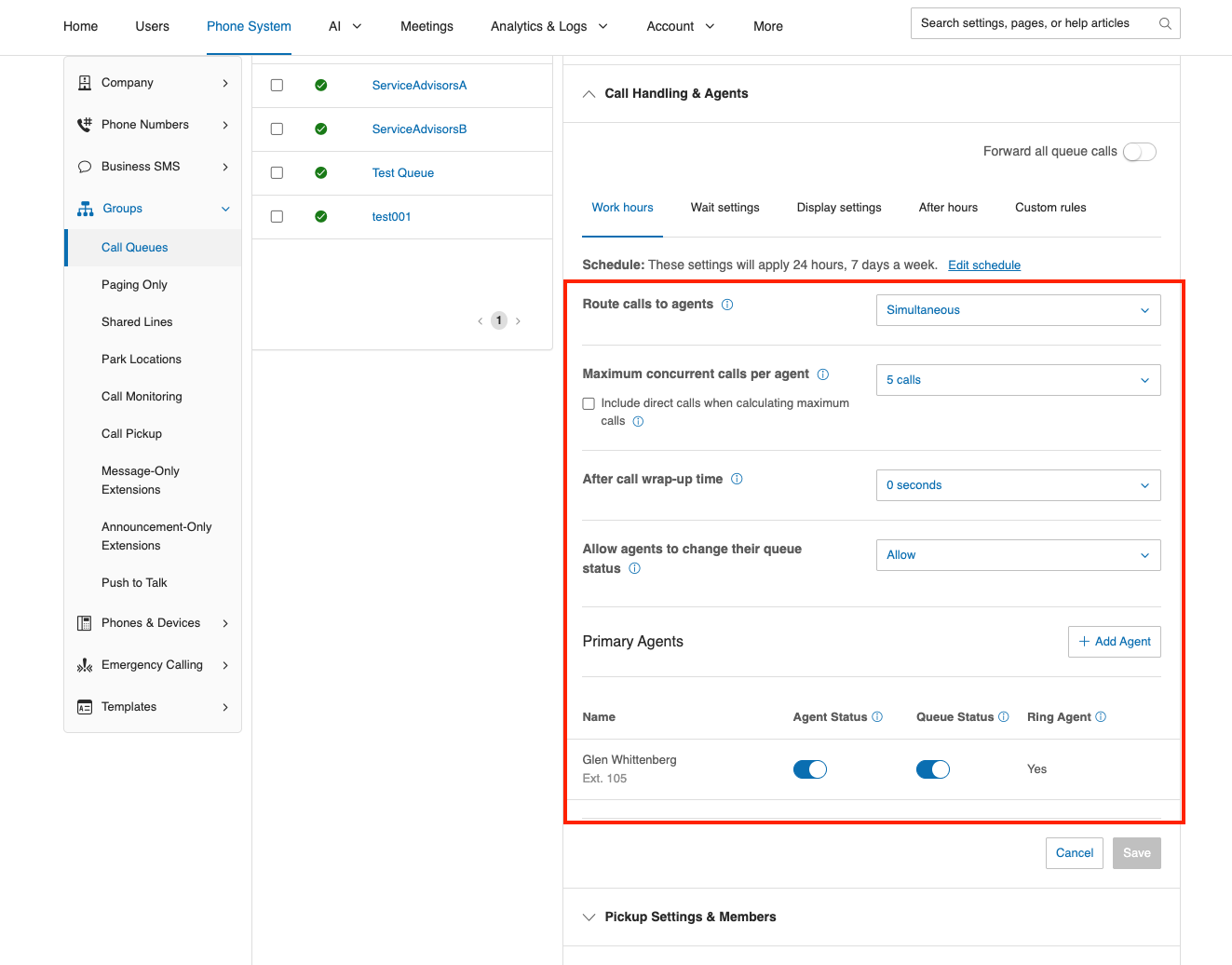
- Under Work Hours, confirm every team member who should answer calls is listed and checked. Select Add Agent to add anyone missing.
- Set the ring order. We recommend Simultaneous, so all agents' phones ring at once.
- Set Wrap-up time to 0 seconds, unless your team needs time between calls.
- Select Save.
Step 4: Add your receptionist as the forwarding number (Wait Settings)
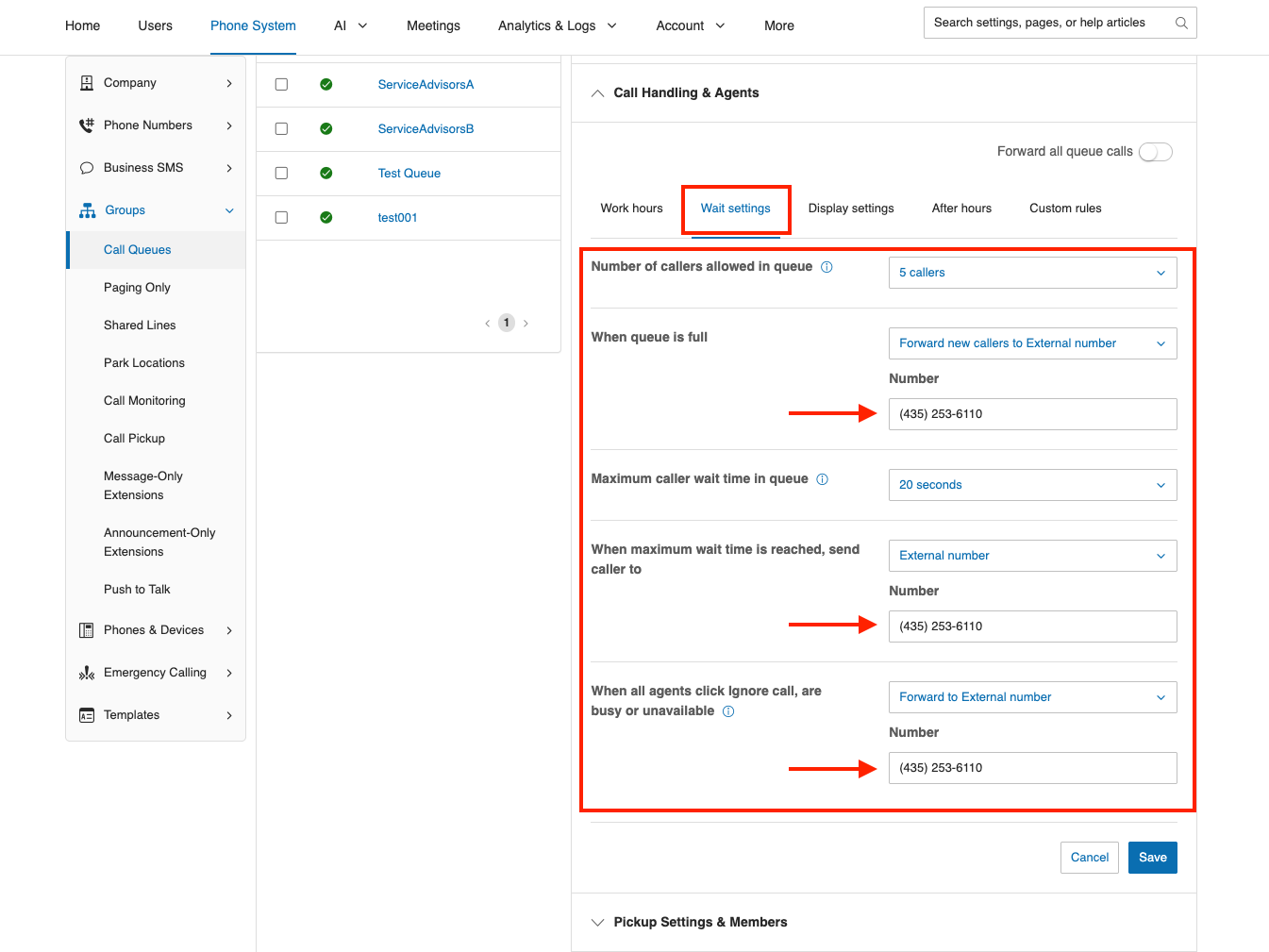
This is where you add your Tekmetric Receptionist number as an external forwarding number.
- Scroll to Wait Settings.
- Set Number of callers allowed in queue to 5 (RingCentral's minimum).
- For When queue is full, select Forward to external number and paste your Tekmetric Receptionist number.
- Set Maximum wait time to 20–30 seconds (about 4–5 rings). We recommend 25 seconds.
- For When maximum wait time is reached, select Forward to external number and paste your Tekmetric Receptionist number.
- For When agents ignore a call, select Forward to external number and paste your Tekmetric Receptionist number.
- Select Save.
Step 5: Forward after-hours calls to your receptionist (After Hours)
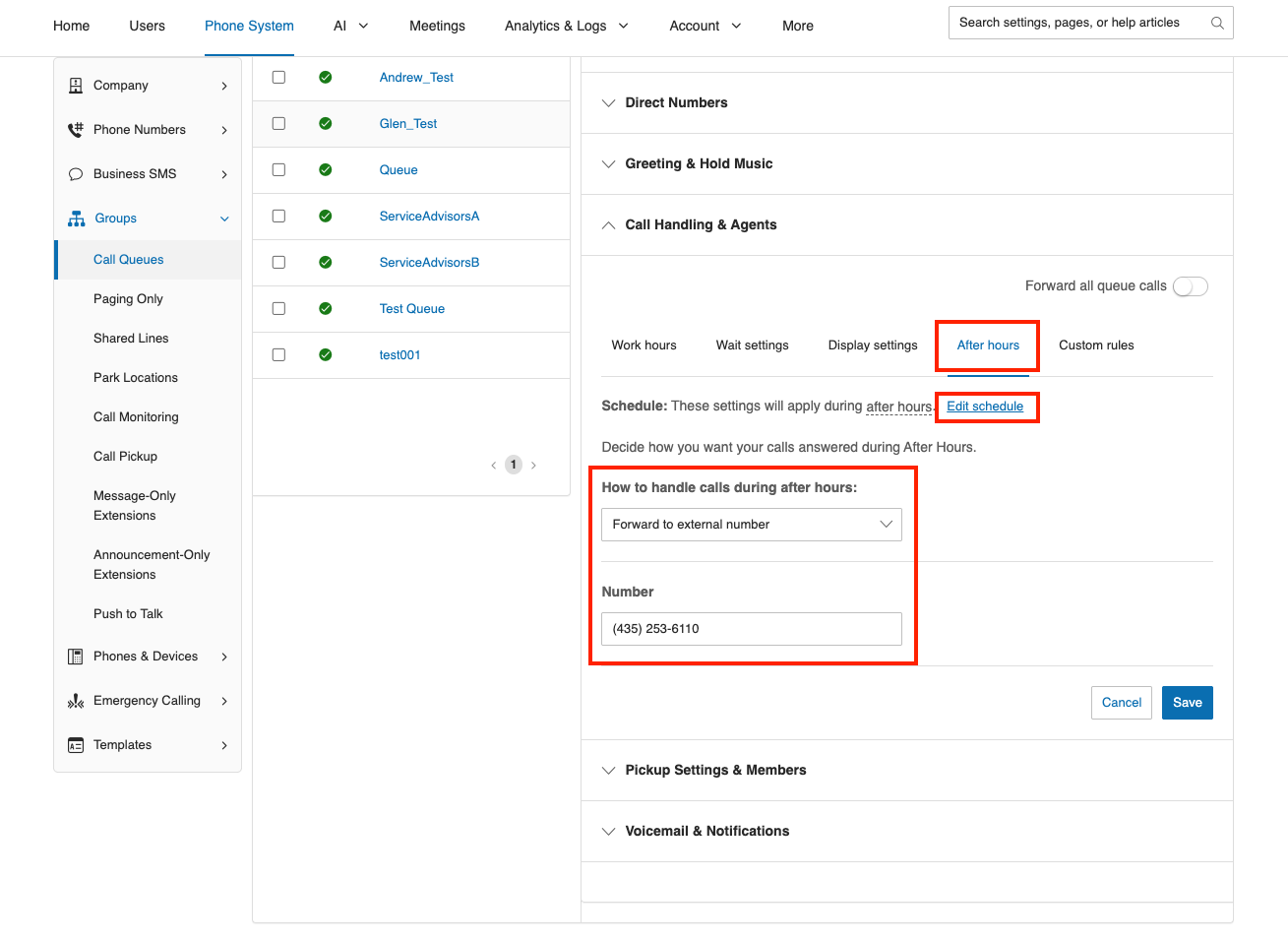
- In Call Handling & Agents, select the After Hours tab.
- Select Edit Schedule and enter your business hours. Turn off any days you're closed.
- For after-hours calls, change Send to voicemail to Forward to external number and paste your Tekmetric Receptionist number.
- Select Save.
💡 Tip: If your team uses more than one call queue (for example, separate queues that roll over from one to another), repeat Steps 2–5 for each queue that customers can reach. Your receptionist should be the last leg of calls after your team.
Option 2: IVR (Auto-Attendant) Setup
Use this option if callers hear a menu (for example, "Press 1 for service, press 2 for parts") before reaching your team. When you're done:
-
During business hours: callers use your menu as usual. If no one in the selected queue answers, the call forwards to your receptionist.
-
After hours: callers skip the menu and go straight to your receptionist.
You don't need to change your IVR menu itself, so any spam filtering it does today stays in place.
Step 1: Find the call queues your IVR sends calls to
- In the left menu, expand Company and select IVR Menus.
- Select your main IVR menu (for example, Main).
- Select Key Presses & Prompt.
- Note each call queue the menu options route to (for example, 1 = Parts, 2 = Service). You'll update each one.
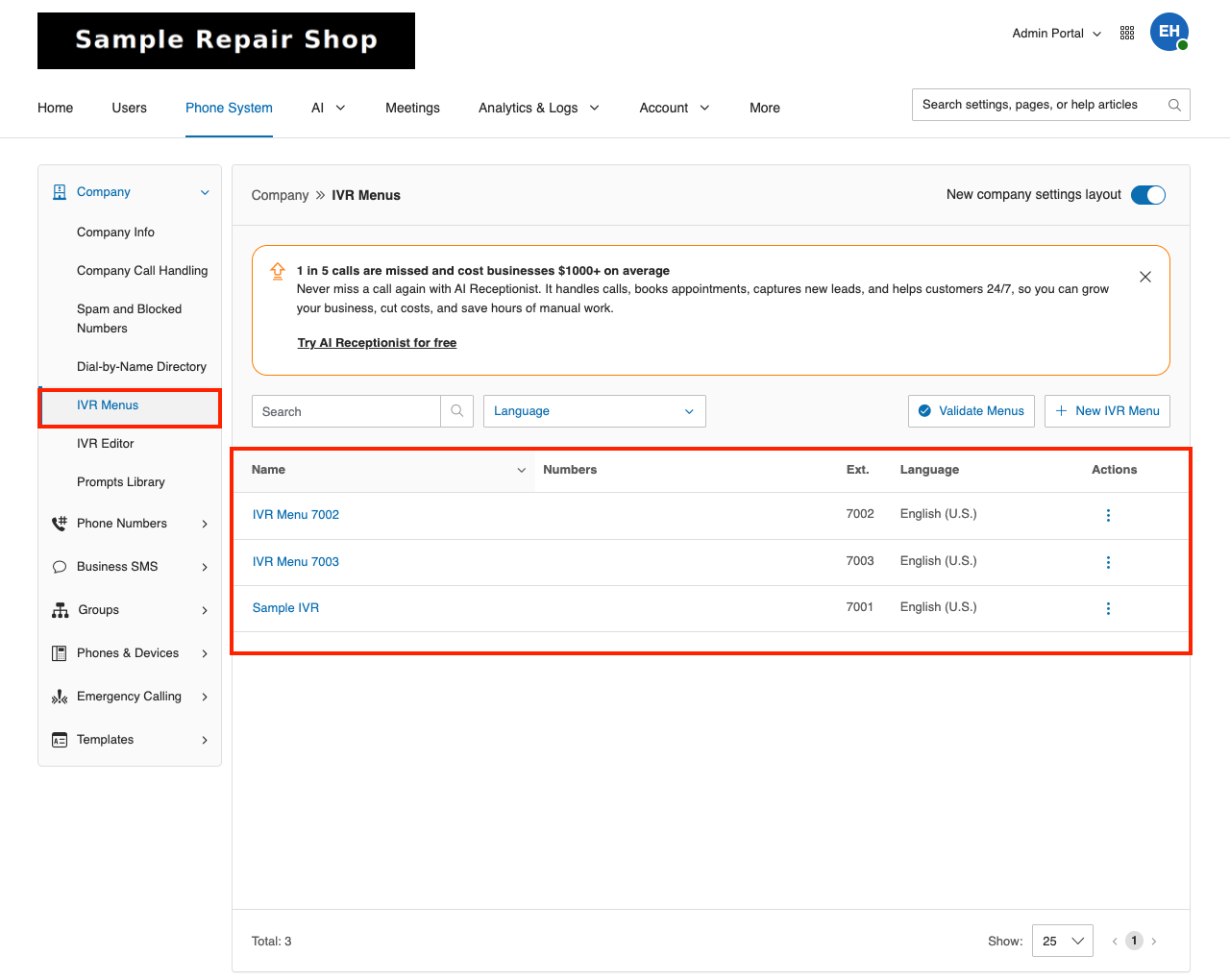
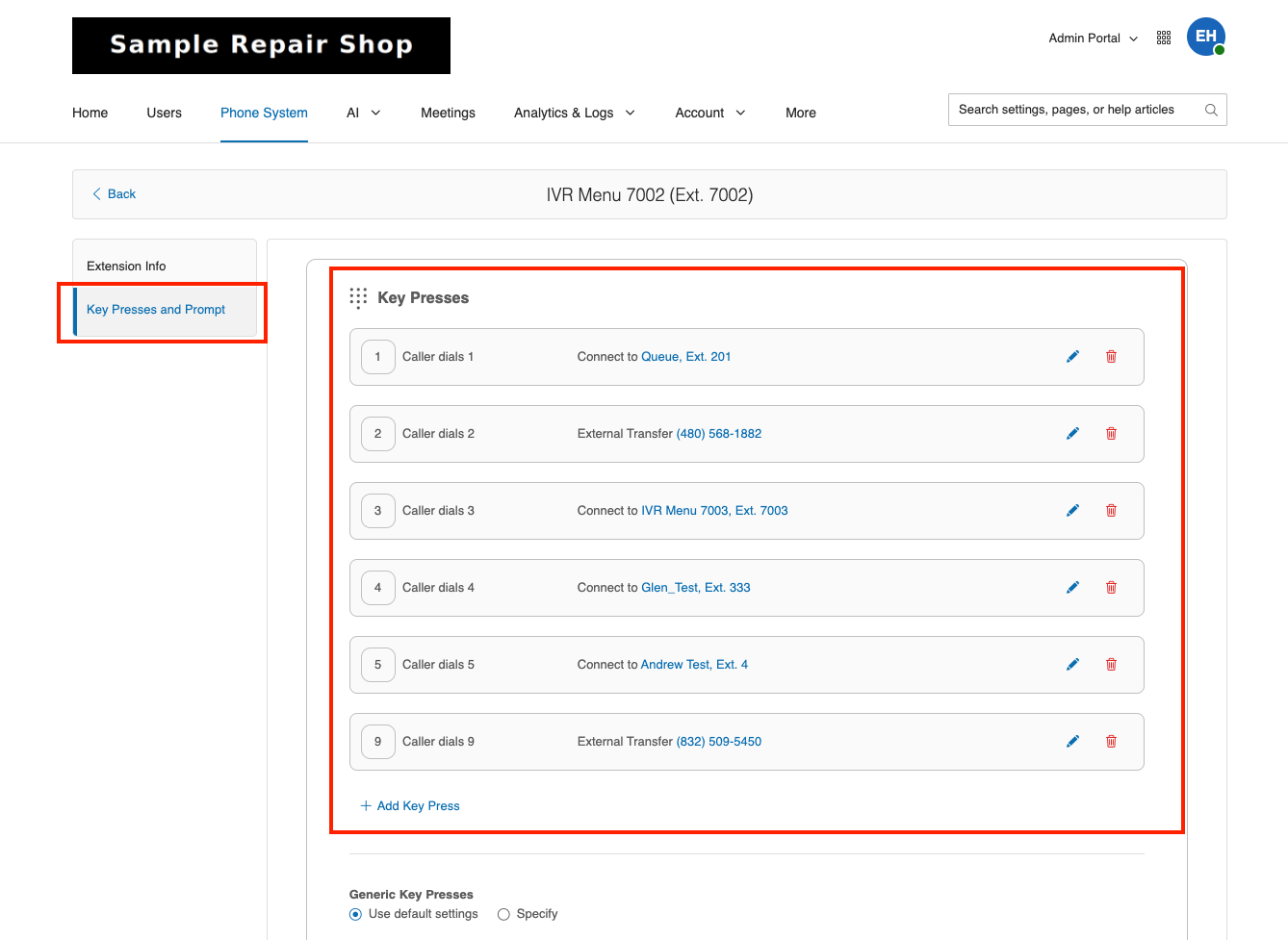
Step 2: Update each call queue
Repeat these steps for every call queue your IVR routes to. These steps (with screenshots) are also outlined in Call Queue Setup.
- Go back to the Admin Portal home. In the left menu, expand Groups and select Call Queues.
- Select the call queue, then select Call Handling & Agents.
- Under Work Hours, confirm the right team members are listed and checked, and that calls ring agents Simultaneously. Set Wrap-up time to 0 seconds unless your team needs time between calls.
- In Wait Settings:
- Set Number of callers allowed in queue to 5 (RingCentral's minimum).
- For When queue is full, select Forward to external number and paste your Tekmetric Receptionist number.
- Set Maximum wait time to 20–30 seconds (about 4–5 rings). We recommend 25 seconds.
- For When maximum wait time is reached, select Forward to external number and paste your Tekmetric Receptionist number.
- For When agents ignore a call, select Forward to external number and paste your Tekmetric Receptionist number.
- Select Save.
- Select the After Hours tab, select Edit Schedule, and enter your business hours. Turn off any days you're closed.
- Set after-hours calls to Forward to external number and paste your Tekmetric Receptionist number.
- Select Save.
These steps (with screenshots) are also outlined in Call Queue Setup.
Step 3: Send after-hours calls straight to your receptionist
By default, after-hours calls usually go to voicemail. In this step, you'll route them to one of your call queues instead. Because that queue's after-hours setting forwards to your receptionist (Step 2), callers go directly to the receptionist without hearing your menu.
- Go back to the Admin Portal home and select Company Call Handling.
- Select Business Hours and confirm they match the hours you set on your call queues. Update them if needed, then select Save.
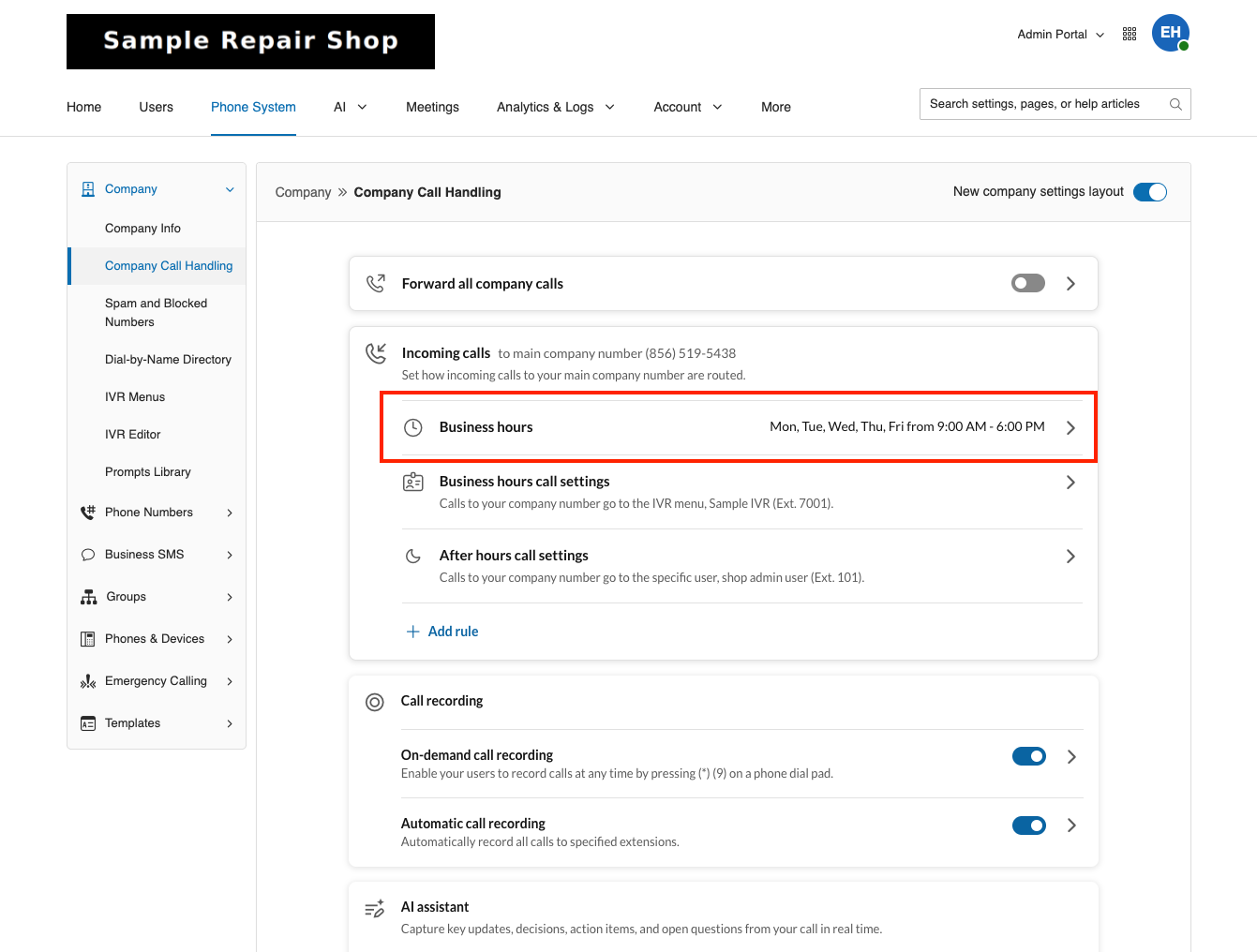
- Open After Hours call settings.
- Change the action from Voicemail to Multiple Users (Call Queue).
- Select one of the call queues you updated in Step 2 (for example, Service).
- Select Save.
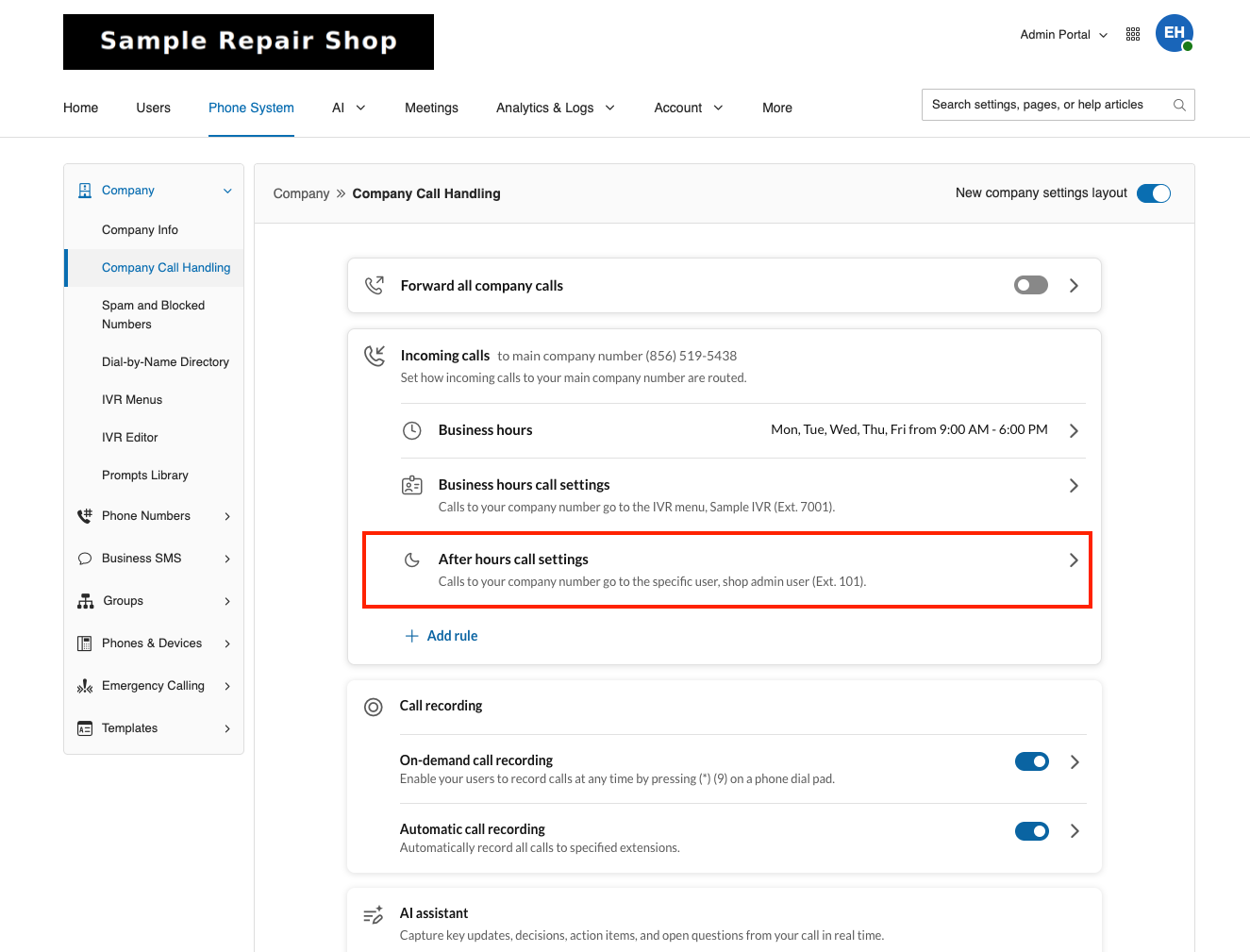
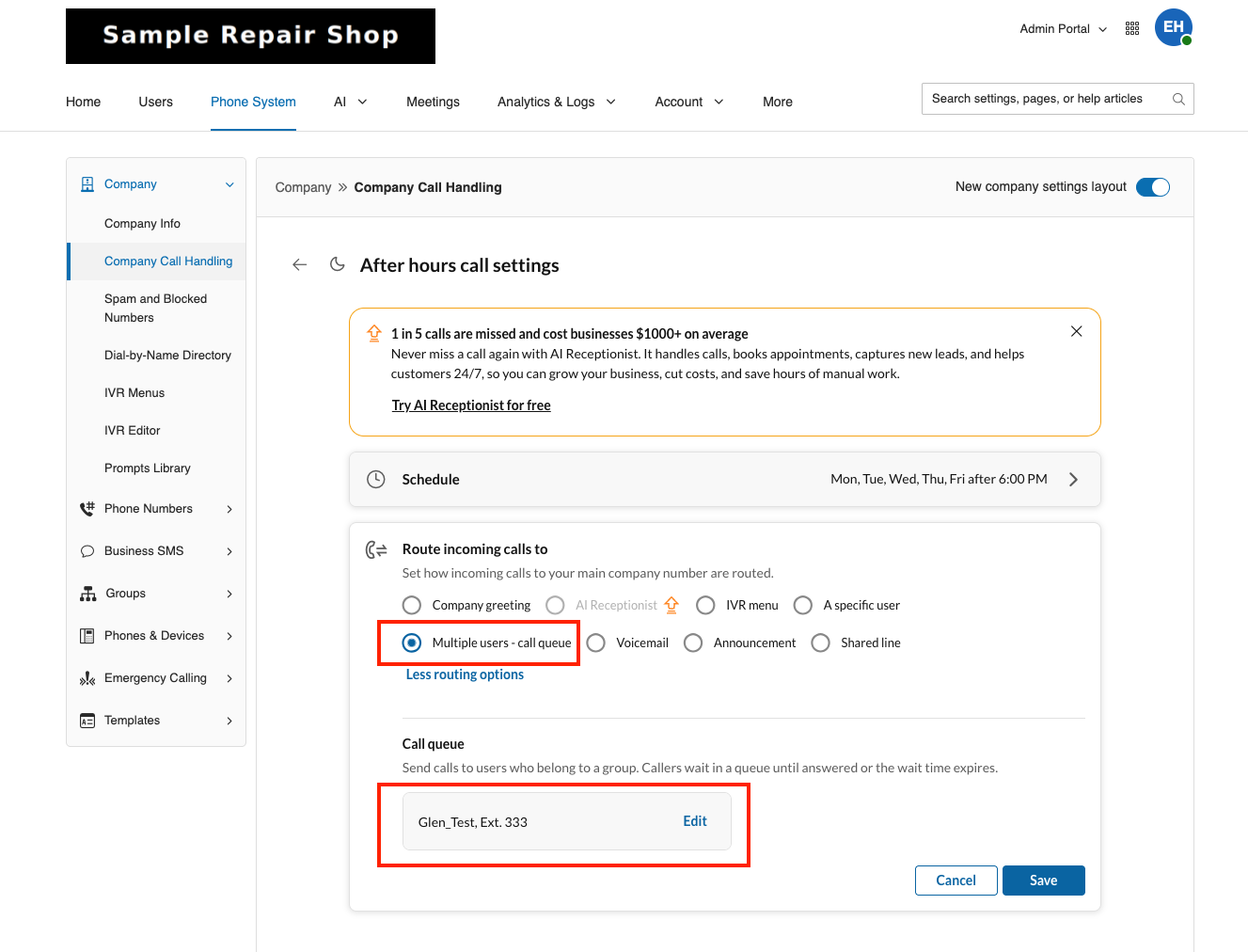
⚠️ Important: Your business hours in Company Call Handling and on each call queue's After Hours schedule must match. If they don't, callers may reach voicemail or your menu when you expect them to reach your receptionist.
Test Your Setup
Place a test call to your main number to confirm calls reach your receptionist.
- Let your team know you're placing a test call and ask them not to answer.
- Call your shop's main business number.
- If you use an IVR, select a menu option.
- Let the call ring until the maximum wait time is reached. Your receptionist should answer and introduce itself by name.
- Try booking an appointment or asking a question from your knowledge base.
- In Tekmetric, go to Receptionist > Dashboard and confirm the call appears in the call log.
If your shop is closed when you test, the call should go straight to your receptionist.
Turn Off Call Forwarding
Your RingCentral forwarding settings work as an on/off switch for your receptionist. To stop sending calls to it, change each setting where you entered your Tekmetric Receptionist number back to its previous action (for example, Send to voicemail):
- When queue is full
- When maximum wait time is reached
- When agents ignore a call
- The call queue's After Hours setting
- For IVR setups: Company Call Handling > After Hours
⚠️ Important: If you cancel Tekmetric Receptionist or your free trial ends, remove your Tekmetric Receptionist number from these settings first. Otherwise, forwarded calls will be disconnected.
Frequently Asked Questions
Calls aren't reaching my receptionist. What should I check?
- Confirm your Tekmetric Receptionist number is entered correctly in each forwarding setting.
- Confirm you selected Save on each settings page.
- Confirm your business hours match in Company Call Handling and on each call queue.
- If you use an IVR, confirm you updated every call queue your menu routes to.
How long should calls ring before going to my receptionist?
We recommend 20–30 seconds (about 4–5 rings). You can shorten or lengthen this anytime with the Maximum wait time setting.
Will my receptionist play a holiday or after-hours greeting?
No. Your receptionist uses the same greeting at all times and answers instead of your voicemail greeting. Customizable greetings are planned for a future update.
I use a phone provider other than RingCentral. Can I still set this up?
During Early Access, Tekmetric Receptionist is available to shops using RingCentral through Tekmetric Phones. If you use another provider, submit this form to be notified when it becomes available to you.
Who do I contact for help?
-
Tekmetric Receptionist Support – For questions related to features and setup of your receptionist: phones@tekmetric.com
-
RingCentral Support – For RingCentral account or phone system questions, including configuration or service-related questions: please visit RingCentral (Contact Support) or contact your RingCentral account representative