'Tekmetric Receptionist' is a virtual receptionist built into Tekmetric that answers the calls your team can't get to. It books appointments directly into your Tekmetric schedule, answers common shop questions from your own knowledge base, screens out spam or solicitations, and sends everything else to a prioritized Callback Queue with a call summary and suggested next steps. It works on top of your existing phone system, so you keep your current business number and provider. This guide walks through activating Tekmetric Receptionist, setting it up, and using the Dashboard and Callback Queue.
Jump to:
⚠️ Early Access Notice
Tekmetric Receptionist is currently in Early Access. During this phase, we’ll gradually roll out the Receptionist to shops already connected to RingCentral through our Phones capabilities.
Not using RingCentral? Submit this form to join our Receptionist waitlist and be notified when it becomes available to you at a later date.
Interested in learning more about RingCentral and its connected capabilities with Tekmetric? Connect with the RingCentral sales team to learn more and find the right setup for your shop.
What Tekmetric Receptionist Does
Every call your receptionist handles ends in one of four outcomes:
| Outcome |
What happens |
| Appointment Booked |
The receptionist asks advisor-style clarifying questions about the concern, offers open times from your Online Booking settings, and books the appointment directly on your Tekmetric schedule. |
| Asked for Information |
The receptionist answers shop questions (hours, location, services, policies) using only the answers in your knowledge base. |
| Spam/misc. |
Sales calls, robocalls, calls with no verified intent and misdials are identified and politely ended. |
| Callback Queued |
Anything else, such as vehicle status checks, estimate approvals, price quotes, or a request to speak with a person, is sent to your Callback Queue with a summary and suggested next steps. |
The receptionist also recognizes returning customers by their phone number, confirms who they are, and references the vehicles on their profile.
💡 Tip: We recommend using Tekmetric Receptionist for missed and after-hours calls only, so your team answers first and the receptionist picks up whatever they can't get to. It effectively replaces your voicemail greeting and inbox with a more intelligent, interactive experience.
Before You Begin
Make sure your shop has the following in place:
-
Tekmetric Online Booking is set up. The receptionist offers appointment times based on your Online Booking settings, so those settings are its source of truth for availability.
-
Your phone system is connected to Tekmetric Phones (RingCentral) during Early Access. See Phones - Setup Guide (RingCentral Integration).
-
You’re logged in as a Shop Admin or Owner. Only Shop Admins and Owners can start the free trial.
-
You have admin access to your RingCentral account, or someone on your team does, to set up call forwarding.
💡 Tip: Review your Online Booking settings for the Minimum Notice setting (Marketing > Online Booking > Availability). A X-hour minimum notice means the receptionist can't offer anything sooner than the configured time setting.
Step 1: Start Your Free Trial
- Log in to Tekmetric and make sure you've selected the correct shop location.
- Select Receptionist in the left side menu.
- On the landing page, select Start Free Trial.
- Review the trial terms and confirm.
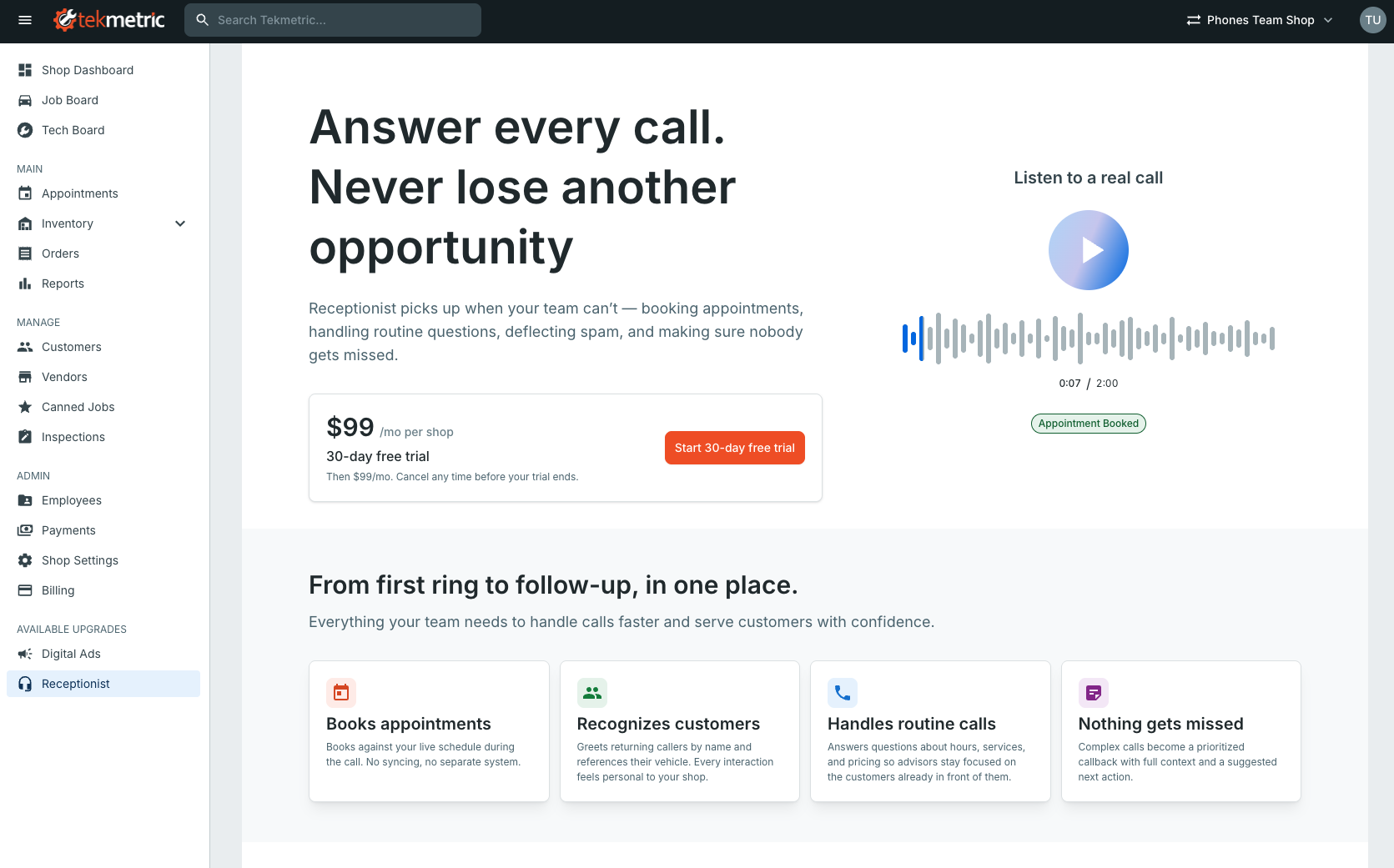
Once your trial is active, the landing page is replaced with three menus: Dashboard, Callback Queue, and Settings. Your shop is also assigned a dedicated 10-digit Tekmetric Receptionist phone number, which you'll find under Settings.
⚠️ Important: Starting the trial doesn't send any customer calls to your receptionist yet. Calls only reach it after you set up call forwarding in your phone system (Step 5).
About the trial and billing
- The 30-day free trial includes full access: appointment booking, FAQ answers, spam screening, the Callback Queue, and the Dashboard with recordings and transcripts.
- After 30 days, the trial automatically converts to a paid subscription at $99/month (introductory Early Access pricing), unless you cancel before the trial ends.
- There are no setup fees, and you can cancel anytime.
Step 2: Name Your Receptionist
Your receptionist introduces itself by name at the start of every call, for example: "Hi, thanks for calling [Shop Name]. I'm Max, the shop's virtual receptionist. How can I help you today?"
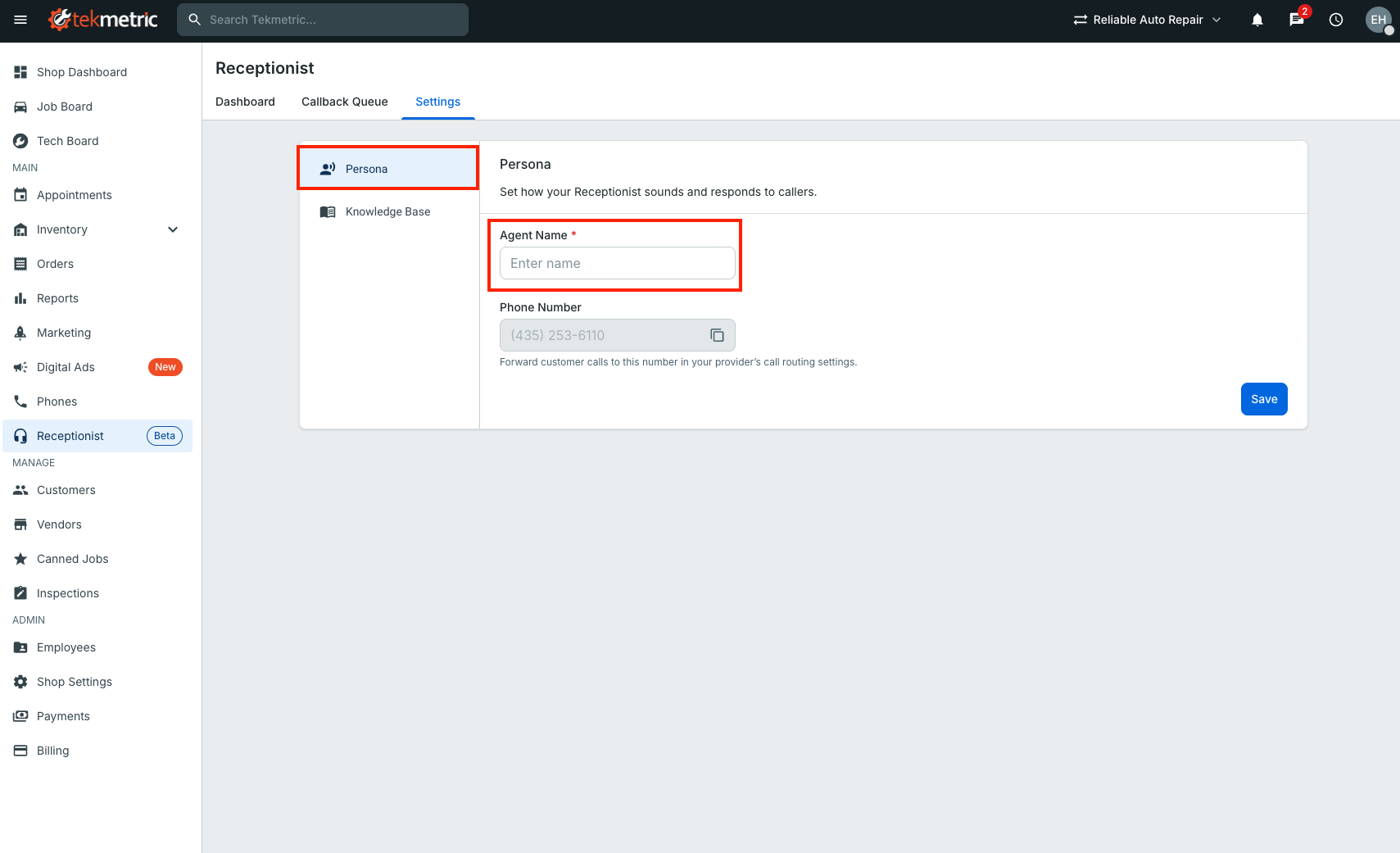
- In Receptionist, select Settings.
- Enter a name in the Agent Name field.
- Select Save.
💡 Tip: Tekmetric Receptionist currently uses one male English voice, so we recommend choosing a name that fits. More voices and language options are planned.
The receptionist always identifies itself as a virtual receptionist. The greeting does not currently change based on business hours or holidays. Additional customization options are planned.
Step 3: Set Up Your Knowledge Base
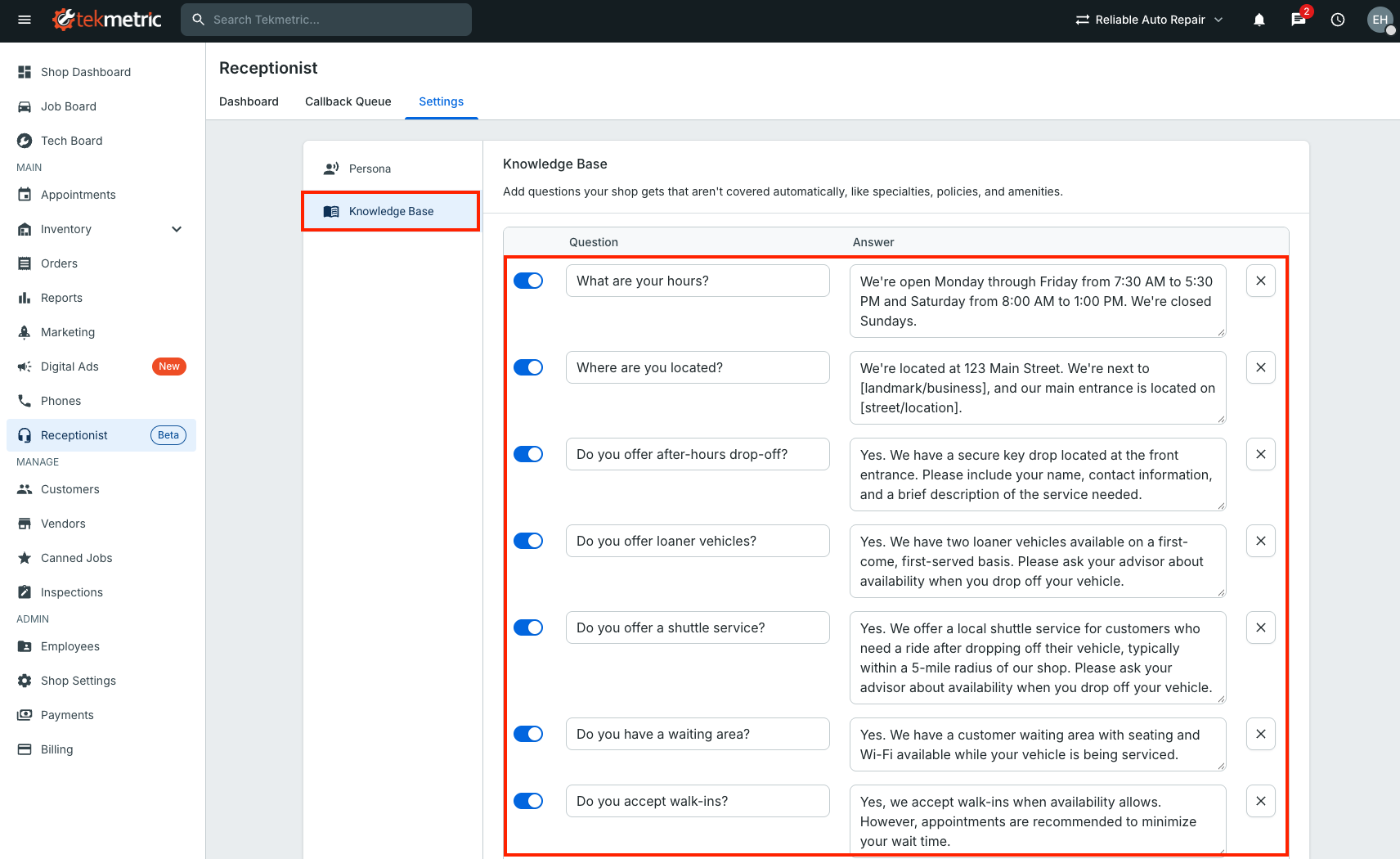
The knowledge base is a list of questions and answers your receptionist uses to respond to callers. It's the receptionist's only source of truth for shop information: it can only answer questions the way you've written them and won't make up answers.
To save you time, the knowledge base comes pre-filled with templated questions that cover the most common things customers ask, such as:
- What are your business hours?
- Where are you located?
- Do you perform state safety inspections?
- Can I bring my own parts?
- Do you offer towing?
Each templated answer includes placeholder information. Simply replace the placeholders with your shop’s details, or customize the answers however you’d like based on your shop's policies.
- In Receptionist, select Settings.
- Go to the Knowledge Base section.
- Review each question and update the answer with your shop's information and policies.
- Remove or disable any questions that don't apply to your shop, and add your own if needed.
- Select Save.
💡 Tips for a great knowledge base
-
Plan for 10–15 minutes to go through the template the first time.
-
Be explicit about what you don't do. If you don't offer towing, say so, so the receptionist can tell callers clearly.
-
Add detail where callers need it. For example, explain exactly how your after-hours key drop works (envelope, contact info, where the drop box is, etc.).
-
Don't repeat scheduling rules. Leave appointment availability (for example, "How soon can I get in?") to your Online Booking settings. Conflicting information in the knowledge base can lead to inconsistent responses.
-
Keep it current. Review call transcripts in the Dashboard and add answers for questions callers ask that aren't covered yet.
Step 4: Test Your Receptionist
Before forwarding customer calls, call your receptionist to hear and try out the experience for yourself!
- In Receptionist, select Settings and copy your dedicated 10-digit Tekmetric Receptionist number.
- Call the number from your phone.
- Try booking an appointment and asking a few questions from your knowledge base.
- Review the call in the Dashboard and update your knowledge base if any answers need work.
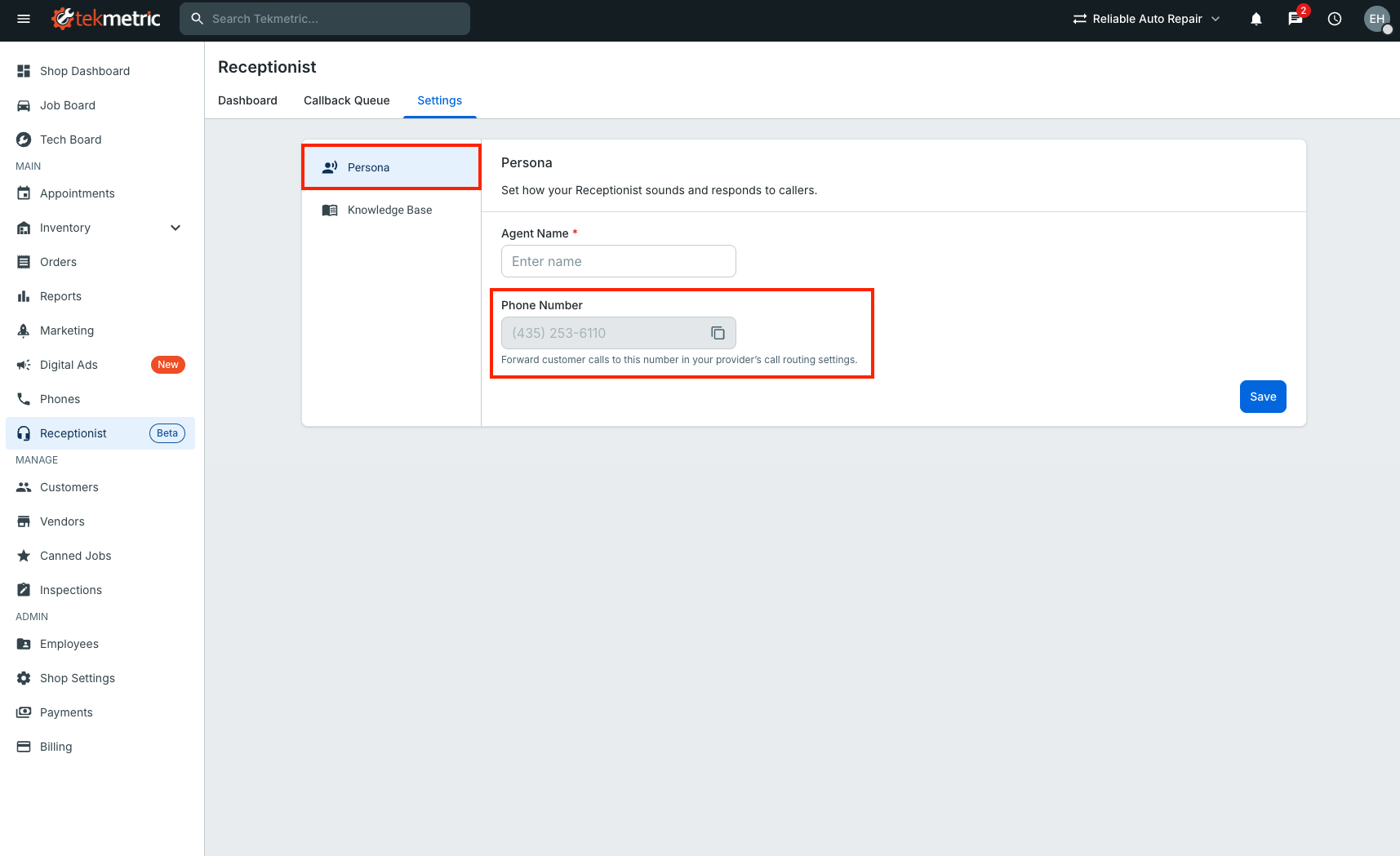
⚠️ Important: Your Tekmetric Receptionist number is for testing and call forwarding only. We don’t recommend sharing or publishing this number, as customers should continue contacting your shop through your main line. Texting this number is not supported.
Step 5: Forward Calls to Your Receptionist
Your receptionist starts answering customer calls once you add your Tekmetric Receptionist number as a forwarding destination in your phone system. This is set up in RingCentral, not in Tekmetric.
We recommend forwarding calls that go unanswered after a set number of rings during business hours, plus after-hours calls, in place of your voicemail.
👉 Follow Tekmetric Receptionist - Call Forwarding Setup in RingCentral for step-by-step instructions for call queue and IVR (auto-attendant) setups.
Once forwarding is live, your receptionist starts handling calls immediately.
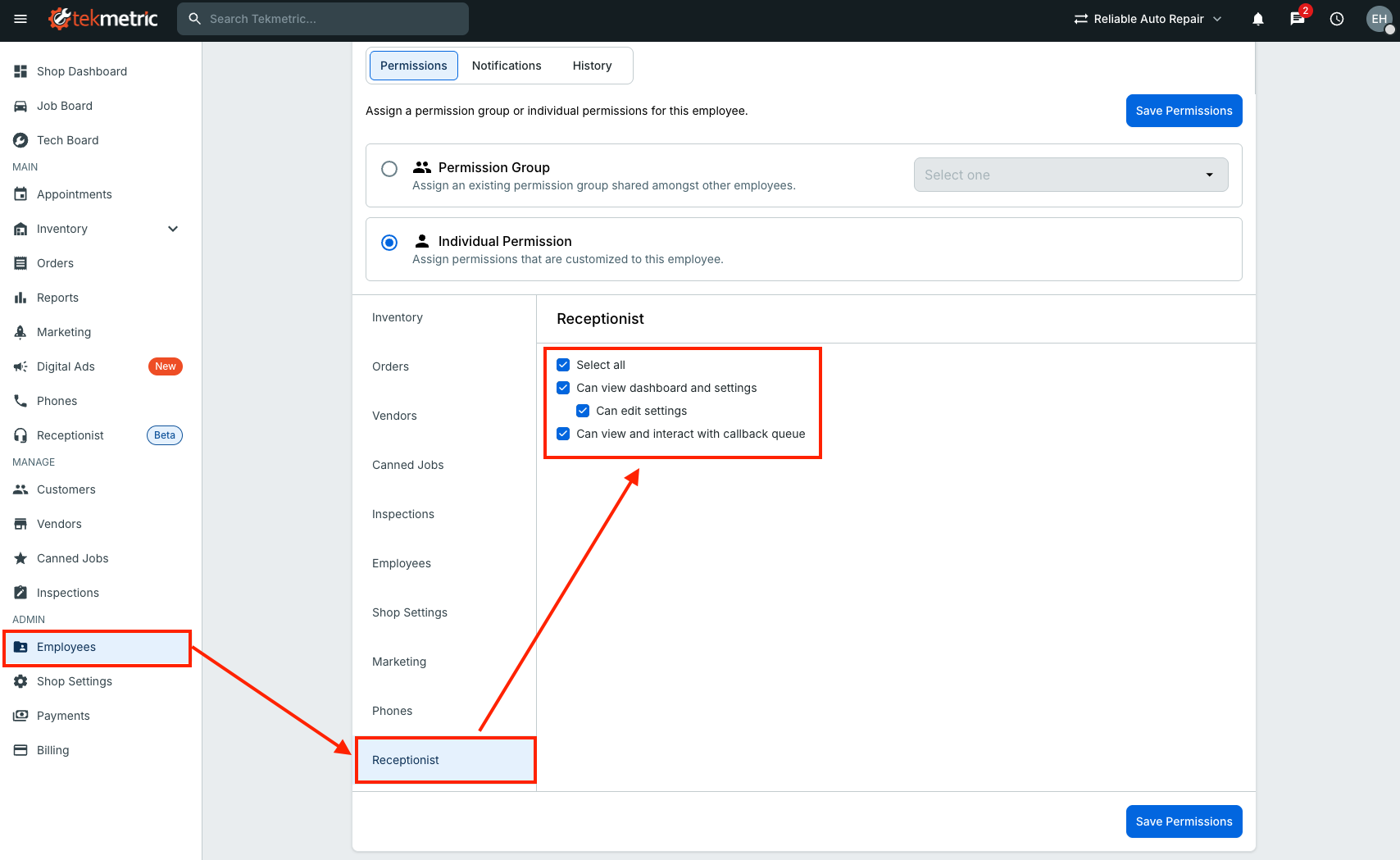
Step 6: Set Employee Permissions
Tekmetric Receptionist has its own permissions, split into two parts that you can grant separately:
| Permission |
Gives access to |
| Dashboard + Settings |
Receptionist stats, call logs, recordings, transcripts, knowledge base, agent name, and the Tekmetric Receptionist number |
| Callback Queue |
The list of callers who need a call back from your team |
Both are turned on for Shop Admins and Owners by default. For example, you can give service advisors Callback Queue access only, so they can work callbacks without seeing settings or business metrics.
- Go to Settings > Employees and select an employee.
- Scroll to the Receptionist permissions section.
- Turn on the Tekmetric Receptionist permissions that employee needs.
- Select Save.
Using the Dashboard
The Dashboard shows how your receptionist is performing and logs every call it handles. Select Receptionist > Dashboard to open it.
Statistics
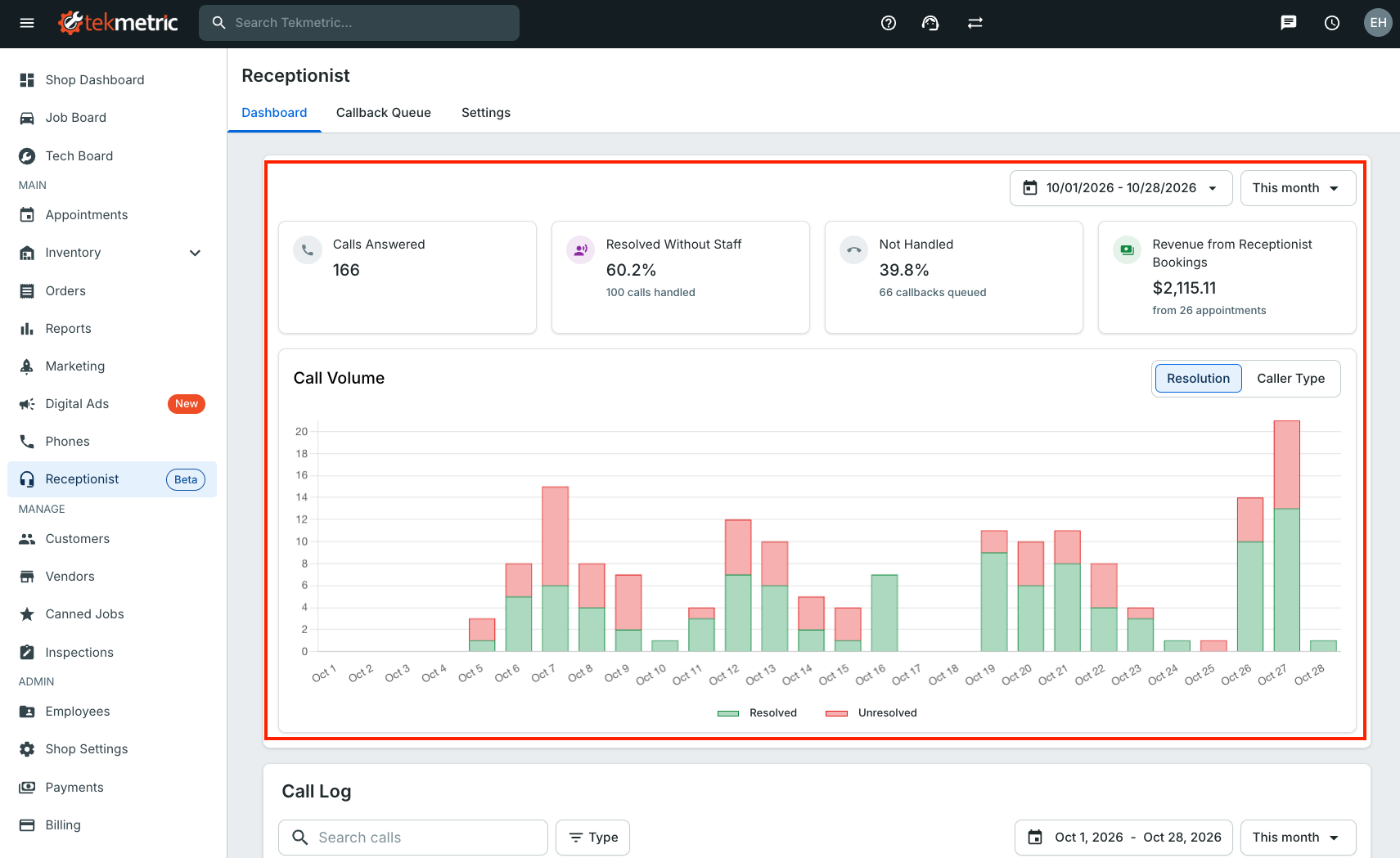
The top of the Dashboard summarizes your receptionist's results:
| Metric |
What it shows |
| Calls Answered |
Total calls your receptionist picked up. Depending on how you set up forwarding, these are your missed and after-hours calls. |
| Resolved |
Percentage of calls your receptionist handled on its own (booked, answered, or spam) without needing your team. |
| Sent to Callback |
Percentage of calls sent to your Callback Queue for a person to follow up. |
| Appointments Booked |
Number of appointments your receptionist booked on your schedule. |
| Revenue |
Revenue from receptionist-booked appointments once the invoice is paid. This uses the same calculation as Online Booking. |
Call Log
Below the statistics, every call your receptionist handles is listed with its outcome. Select a call to:
-
Play the recording of the full call.
-
Read the transcript and summary.
-
Open the customer profile, when the caller is matched to an existing or newly created customer.
-
Open the appointment, when one was booked.
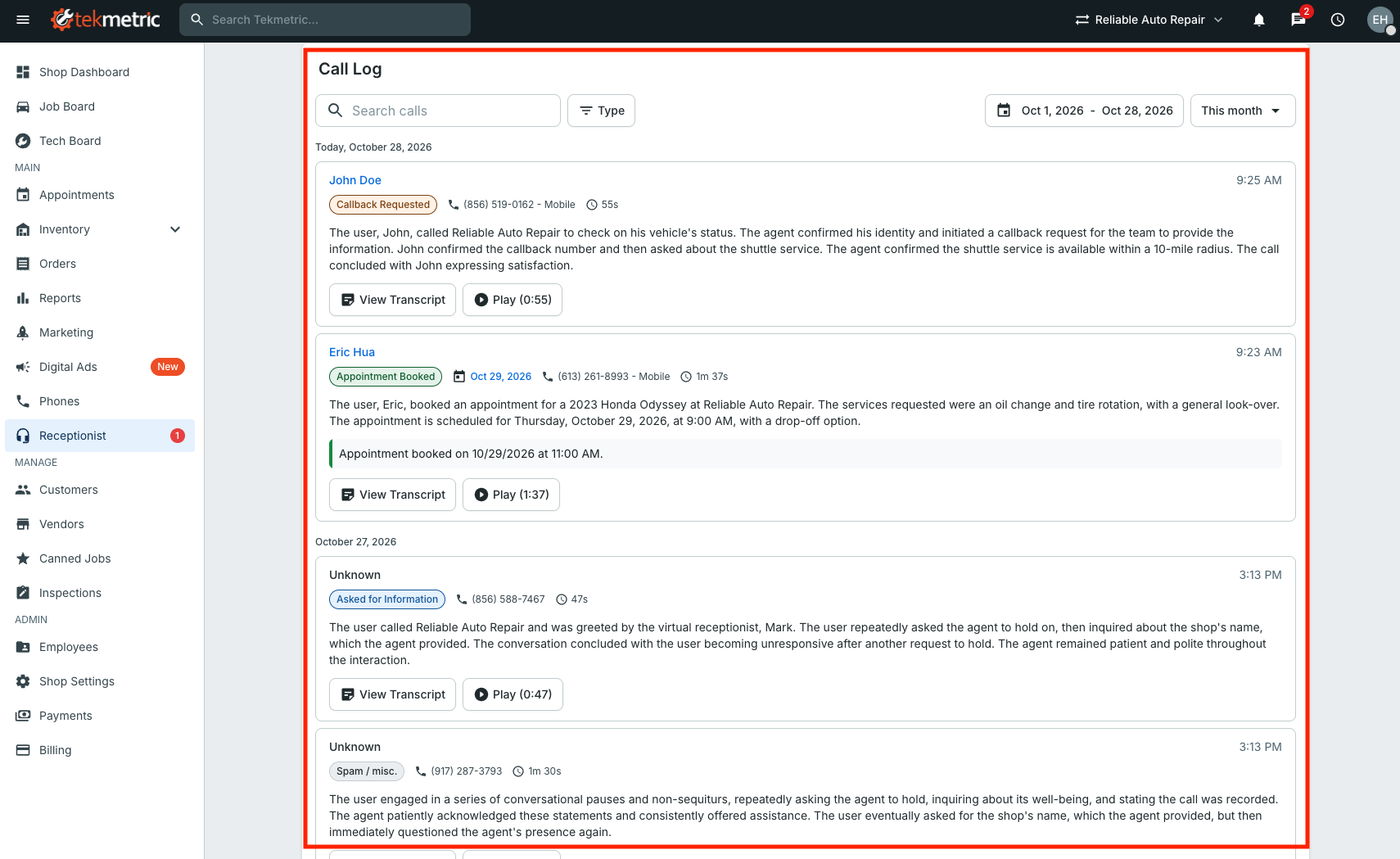
Appointments booked by your receptionist include clean, organized Purpose of Visit notes based on the clarifying questions it asked, so your advisors don't need to repeat them at check-in.
📌 Note: The Dashboard only includes calls handled by your receptionist. Calls answered by your team appear in Phones Call History.
Using the Callback Queue
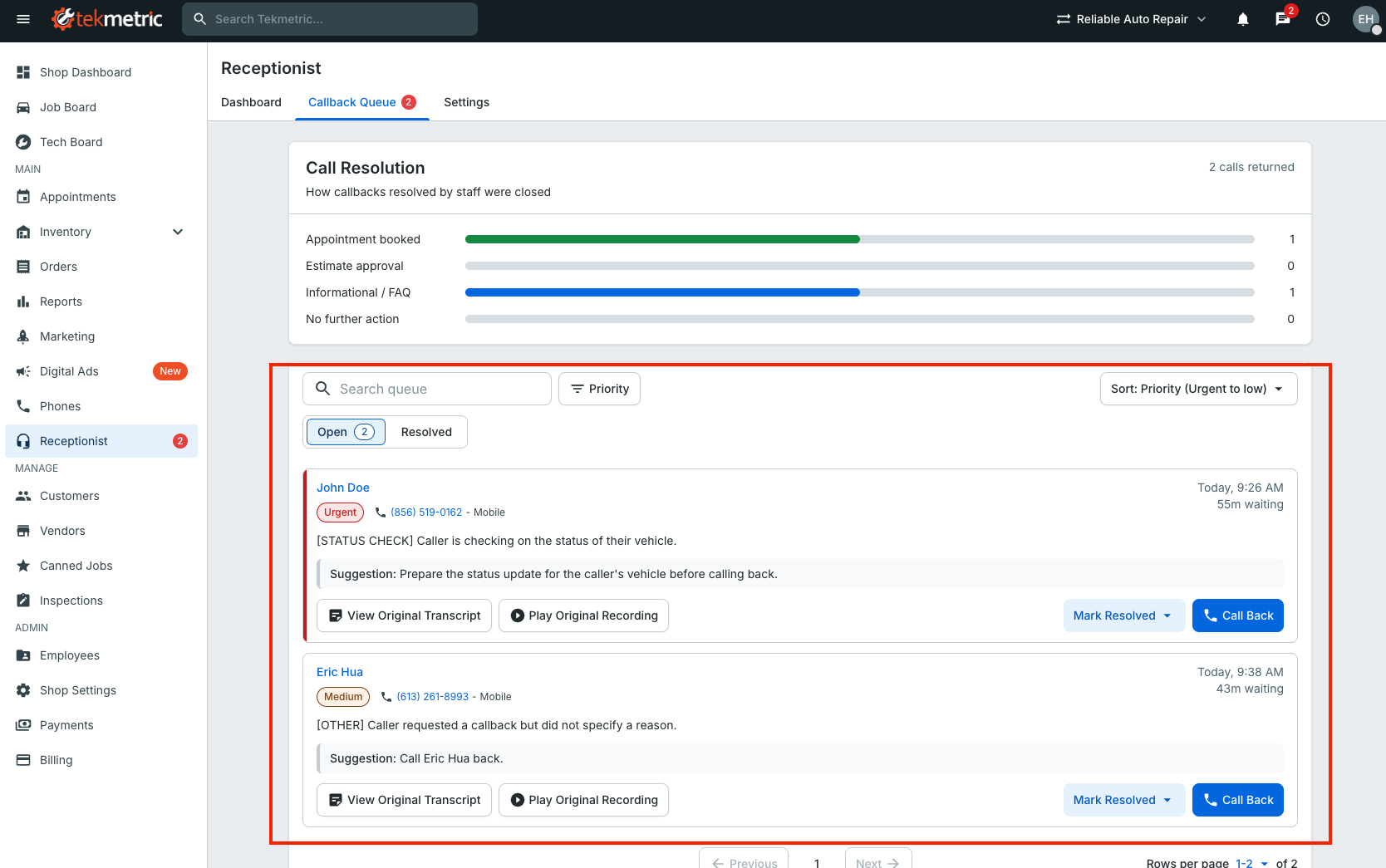
The Callback Queue introduces a new, more efficient way to manage calls your receptionist can’t fully handle. Instead of relying on a voicemail inbox or digging through missed call logs, your team gets a centralized queue with the context they need to quickly follow up.
Common reasons a call is sent to the Callback Queue:
- Vehicle or repair order status checks
- Estimate approvals
- Price quotes
- Urgent requests, such as a breakdown or tow that needs a same-day slot (and doesn't fit your availabilities)
- Callers who ask to speak with a person
To work the queue:
- Select Receptionist > Callback Queue.
- Callbacks are listed in suggested priority order. Each callback includes the caller’s information, the original call recording and transcript, a call summary, and a suggested next step—so you’re prepared before calling back.
- Call the customer back.
- Mark the callback as Resolved and select a category. We’ll continue adding more categories as we learn from your feedback.
💡 Tip: Make the Callback Queue part of your team's daily routine, the same way you'd check voicemail today. Shops that see the best results check it throughout the day and resolve callbacks quickly.
Frequently Asked Questions
Do I need to change my phone number or phone provider?
No. You keep your current number and provider. You simply forward unanswered or after-hours calls to your dedicated Tekmetric Receptionist number.
Why isn't my receptionist answering calls?
The most common cause is call forwarding. Check that your Tekmetric Receptionist number is entered correctly as the forwarding destination in RingCentral. See Tekmetric Receptionist - Call Forwarding Setup in RingCentral.
Can the receptionist tell customers their vehicle is ready?
Not at this time. Vehicle and repair order status requests are sent to your Callback Queue.
Can a caller ask to speak to a person?
Yes, but live transfer isn't available yet. The receptionist sends the request to your Callback Queue with the caller's information and context so your team can call them back.
Can I customize exactly what the receptionist says?
You can customize its name and the answers in your knowledge base. Custom scripts and exact response wording aren't available today.
Can I block specific phone numbers?
Call blocking is managed in RingCentral. Blocked numbers never reach your receptionist.
Will I still get voicemails?
If you forward calls to your receptionist in place of voicemail, those callers will reach the receptionist instead. Anything that needs your team appears in the Callback Queue, summarized and prioritized.
Isn't this just a fancy voicemail?
No. Voicemail only records a message. Tekmetric Receptionist replaces your voicemail inbox with a virtual receptionist that has a real conversation with callers to understand what they need. It can book appointments and answer common questions on the spot. Calls it can't handle are sent to your Callback Queue with a summary and suggested next steps, so your advisors can prepare before calling the customer back.
Do I have to use Tekmetric Receptionist only for missed calls?
No. You can add your Tekmetric Receptionist number anywhere in your call routing. However, we recommend using it for missed and after-hours calls. This keeps your team as the first point of contact while your receptionist recovers calls that would otherwise be missed. To set this up, see Call Forwarding Setup in RingCentral.
What if my customers don't want to talk to an AI?
It's a fair concern. Most people are already familiar with to automated phone systems when they call a business, so callers are often more comfortable than you might expect. Callers who hang up on a virtual receptionist are usually the same ones who hang up without leaving a voicemail today. For everyone else, Tekmetric Receptionist is a big step up from voicemail: it can book their appointment, answer their questions, or give your team a faster, more organized and efficient way to call customers back.
How do I turn off or cancel Tekmetric Receptionist?
Shop Owners and Admins can cancel the subscription at any time in Tekmetric. If you cancel during a paid subscription, the Receptionist will be deactivated immediately. Subscriptions cannot be paused, but you can subscribe again later. If you cancel during the free trial, you’ll continue to have access to the Receptionist until the end of your trial.
⚠️ Important: Before cancelling, remove your Tekmetric Receptionist number from your RingCentral call forwarding settings. Otherwise, customer calls will be disconnected after they’re forwarded. See the RingCentral setup article for instructions on reverting your settings and switching your calls back to voicemail or your preferred call handling settings.
Who do I contact for help?
-
Tekmetric Receptionist Support – For questions related to features and setup of your receptionist: phones@tekmetric.com
-
RingCentral Support – For RingCentral account or phone system questions, including configuration or service-related questions: please visit RingCentral (Contact Support) or contact your RingCentral account representative